DO THE WORK
Buy from suppliers
Procure to pay, from what an order needs to the supplier's invoice.
Shown with ABC Corp, a demonstration company.
Riverbend Electric Cooperative orders 250 Distribution Panelboards 400A, under their purchase order RBEC-PO-24817. This page follows that order through the buying cycle. You find what the stores lack and ask four suppliers to quote. Then you compare the answers, award one and place the order.
Progress
| Task | Seat | Waits for approval | Done when |
|---|---|---|---|
| Find what an order needs to buy | Procurement | Routine | You see what stock covers and what you must buy. |
| Send a Request for Quotation | Procurement | Yes | The request is sent, with its grade and its days. |
| Read a supplier quotation from a PDF | Procurement | Routine | The quotation is recorded against your request. |
| Compare quotations | Procurement | Routine | Every supplier has a verdict and a reason. |
| Award a quotation | Procurement | Yes | The award is recorded for the supplier you chose. |
| Raise the Purchase Order | Procurement | Yes | The Purchase Order is placed with the supplier. |
| Match a supplier invoice | Procurement | Yes | The invoice is posted against the goods received. |
| Check a supplier's delivery record | Operations, Procurement | Routine | You see how each supplier has delivered. |
Find what an order needs to buy
You end with two lists for an order: what the stores already hold, and what you must buy.
Find what an order needs to buy
- Ask what the order needs that the stores lack.
- The assistant checks the bill of materials against stock.
- Four parts are short. The Digital Protective Relay is new to the stores.
Before you start: the Manager Procurement role, and a bill of materials raised for the order. For Riverbend, that is BOM-2026-00005, for the whole batch of 250.
For the Riverbend order, what do we hold and what must we buy?
- The assistant finds the bill of materials raised for the order.
- It checks each component against the free stock in every store.
- Read the shortfall column. Only those lines go out to suppliers.
- Open Manufacturing, then Bills of Materials.
- Open BOM-2026-00005 to see its five components.
- Ask the assistant beside the list for the stock check. The check itself runs in the assistant.
What you see
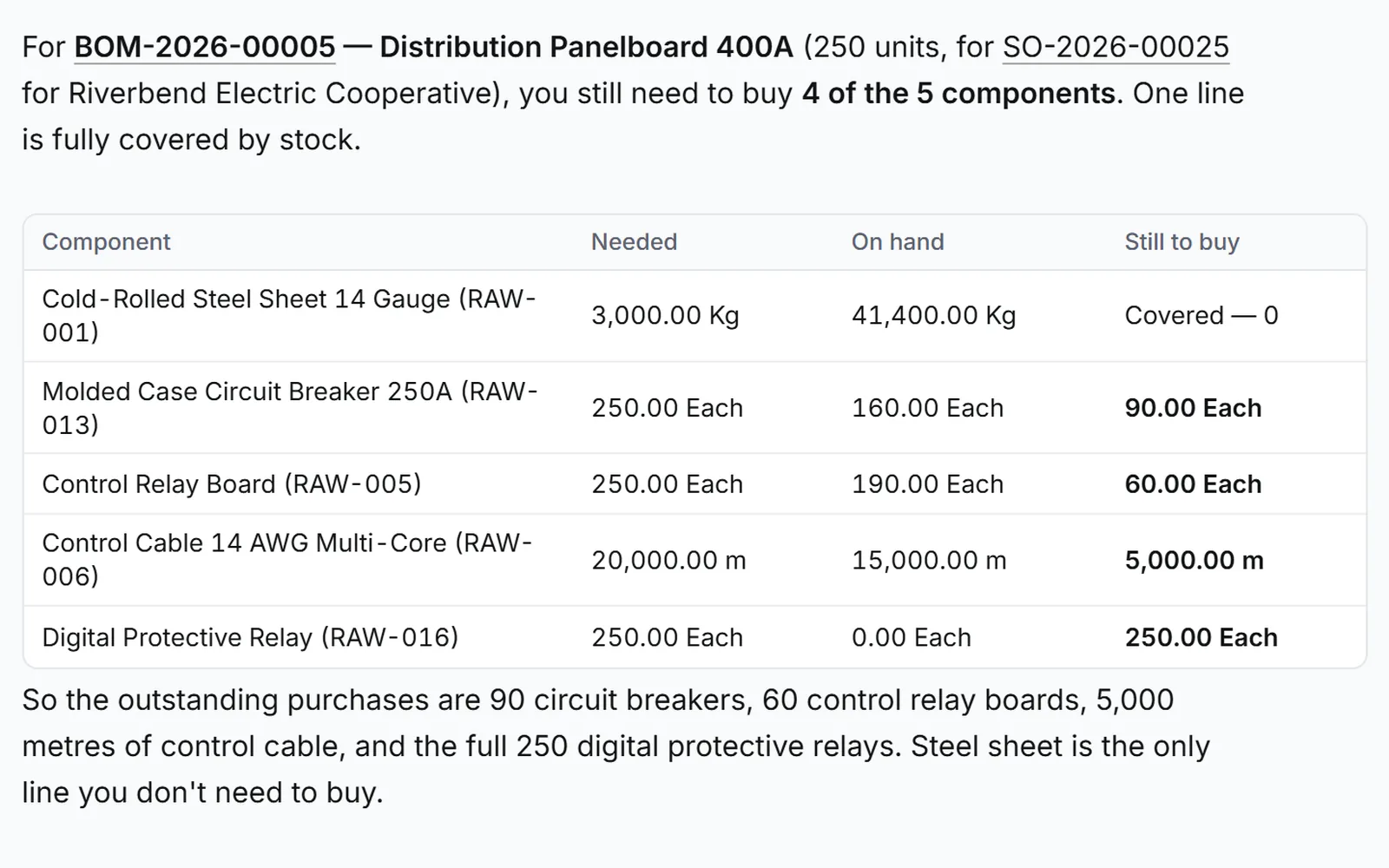
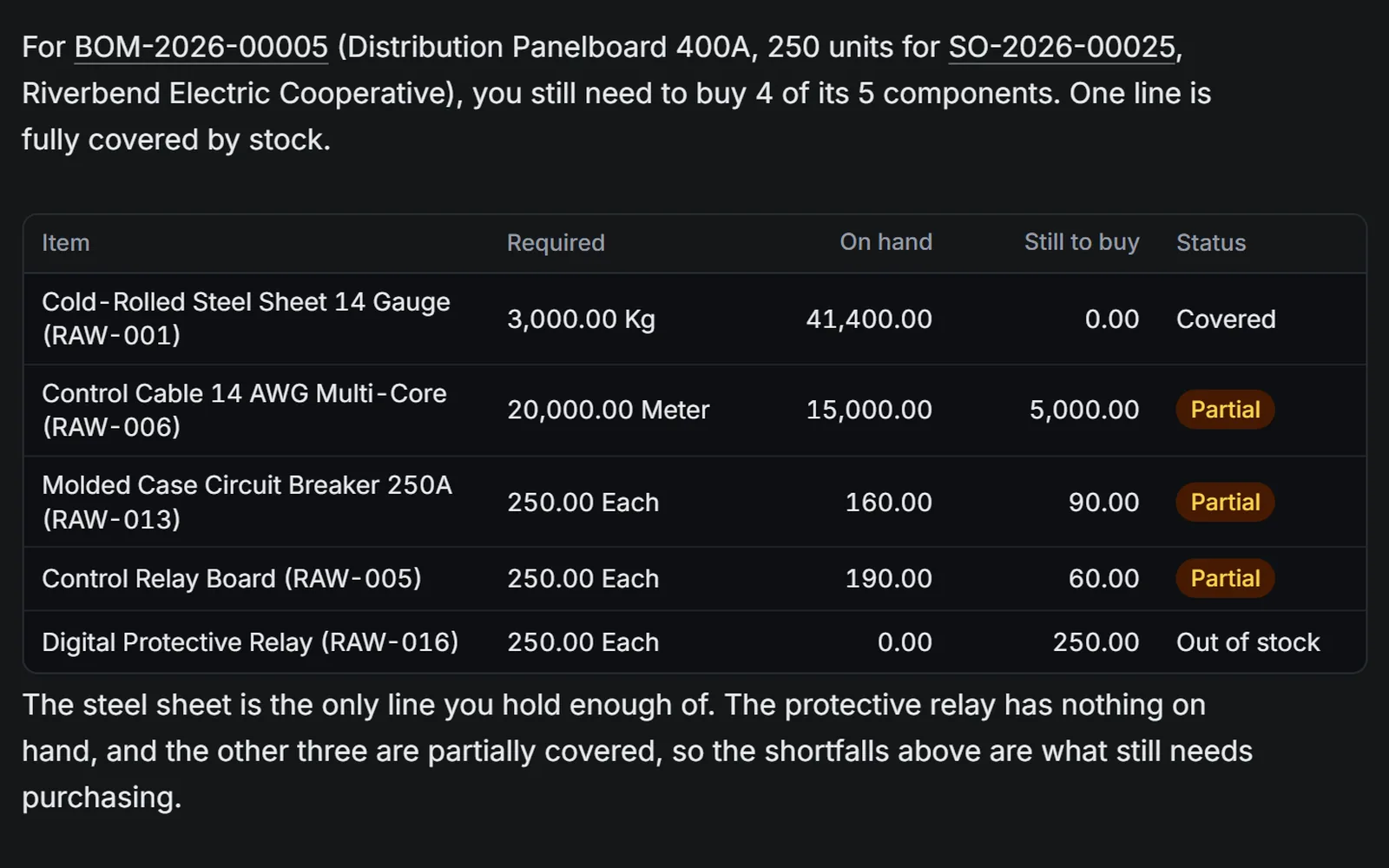
One row per component. The Cold-Rolled Steel Sheet 14 Gauge is covered from stock. Four lines are short: 90 Molded Case Circuit Breakers 250A, 60 Control Relay Boards, 5,000 metres of Control Cable 14 AWG Multi-Core and 250 Digital Protective Relays.
A read, as often as you like
The check reads stock and reserves it for nobody. The ledger stays exactly as it was, so ask again whenever stock moves.
The assistant asks which order you mean
Name the order more exactly. Use the customer's reference, RBEC-PO-24817, or the order's number from Sales Orders.
The assistant finds the order, but the order has no bill of materials
The stock check reads a bill of materials. Ask the COO to set one up for the order's finished item, then ask again.
Send a Request for Quotation
You end with a Request for Quotation for the shortfall, sent to the suppliers you chose, with your conditions on it.
Send a Request for Quotation
- Ask for a Request for Quotation for the short lines.
- Name the suppliers, the grade and the delivery days.
- The assistant prepares the request.
- Sending it waits on a card. Check it, then approve.
Before you start: the shortfall from Find what an order needs to buy, and each supplier on file under Purchasing, Suppliers.
Send a Request for Quotation for the four short lines to Halvorsen, Ashgrove, Brannock and Pemberton. Grade A, delivered within 10 days.
- The assistant prepares the request with the shortfall quantities, the grade, the days and the four suppliers.
- It asks to send the request. A card waits for your decision.
- Check each line and both conditions on the card, then press Approve.
- Open the Dashboard.
- In the Vendorization pipeline, press Enquiry to see the quotations that answer each request.
- Prepare and send the request itself in the assistant, as the other tab shows.
What you see
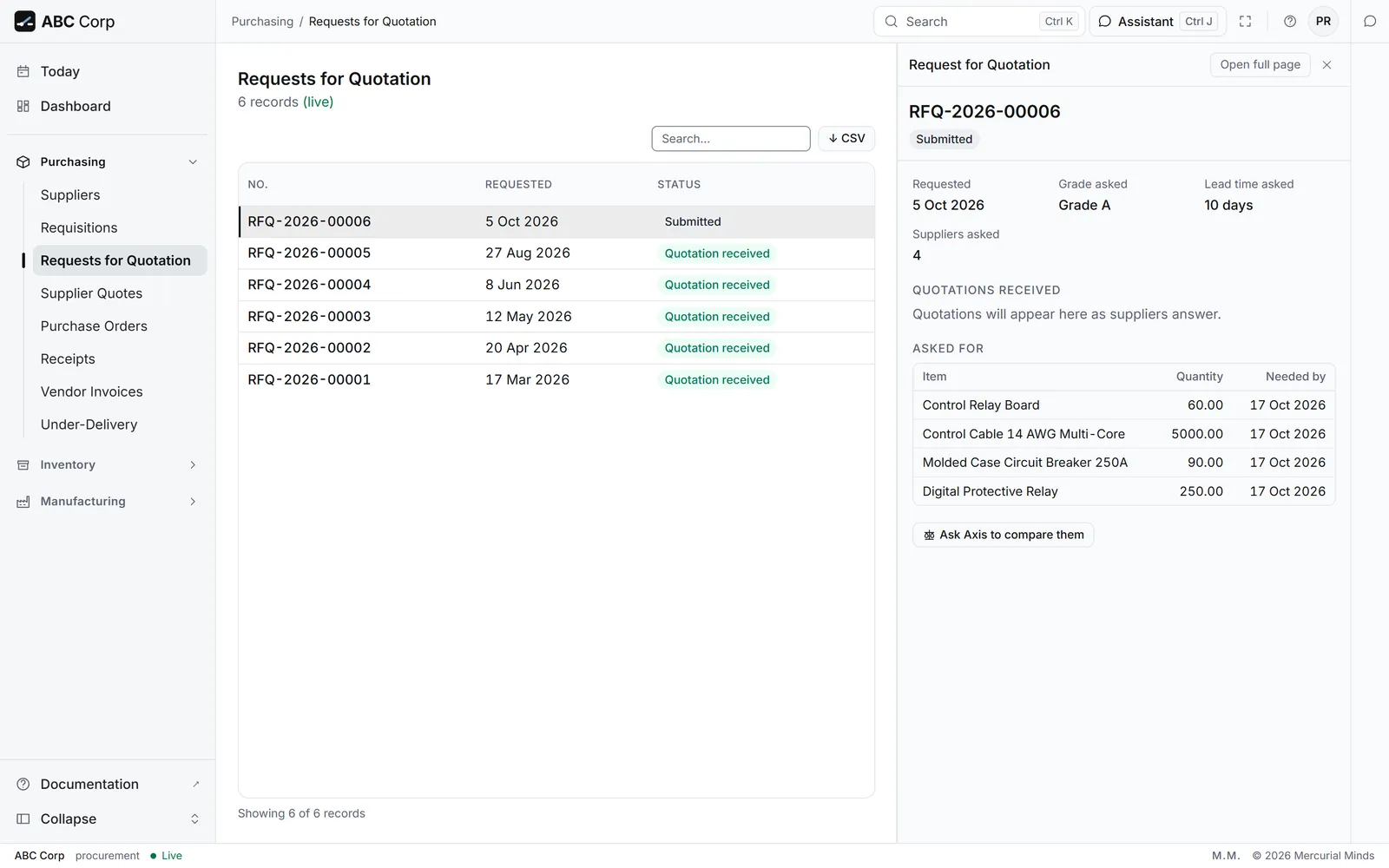
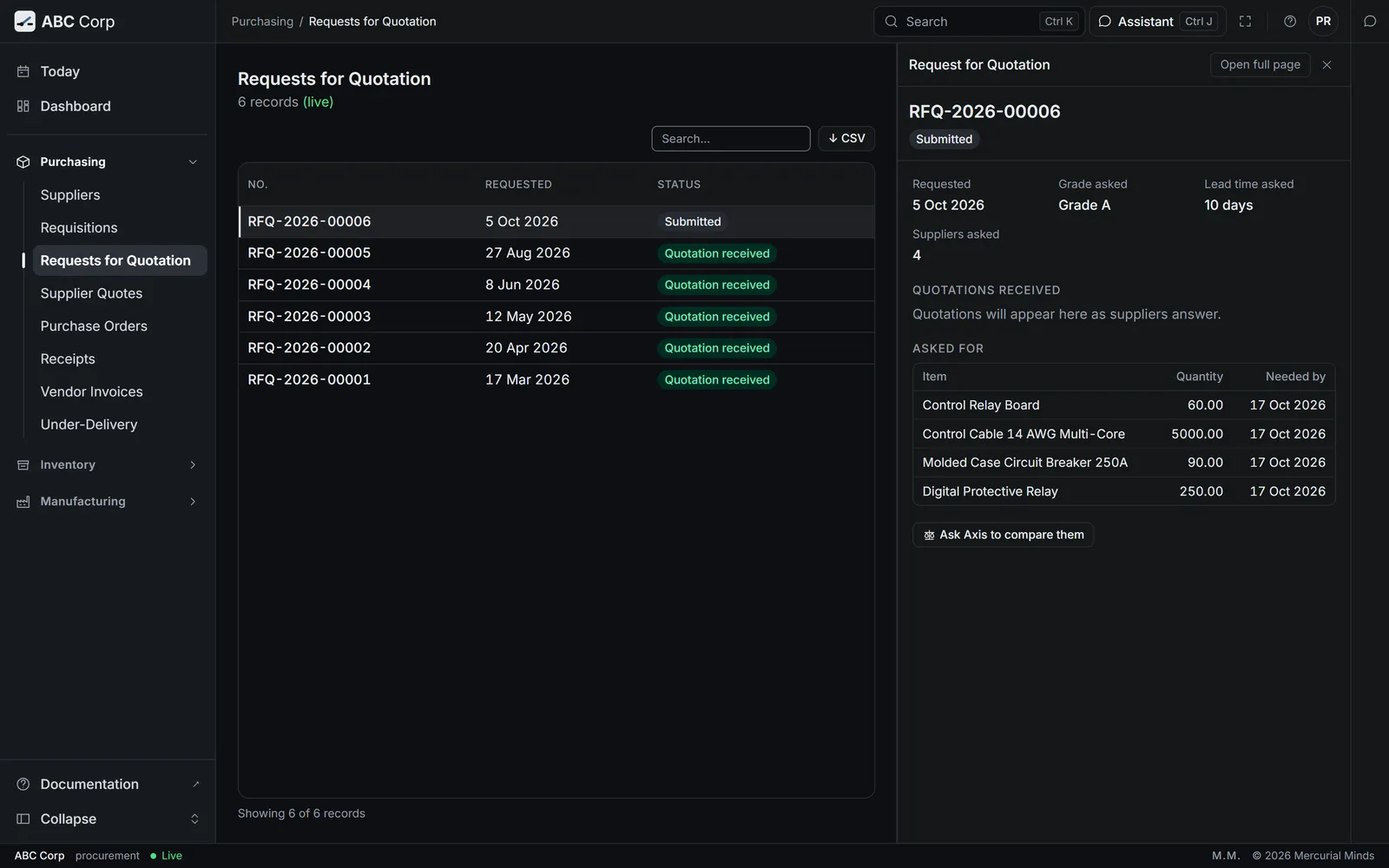
RFQ-2026-00006 is sent to four suppliers. It carries Grade A and 10 days, and asks only for the four short lines.
Two conditions, both optional
The grade and the delivery days are the conditions every answer is judged against. A request that states neither is compared on price alone.
This waits for approval
The card reads Send a request for quotation to suppliers, with every line, the grade, the days and the suppliers. You answer it from the Procurement seat. See Approve or decline a request.
A supplier you named is missing from the request
The request goes only to suppliers on file. Add the supplier first: open Purchasing, Suppliers, then press + New Supplier. Then ask again.
Does Axis email the request to the suppliers?
Sending records the request in Axis, with its date and its suppliers. You share it with each supplier by your usual route, such as email.
Read a supplier quotation from a PDF
You end with the supplier's quotation recorded against your request, with the PDF kept beside it.
Read a supplier quotation from a PDF
- Halvorsen answers your request with a PDF.
- Attach it and choose a supplier quotation.
- Choose the request it answers. Each line maps to a line of your request.
- The quantity shows as evidence. Check the prices, then confirm.
Before you start: the request, RFQ-2026-00006, and the supplier on file. The quotation is a digital PDF, the kind a supplier's system exports.
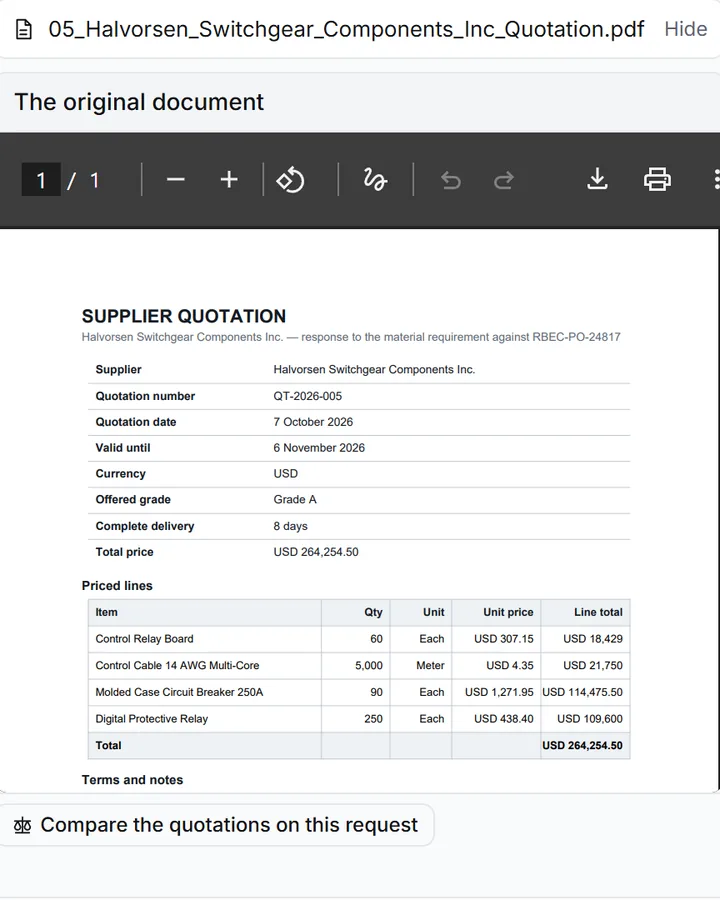
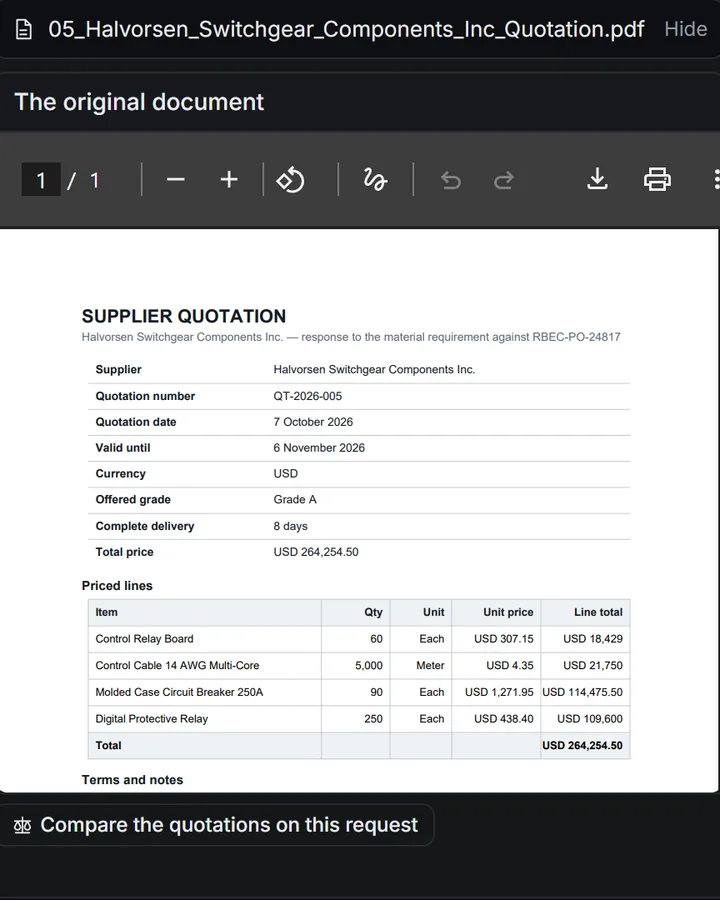
This is Halvorsen's answer to RFQ-2026-00006.
- Under the message box, press Attach files and choose the PDF.
- Beside the file, choose a supplier quotation, then send your message.
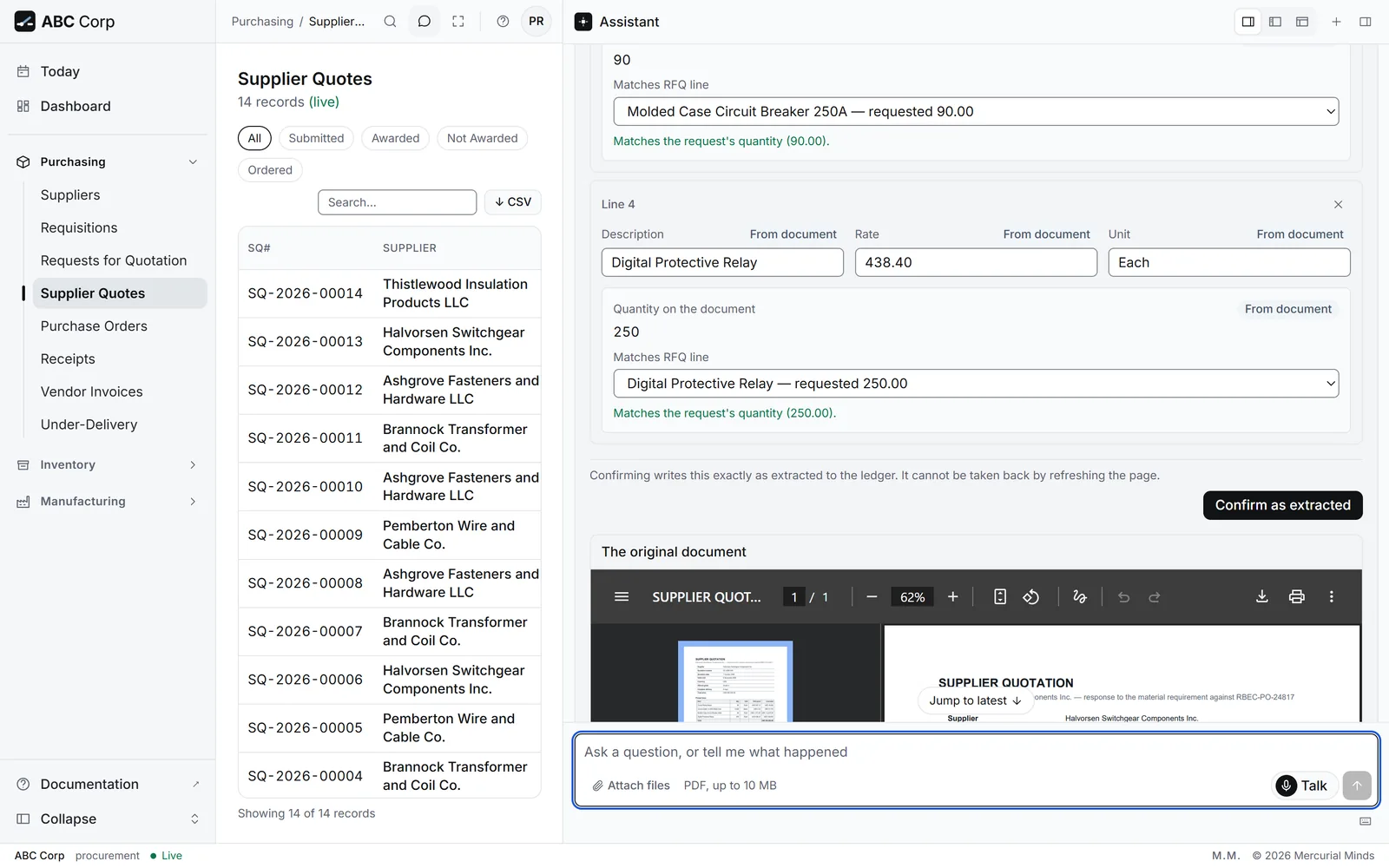
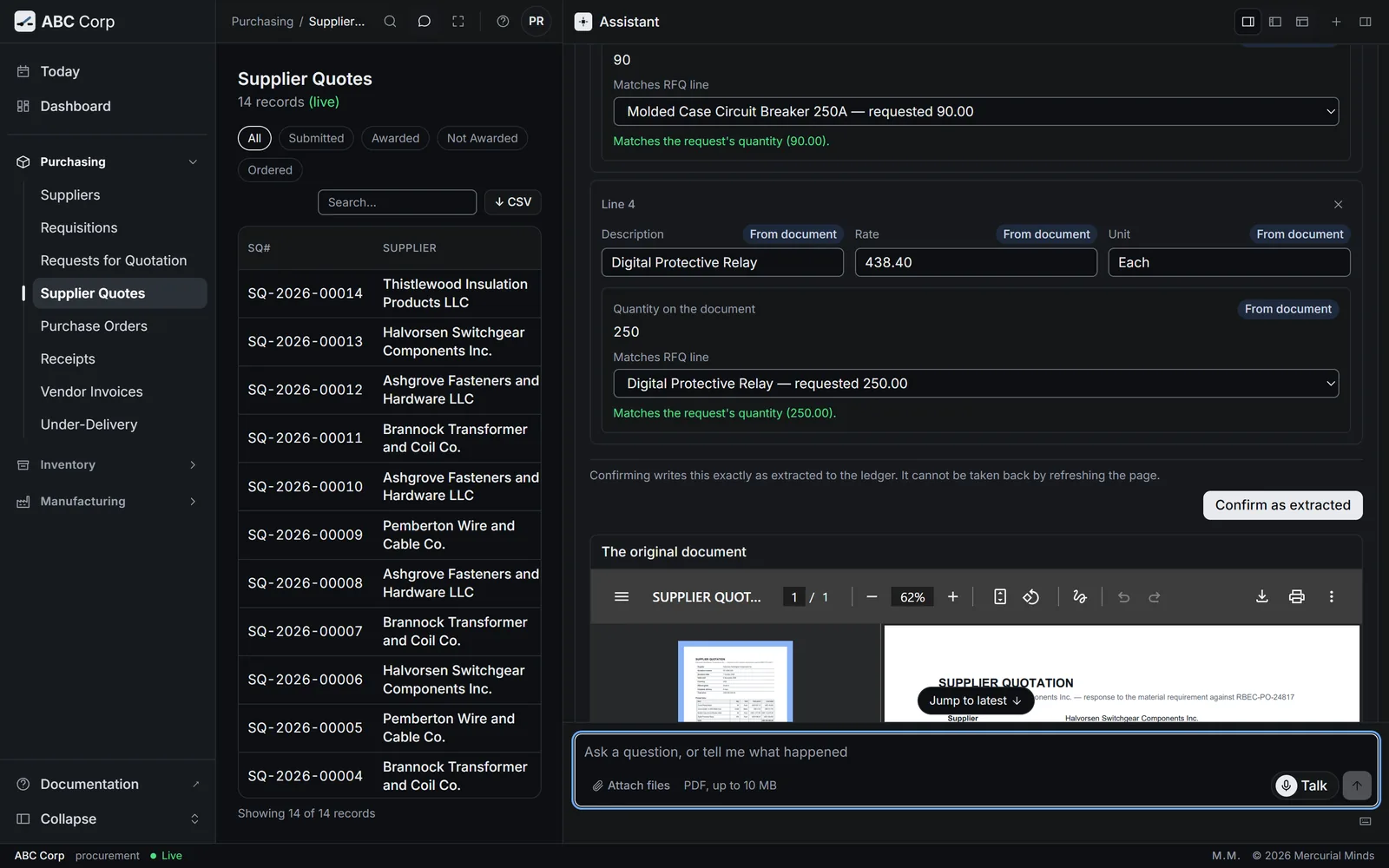
- The review opens. The page sits on one side and the values read from it on the other.
- Under Which request does this answer?, choose RFQ-2026-00006.
- Check each line's Matches RFQ line and its price against the page.
- Press Confirm as extracted. After a correction, the button reads Save corrections.
- Read the PDF in the assistant, as the other tab shows. The assistant docks beside every screen.
- Open Purchasing, then Supplier Quotes.
- Open Halvorsen's quotation to see its lines and the PDF on file.
What you see
The assistant says "Recorded as a supplier quotation from" the file's name. Halvorsen's quotation is on the request: Grade A, USD 264,254.50.
Two values come from your own records
The quantity on each line is your request's. The figure the PDF states sits beside it as evidence. The supplier is one you already hold, so a typed name adds nobody.
No text layer was found in the PDF. It may be a scanned image -- OCR is out of scope for this extraction.
The assistant reads digital PDFs, the kind a supplier's system exports. Ask the supplier for that file. Or tell the assistant the supplier, the lines and the prices, and it records the quotation from your words.
The review asks you to add the supplier first
The name on the PDF differs from every supplier on file. Check the spelling against Suppliers. If the supplier is new, add them, then read the PDF again.
Match every line to a request line, or remove it.
A line on the PDF is still unmatched. Choose its line under Matches RFQ line. Remove any line that your request left out.
What happens if I press Discard?
The reading is dropped and the ledger stays exactly as it was. The PDF stays on file, so you can read it again later.
Compare quotations
You end with every quotation judged against your conditions, each with its reason, and one supplier recommended.
Compare quotations
- Ask the assistant to compare the quotations, every supplier included.
- Each one is judged against Grade A and ten days.
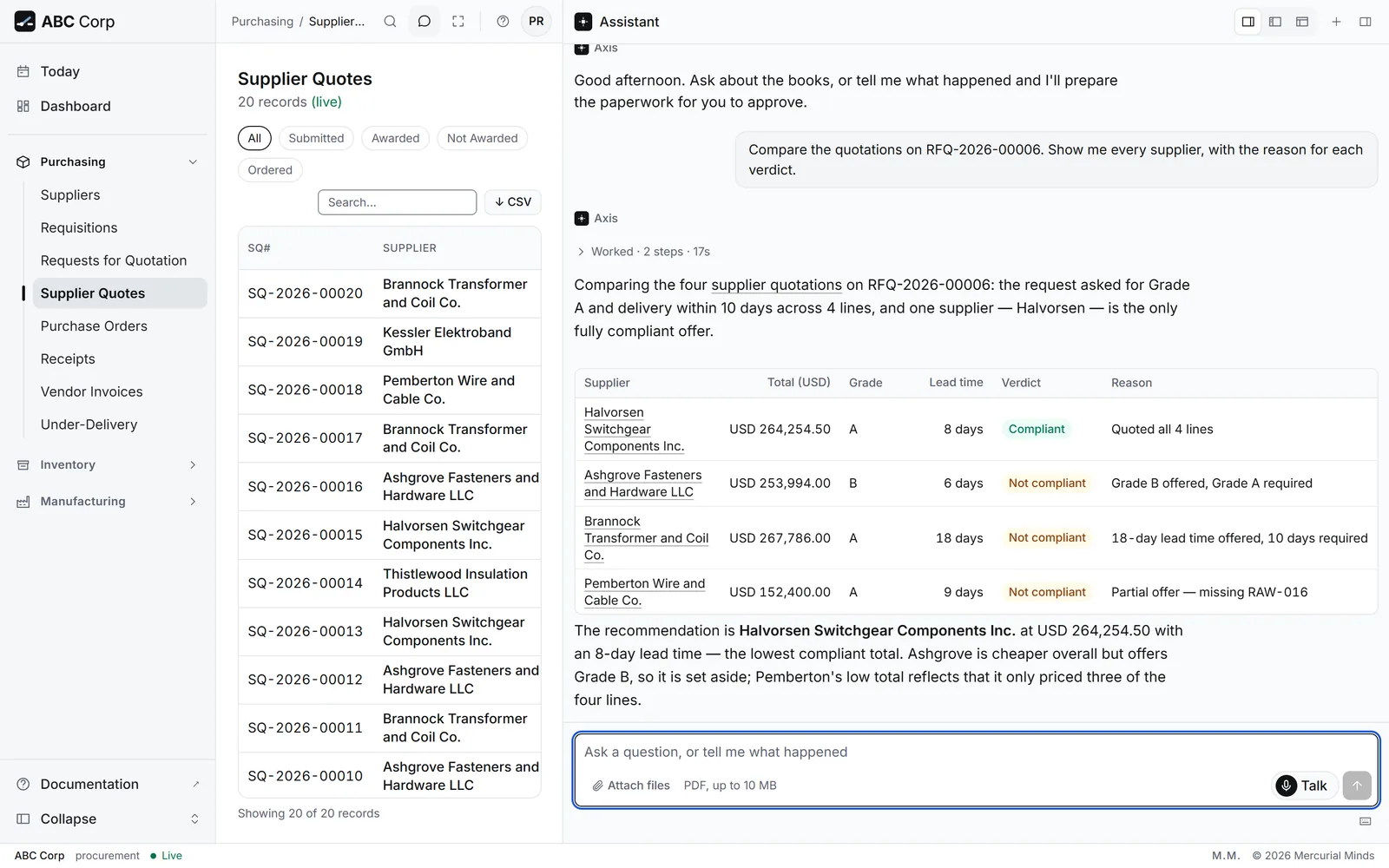
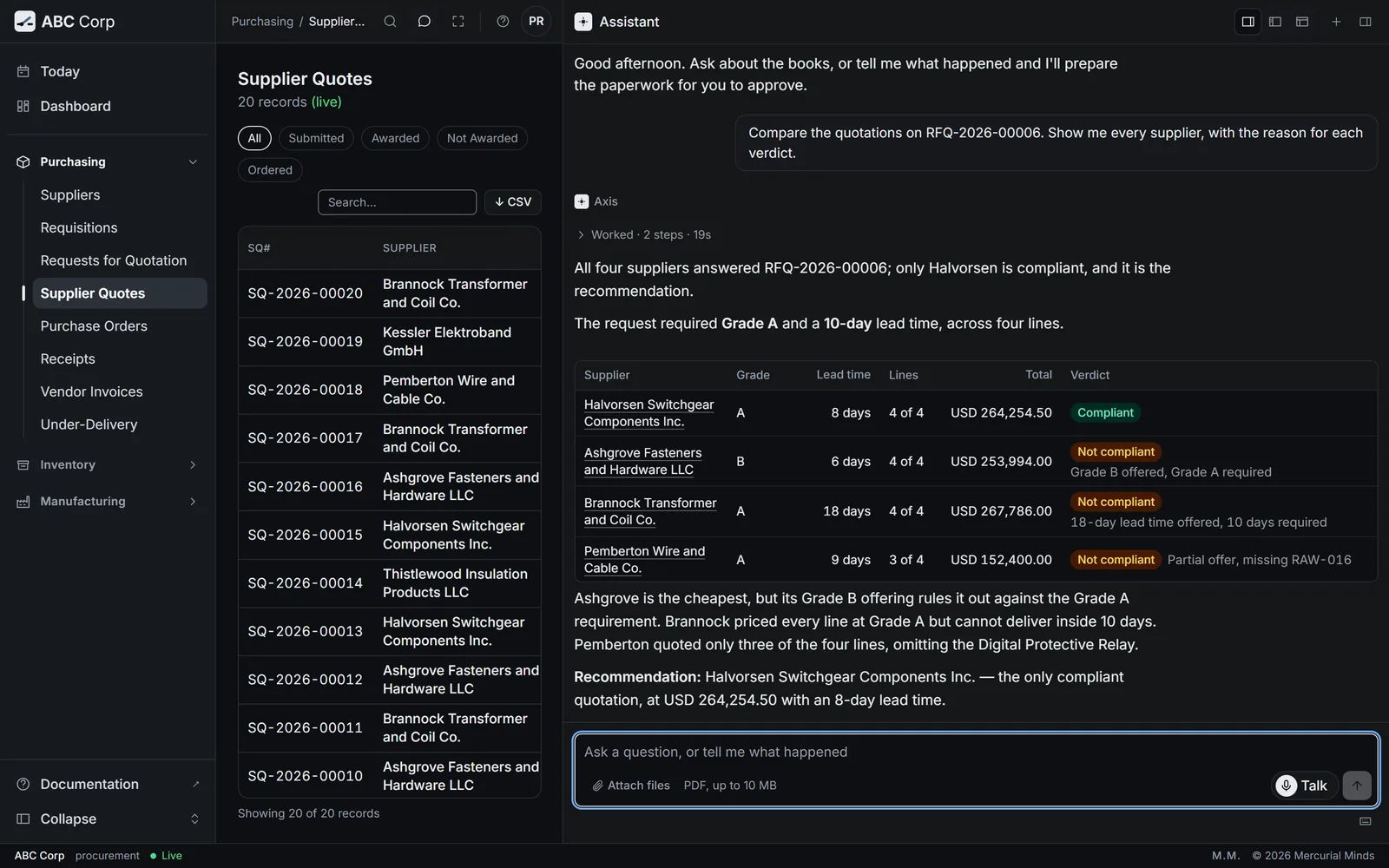
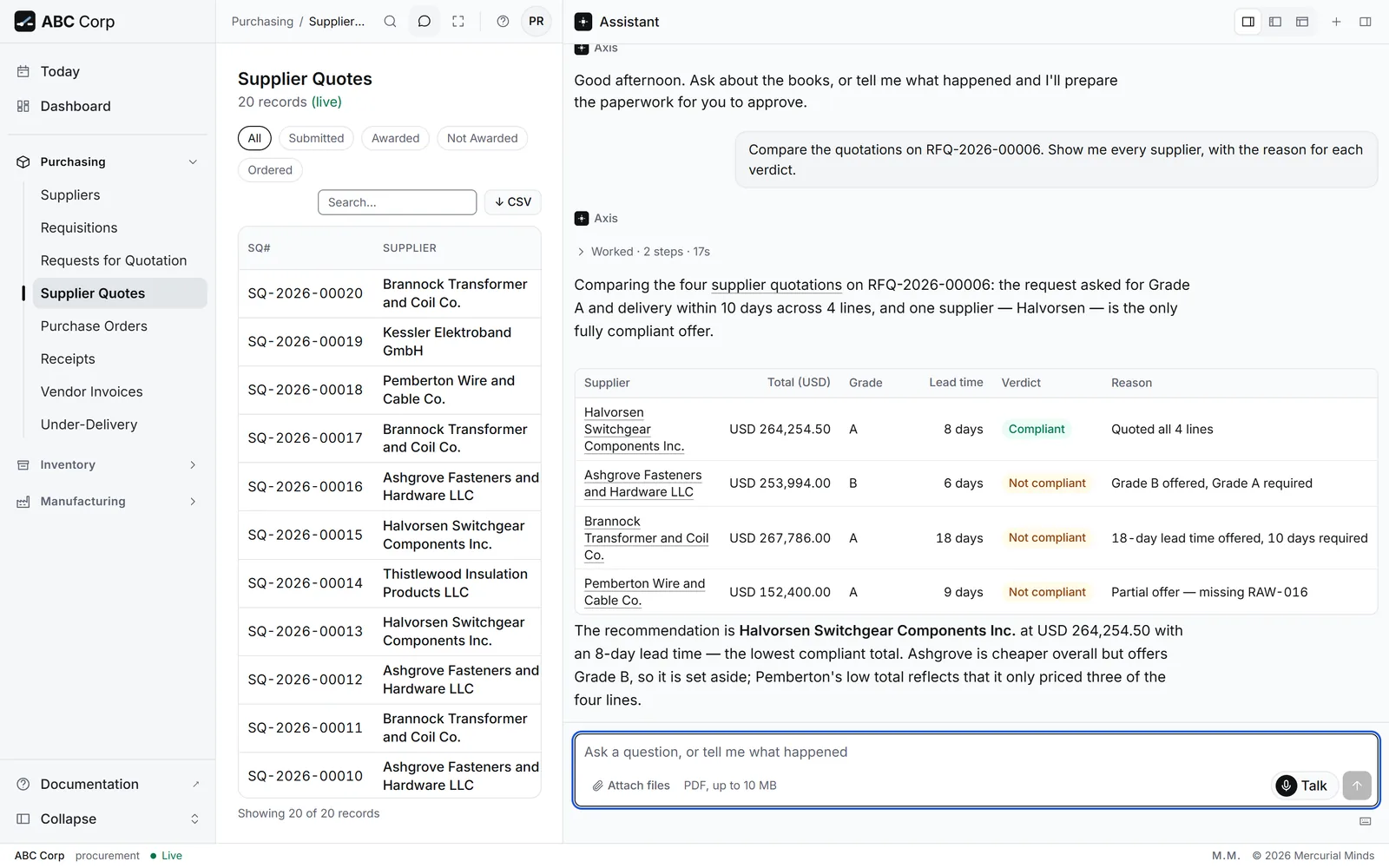
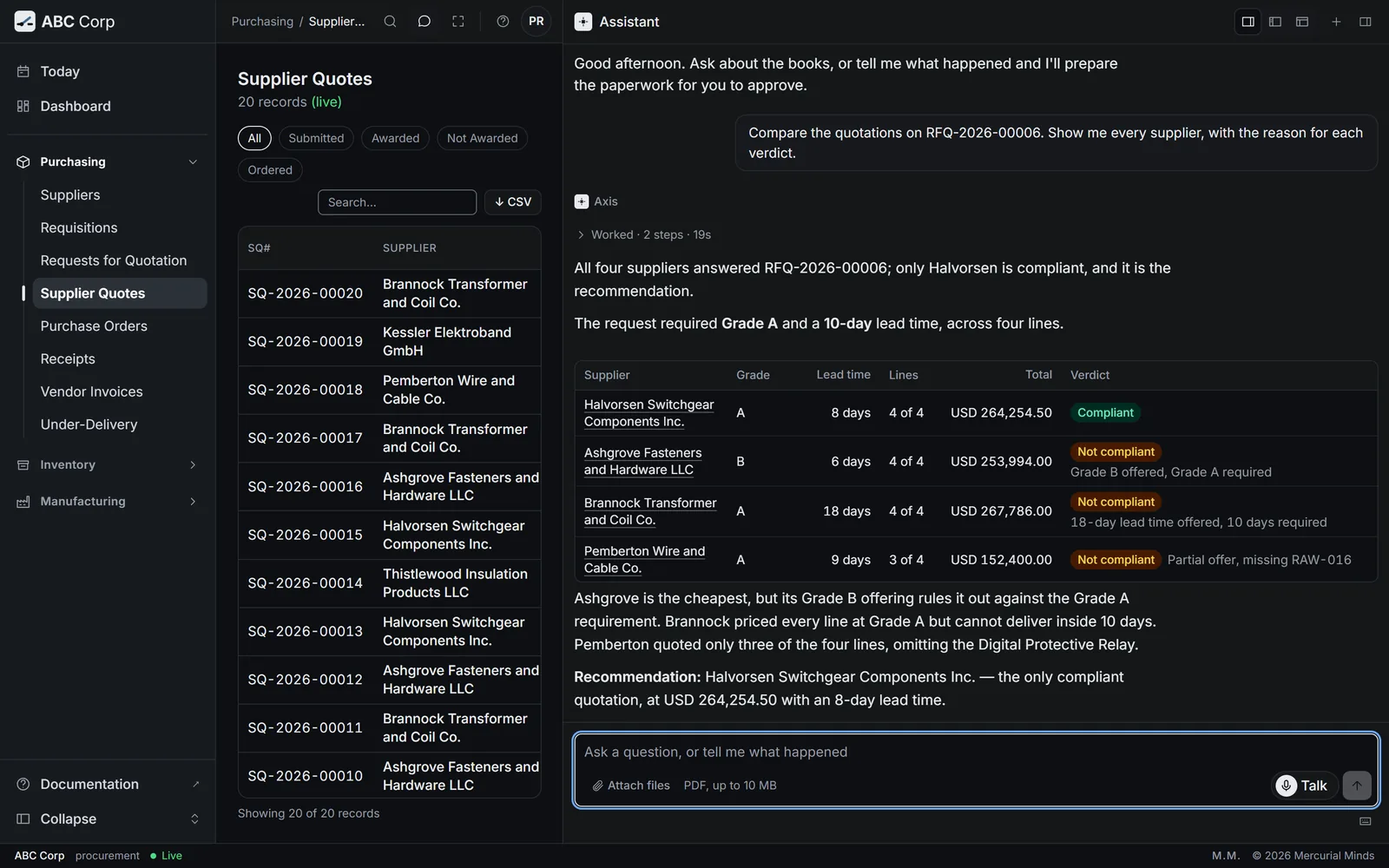
- Halvorsen meets both, at USD 264,254.50.
- Every other supplier gets its reason, in plain words.
Before you start: a request with its quotations recorded. RFQ-2026-00006 has four.
Compare the quotations on RFQ-2026-00006, every supplier included, and recommend one.
- The assistant checks each quotation for grade, delivery days, validity and whether it prices every line.
- It recommends the lowest total among the quotations that pass every check.
- Read the reason given for each supplier that it sets aside.
- Open Purchasing, then Supplier Quotes.
- Each quotation shows its supplier, request, grade and total.
- Ask the assistant for the comparison. The verdicts and reasons come from the assistant.
What you see
| Supplier | Total (USD) | Verdict |
|---|---|---|
| Halvorsen Switchgear Components Inc. | 264,254.50 | Meets both conditions, 8 days |
| Ashgrove Fasteners and Hardware LLC | 253,994.00 | "Grade B offered, Grade A required." |
| Brannock Transformer and Coil Co. | 267,786.00 | "18-day lead time offered, 10 days required." |
| Pemberton Wire and Cable Co. | 152,400.00 | Partial offer: the Digital Protective Relay is unpriced |
Halvorsen is recommended as the lowest compliant total. Two suppliers priced lower, and each one is set aside for its stated reason.
How a tie is settled
Among the quotations that pass every check, the lowest total wins. Two equal totals are settled by the shorter delivery. A higher grade than you asked for meets the condition.
The assistant recommends nobody
Every quotation failed at least one check. Read the reasons: the request as written is beyond every supplier who answered. Change a condition, or ask more suppliers.
The quotations look fine, and still nobody is ranked
Check their currencies. The comparison ranks quotations in one currency against each other. Converting between currencies is a decision for a person, at a rate you choose.
Award a quotation
You end with the award recorded for the supplier you chose, with your name and the time on it.
Award a quotation
- Ask to award Halvorsen.
- The award waits on a card with every detail in view.
- Approve it, and the award is recorded.
Before you start: a comparison you have read. The recommendation is advice. The award is your decision.
Award RFQ-2026-00006 to Halvorsen.
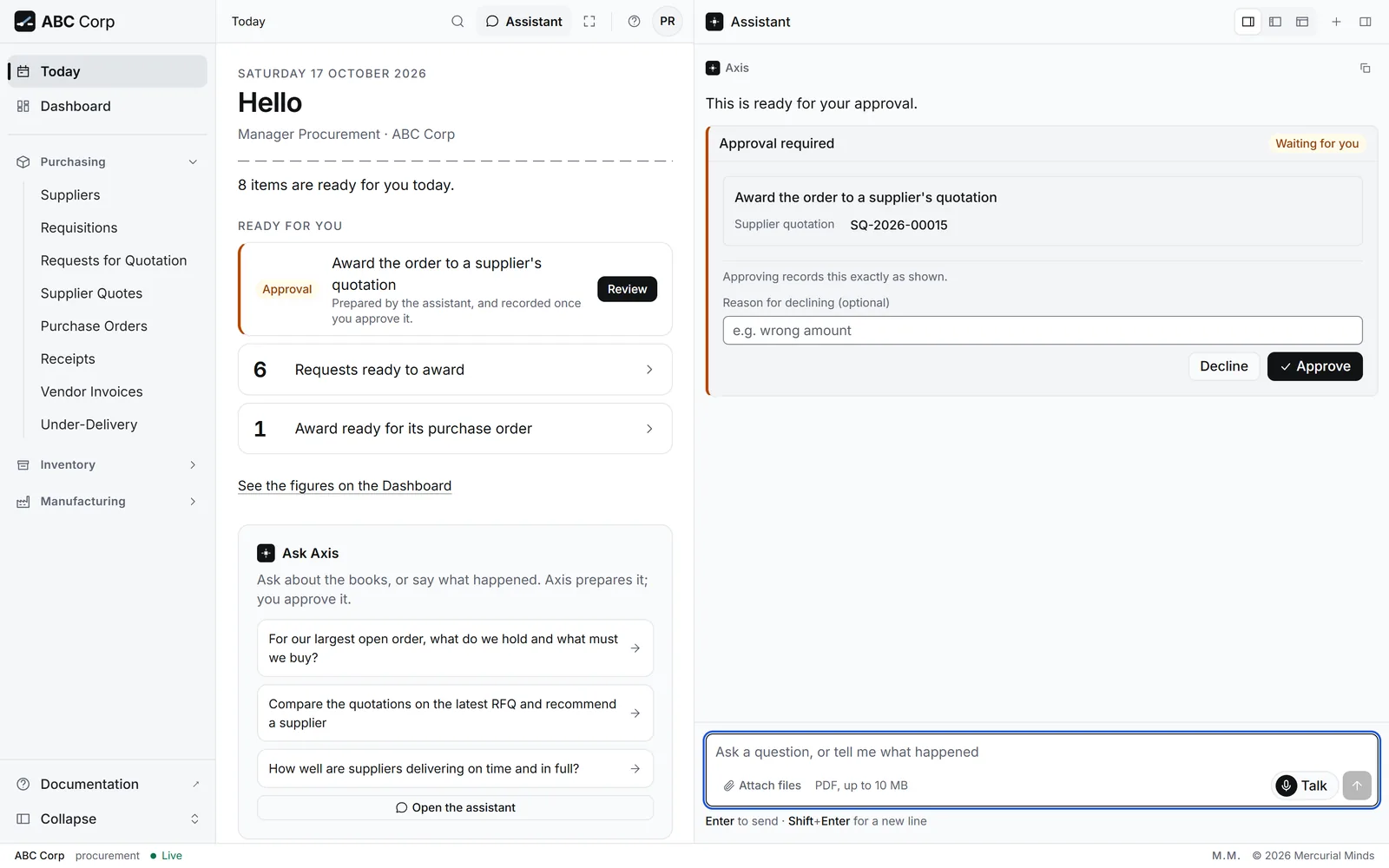
- The assistant prepares the award for Halvorsen's quotation, SQ-2026-00015.
- A card waits for your decision, with the quotation and the request named in full.
- Check the supplier and the request, then press Approve.
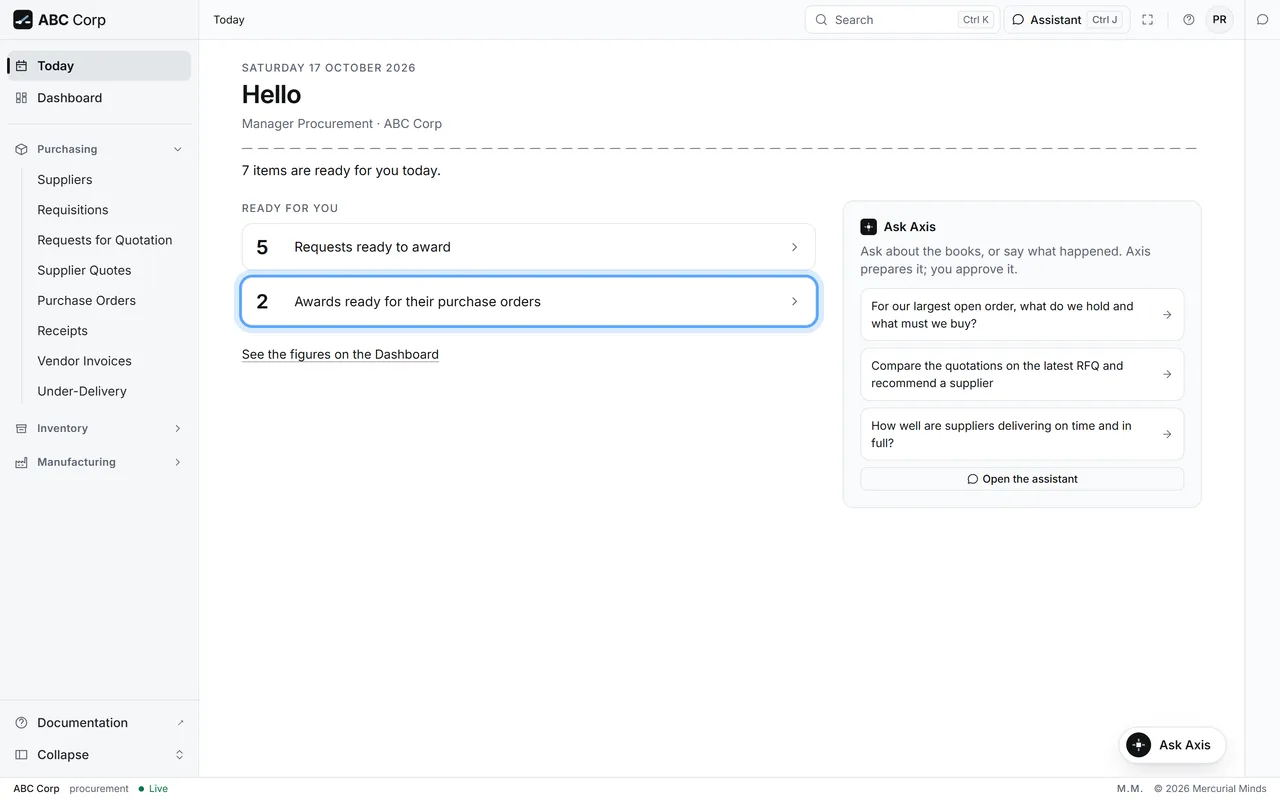
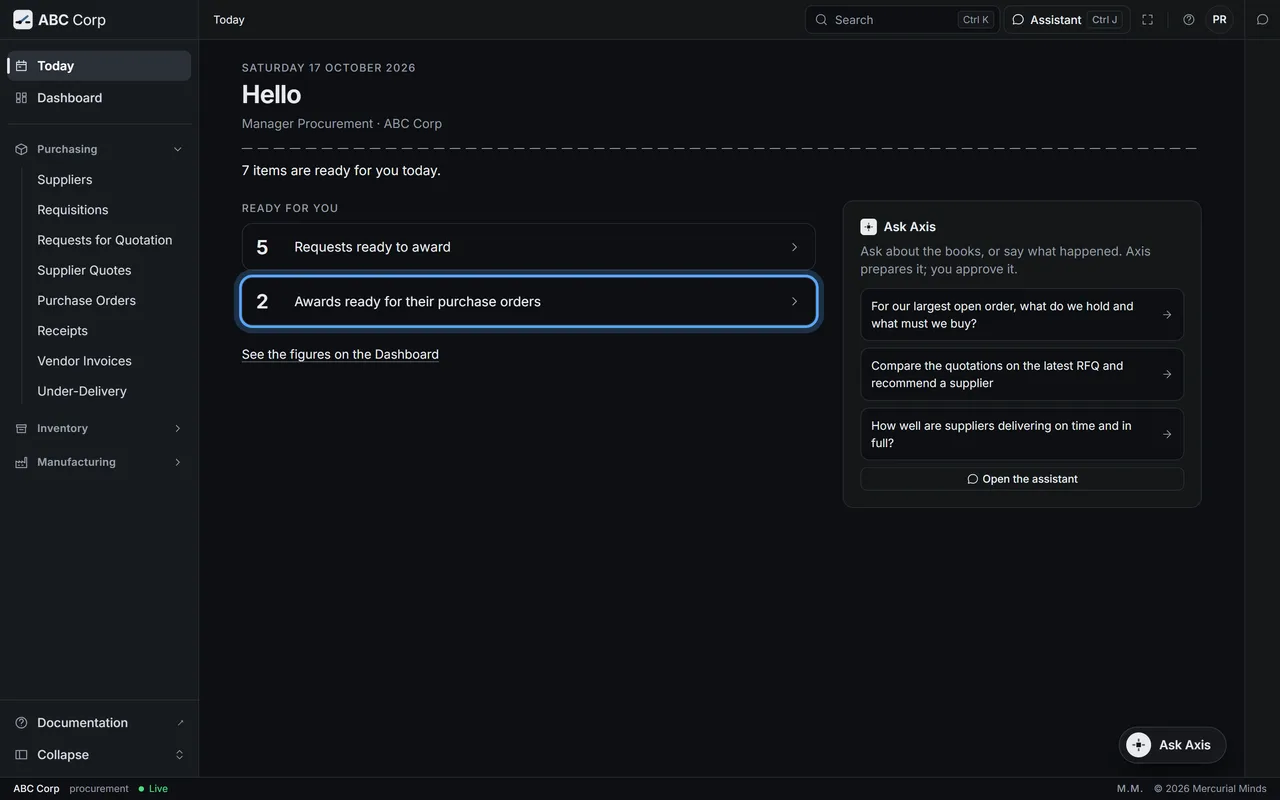
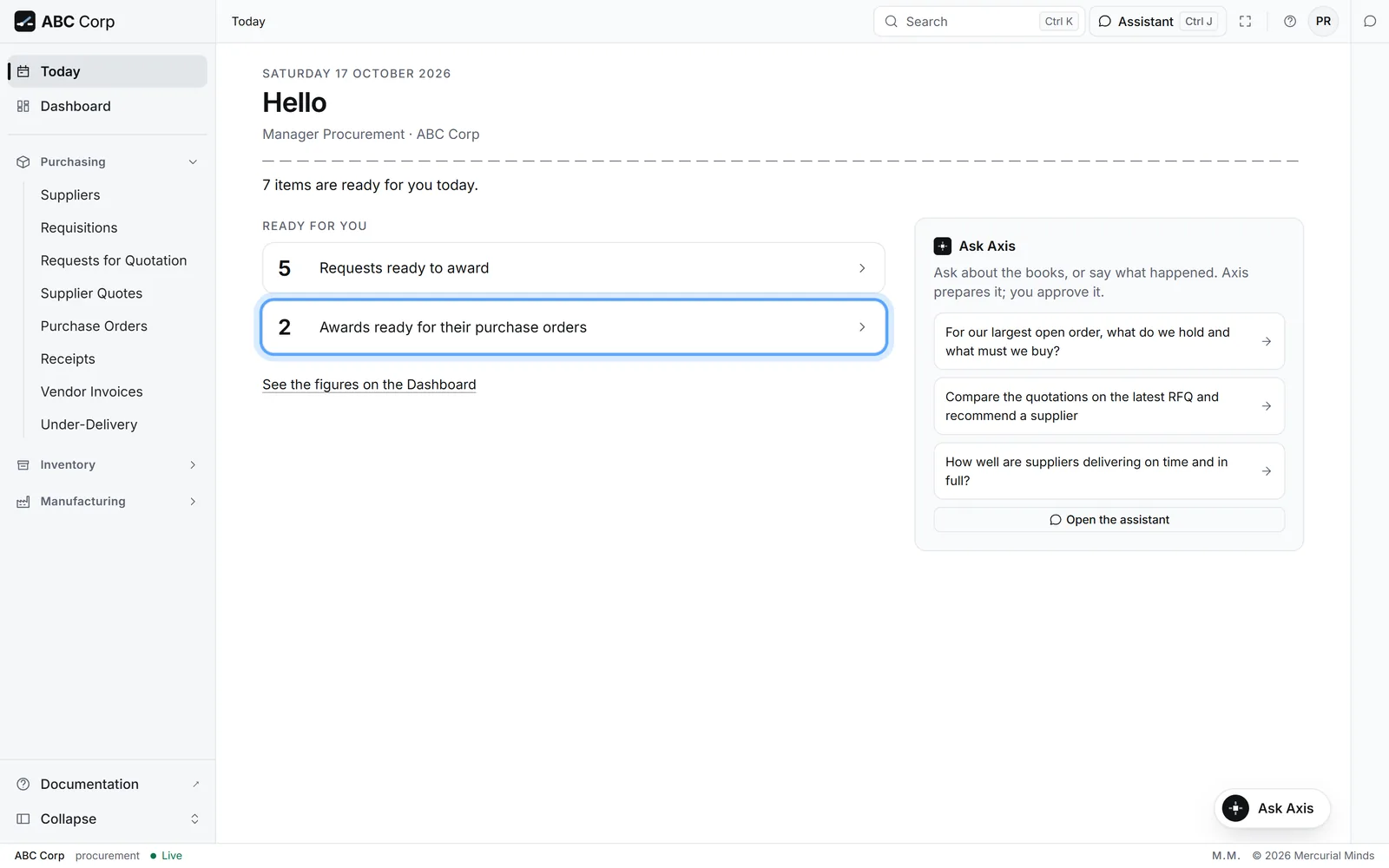
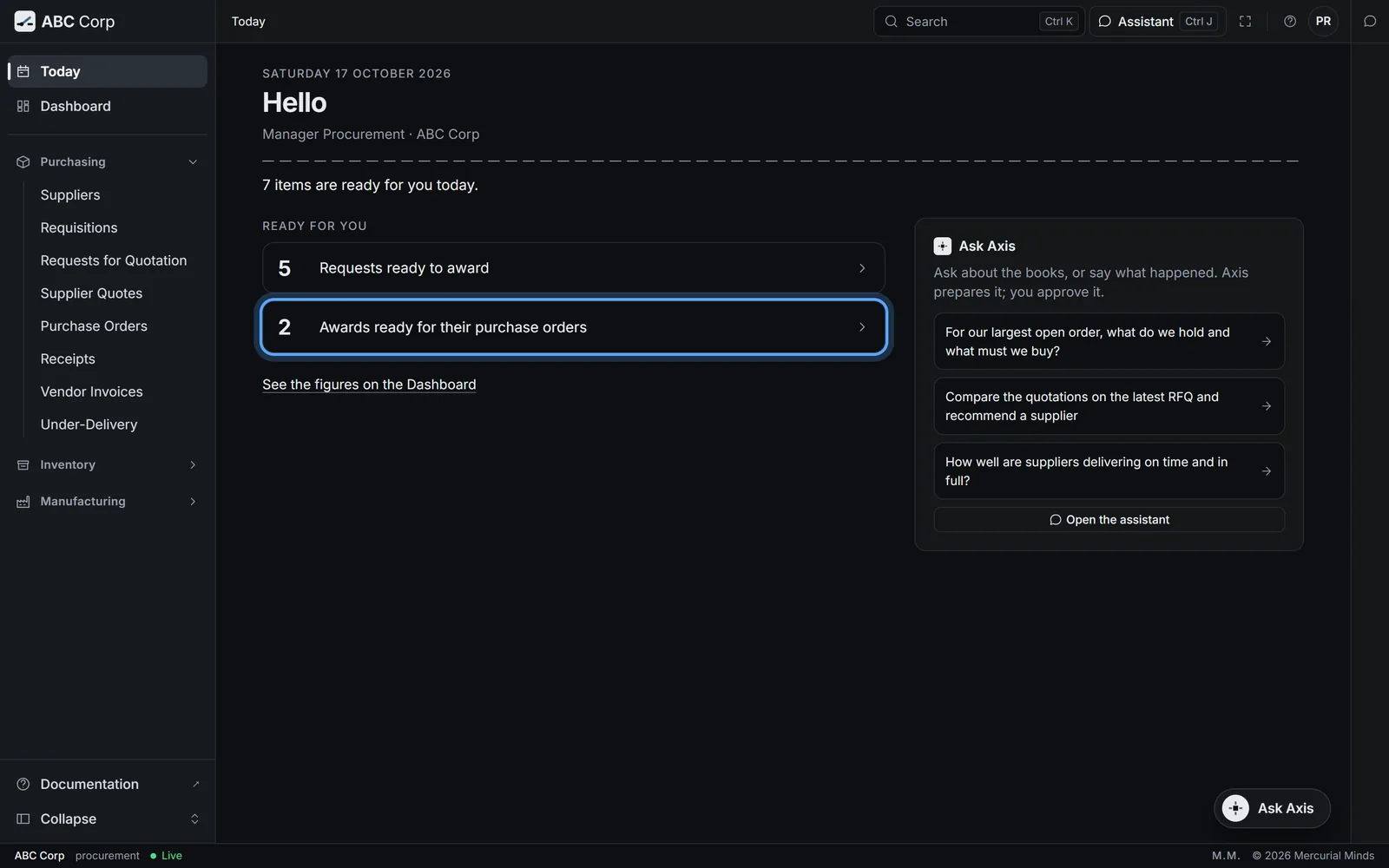
- Open Today. The line requests ready to award counts the requests with quotations waiting.
- Press it to open the quotations behind the count.
- Make the award in the assistant, as the other tab shows. The card is the same.
What you see
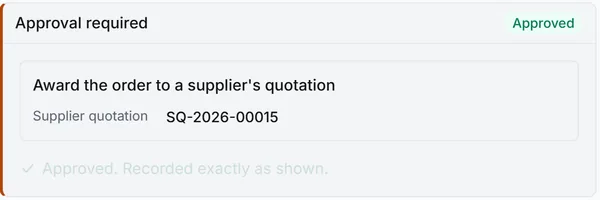
The card reads Approved, with the words "Approved. Recorded exactly as shown." The dashboard's Needs Attention list now says an awarded quotation still needs a purchase order.
This waits for approval
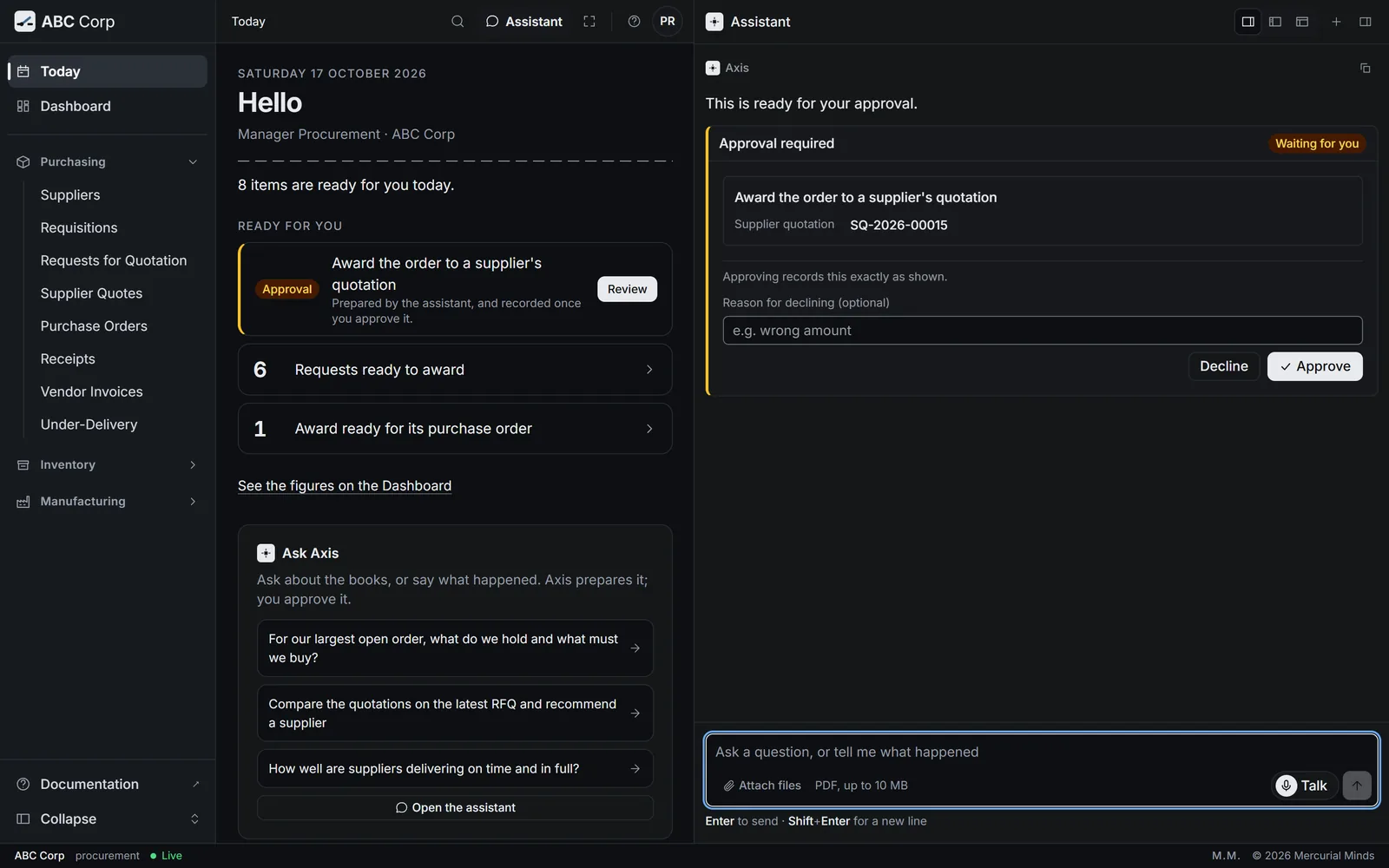
The card reads Award Supplier Quote and shows the quotation and its request. The Procurement seat answers it. See Approve or decline a request.
An award records a decision
Awarding records who you chose, and when. Placing the order is a second step, on purpose, so that choosing a supplier and committing to buy stay two separate decisions. A request holds one live award: awarding another supplier moves it, and the record keeps the first.
You press Decline by mistake
Declining leaves the books exactly as they were. Ask for the award again, and a fresh card appears.
Raise the Purchase Order
You end with a Purchase Order for the awarded supplier, at the prices you approved, placed with the supplier.
Raise the Purchase Order
- Needs Attention keeps the award in view.
- Raise the Purchase Order from it.
- The order carries the supplier, the lines and the prices you approved.
- Placing it with the supplier waits on a card.
Before you start: an award. Halvorsen holds the award on RFQ-2026-00006.
Raise the purchase order for the Halvorsen award and submit it.
- The assistant drafts the order from Halvorsen's quotation, with its lines and prices.
- It asks to place the order. A card waits for your decision.
- Check the supplier, the quantities and the rates, then press Approve.
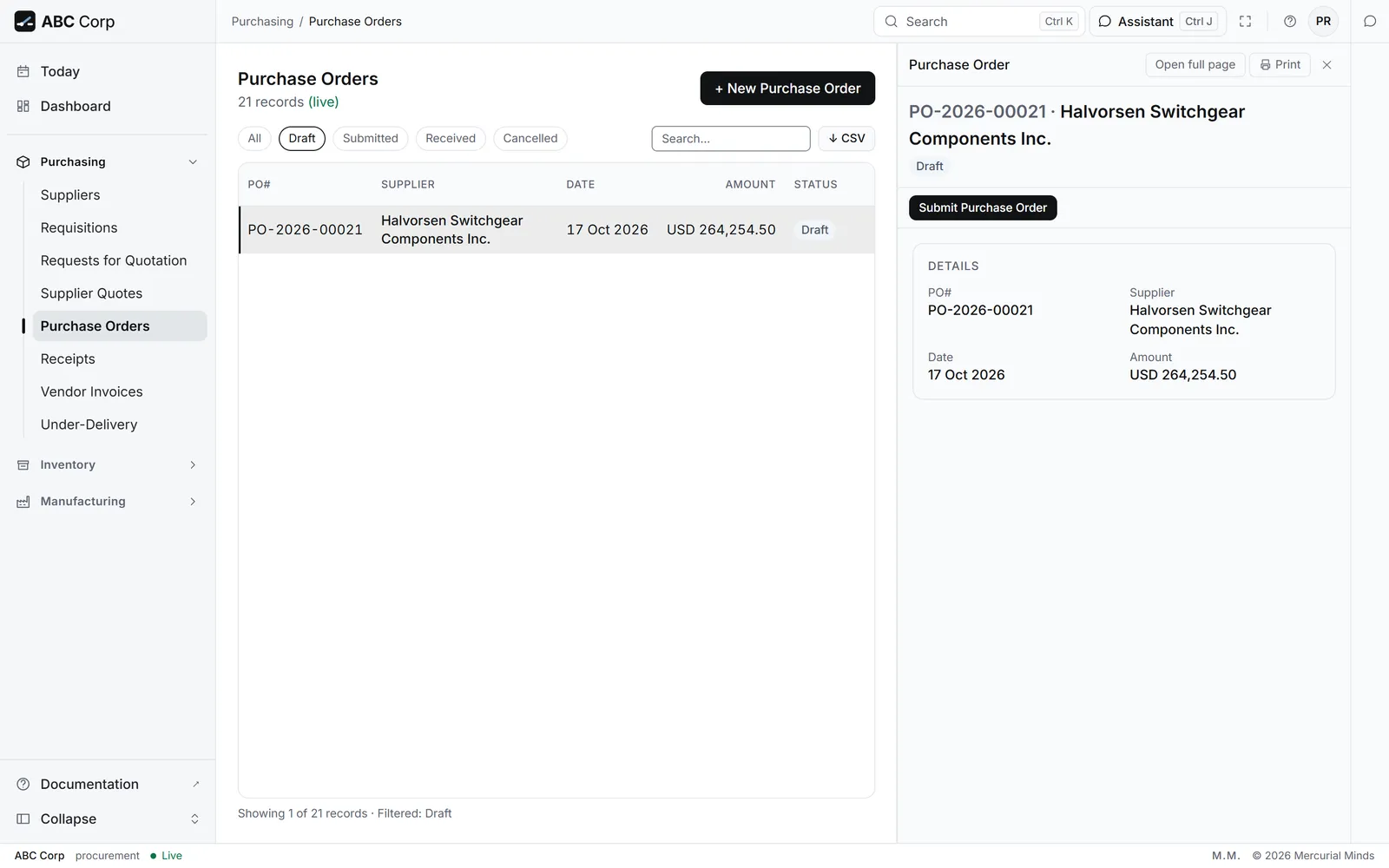
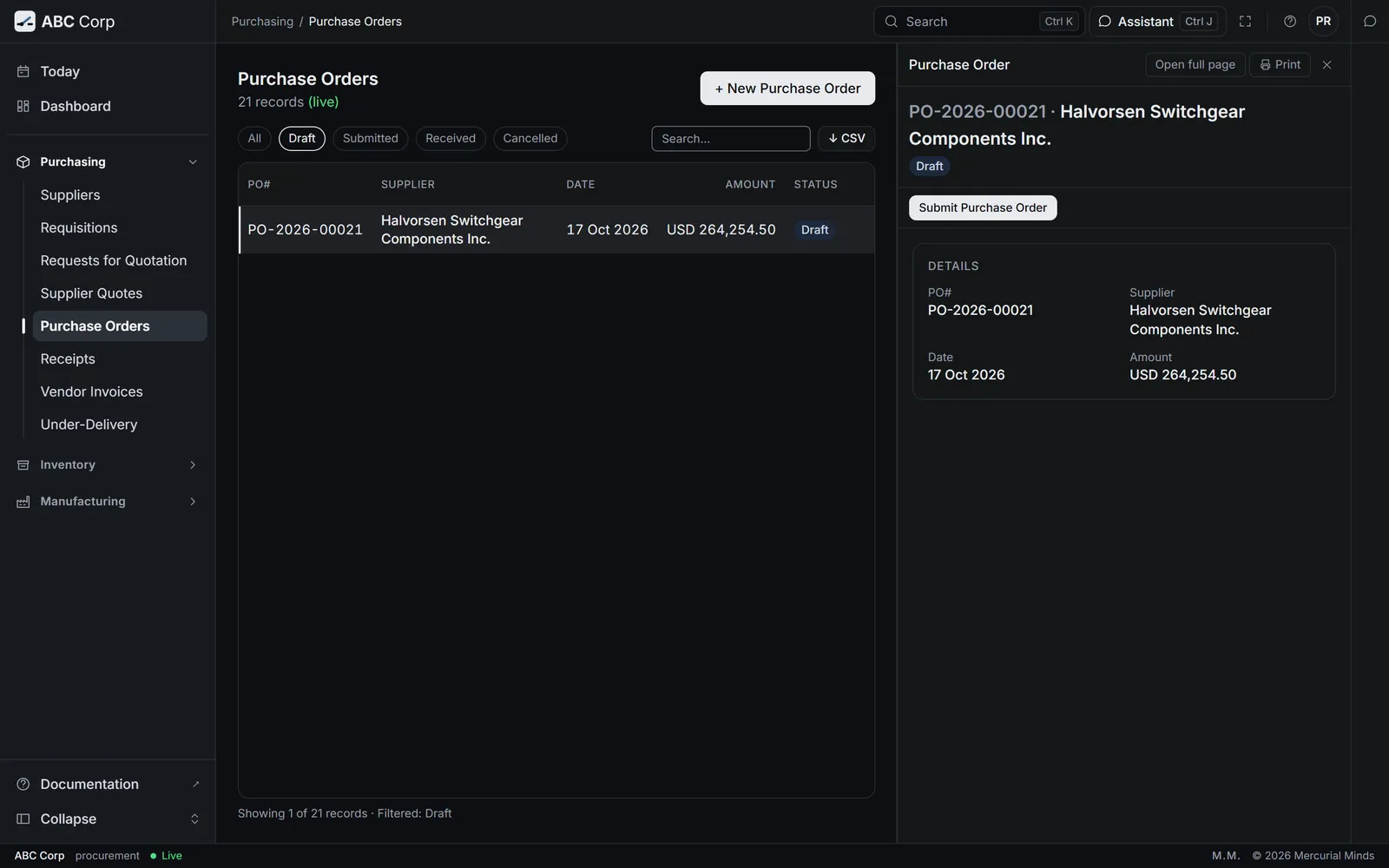
- Open Purchasing, then Purchase Orders.
- Press + New Purchase Order.
- Choose the Supplier, the Order Date and the Order Lines, then save.
- Open the new order and press Submit Purchase Order.
- Read the approval card, then press Approve.
What you see
The order is in Purchase Orders with Halvorsen's lines and prices. Once placed, it counts on the dashboard under Awaiting Receipt.
This waits for approval
Drafting the order is routine. Placing it waits on a card that reads Place a purchase order with a supplier. The Procurement seat or the COO answers it. See Approve or decline a request.
The order is raised against another supplier's quotation
The assistant refuses it with "Supplier quotation belongs to a different supplier". Raise the order to the supplier that holds the award.
Match a supplier invoice
You end with the supplier's invoice posted against the goods you received, so the order, the receipt and the invoice form one trail.
Match a supplier invoice
- The goods are received against the order.
- Ask the assistant to record the supplier's invoice for that receipt.
- Axis checks the invoice against what arrived.
- Posting the invoice waits on a card. Approve it.
Before you start: the goods received against the order. See Receive goods. In ABC Corp, PR-2026-00017 holds 2,400 Kg of Cold-Rolled Steel Sheet 14 Gauge from Ashgrove, against PO-2026-00020.
Record Ashgrove's invoice for receipt PR-2026-00017 and post it.
- The assistant drafts the invoice from the receipt, with the order's rates.
- It checks the quantity invoiced against the quantity received.
- It asks to post the invoice. Check the lines and the total, then press Approve.
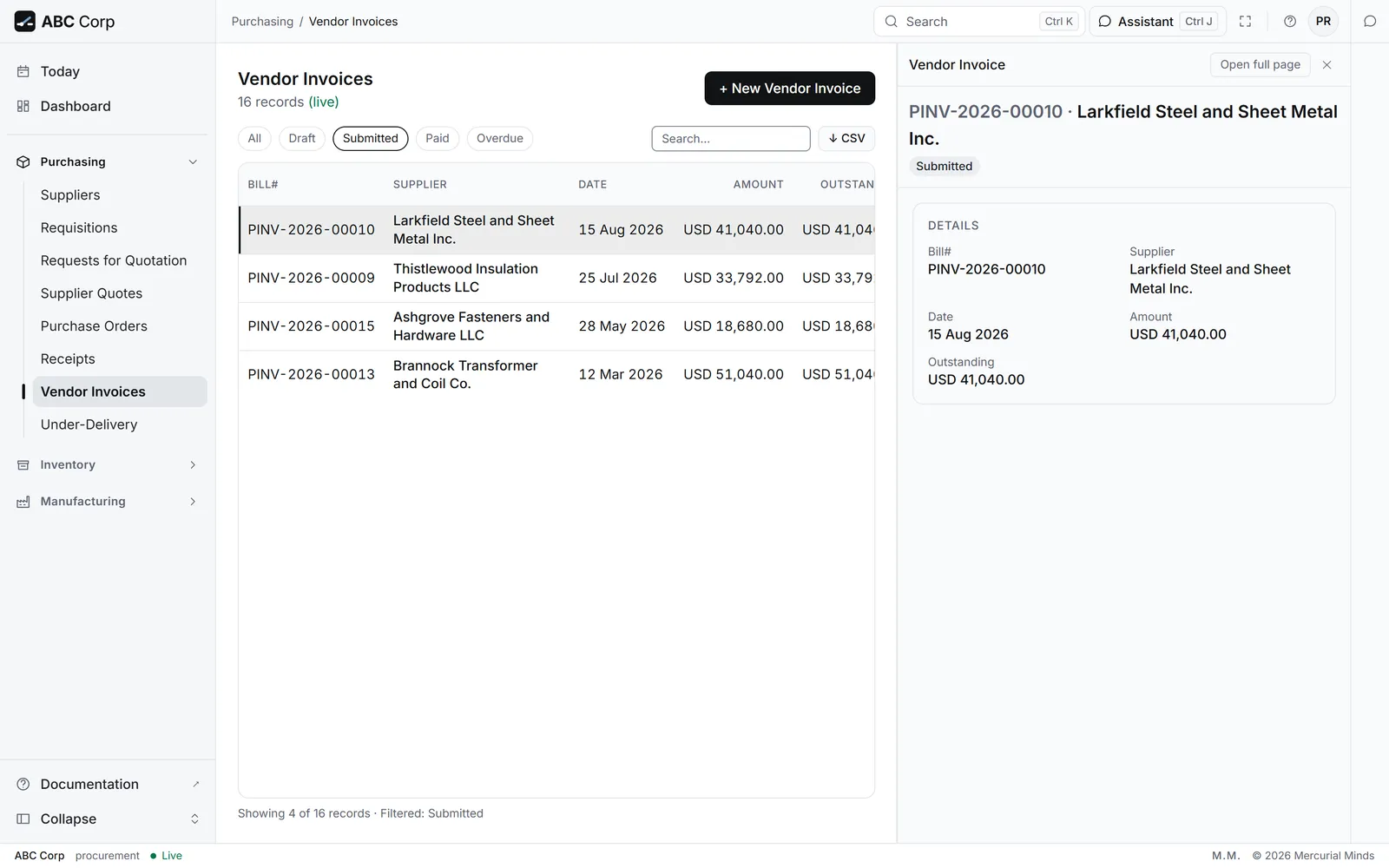
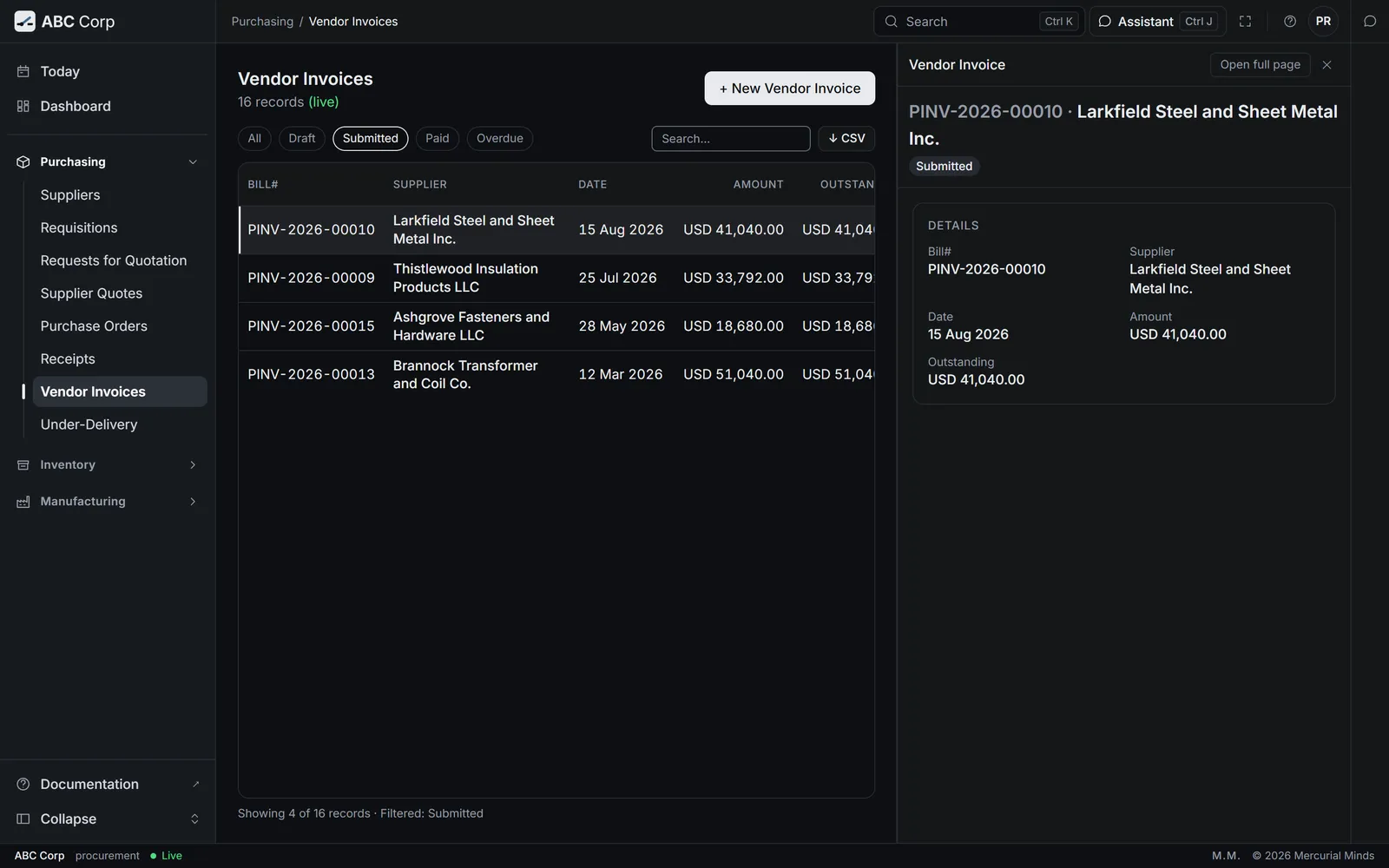
- Open Purchasing, then Vendor Invoices.
- Press + New Vendor Invoice.
- Choose the Supplier, the Bill Date, the Due Date and the Bill Lines, then save.
- Ask the assistant to post it against the receipt. The match to the receipt is made there.
What you see
The invoice is posted and clears the goods-received balance for those lines. The amount now shows in Payables.
This waits for approval
The card reads Record a supplier invoice and post it. The Procurement seat answers it. See Approve or decline a request.
Book the invoice against the receipt
The receipt holds the goods in a goods-received account. The invoice against that receipt clears it. An invoice booked on its own leaves the receipt's balance behind, and that balance then needs explaining.
Invoice qty exceeds received qty for item
ABC Corp matches strictly: the quantity invoiced stays within the quantity received. Check the receipt. Record the rest of the delivery first, or invoice only what arrived.
Check a supplier's delivery record
You end with each supplier measured on what actually arrived: how late, and how much was turned away.
Check a supplier's delivery record
- Open Under-Delivery.
- Each supplier is measured on lateness and shortfall, weighted by value.
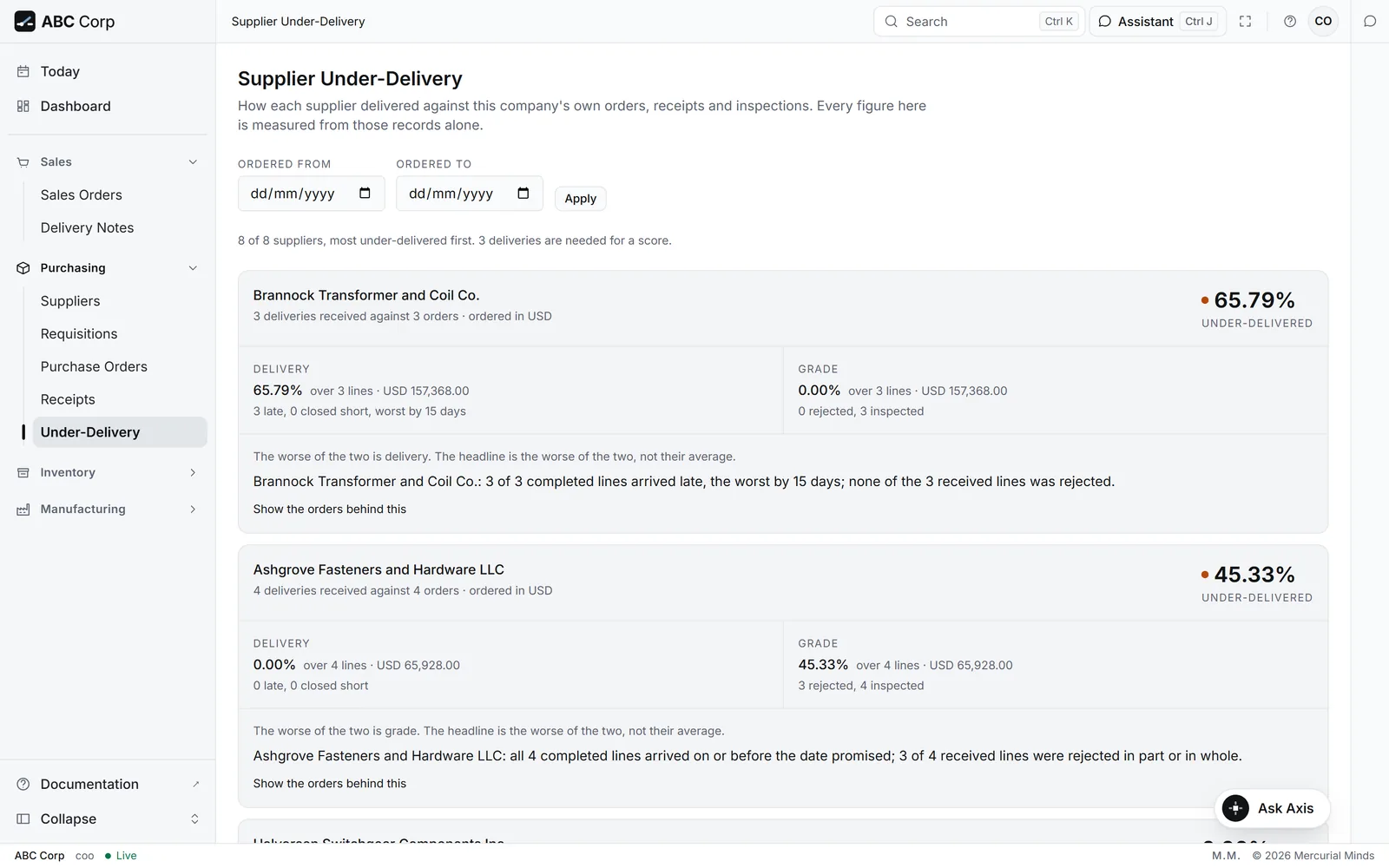
- Brannock: 65.79 per cent, late on 3 of 3 orders.
- Pemberton shows its record so far.
Before you start: the COO or Manager Procurement role. The record is built from your own orders, receipts and inspections.
How well are suppliers delivering on time and in full?
- The assistant reads every supplier's orders, receipts and inspections.
- It reports lateness and grade for each supplier, kept apart.
- Read the note under each supplier. It says the record in a sentence.
- Open Purchasing, then Under-Delivery.
- Each supplier shows a Delivery figure and a Grade figure.
- Press Show the orders behind this to see each order and its promised date.
What you see
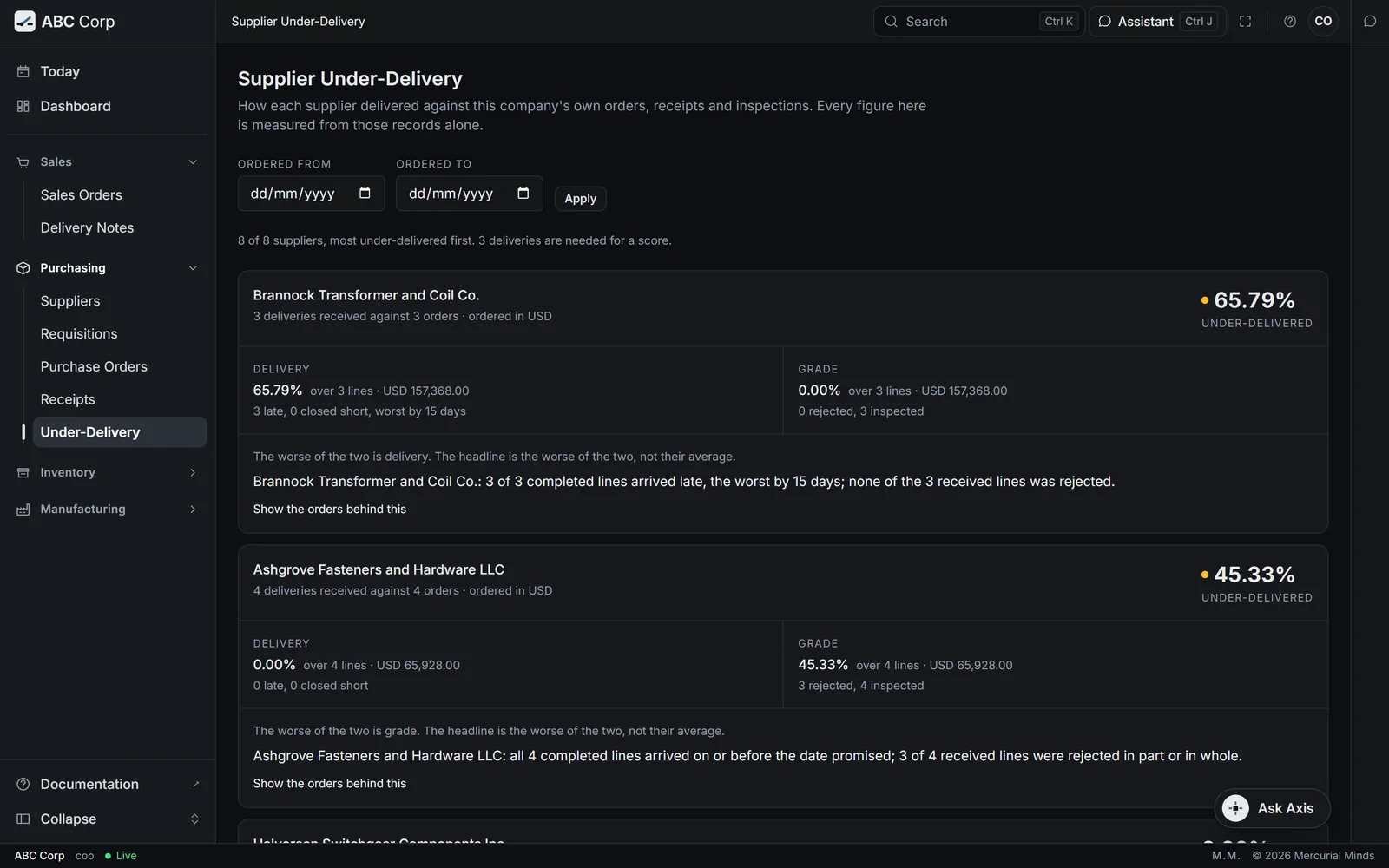
Brannock Transformer and Coil Co. reads 65.79 per cent: 3 of 3 completed lines arrived late, the worst by 15 days. Ashgrove arrives on time, and 2 of its 4 received lines were rejected. Pemberton Wire and Cable Co. shows Too little history, with its one delivery so far.
How the figures are measured
Lateness is weighed against the wait each supplier promised. Grade is what was turned away at the gate or rejected on inspection. The headline is the worse of the two, so one good figure leaves the other in full view. A supplier scores from its third delivery onward.
Supplier delivery history is not part of your role
The screen belongs to the COO and the Manager Procurement. Ask your administrator to add one of those roles. See Add a user and give them a role.
Next
- Receive, inspect and make: the goods arrive, and Stores checks them.
- Money and the books: pay the supplier for what you received.
- Your work, end to end: every task on one table.