DO THE WORK
Sell and get paid
Quote to cash and invoice to cash, from a customer's order to the money in the bank.
Shown with ABC Corp, a demonstration company.
Riverbend Electric Cooperative is ABC Corp's largest customer. This page follows their business from the order they send to the money they pay. Each document comes from the one before it, so the order, the delivery, the invoice and the payment stay linked.
Progress
| Task | Seat | Waits for approval | Done when |
|---|---|---|---|
| Read a customer's order from a PDF | Sales | Routine | A draft sales order holds the customer's lines. |
| Send a quotation | Sales | Yes | The quotation is issued and reads Open. |
| Confirm a sales order | Sales | Yes | The order reads Confirmed. |
| Deliver an order | Stores, Sales | Yes | The goods leave stock on a delivery note. |
| Raise a sales invoice | Sales | Yes | The invoice is issued and the customer owes it. |
| Record a customer payment | Finance, Sales | Yes | The payment is posted against its invoice. |
| Chase overdue invoices | Finance, Sales | Routine | You know who to call first, and for how much. |
| Issue a credit note | Sales | Yes | The credit note is issued with its own number. |
Read a customer's order from a PDF
You end with a draft sales order that holds the customer's lines, with their PDF kept beside it.
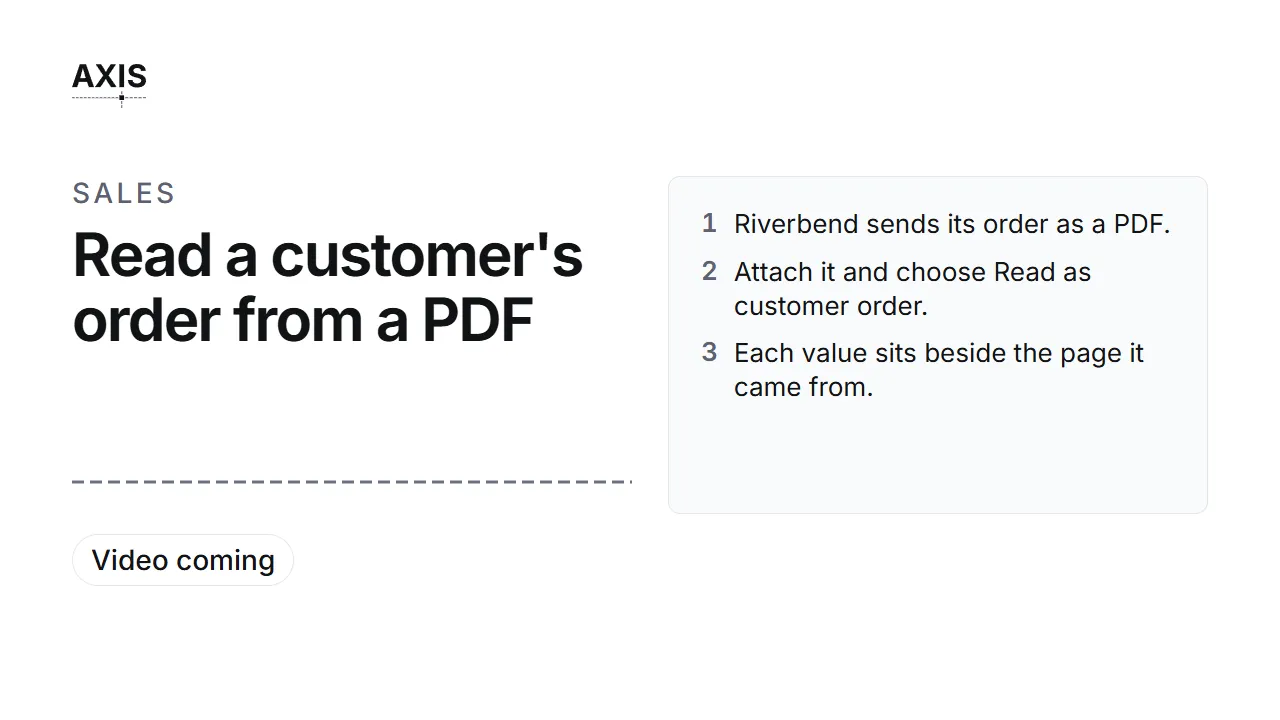
Read a customer's order from a PDF
- Riverbend sends its order as a PDF.
- Attach it and choose a customer order.
- Each value sits beside the page it came from.
- Match each line to a stock item, then confirm.
- SO-2026-00025 is on the books, ready to confirm.
Before you start: the Manager Sales role, the customer on file under Sales, Customers, and their order as a digital PDF.
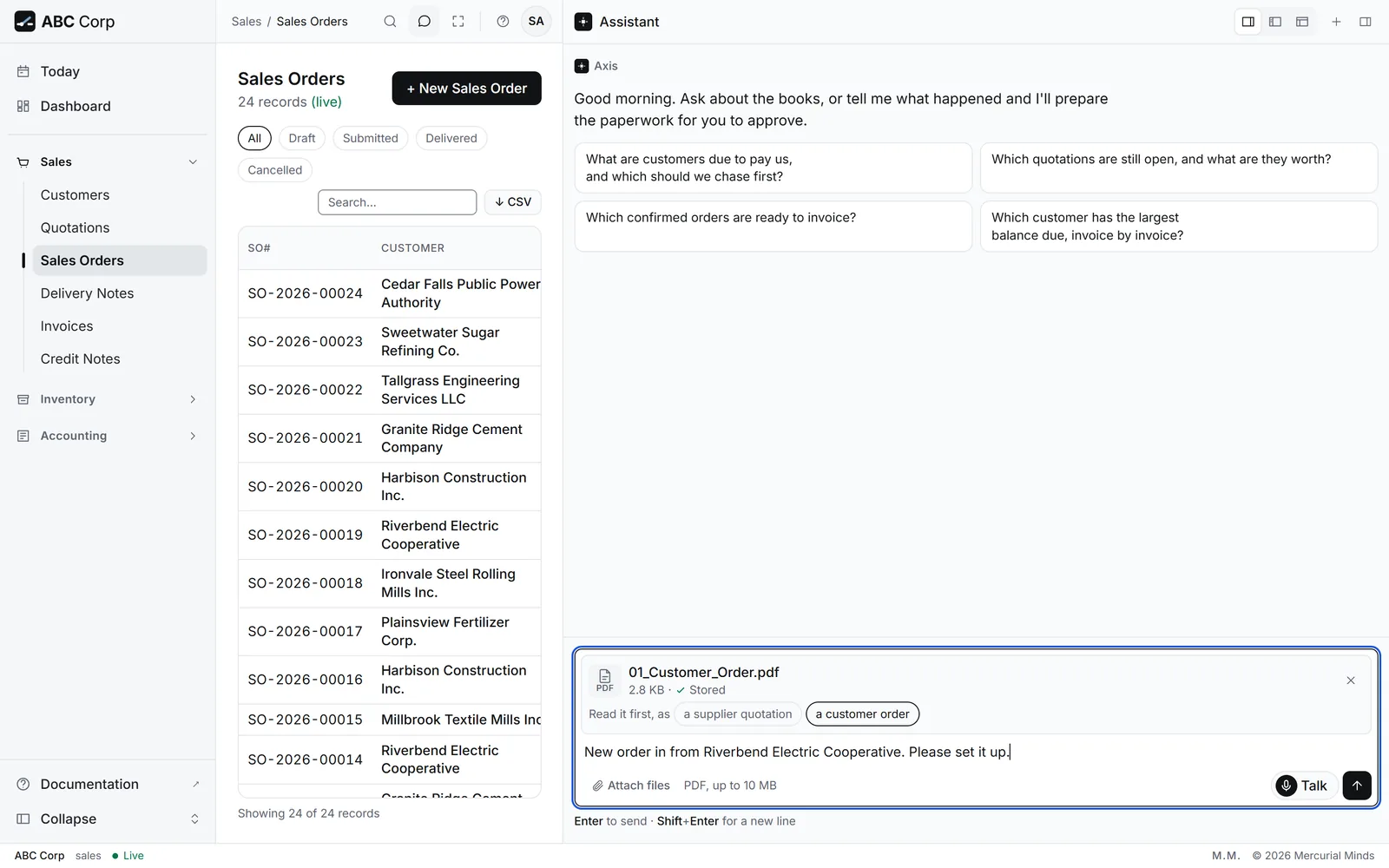
Here is Riverbend's purchase order RBEC-PO-24817. Read it as a new sales order.
- Under the message box, press Attach files and choose the PDF.
- Beside the file, choose a customer order, then send your message.
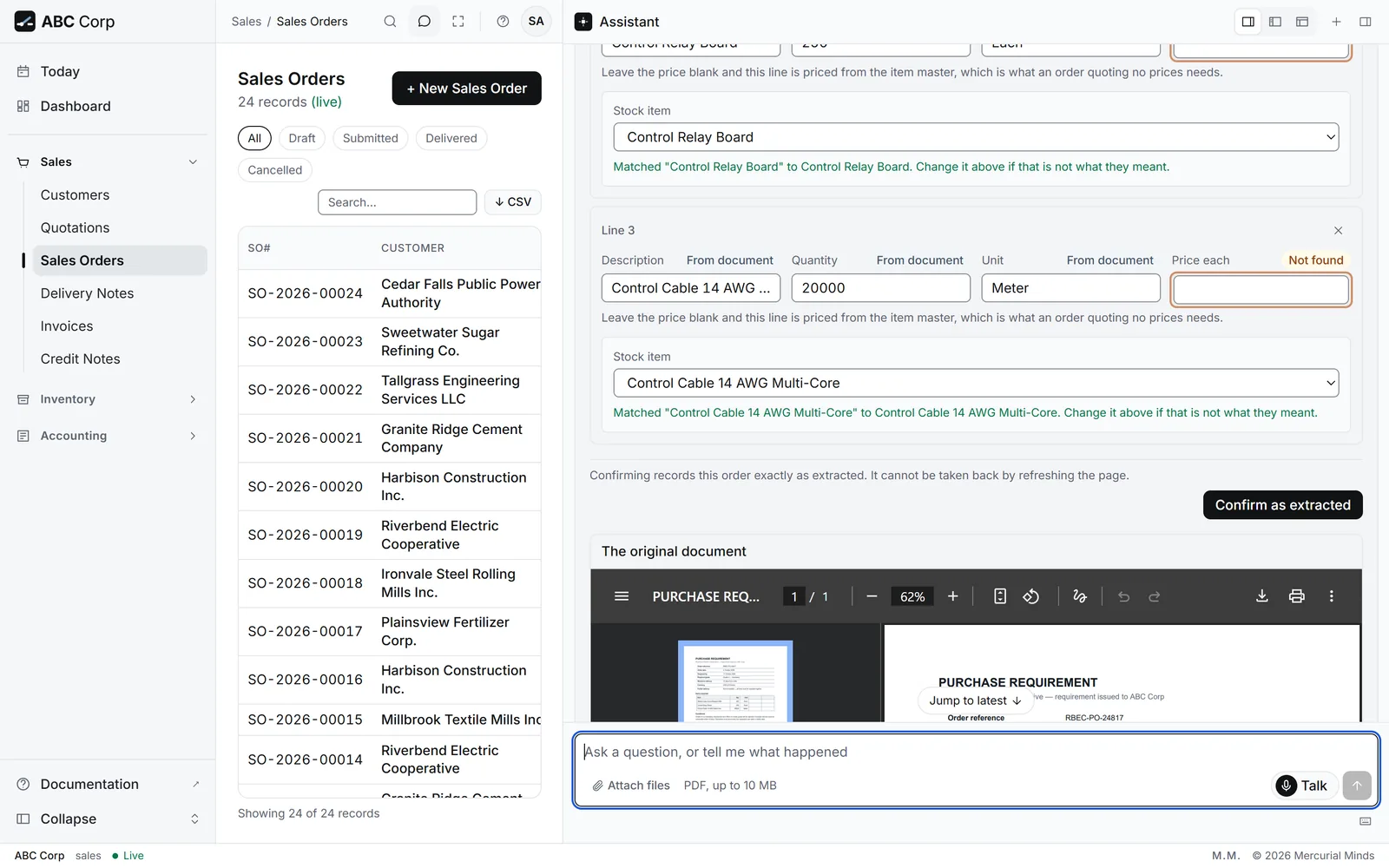
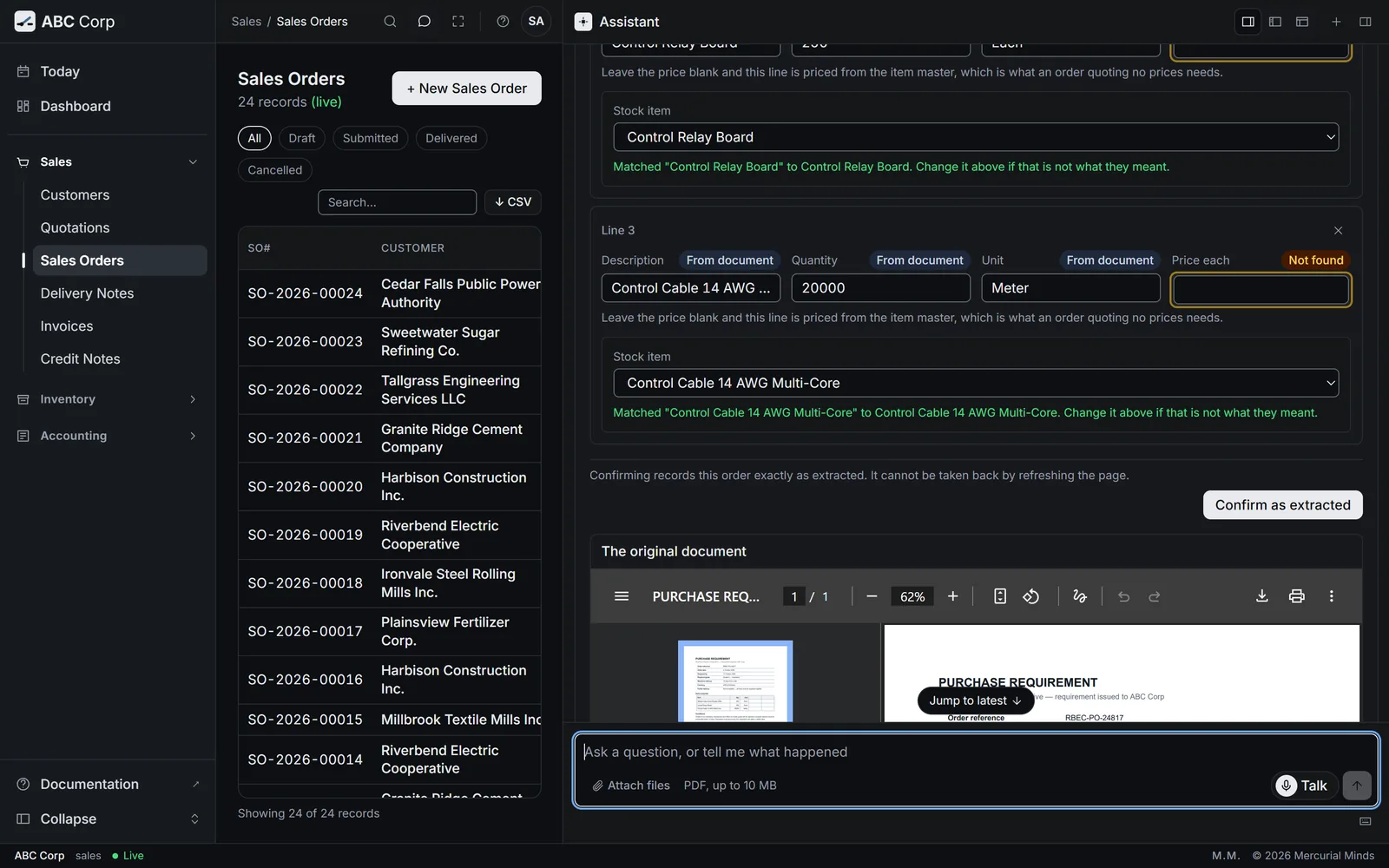
- The review opens. The page sits on one side and the values read from it on the other.
- Check the customer, the order date and each line against the page.
- Choose the stock item for each line. Here, the line is Distribution Panelboard 400A, 250 of them.
- Press Confirm as extracted. After a correction, the button reads Save corrections.
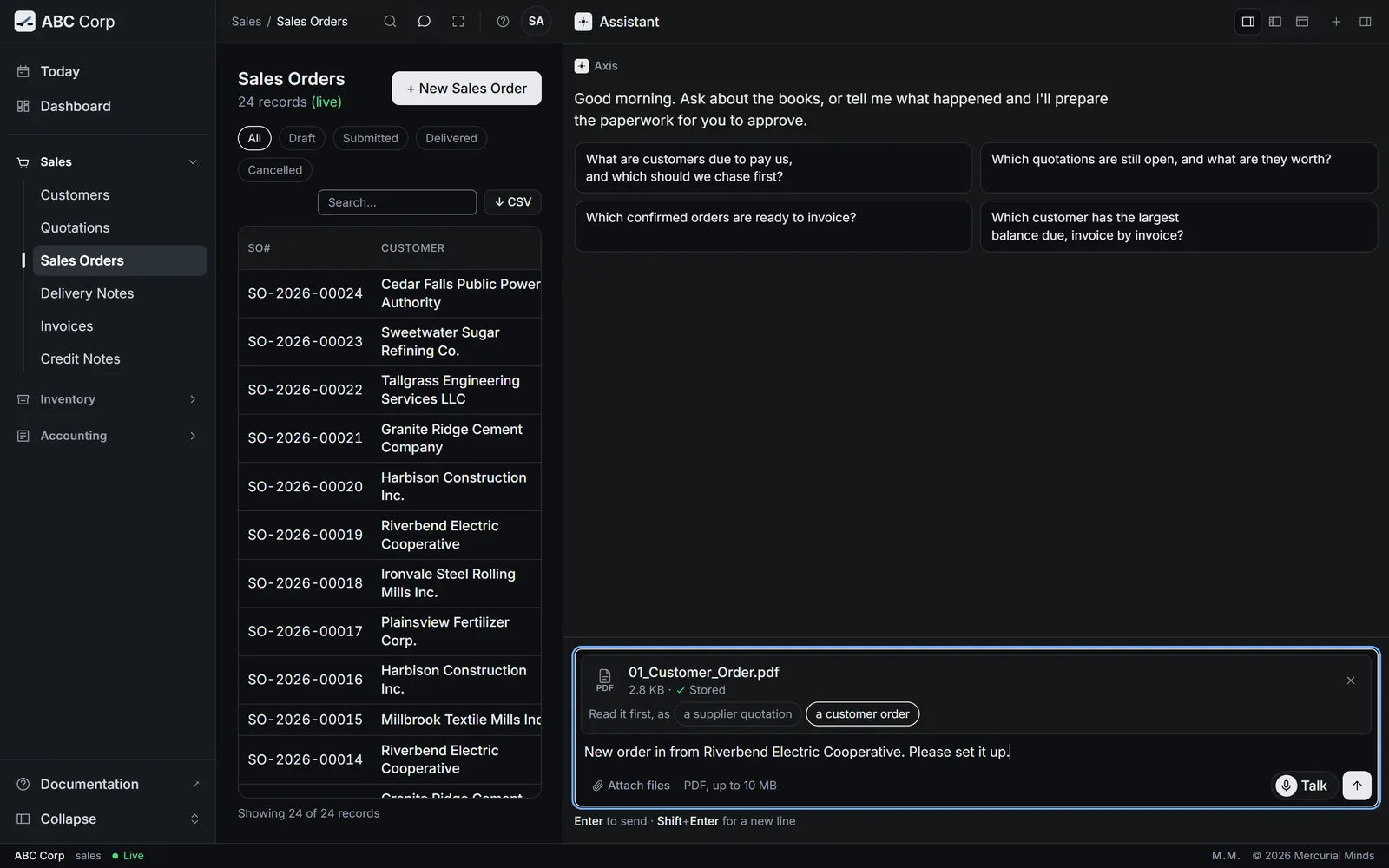
- Read the PDF in the assistant, as the other tab shows. The assistant docks beside every screen.
- Open Sales, then Sales Orders.
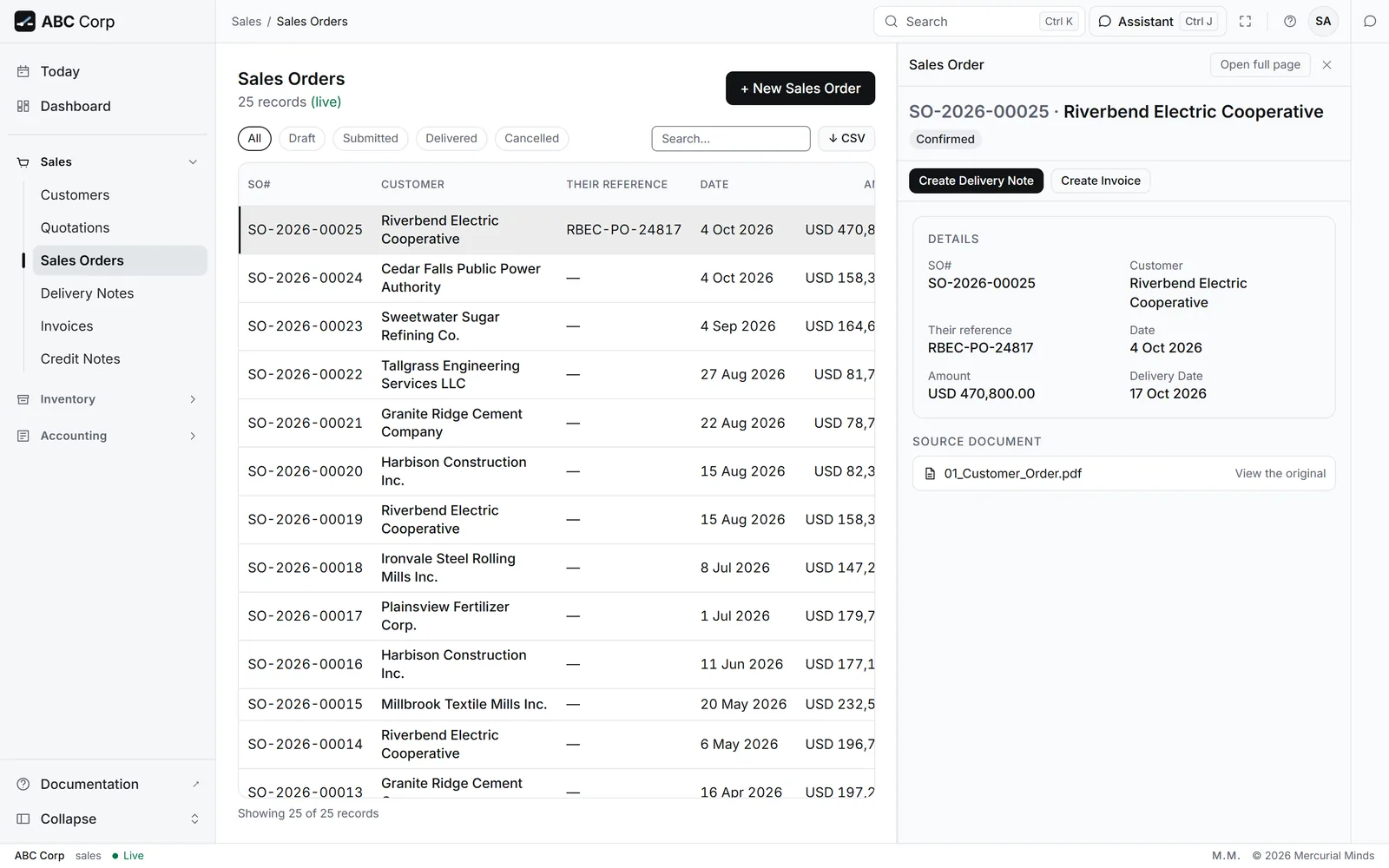
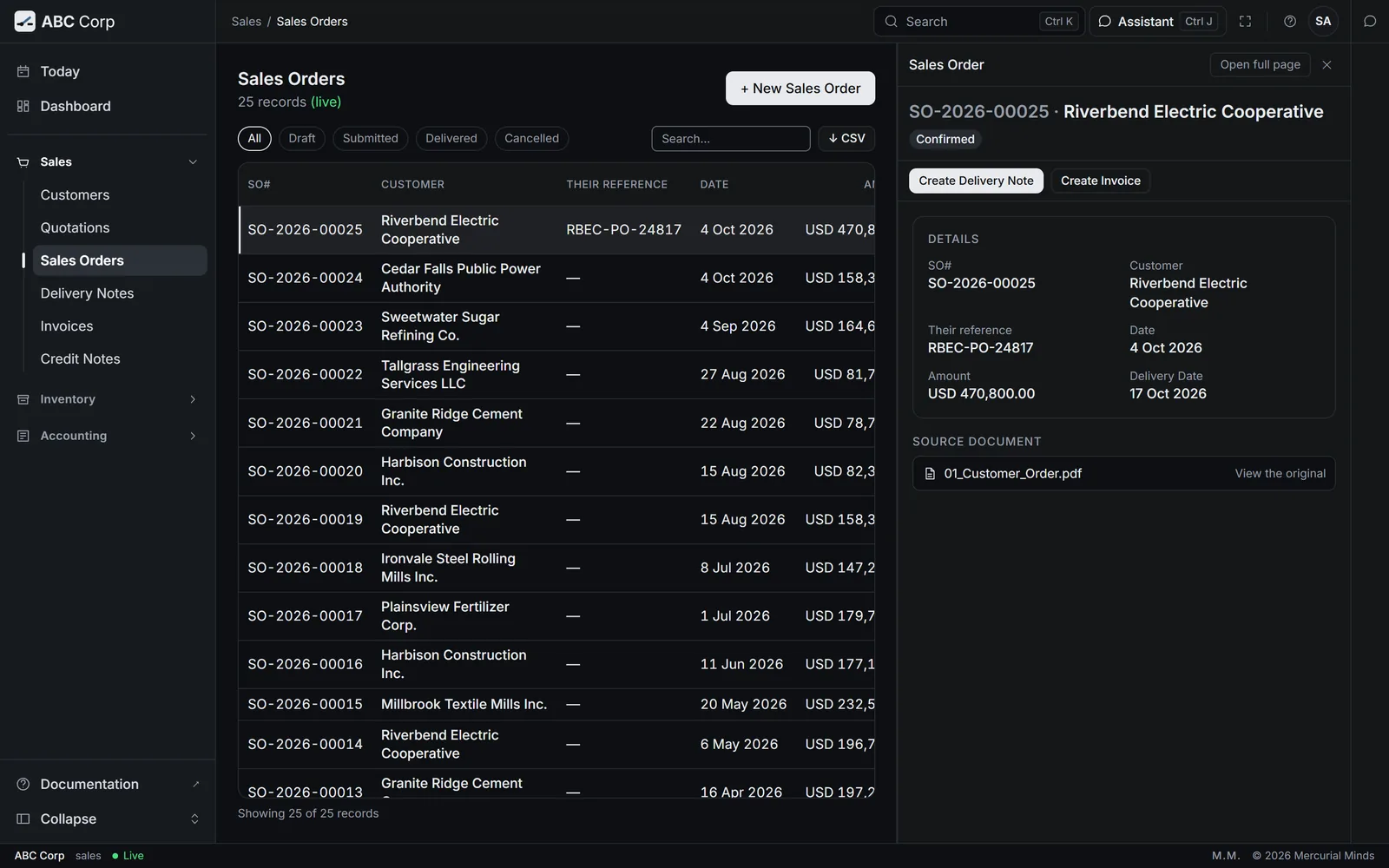
- Open the new order. It reads Draft, with the PDF on file.
What you see
The assistant says "Recorded as a sales order from" the file's name. The draft order for Riverbend is in Sales Orders, with the PDF of RBEC-PO-24817 on file beside it.
Prices the customer leaves off
Most customer orders state quantities and leave prices to you. A line the PDF leaves unpriced takes its rate from your selling price list.
Choose the stock item for every line, or remove the line.
One line still needs its stock item. Pick the item in that line's row. Remove any line that belongs to another order.
The review asks you to add the customer first
The name on the PDF differs from every customer on file. Check the spelling against Customers. For a new customer, press + New Customer there, then read the PDF again.
No text layer was found in the PDF. It may be a scanned image -- OCR is out of scope for this extraction.
The assistant reads digital PDFs, the kind a customer's system exports. Ask the customer for that file, or tell the assistant the lines yourself.
Send a quotation
You end with a quotation issued to the customer, ready to become a sales order when they accept it.
Send a quotation
- Ask for a quotation: the customer, the items, the prices and how long it holds.
- The assistant prepares it as a draft.
- Issuing it waits on a card. Check it, then approve.
- When the customer accepts, convert it to a sales order.
Before you start: the Manager Sales role, and the customer and items on file.
Quote Riverbend for 250 Distribution Panelboards 400A at USD 6,812.50 each, valid for 30 days, and submit it.
- The assistant prepares the quotation with the line, the price and the date it holds until.
- It asks to issue the quotation. A card waits for your decision.
- Check the customer, the quantity and the price, then press Approve.
- Open Sales, then Quotations.
- Press + New Quotation.
- Fill in the Customer, the Date, Valid Until and the Quotation Lines, then save.
- Open the new quotation and press Submit Quotation.
- Read the approval card, then press Approve.
What you see
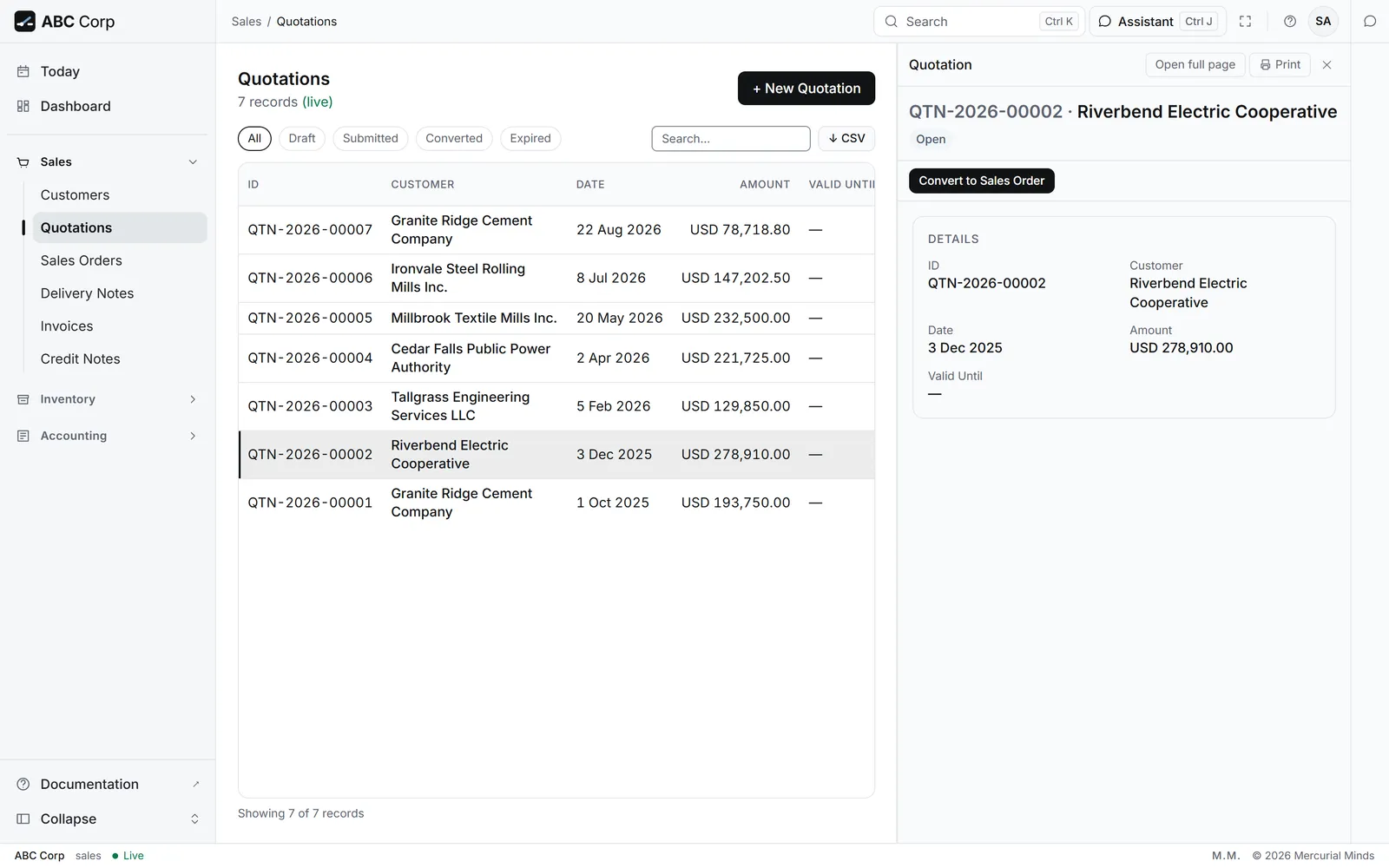
The quotation reads Open. It now offers Convert to Sales Order.
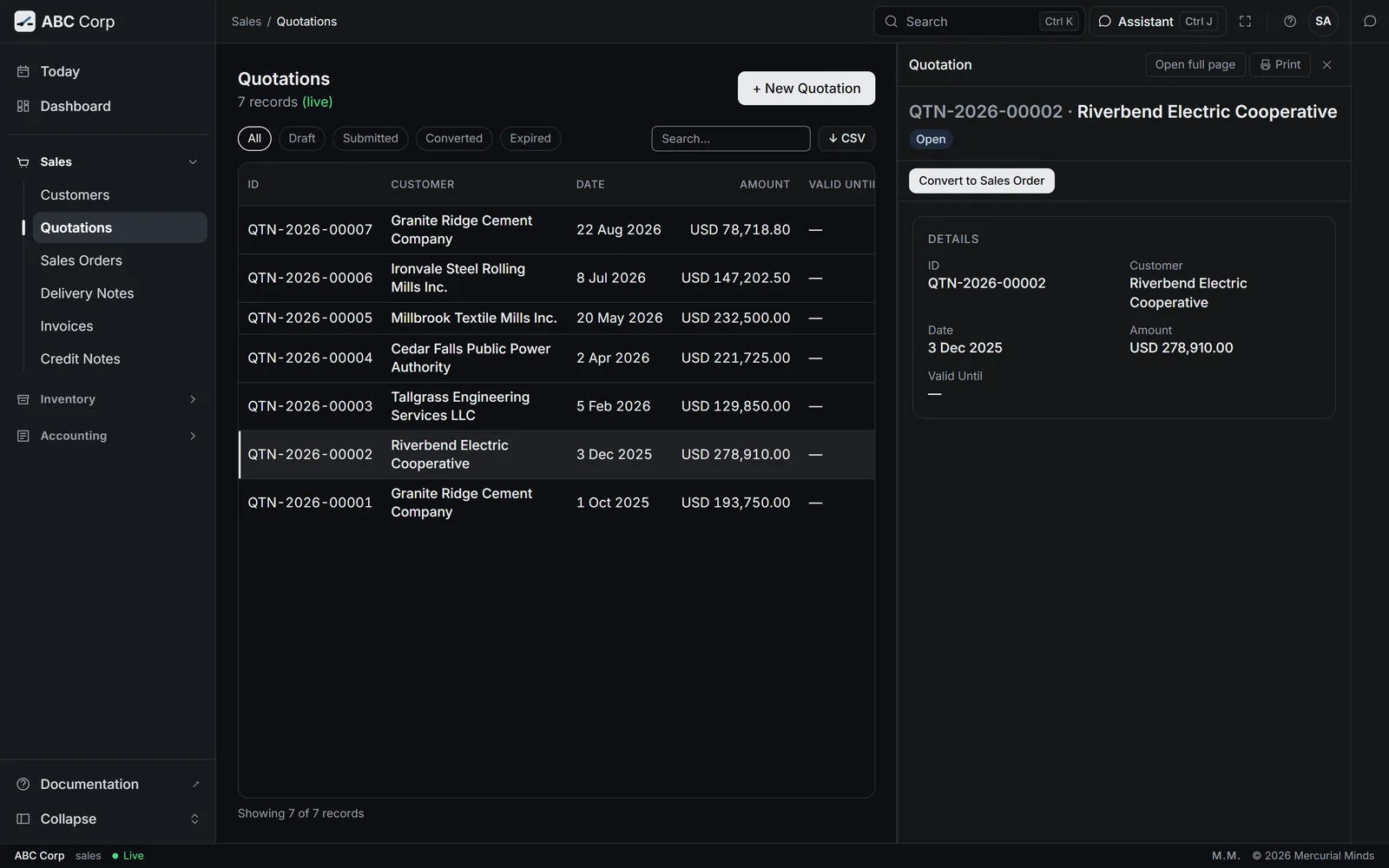
This waits for approval
The card reads Issue a quotation to a customer, with every line and price. The Sales seat answers it. See Approve or decline a request.
Does Axis send the quotation to the customer?
Issuing records the quotation in Axis, with its date and its validity. You share it with the customer by your usual route, such as email.
The customer accepts after the quotation has expired
Raise a fresh quotation with a new Valid Until date, then convert that one.
Confirm a sales order
You end with the customer's order confirmed, so Stores can deliver it and you can invoice it.
Confirm a sales order
- Open the draft order, from a PDF or a quotation.
- Check the customer, the lines and the delivery date.
- Confirming waits on a card. Approve it.
- The order reads Confirmed and offers its delivery.
Before you start: a draft sales order. Riverbend's order from the PDF is SO-2026-00025.
Confirm the Riverbend order SO-2026-00025.
- The assistant finds the draft order and shows its lines.
- It asks to confirm the order. A card waits for your decision.
- Check the customer, the quantities and the total, then press Approve.
- Open Sales, then Sales Orders.
- Open SO-2026-00025.
- Press Submit Sales Order.
- Read the approval card, then press Approve.
What you see
The order reads Confirmed. It now offers Create Delivery Note and Create Invoice.
This waits for approval
The card reads Confirm a sales order, with the customer and every line. The Sales seat answers it. See Approve or decline a request.
The order you want reads Confirmed already
Someone has confirmed it. Open it and carry on from Create Delivery Note.
Deliver an order
You end with the goods out of stock on a delivery note, linked to the order they fill.
Deliver an order
- Open the confirmed order.
- Create the delivery note and choose the store the goods leave from.
- Delivering waits on a card, because stock leaves the books.
- Approve it. Stock falls and the order shows what is delivered.
Before you start: a confirmed sales order, and the goods in a store. Finished goods sit in the Finished Goods Warehouse.
Raise the delivery note for SO-2026-00025 from the Finished Goods Warehouse and submit it.
- The assistant drafts the delivery note from the order's lines.
- It asks to deliver the goods. A card waits for your decision.
- Check the quantities and the store, then press Approve.
- Open Sales, then Sales Orders, and open the confirmed order.
- Press Create Delivery Note, and confirm.
- Open Delivery Notes and open the new note.
- Press Submit Delivery Note.
- Read the approval card, then press Approve.
What you see
The delivery note reads Submitted. The goods leave the store's stock, and their cost moves to cost of sales.
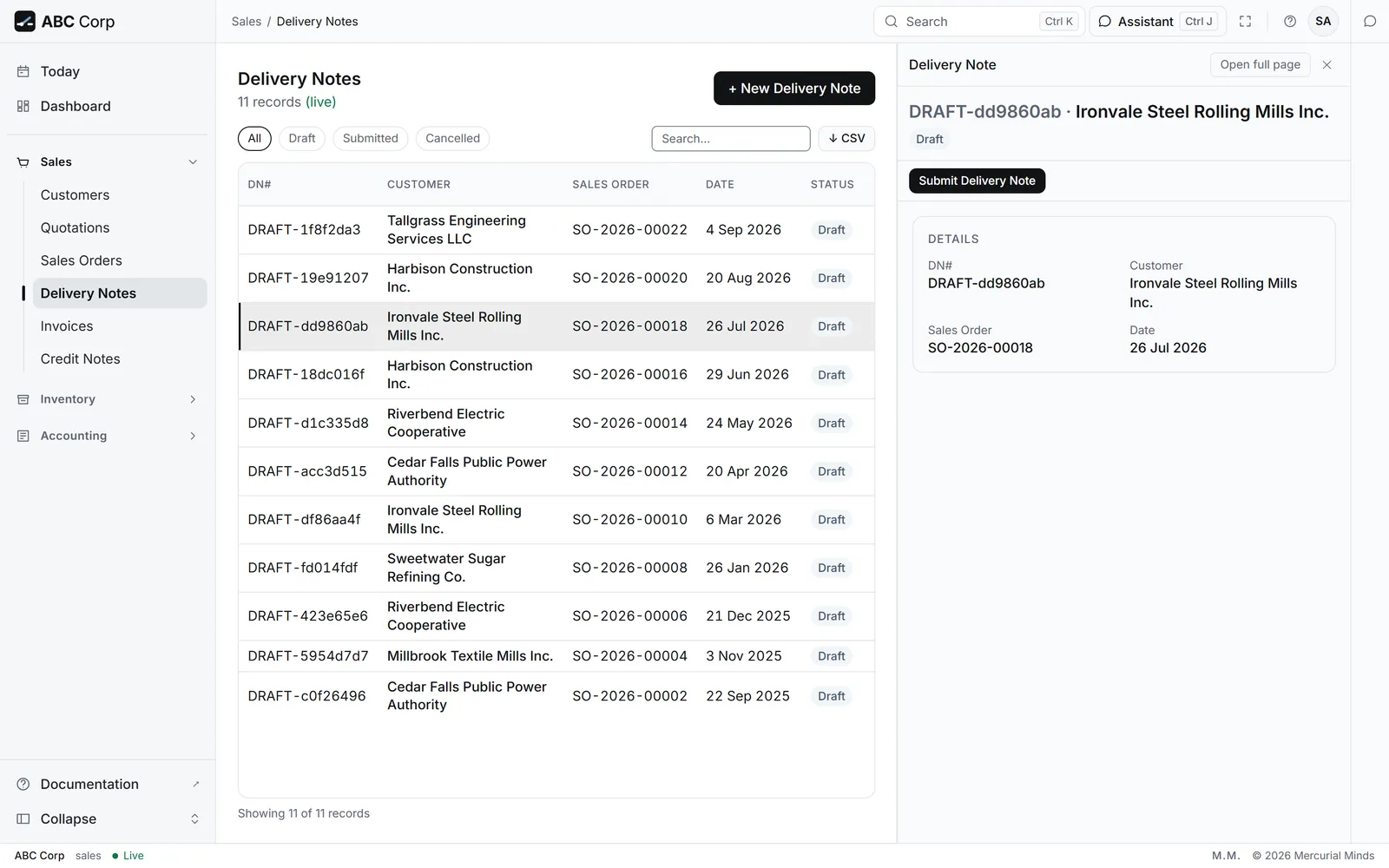
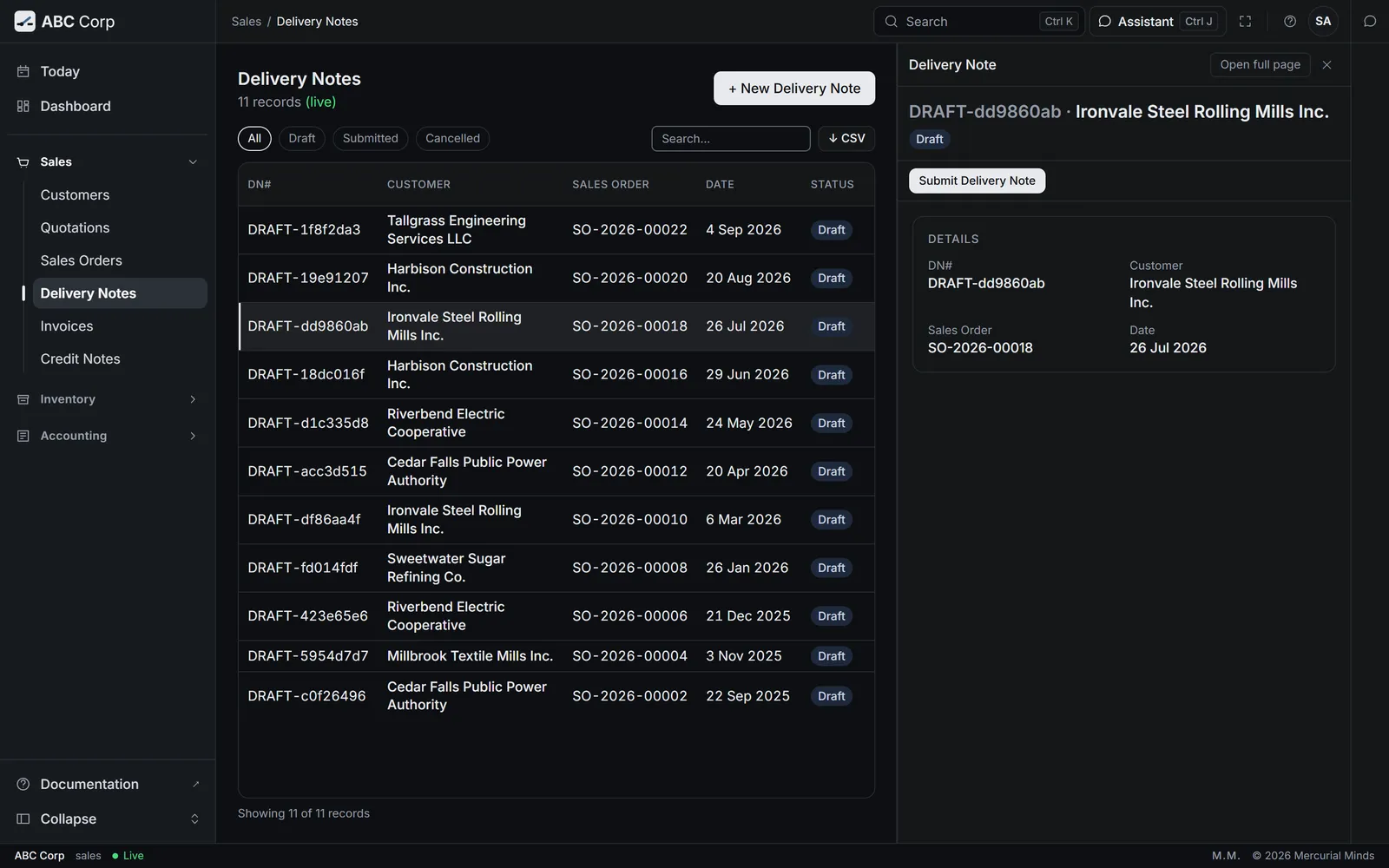
This waits for approval
The card reads Deliver goods and reduce stock. The Stores seat or the Sales seat answers it. See Approve or decline a request.
insufficient stock for item
The store holds fewer than the order needs. The message gives the current quantity and the quantity asked for. Deliver part of the order now, or choose another store that holds the goods.
Raise a sales invoice
You end with an issued invoice that the customer owes, posted to the books.
Raise a sales invoice
- Open the delivery note or the order.
- Create the invoice from it.
- Issuing the invoice waits on a card, because it posts.
- Approve it. The amount shows in Receivables.
Before you start: a confirmed order or a submitted delivery note to invoice from.
Invoice the goods just delivered to Riverbend and issue the invoice.
- The assistant drafts the invoice from the delivery note, with the order's prices.
- It asks to issue the invoice. A card waits for your decision.
- Check the lines, the tax and the due date, then press Approve.
- Open Sales, then Delivery Notes, and open the delivery note.
- Press Create Invoice, and confirm.
- Open Invoices and open the new invoice.
- Press Submit Invoice.
- Read the approval card, then press Approve.
What you see
The invoice has its number, such as INV-2026-00022, and an outstanding amount. The dashboard's Invoiced and Receivables figures rise by the total.
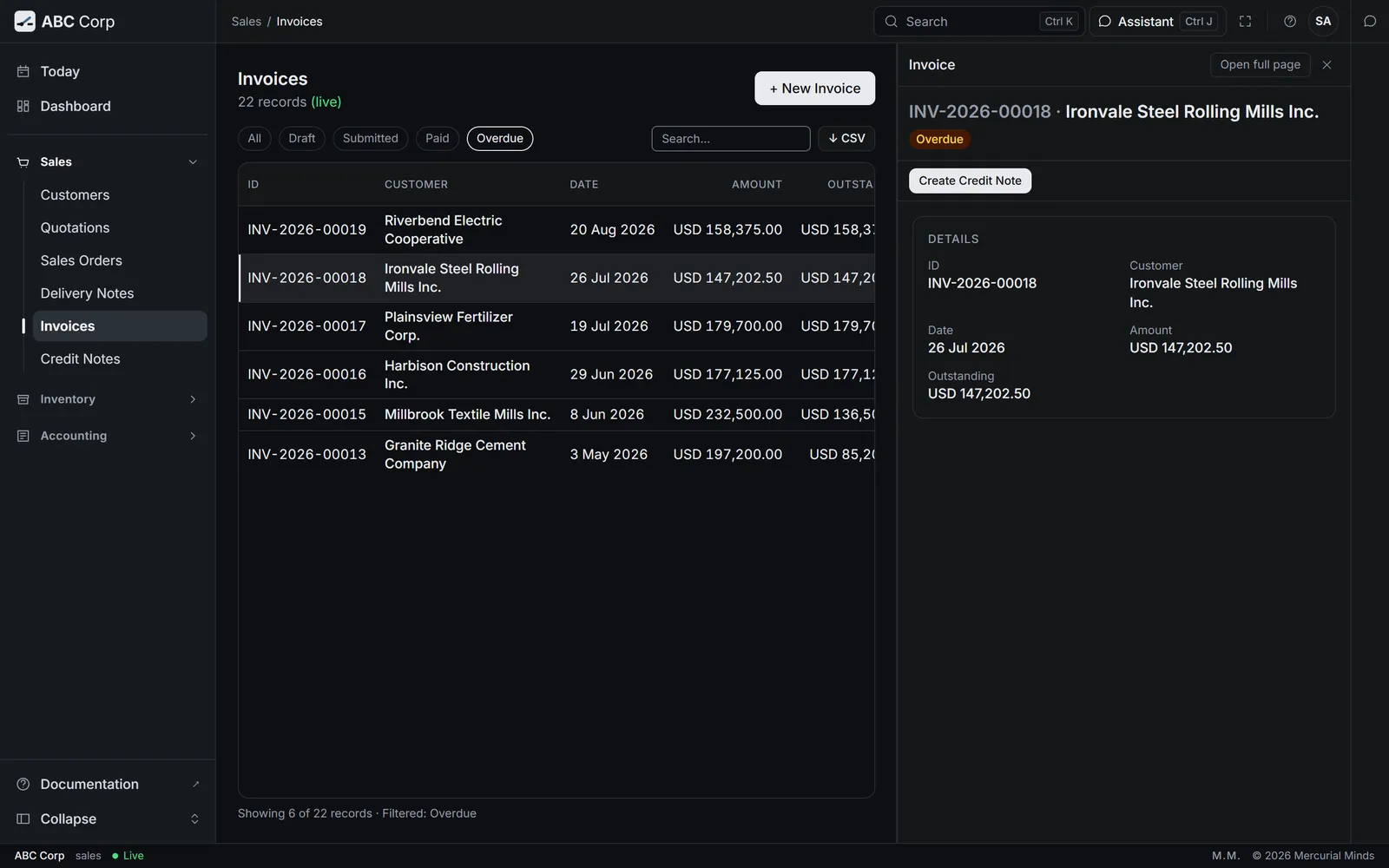
This waits for approval
The card reads Issue a sales invoice and post it, with the customer, the lines and the total. The Sales seat answers it. See Approve or decline a request.
What the invoice posts
The customer's account takes the full amount. Revenue takes the amount before tax, and each tax account takes its share. Both sides balance on the invoice alone.
The invoice total differs from the order
Check what was delivered. An invoice from a delivery note bills the quantity delivered, which may be part of the order.
Record a customer payment
You end with the customer's money posted to the bank and applied to the invoice it pays.
Record a customer payment
- Say what arrived, from whom, and which invoice it pays.
- The assistant prepares the payment, applied to that invoice.
- Posting waits on a card. Approve it.
- The invoice shows what is still owed.
Before you start: an issued invoice. The CFO, the GM Finance and the Manager Sales post payments. The Manager Accounts records them and applies them to invoices.
Record USD 25,000 received from Riverbend against INV-2026-00019, and submit it.
- The assistant prepares the payment into the bank account, applied to INV-2026-00019.
- It asks to post the payment. A card waits for your decision.
- Check the customer, the amount, the bank account and the invoice, then press Approve.
- Open Accounting, then Payments.
- Press + New Payment.
- Fill in the Payment Type, Date, Party Type, Party, Amount, Paid From and Paid To, then save.
- Ask the assistant to post it and apply it to the invoice.
What you see
The invoice reads Partially paid, with USD 133,375.00 still owed. Cash rises and Receivables falls by USD 25,000.
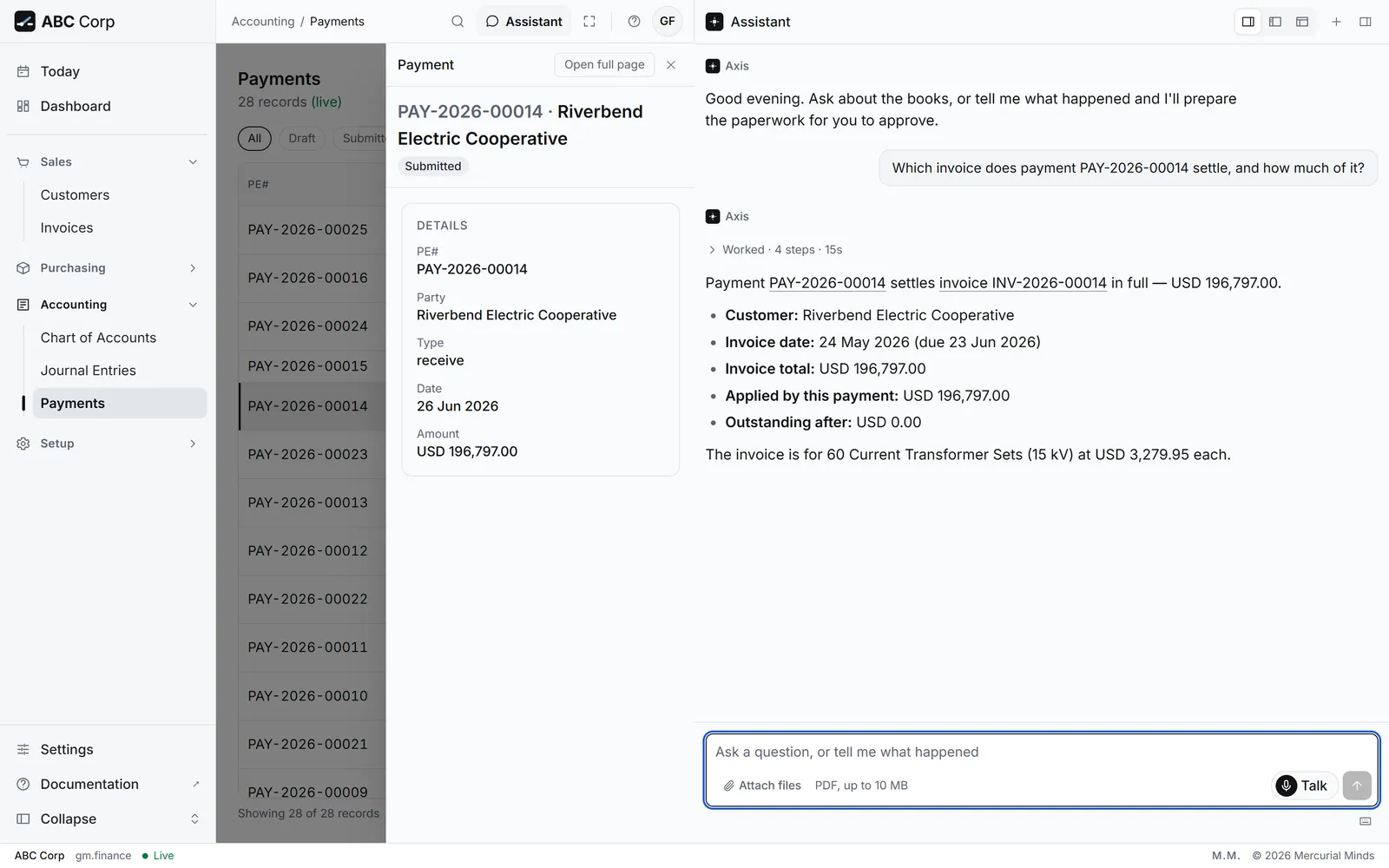
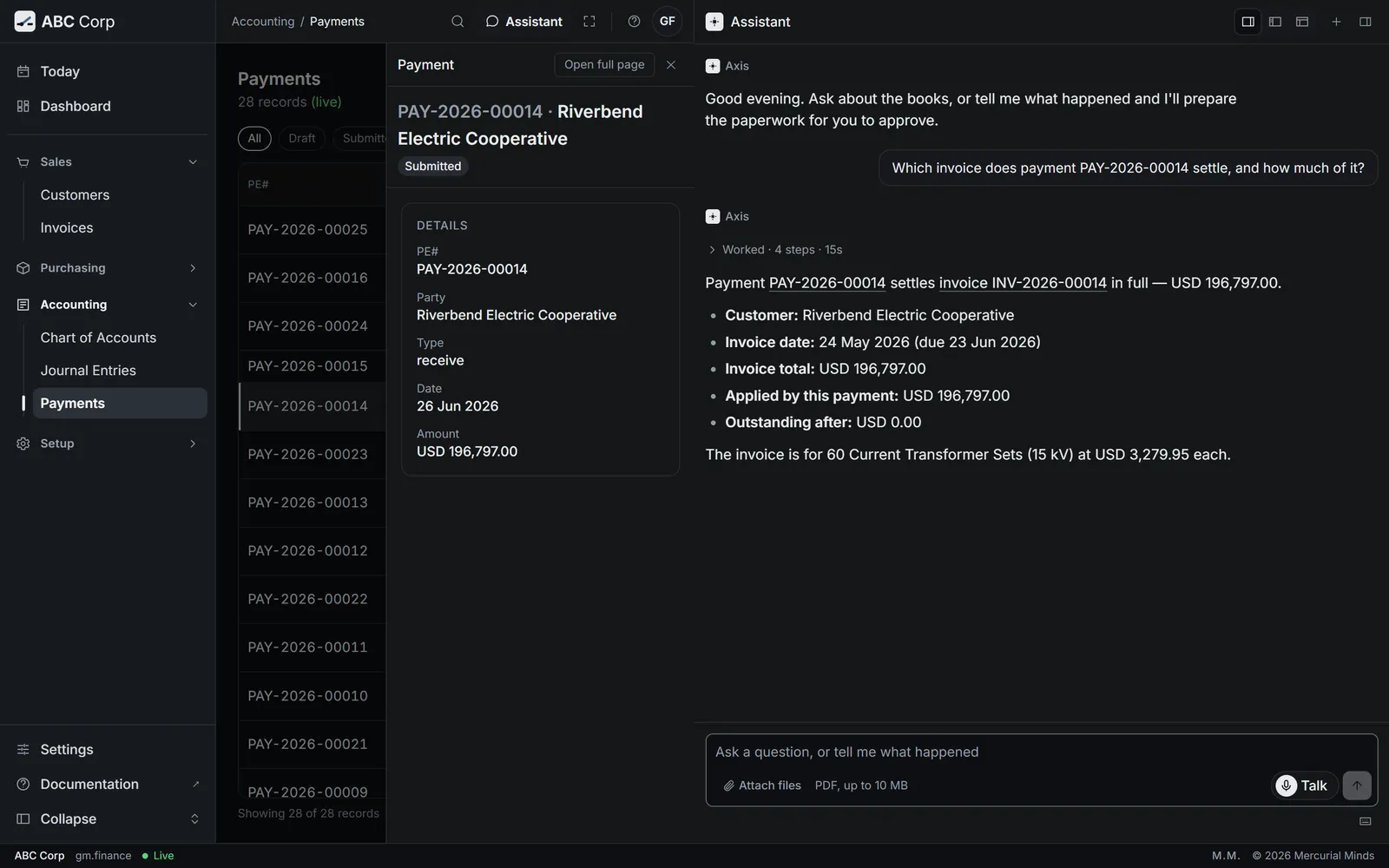
This waits for approval
The card reads Record a payment and post it to the ledger. A Finance seat or the Sales seat answers it. See Approve or decline a request.
Apply every payment to an invoice
A payment posted on its own sits on the customer's account as unapplied money. The invoice then still reads as owed. Ask "Which customer payments are ready to apply to invoices?" to find them.
The payment is larger than the invoice
Apply what the invoice needs. The rest stays on the customer's account, ready for their next invoice.
Chase overdue invoices
You end with a list of the invoices past their due date, largest first, so you know who to call.
Chase overdue invoices
- Today counts the invoices ready to chase.
- Press the line to open them.
- Or ask the assistant who to chase first.
- Record each payment as it arrives.
Before you start: issued invoices. The Finance seats and the Sales seat see what customers owe.
What are customers due to pay us, and which should we chase first?
- The assistant reads what each customer owes, by how long it has been open.
- It names the customers to call first, with each amount.
- Check the oldest amounts first.
- Open Today. The line invoices ready to chase counts them.
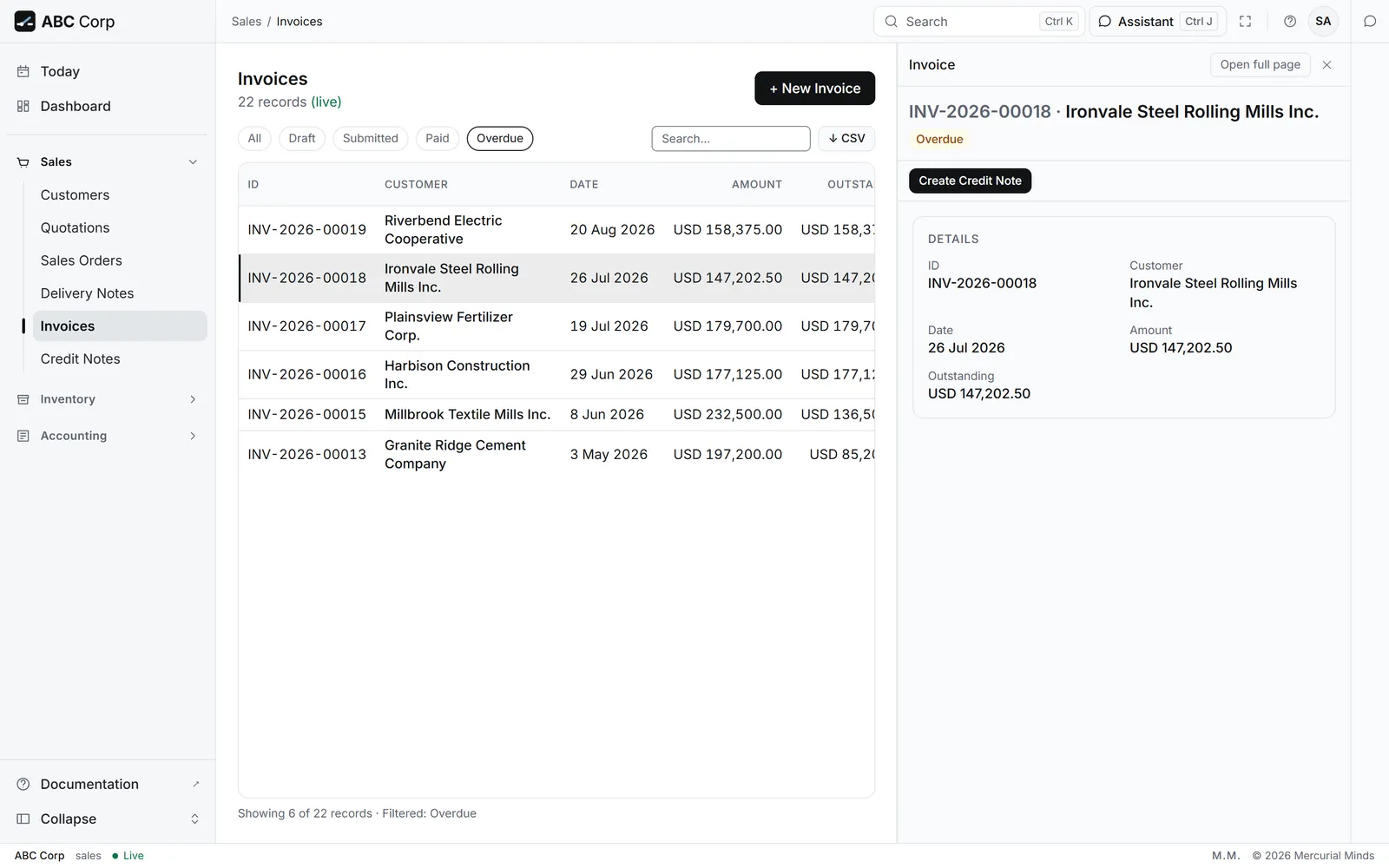
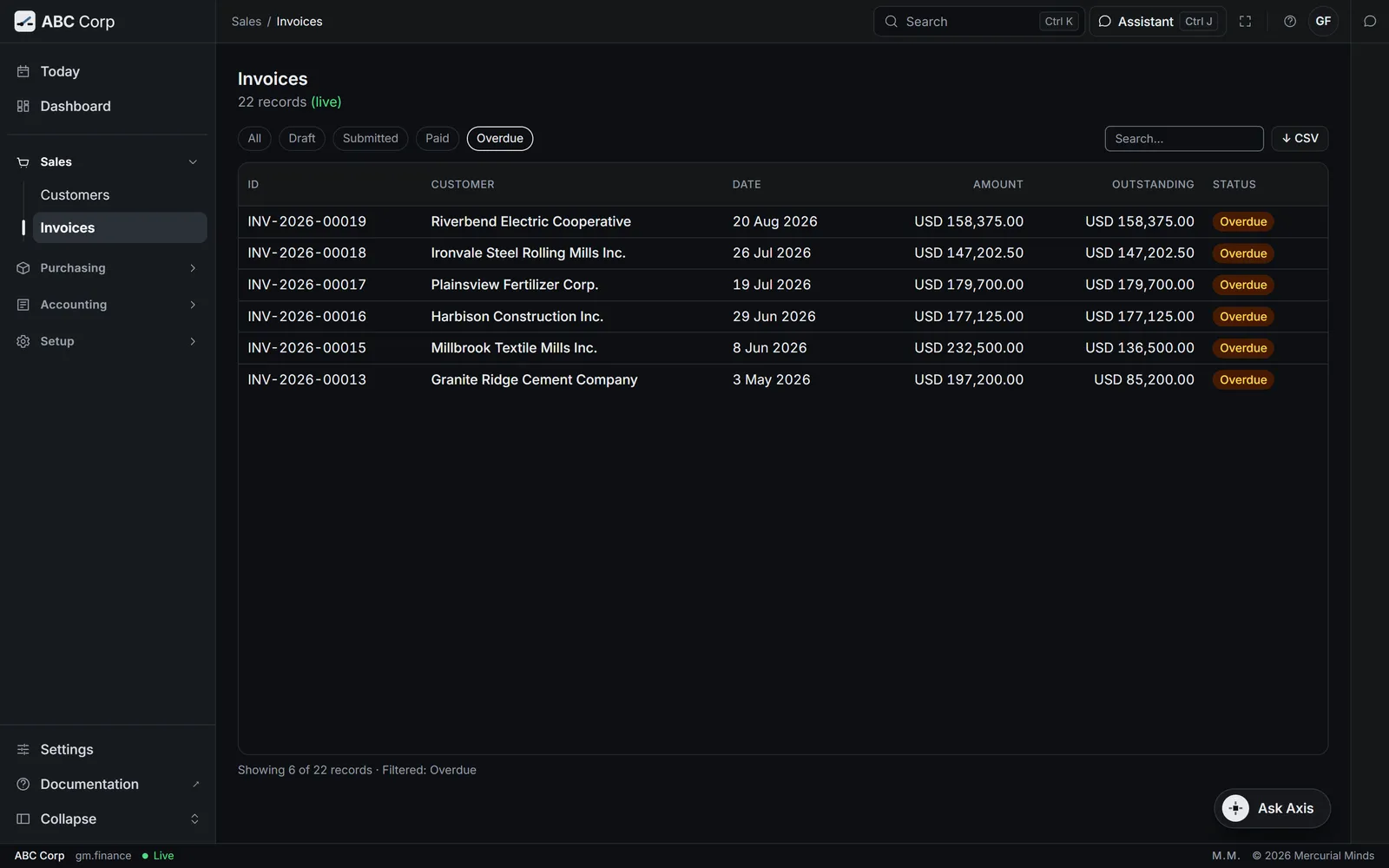
- Press the line. Invoices opens, filtered to Overdue.
- Open an invoice to see the customer, the due date and the amount still owed.
What you see
In ABC Corp, six invoices are past due. Riverbend's INV-2026-00019, for USD 158,375.00, fell due on 19 September 2026.
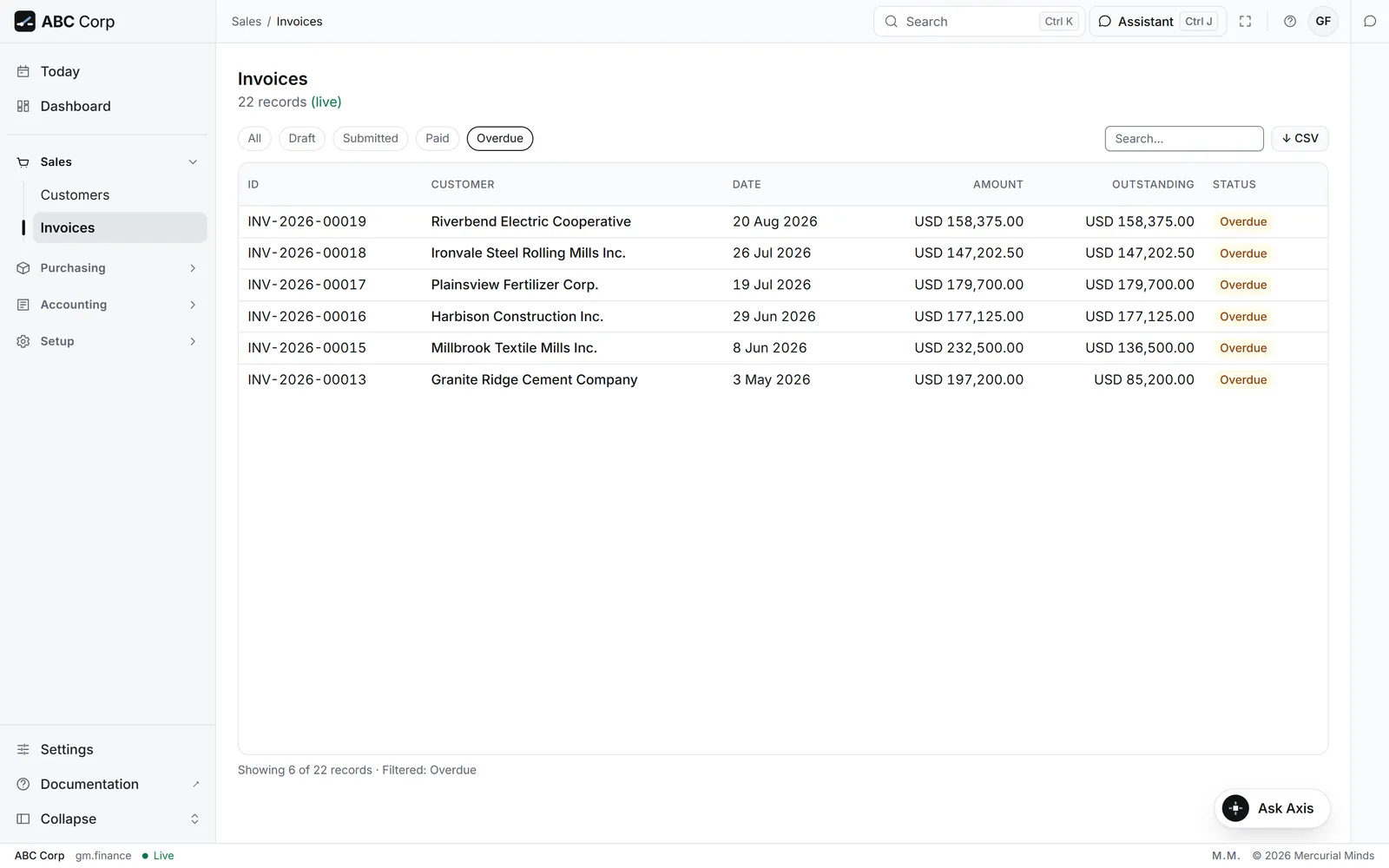
Two ways to count what is owed
Receivables on the dashboard nets every payment against what was billed, including money paid in advance. The overdue list counts invoices past their due date. Each answers its own question, so the two figures can differ.
A customer reads as owing, though they say they paid
Look for an unapplied payment on their account. Ask the assistant which customer payments are ready to apply, then apply it to the invoice.
Issue a credit note
You end with a credit note against the original invoice, issued with its own number, and the customer owing less.
Issue a credit note
- Open the invoice the credit is for.
- Create the credit note with the returned lines and a reason.
- Issuing it waits on a card, because it posts.
- Approve it. The credit note takes its number.
Before you start: an issued invoice for the goods that came back.
Raise a credit note against INV-2026-00019 for one Pad-Mounted Switchgear 15 kV, damaged in transit, and issue it.
- The assistant drafts the credit note against the invoice, with the returned line and your reason.
- It asks to issue the credit note. A card waits for your decision.
- Check the line, the amount and the reason, then press Approve.
- Open Sales, then Invoices, and open the invoice.
- Press Create Credit Note.
- Fill in the Date, the Reason and the Returned Lines, then save.
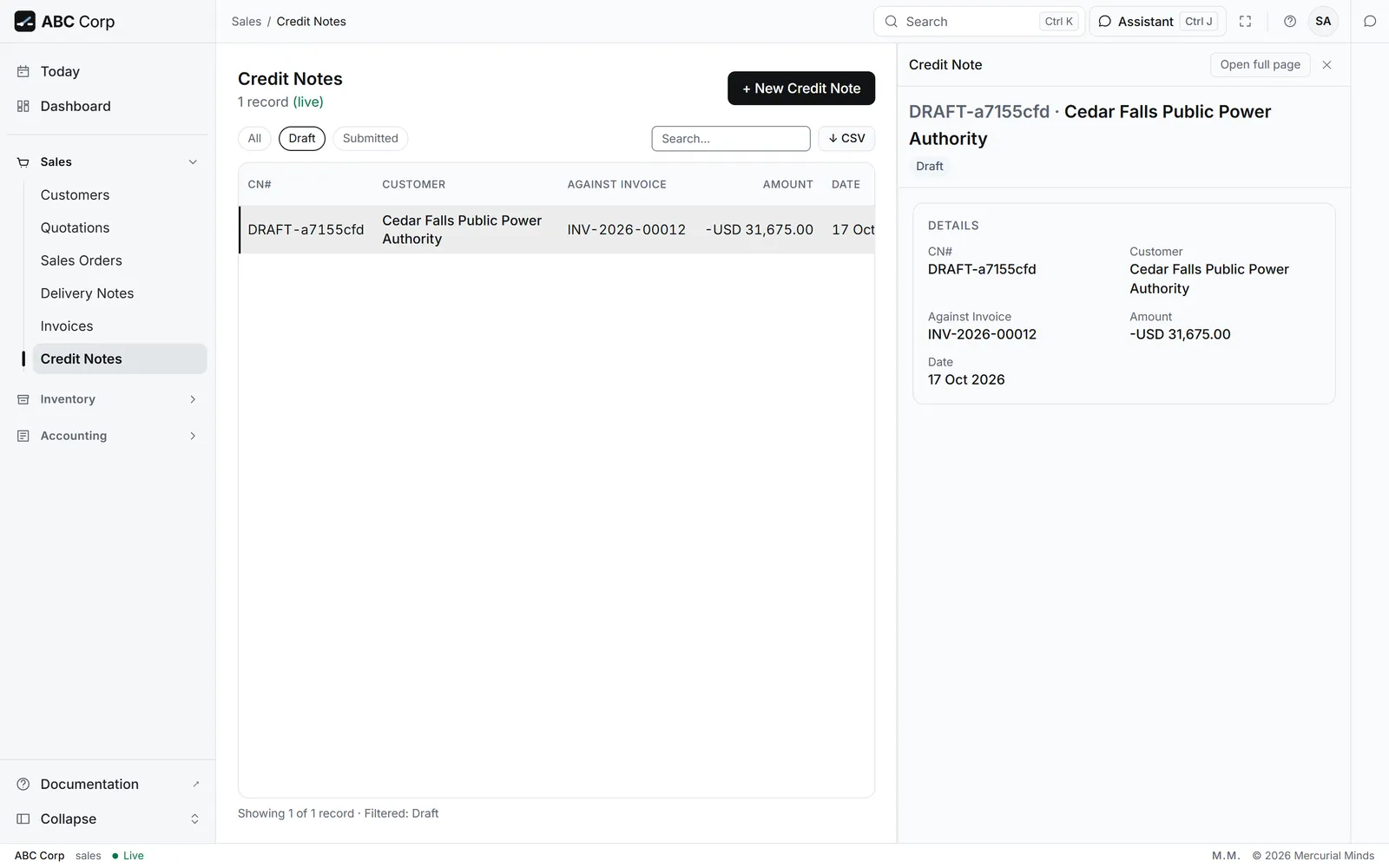
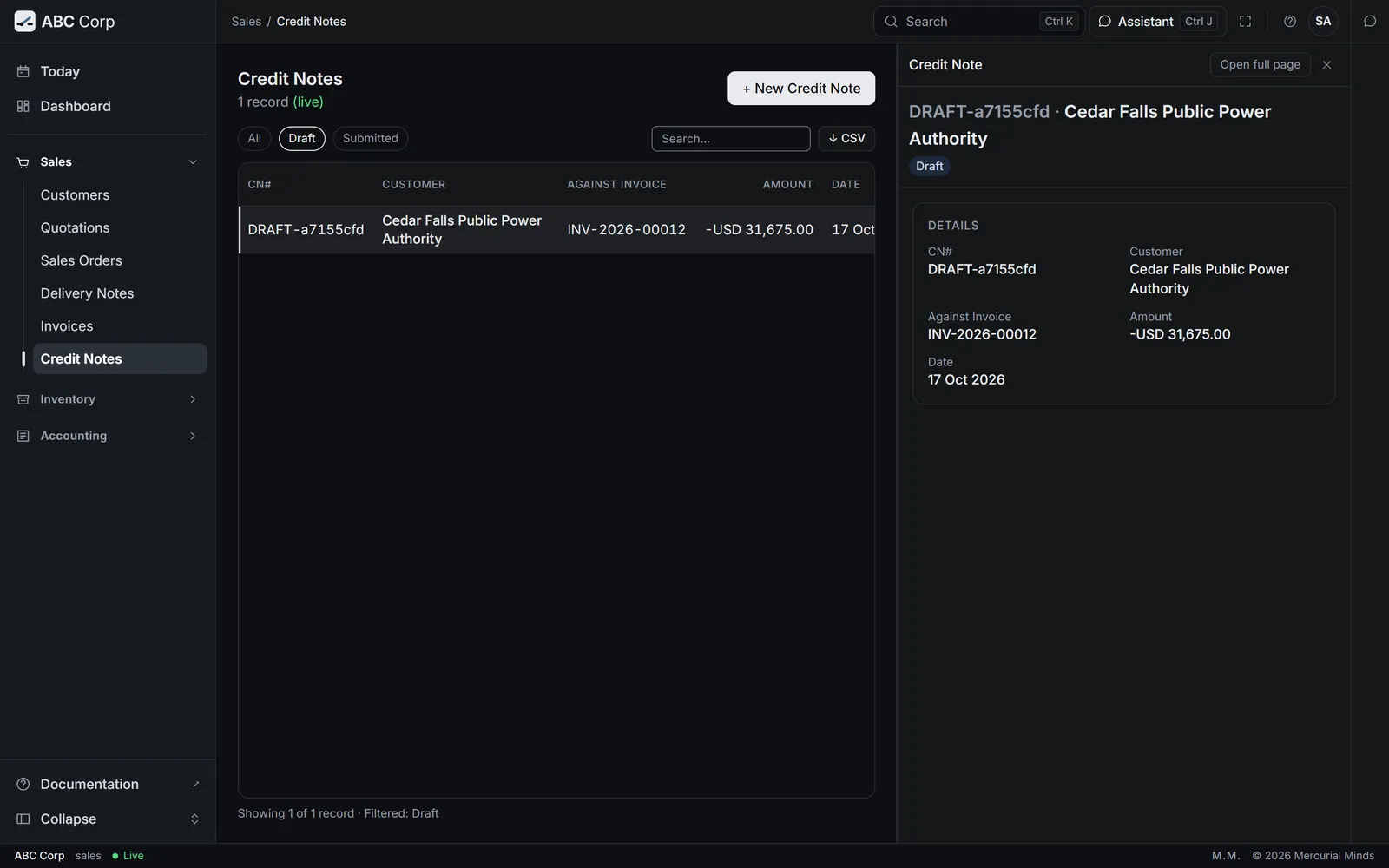
- Ask the assistant to issue it. The draft is in Credit Notes.
What you see
The credit note reads Submitted, with its number, such as CN-2026-00001, and a negative total. Riverbend's balance falls by USD 31,675.00.
This waits for approval
Raising the draft is routine. Issuing it waits on a card that reads Issue a sales invoice and post it, because a credit note posts like an invoice. The Sales seat answers it. See Approve or decline a request.
Cannot create credit note: original invoice is 'written_off'
The invoice's debt was written off already, so a credit against it would count twice. Check the invoice with Finance first.
Next
- Buy from suppliers: buy what the Riverbend order needs.
- Money and the books: approve postings, correct entries and close the year.
- Your work, end to end: every task on one table.