HELP
Questions and fixes
Most fixes sit at the step where the problem arises, on the task pages. This page gathers the ones that apply everywhere: signing in, sessions, the assistant, approval cards, reading documents, your seat, and currency and time.
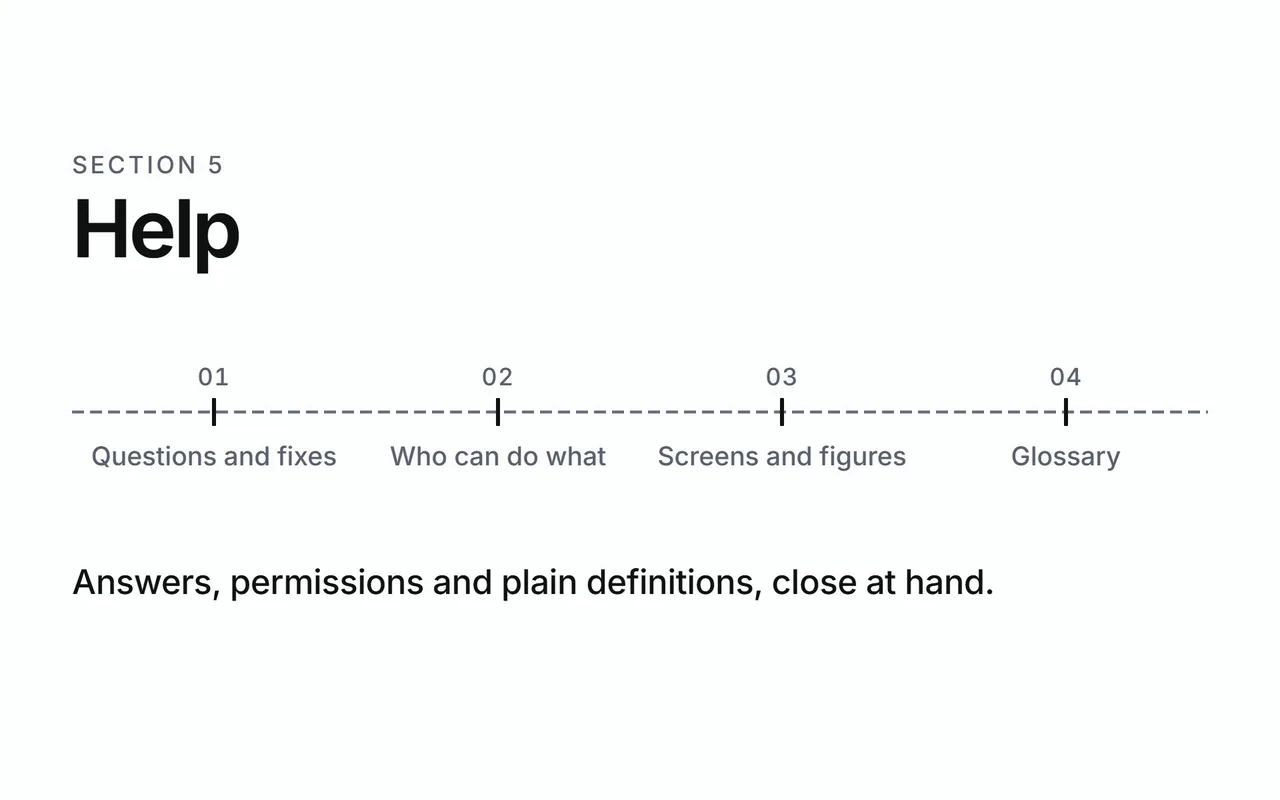
Help
Answers, permissions and plain definitions, close at hand.
- Questions and fixes
- Who can do what
- Screens and figures
- Glossary
Open a question to read its answer. Each answer links to the step it belongs to.
Shown with ABC Corp, a demonstration company.
Sign-in and access
Invalid email or password
Axis shows this one message for a wrong email address and for a wrong password, so the message keeps your account private.
- Check the email address first. It is the address your administrator gave you.
- Type the password again. Press Show password beside the field to see what you typed.
- Ask your administrator if the address and password still fail.
See Sign in.
Account locked. Try again later.
Five wrong passwords in a row lock the account for 15 minutes. This protects it from guessing.
Wait 15 minutes, then sign in with the right password. The count starts again after a successful sign-in.
Account is inactive
Your administrator has switched this account off. Ask them to make it active again.
Your session ended. Please sign in again.
Axis keeps you signed in while you use it. Your sign-in lasts for 7 days after you last used Axis, and it renews itself each time you work.
Sign in again. Axis then returns you to the page you were on.
On a demonstration deployment, the sign-in page lists the Demo seats. Press a seat to fill in its email and password.
Someone changed my role. When does it apply?
Axis checks your role on every request, so the change applies to your next action at once. The menu, Today and the assistant's suggestions follow it when the page reloads or when you next sign in.
Do this in the Axis web app, where it waits for your approval.
Your AI tool asked for a posting, an award or a cancellation through a standard key. Do it in Axis, where you approve it on a card.
Axis could not read its approval list, so API keys are paused. Use the web app.
Axis lost its list of the work that waits for approval, so it pauses every key to keep the books safe. Do the work in the web app for now, and tell your administrator.
Talk is started from the web app, not with an API key.
A program asked to start a Talk call with a key. Talk is for a person at a microphone: open the assistant in the web app and press Talk.
The account this key belongs to is not active.
The person's account is disabled, so each of their keys stops. Ask your administrator.
Where do I see my keys?
In Settings, under API keys. Each key shows when it was last used.
The assistant
The assistant asks which supplier you mean
Two or more records match the name you gave, so the assistant lists them and waits for you to pick one. It names each with its number and the facts that tell them apart.
Reply with the one you mean, by name or by number. To skip the question next time, give the document number, such as SQ-2026-00004. Numbers in the demonstration company may differ from the ones shown here.
The assistant could not finish this answer. Nothing more was done after the steps shown. Try again in a moment.
The assistant lost its connection to the language model part-way through. Every step shown above the message is complete. The rest of the answer stopped there.
Read the steps shown, then ask again in a moment.
Stopped. Nothing was changed.
You pressed Escape while the assistant was working, so it stopped. When some changes went through first, the message counts them and asks you to check the records before you ask again.
Could not reach the server. Try again in a moment.
Your browser lost its connection to Axis. Check your network, then try again.
The Talk button is missing
Talk needs the voice settings on your server. Ask your administrator to check them. Typing in the assistant panel works the same in the meantime.
Voice is not set up on this deployment.
The server is missing its voice settings, so the call stops before it starts. Ask your administrator to check them. Typing in the assistant panel works the same in the meantime.
Talk needs your microphone. Allow microphone access for this site in your browser, then press Talk again.
Your browser is holding the microphone back from Axis. Open the site settings beside the address bar, and set Microphone to Allow. Then press Talk again.
The call starts, and your words stay out of the captions
Check the call bar first. When it reads microphone off, press the microphone button to turn the microphone on. Then check that your computer's microphone is switched on and chosen as the input.
The call was cut off. Press Talk to start again.
The connection to the voice service dropped. Your conversation so far stays in the panel. Press Talk to start again, or carry on by typing.
The call timed out before it started. Press Talk to try again.
The call took too long to connect. Press Talk again.
Too many calls started in the last minute. Wait a moment, then press Talk again.
Each person can start 6 calls a minute. Wait a minute, then press Talk again.
The call could not start just now. Try again in a moment.
The voice service was out of reach, or it turned the call away. Wait a moment, then press Talk again.
The voice said a request is ready for my approval
The request waits on its card in the assistant panel. Read every detail, then press Approve or Decline. See Approve or decline a request.
The voice said the full list is on screen
The answer holds a table. The rows are in the assistant panel, and each row opens its record.
What can I ask the assistant?
Describe what happened in your own words, as you would to a colleague. The assistant prepares the work and shows each step.
The suggestions in the assistant panel are chosen for your seat. Each one is a question your seat can answer. Ask "What can you do?" for the full list.
Your seat
The assistant only offers what my seat can do
The assistant works within the role of the person asking. It knows which areas your seat holds, and it offers help in those areas only. It runs every request with your own permissions.
When you ask about an area outside your seat, the assistant says so in one sentence. An administrator can add that area to your role.
See Roles and seats and Who can do what.
That is not part of your role.
The screen or the request belongs to another seat. The menu shows the screens your role opens, and the command palette offers the same screens.
Check Who can do what to see which seat holds the work. Ask your administrator to change your role if the work is yours.
My dashboard shows different figures from a colleague's
Each seat sees the figures its role releases. Finance seats see money. Stores, HR and the System Administrator see counts. Both views come from the same books.
See Dashboard figures.
Approval cards
Why does this request wait on a card?
Axis holds a set list of decisions for a person, such as posting a payment or awarding a supplier. Decisions that wait for approval lists them. The card shows the action and every detail it will run with. It runs only when you press Approve.
See What the card shows.
I closed the card. Where did it go?
Today keeps every card that waits for you. Open Today, find the item marked Approval, then press Review. The card opens again in the assistant.
That approval is no longer pending.
The card has an answer already, from this tab or another one. The message also appears when the Axis server has restarted since the card appeared. A card belongs to the person who asked for it, in the company it was asked in.
Check the record first. Then ask the assistant again if the work is still to do.
I pressed Escape on the approval card
Some buttons on a screen open an approval card over the page. There, Escape or a press outside the card declines the request. The record stays as it was. Press the button again to bring the card back.
What happens when I decline?
The request stays undone, and the card reads Declined. In the assistant, type a reason in Reason for declining (optional) before you press Decline. The assistant reads the reason and carries on.
A card that a button on a screen opens records only the decline, and the reason stays with you.
Can I approve my own request?
Yes. The card goes to the person who asked, and Axis runs a request only for a seat that holds that work. See Decisions that wait for approval for the seats that make each decision.
Reading documents
Which documents can Axis read?
Axis reads digital PDFs: a supplier quotation or a customer order. Attach the PDF in the assistant, send it, then press Read as a supplier quotation or Read as a customer order.
Axis records the document only after you check the values and press Confirm as extracted. The original PDF stays beside the record.
See Read a supplier quotation from a PDF and Read a customer's order from a PDF.
Extraction timed out -- try again or enter the document manually
Reading a document takes the language model up to about two minutes. This time it took longer. Press Try again. A second attempt often succeeds.
If it times out again, enter the document on its screen instead.
No text layer was found in the PDF. It may be a scanned image -- OCR is out of scope for this extraction.
The PDF is a photograph or a scan of paper. Axis reads the text inside a digital PDF, the kind a supplier's system produces.
Ask the sender for the digital PDF, or enter the document on its screen.
File is not a valid PDF (missing %PDF signature); only digital PDFs are accepted, scanned images are not
The file has a PDF name, but its contents are a different kind of file. Save or export it again as a PDF, then attach it.
File exceeds the maximum upload size of 10485760 bytes
The file is larger than this deployment accepts. The usual limit is 10 MB, and the message names the limit in bytes. Ask the sender for a smaller copy, or save the PDF again at a smaller size.
The PDF is password-protected and could not be read.
Remove the password in your PDF reader, save a copy, then attach the copy.
A value on the review is wrong
Correct it in the review, beside the page it came from. The button then reads Save corrections. Axis records the values you confirm.
Figures and lists
Your figures could not be loaded.
The dashboard reached the server, and the ledger failed to answer. Axis shows only figures read from your own books, so it leaves the space empty. Press Try again.
Today is unavailable just now.
Today failed to read your work list. Press Try again. The figures on the Dashboard are a separate read and often still load.
Today says I am all caught up
Every kind of work that waits on your seat is clear, and every approval card has its answer. The Dashboard has the figures.
See Today.
The dashboard figure and the report differ by a few cents
Dashboard figures are rounded to whole units, so they read quickly. The financial statements show every amount to the cent.
Receivables and the invoice balances give different totals
Receivables is what customers owe after every payment, including money received ahead of an invoice. The invoice balances count invoices only. An advance from a customer lowers Receivables at once, and the invoices stay as they are until the payment is set against them.
A workflow stage is marked Stalled
The oldest open item at that stage has waited 30 days or more. Press Open beside the stalled line to see the items.
See Workflow health.
Currency and time
Which currency do the figures use?
Every figure uses your company's own currency. ABC Corp keeps its books in USD, so its figures read USD 264,254.50. The assistant quotes figures in the same currency.
For a moment after you sign in, figures can show as plain numbers. The currency code appears as soon as Axis has read it from the company.
See Currencies.
When does an invoice become overdue?
An invoice becomes overdue when its due date has passed on your company's own calendar. Axis keeps a time zone for each company, so a business day ends at midnight where the company is. Document numbers take their year from the same calendar.
The times in Recent Activity look a few hours out
Times on the screen follow the time zone this deployment was installed with. Ask your administrator to check it matches your company's time zone.
What do the document numbers mean?
Each number starts with its kind of document and its year, such as SO-2026-00025 for a sales order. See Document numbers.
Next
- Who can do what: which seat holds each piece of work.
- Screens and figures: what each figure, cue and colour means.
- Glossary: the words Axis uses, one line each.