DO THE WORK
Receive, inspect and make
Goods in, inspection, stock and production.
Shown with ABC Corp, a demonstration company.
Ashgrove Fasteners and Hardware LLC delivers 2,400 Kg of Cold-Rolled Steel Sheet 14 Gauge on receipt PR-2026-00017. Stores records each reading against the specification, and the COO judges the result. The same page covers moving and counting stock, and turning a bill of materials into finished goods.
Progress
| Task | Seat | Waits for approval | Done when |
|---|---|---|---|
| Receive goods | Procurement, Stores | Yes | The goods are in stock against their order. |
| Record inspection readings | Stores | Routine | Every reading is marked against its range. |
| Evaluate an inspection | Operations | Routine | The inspection reads its verdict. |
| Follow up a non-conformance | Operations | Routine | The report has an owner, a cause and an action. |
| Move stock between stores | Stores | Yes | The stock and its value sit in the new store. |
| Count stock | Stores | Yes | The books match what is on the shelf. |
| Run a work order | Operations | Yes | The finished goods are in stock. |
| Plan maintenance | CEO | Routine | The plan lists each machine's next service. |
Receive goods
You end with the delivery in stock against its Purchase Order, and the order showing what has arrived.
Receive goods
- The goods arrive against a placed Purchase Order.
- Create the receipt from the order and choose the store.
- Receiving into stock waits on a card.
- Approve it. Stock rises and the order shows what arrived.
Before you start: a placed Purchase Order. See Raise the Purchase Order.
Receive the full Halvorsen order into the Raw Materials Store and submit it.
- The assistant drafts the receipt from the order's lines.
- It asks to receive the goods into stock. A card waits for your decision.
- Check the quantities and the store, then press Approve.
- Open Purchasing, then Purchase Orders, and open the order.
- Press Create Receipt, and confirm.
- Open Receipts to see the new receipt.
- Ask the assistant to submit it. The card is the same.
What you see
The receipt reads Submitted. Stock rises in the store, and the order's count leaves Awaiting Receipt once every line has arrived.
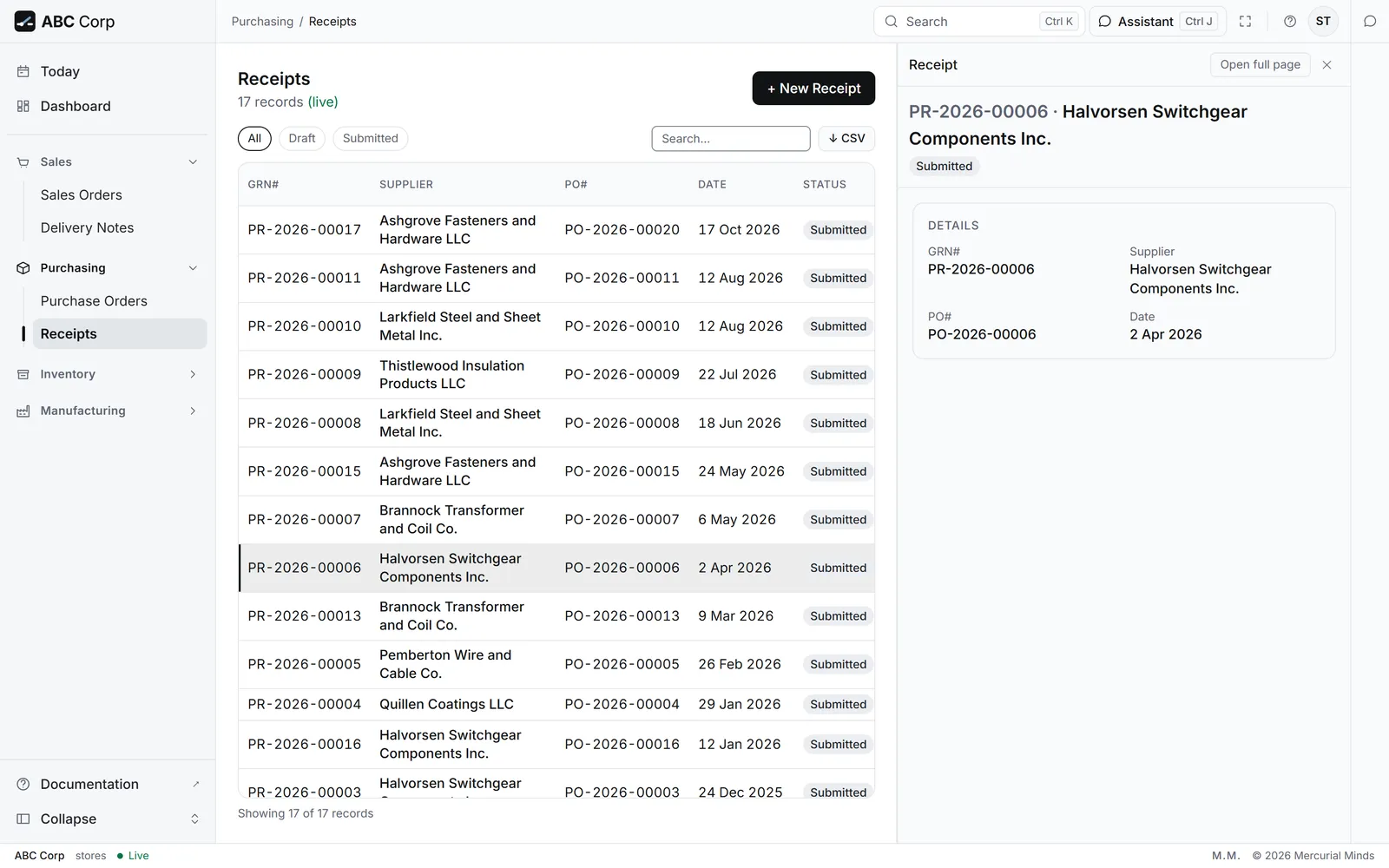
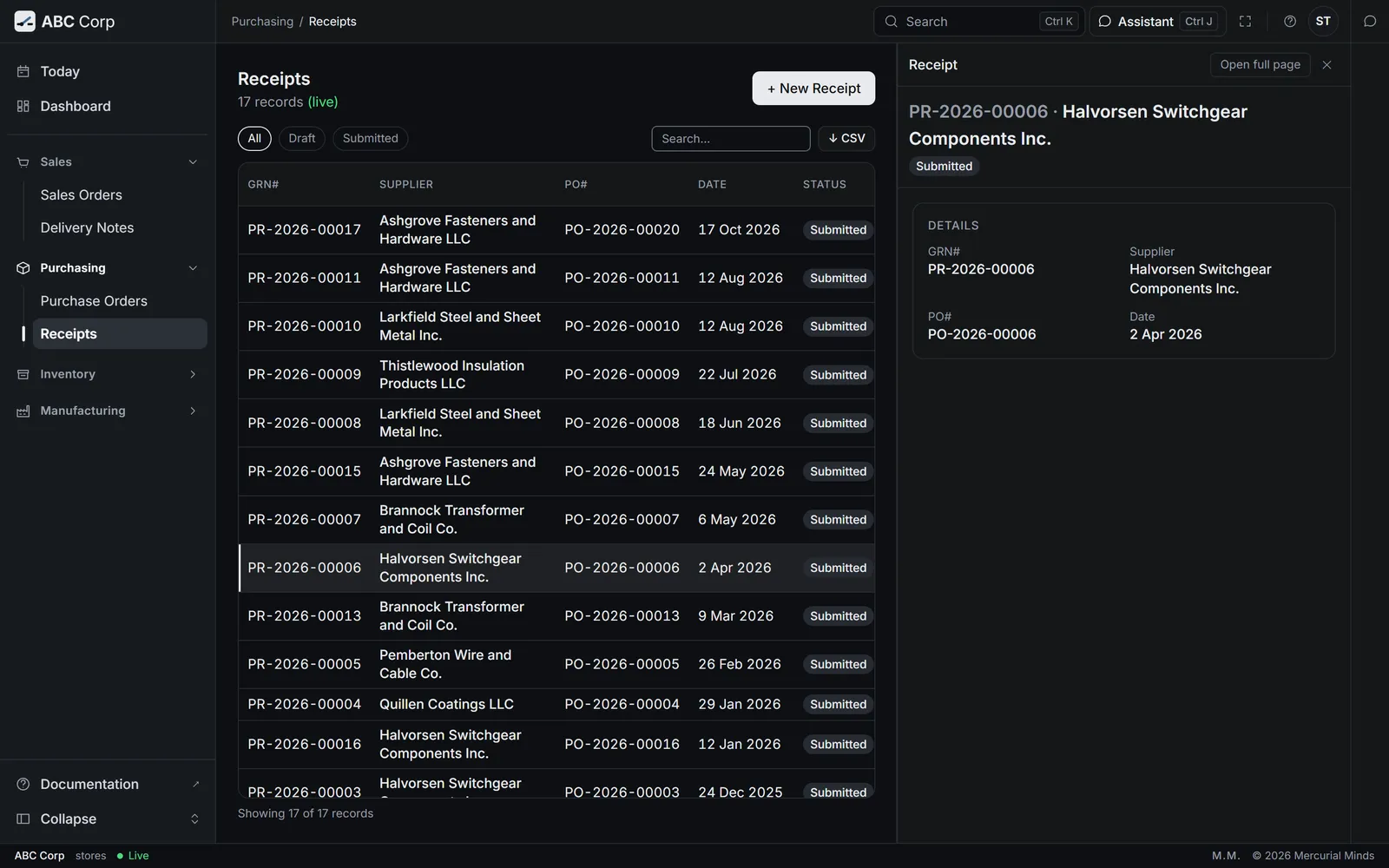
This waits for approval
The card reads Receive goods into stock. The Stores seat or the Procurement seat answers it. See Approve or decline a request.
What the receipt posts
Stock rises by the goods' value. The other side goes to the account "Stock Received Not Billed", which holds goods you have and the supplier has yet to bill. The supplier's invoice clears it.
Part of the order arrives
Receive the quantity that came. The order stays open for the rest, and the next receipt takes the balance.
Record inspection readings
You end with an incoming inspection for the receipt, and each reading marked against its range.
Record inspection readings
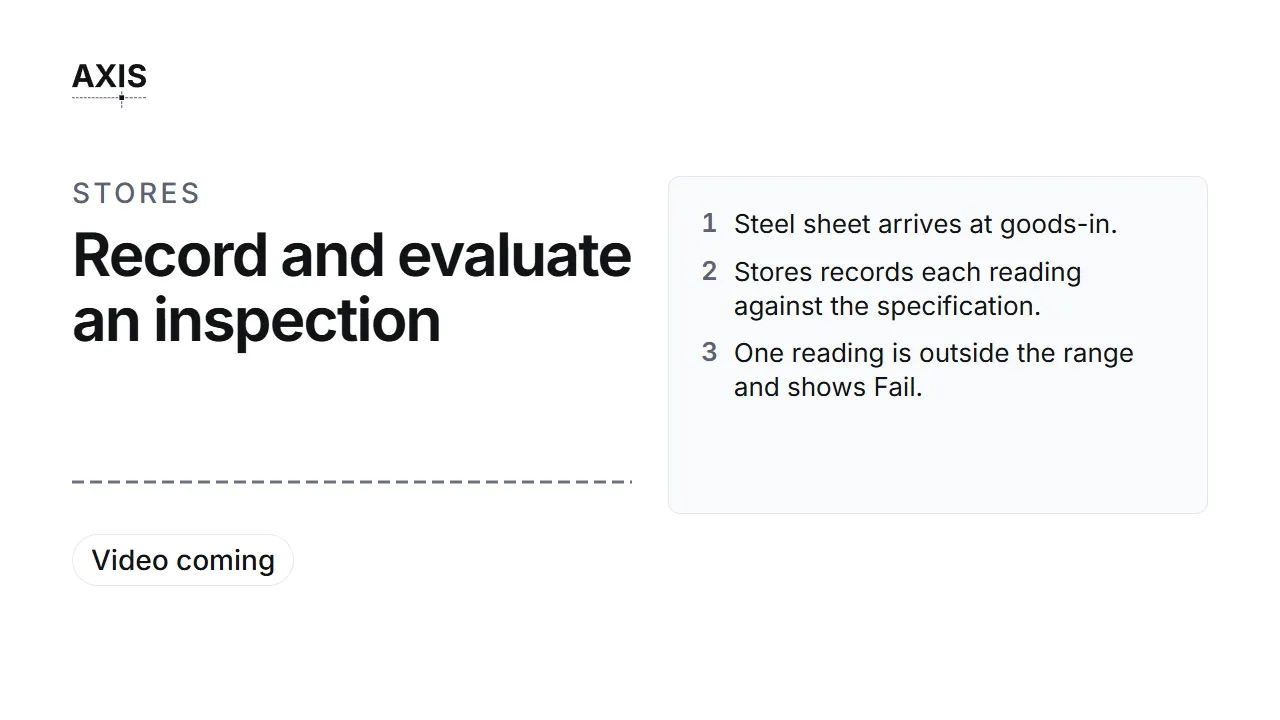
- Steel sheet arrives at goods-in.
- Stores records each reading against the specification.
- One reading is outside its range and is marked rejected.
- The COO evaluates: Partially accepted, 2 of 3.
- The COO raises a non-conformance for the failed reading.
Before you start: the Manager Stores role, the receipt, and an inspection template. ABC Corp's Incoming raw material check measures sheet thickness, surface finish and dimensional tolerance.
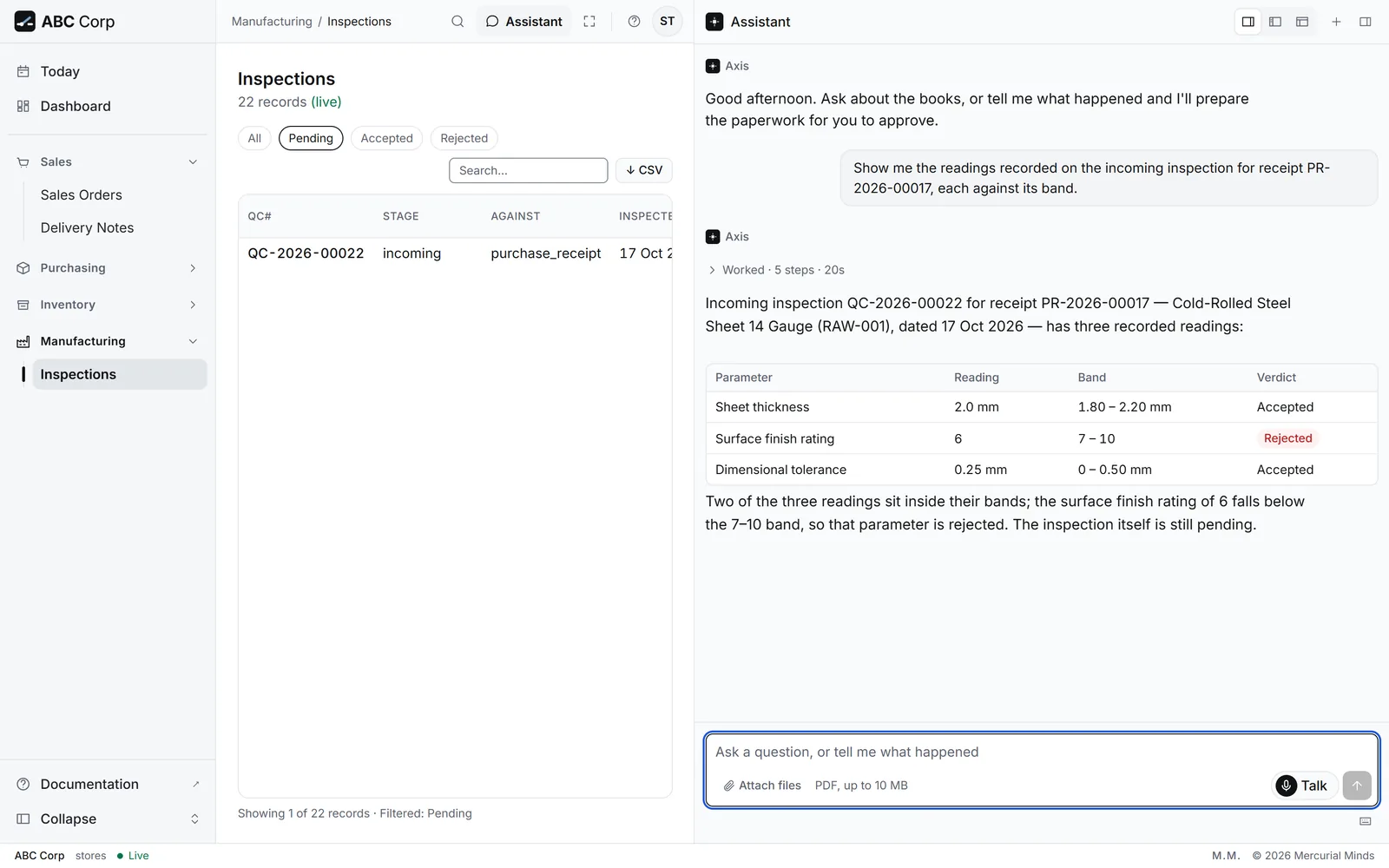
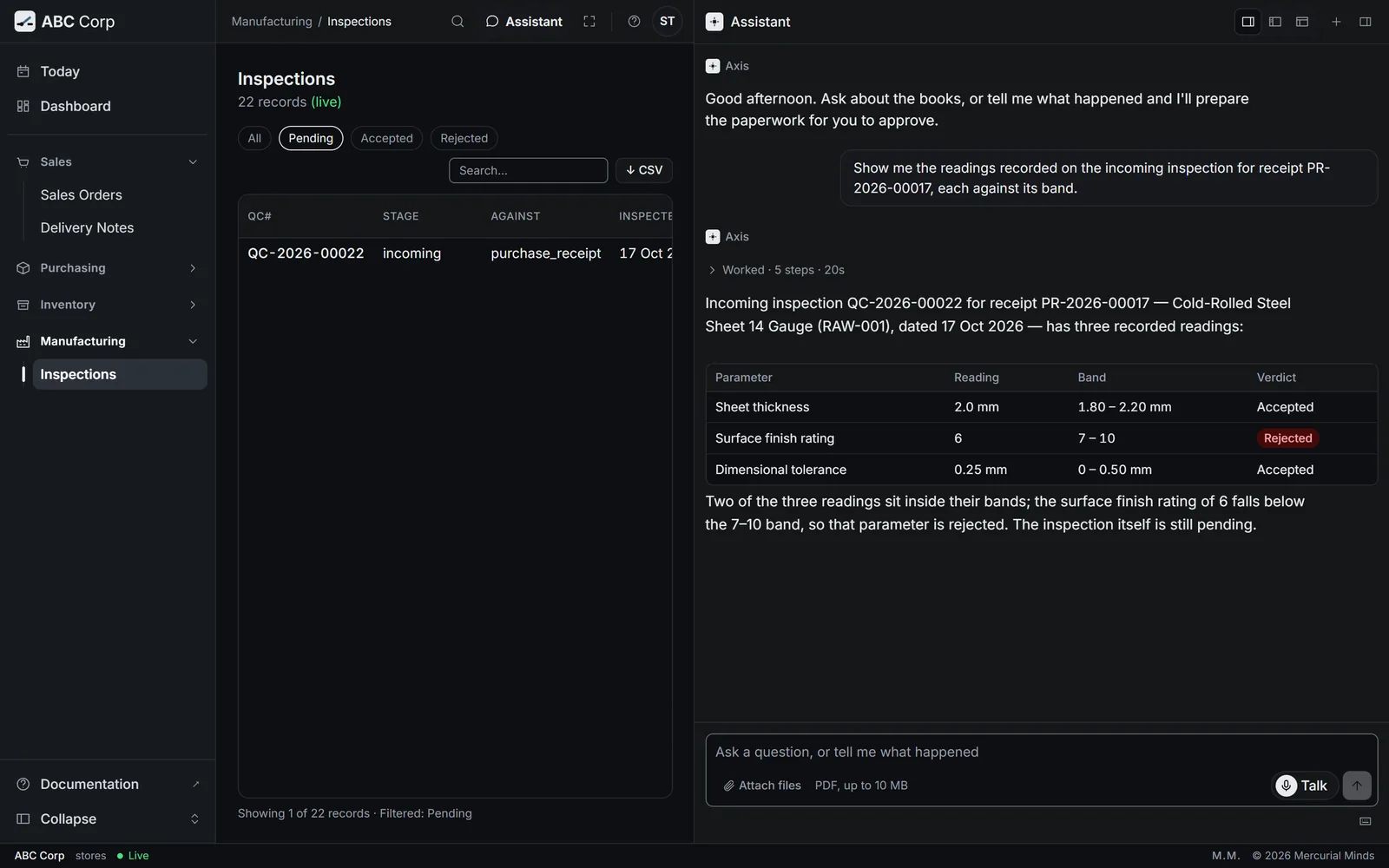
Raise an incoming inspection for PR-2026-00017 on the Incoming raw material check, sample of 10. Sheet thickness 2.0 mm, surface finish 6, dimensional tolerance 0.25 mm.
- The assistant raises the inspection against the receipt, with the template's three checks.
- It records each reading you gave.
- Each reading is marked against its range. Read the result for each line.
- Open Manufacturing, then Inspections.
- Open the inspection for PR-2026-00017 to see its readings.
- Record the readings in the assistant, as the other tab shows.
What you see
| Check | Range | Reading | Result |
|---|---|---|---|
| Sheet thickness | 1.80 to 2.20 mm | 2.0 mm | Accepted |
| Surface finish rating | 7 to 10 | 6 | Rejected |
| Dimensional tolerance | 0 to 0.50 mm | 0.25 mm | Accepted |
The inspection reads Pending until the COO judges it.
Two seats, on purpose
Stores measures and records. The COO judges the result. So the people who receive the goods also hand the verdict to someone else.
The assistant asks which template to use
Name it: Incoming raw material check for goods bought in. ABC Corp also holds an Assembly floor in-process check and a Pre-despatch routine test.
Evaluate an inspection
You end with the inspection's verdict, worked out from its readings: accepted, partially accepted or rejected.
Evaluate an inspection
- Steel sheet arrives at goods-in.
- Stores records each reading against the specification.
- One reading is outside its range and is marked rejected.
- The COO evaluates: Partially accepted, 2 of 3.
- The COO raises a non-conformance for the failed reading.
Before you start: the COO role, and an inspection with its readings recorded.
Judge the inspection on PR-2026-00017 against the specification.
- The assistant counts the accepted and the rejected readings.
- It sets the verdict from the count and tells you both numbers.
- Read the rejected line before you decide what follows.
- Open Manufacturing, then Inspections.
- Open the inspection to read its readings.
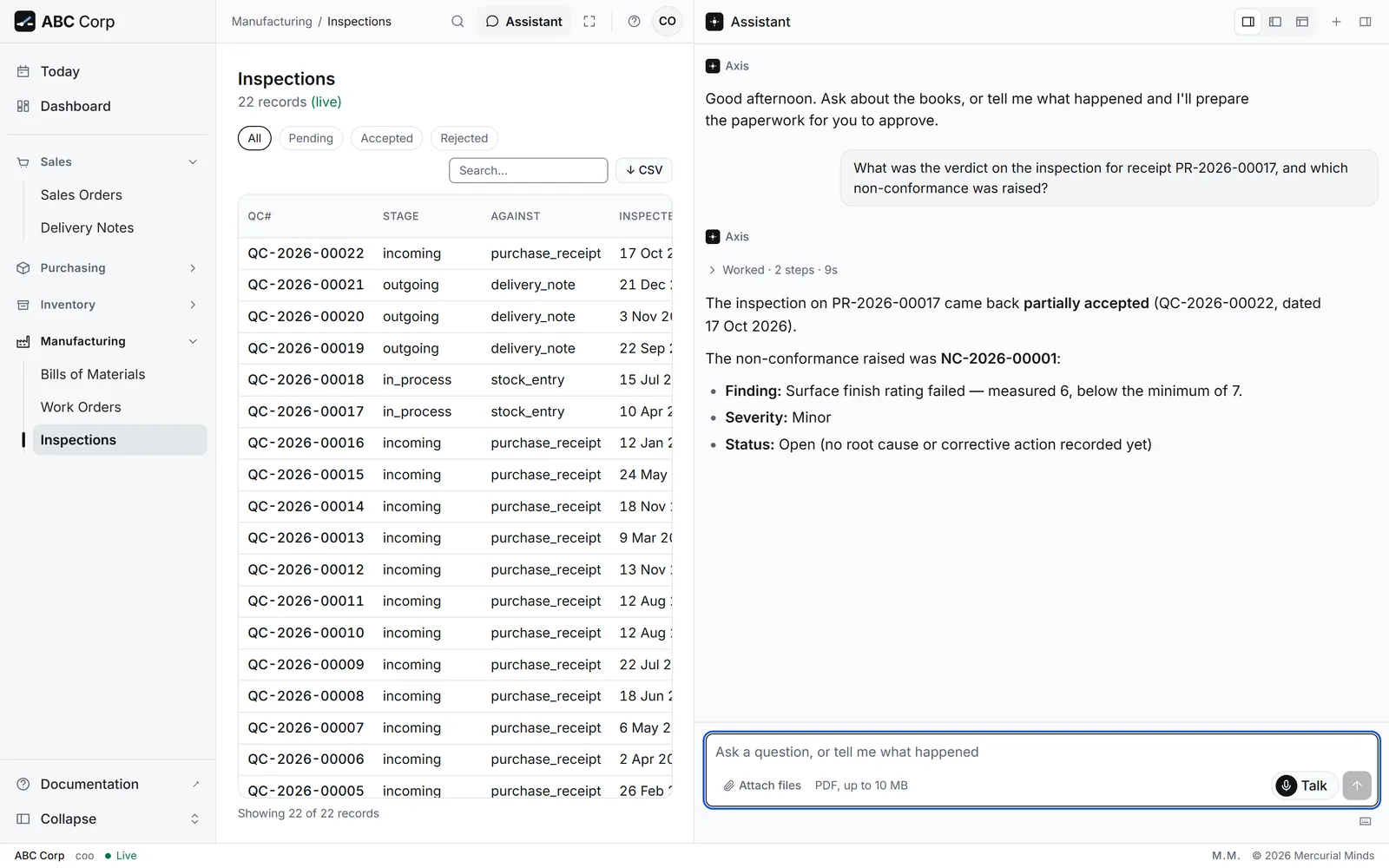
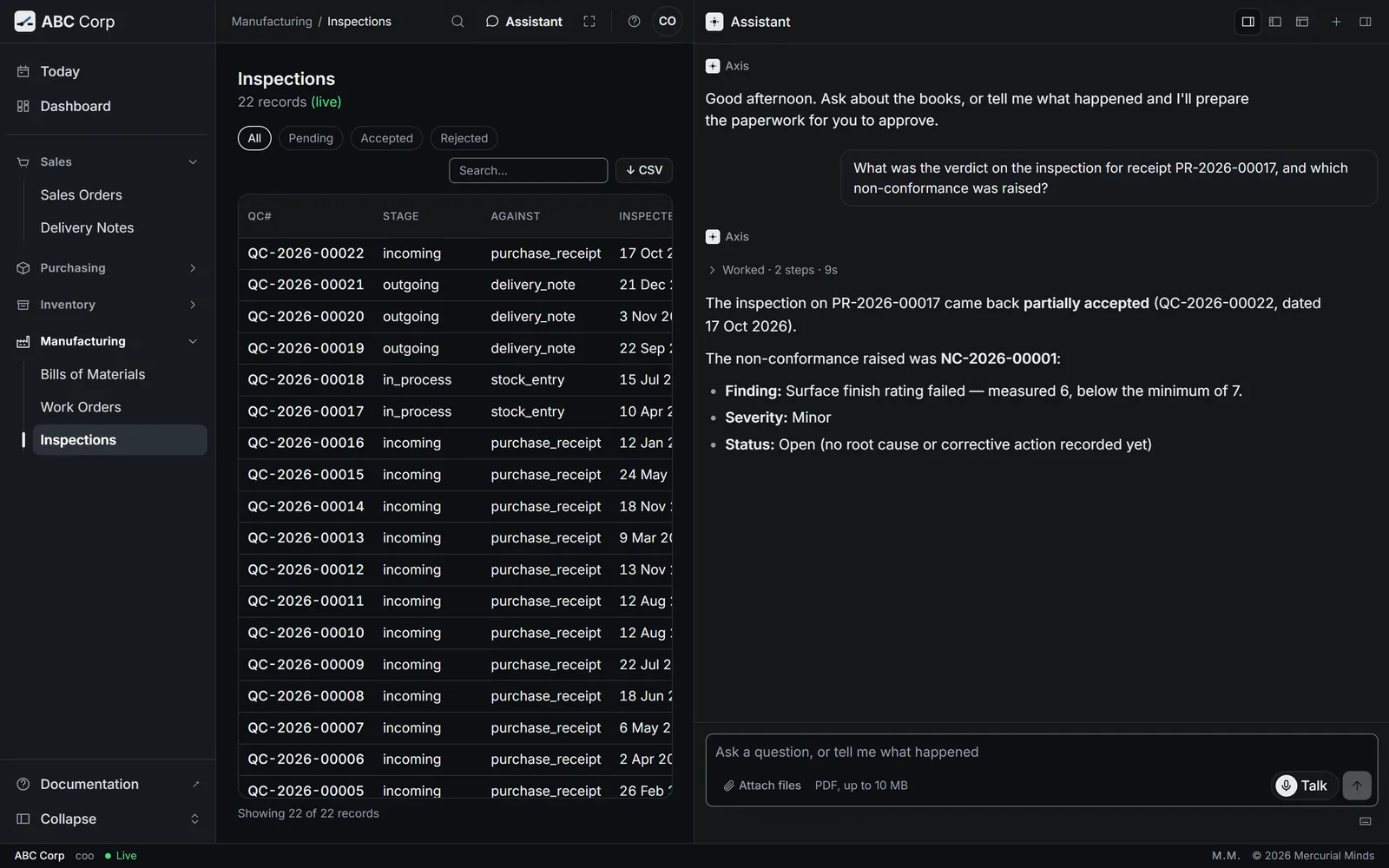
- Give the verdict in the assistant, as the other tab shows.
What you see
The inspection reads Partially accepted, with 2 of 3 readings accepted.
How the verdict is set
Every reading accepted gives Accepted. Every reading rejected gives Rejected. A mix gives Partially accepted. Rejections also count in the supplier's Grade figure on Under-Delivery.
The verdict reads Accepted, and a reading looks missing
Open the inspection and check that every reading has a value. Record the missing reading, then ask for the verdict again.
Follow up a non-conformance
You end with a non-conformance report for the failed reading, with a severity, an owner, a cause and the action taken.
Follow up a non-conformance
- Raise a non-conformance from the failed reading.
- Give it a severity and a person responsible.
- Record the root cause and the corrective action.
- Move it from Open to Resolved, then Closed.
Before you start: the COO role, and a judged inspection with a rejected reading.
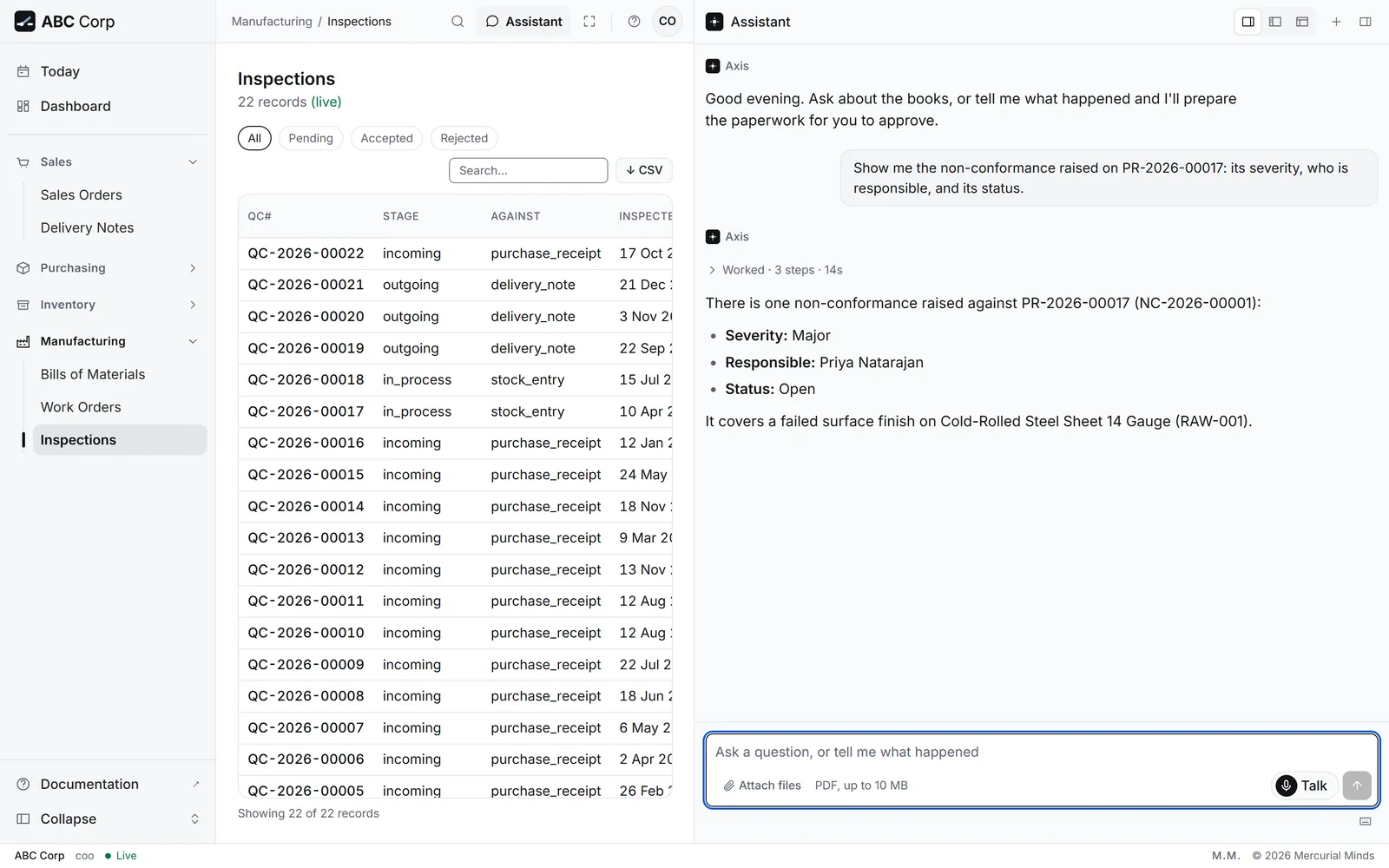
Raise a major non-conformance for the failed surface finish on PR-2026-00017, and make Priya Natarajan responsible.
- The assistant raises the report against the inspection, with the item and your description.
- It reads Open. Later, ask the assistant to record the root cause and the corrective action.
- Move it on as the work goes: Investigating, Resolved, then Closed.
- Open Manufacturing, then Inspections, and open the inspection the report came from.
- Raise and update the report in the assistant, as the other tab shows. Non-conformances are kept through the assistant.
What you see
A non-conformance against the steel sheet inspection, severity major, owned by Priya Natarajan, Quality Inspector. Its status follows the work.
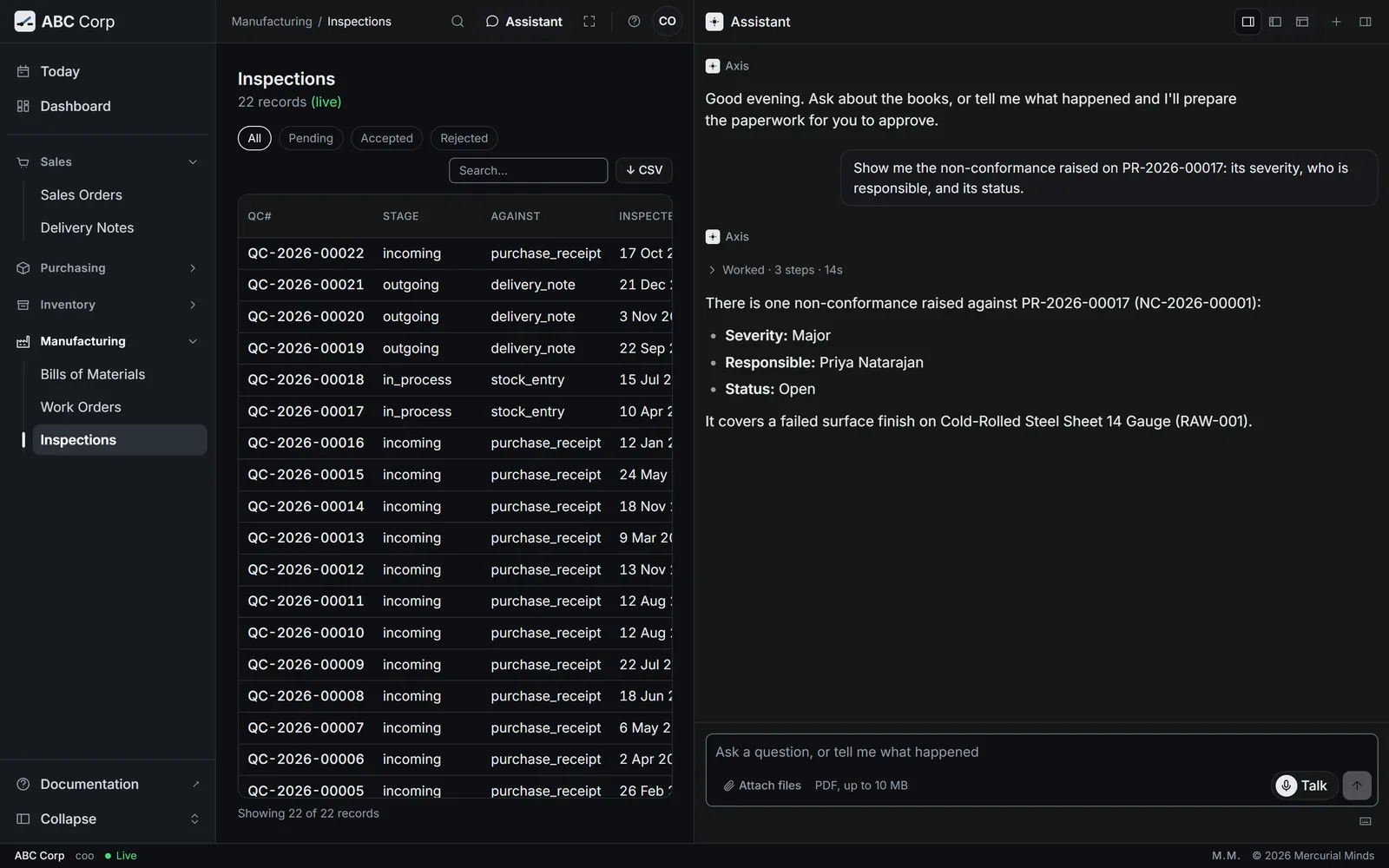
Severity
A report is minor, major or critical. Minor is the default.
Who sees the report?
The COO raises and updates reports. The Manager Procurement can read them, to take the matter up with the supplier.
Move stock between stores
You end with the stock, and its value, in the store you moved it to.
Move stock between stores
- Say what to move, how much, and between which stores.
- The assistant prepares the stock movement.
- Moving stock posts its value, so it waits on a card.
- Approve it. Both stores show the new quantities.
Before you start: the Manager Stores role, and the stock in the store it leaves.
Move 2,400 Kg of Cold-Rolled Steel Sheet 14 Gauge from the Raw Materials Store to the Assembly Floor, and submit it.
- The assistant prepares a transfer from one store to the other.
- It asks to move the stock. A card waits for your decision.
- Check the item, the quantity and both stores, then press Approve.
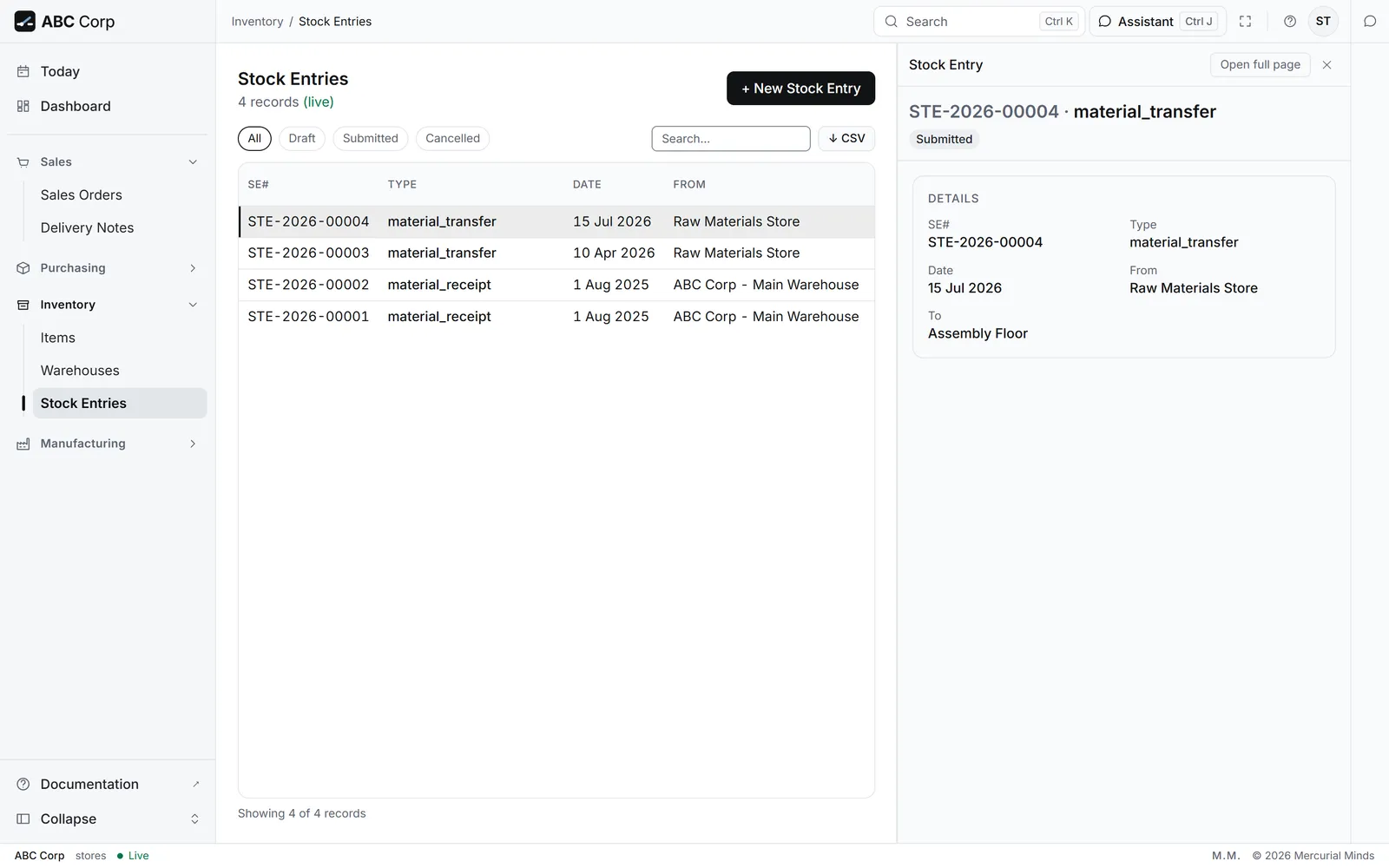
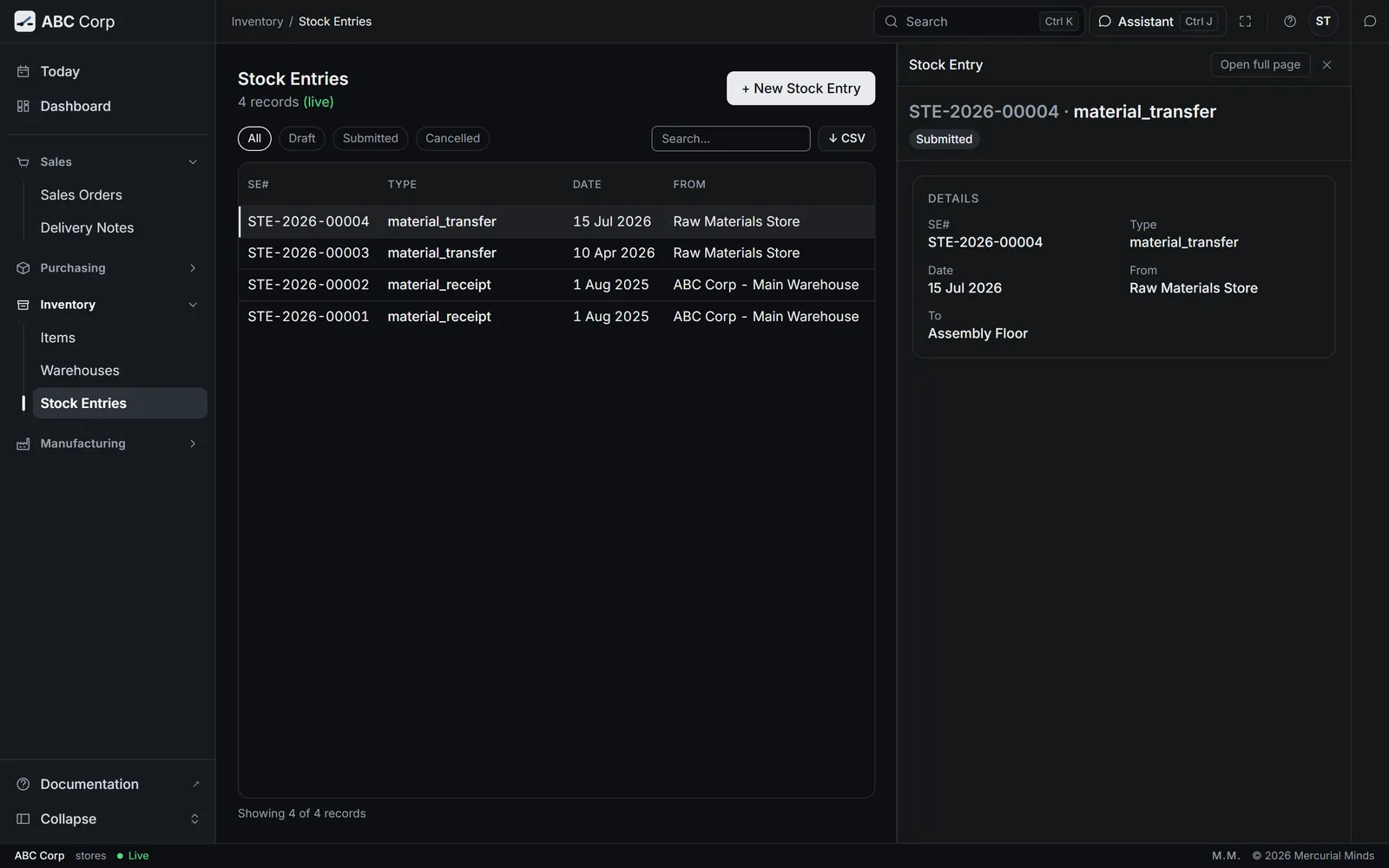
- Open Inventory, then Stock Entries.
- Press + New Stock Entry.
- Fill in the Entry Type, the Date and the Stock Lines, then save.
- Ask the assistant to submit it. The card is the same.
What you see
The Raw Materials Store holds 2,400 Kg less and the Assembly Floor 2,400 Kg more. Total stock value stays the same.
This waits for approval
The card reads Move stock and post its value. The Stores seat answers it. See Approve or decline a request.
What a move posts
The value leaves one store's stock account and reaches the other's through Stock in Transit. Cost of sales stays as it was.
insufficient stock for item
The store holds less than you asked to move. The message gives the quantity on hand. Move what is there, or move from another store.
Count stock
You end with the books matching the count on the shelf, and any difference posted.
Count stock
- Count what is on the shelf.
- Record the count for each item and store.
- Axis works out the difference against the books.
- Posting the difference waits on a card.
Before you start: the Manager Stores role, and your count, item by item, for one store.
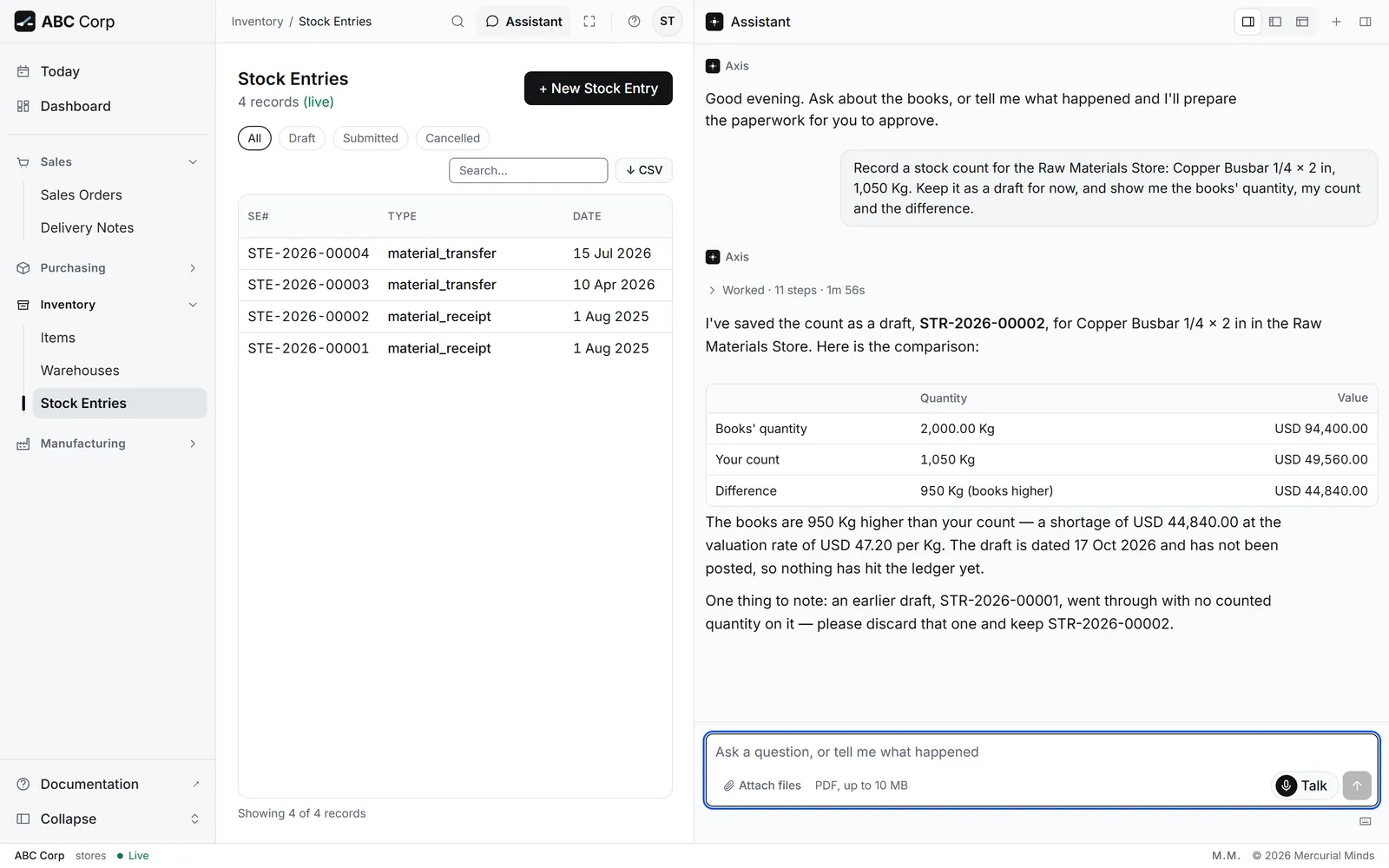
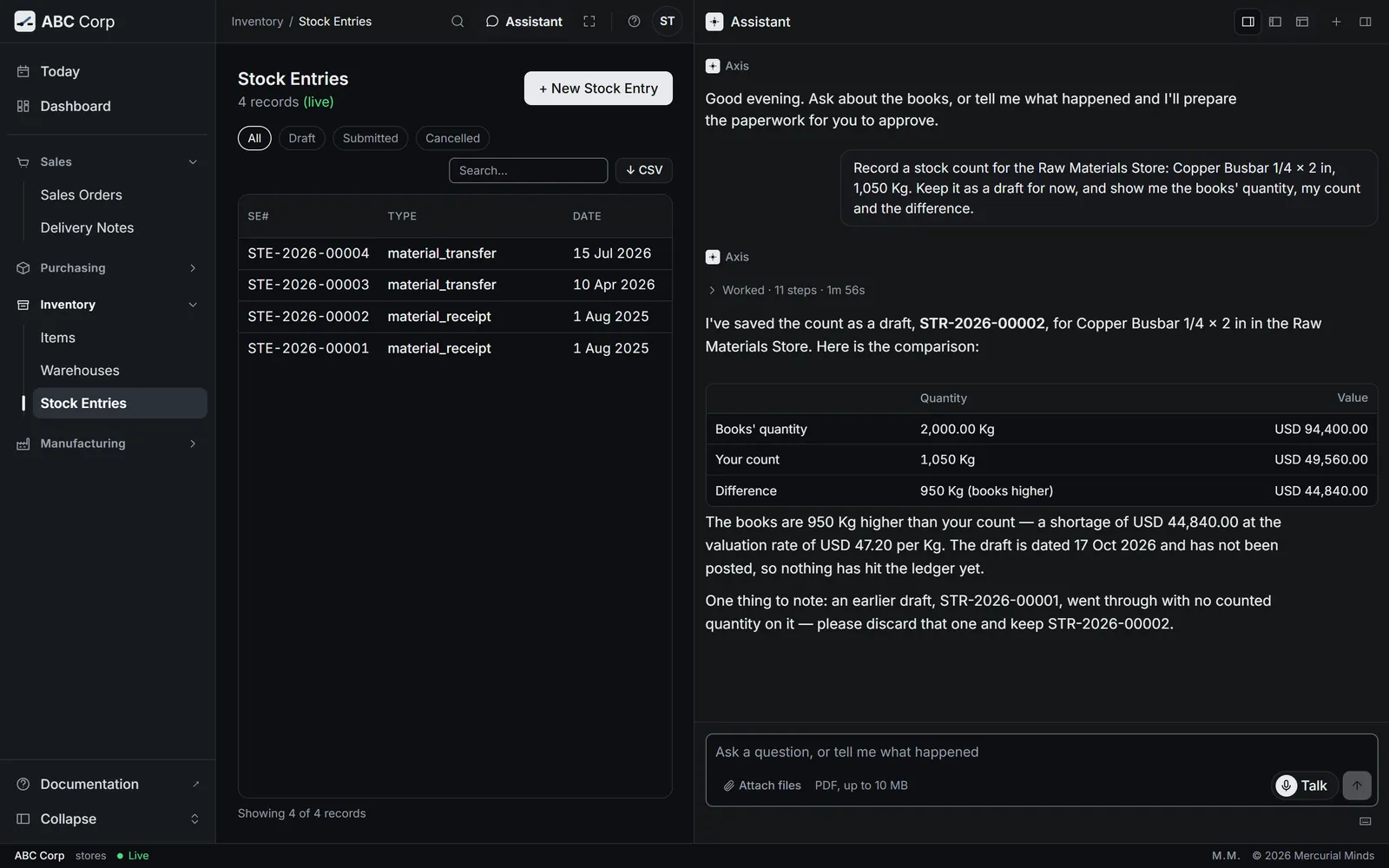
Record a stock count for the Raw Materials Store: Copper Busbar 1/4 x 2 in, 1,050 Kg.
- The assistant records the count as a draft, beside the quantity the books hold.
- It shows the difference for each line.
- Check each line against your count sheet.
- Ask the assistant what the store holds: "What are we holding in stock, and what is it worth?"
- Record the count in the assistant, as the other tab shows. Stock counts are kept through the assistant.
What you see
A draft count with the books' quantity, your quantity and the difference on each line.
This waits for approval
Recording the count is routine. Posting it waits on a card that reads Correct stock levels and post the difference. In the shipped roles, the Manager Stores and the CEO post a count. See Approve or decline a request.
The difference is large
Count the item again before anyone posts it. Then check for a movement that is still a draft, such as a receipt or a delivery waiting to be submitted.
Run a work order
You end with the finished goods in stock, costed from the materials they used.
Run a work order
- Raise a work order from a bill of materials.
- Start it when the floor begins.
- Complete it when the goods are built.
- The finished goods go into stock.
Before you start: the COO role, a bill of materials, and its materials on the Assembly Floor.
Raise a work order for 250 Distribution Panelboards 400A from BOM-2026-00005, into the Finished Goods Warehouse, and start it.
- The assistant raises the work order from the bill of materials, with its quantity and stores.
- It starts the order. The order reads In process.
- When the goods are built, ask: "Complete this work order when it is done."
- Completing posts the goods to stock, so the assistant shows you an approval card first. The goods post once you approve it.
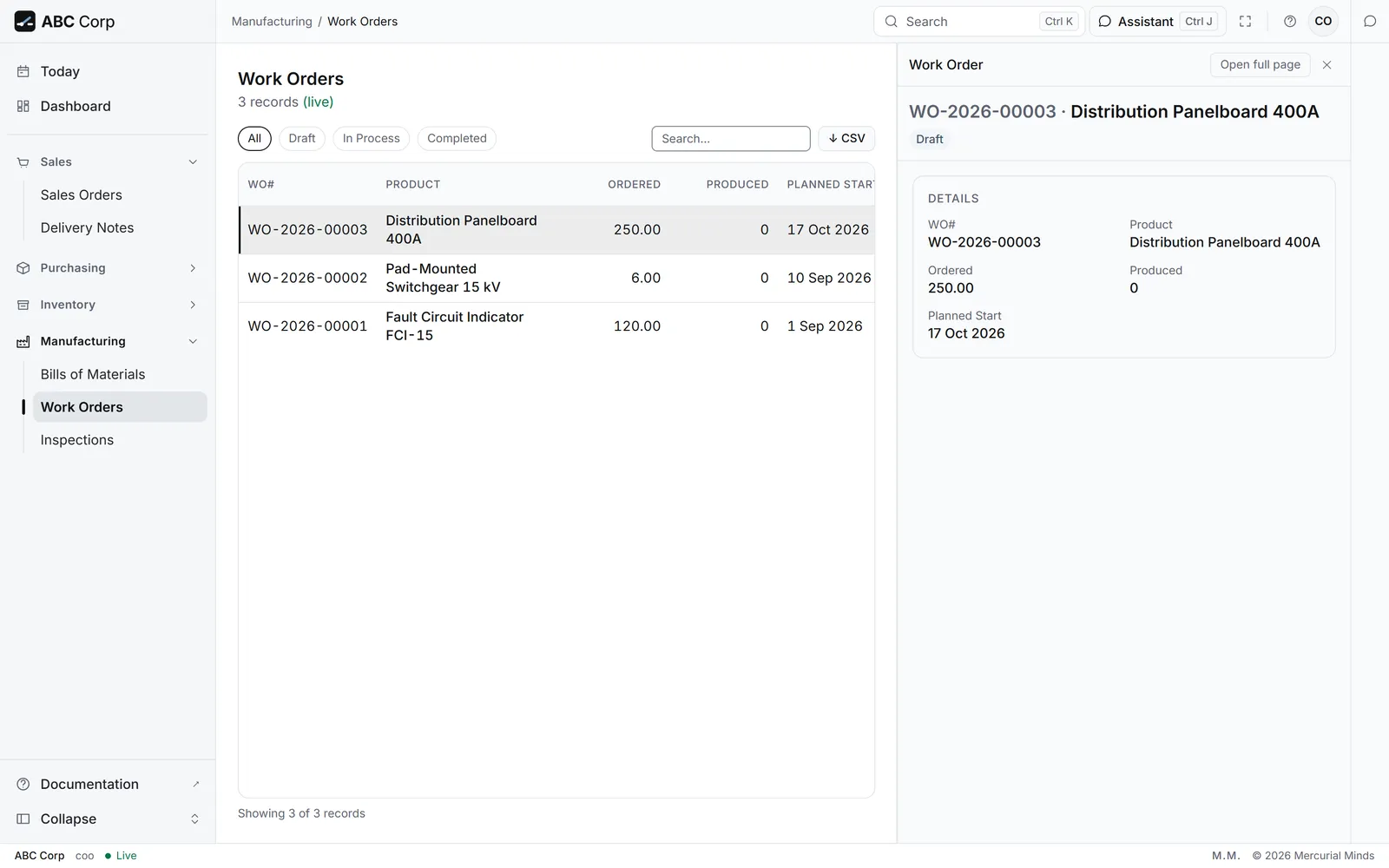
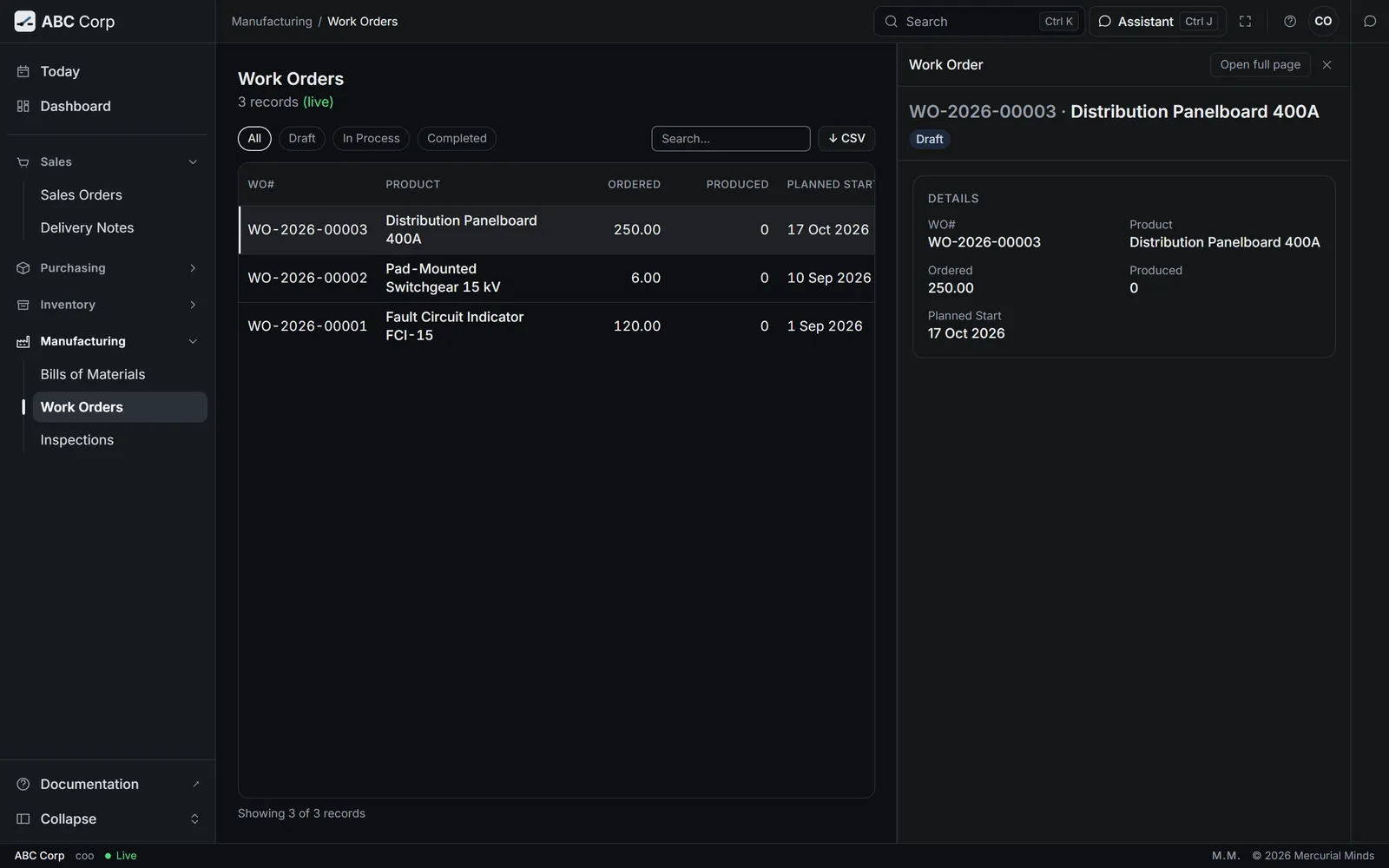
- Open Manufacturing, then Work Orders, to see each order and its status.
- On the Dashboard, the Design to Stock pipeline shows orders at Work Order and Into Stock.
- Raise, start and complete the order in the assistant, as the other tab shows.
What you see
The work order reads Completed. The panelboards are in the Finished Goods Warehouse, at the cost of their materials.
Moving the materials to the floor
A work order is costed from the materials moved onto it. In the shipped roles, the CEO's seat moves materials onto a work order. Check that this is done before you complete the order. Completing posts the finished goods' value as soon as it runs.
Work Order has no target warehouse. Set --target-warehouse-id when creating.
The order needs a store for the finished goods. Raise it again and name the Finished Goods Warehouse.
Cannot complete Work Order with status 'draft'.
Start the order first, then complete it.
Plan maintenance
You end with a maintenance plan for each machine, and the preventive work orders that fall due from it.
Plan maintenance
- Add the machine as equipment.
- Give it a plan: what to do, and how often.
- Generate the preventive work orders that are due.
- Record downtime and the work done.
Before you start: the Maintenance module, installed. See Add a module. In the shipped roles, the CEO's seat holds maintenance.
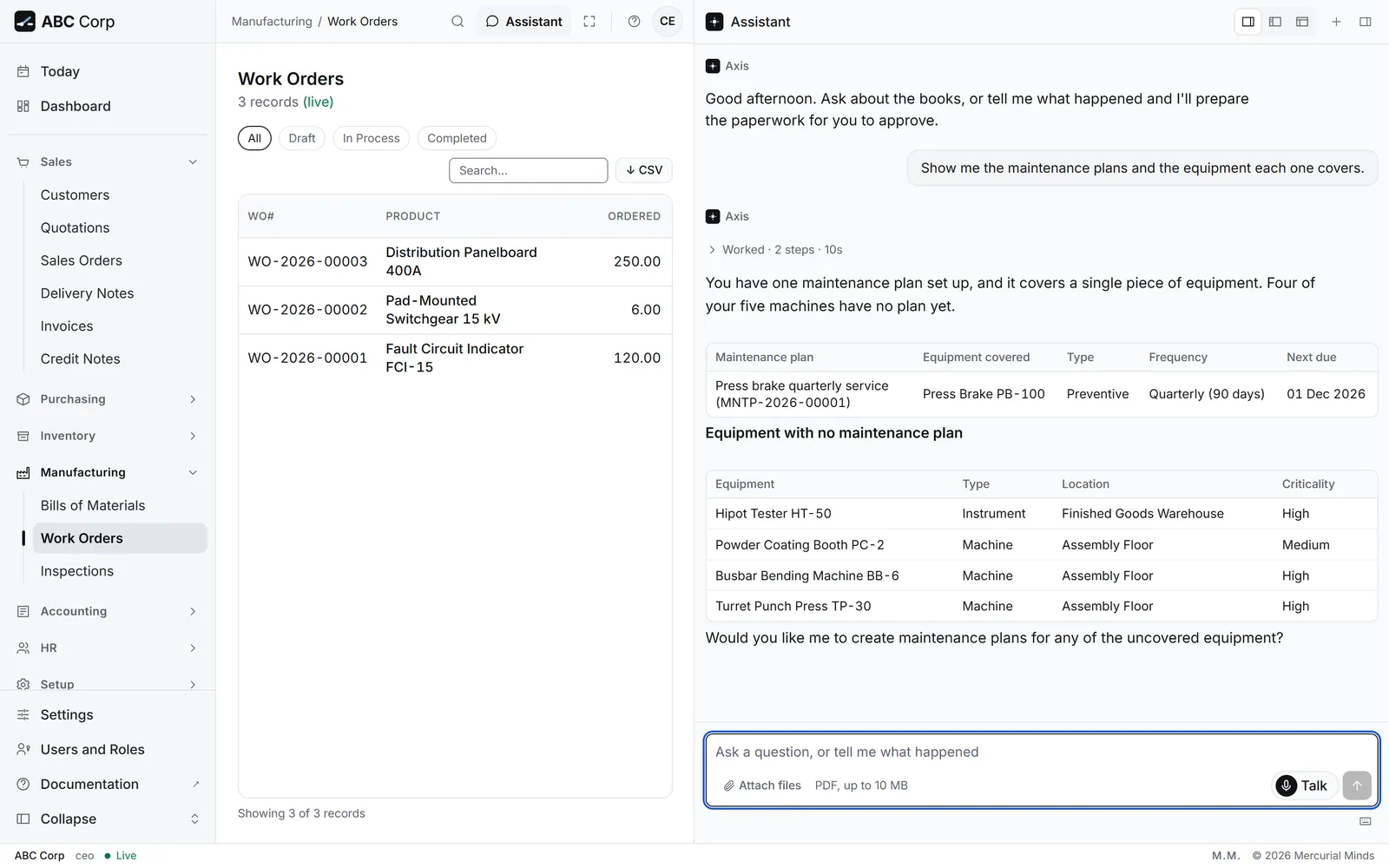
Add the press brake on the Assembly Floor as equipment, and plan its service every 90 days, first due on 1 December 2026.
- The assistant adds the equipment, then the plan with its frequency and next due date.
- Later, ask it to generate the preventive work orders that are due.
- When the work is done, ask it to complete the maintenance work order with the time and cost.
- Plans, equipment and maintenance work orders are kept through the assistant.
- Ask for the equipment status report or the preventive maintenance compliance report to see where each machine stands.
What you see
The plan for the press brake, with its 90-day frequency and its next due date.
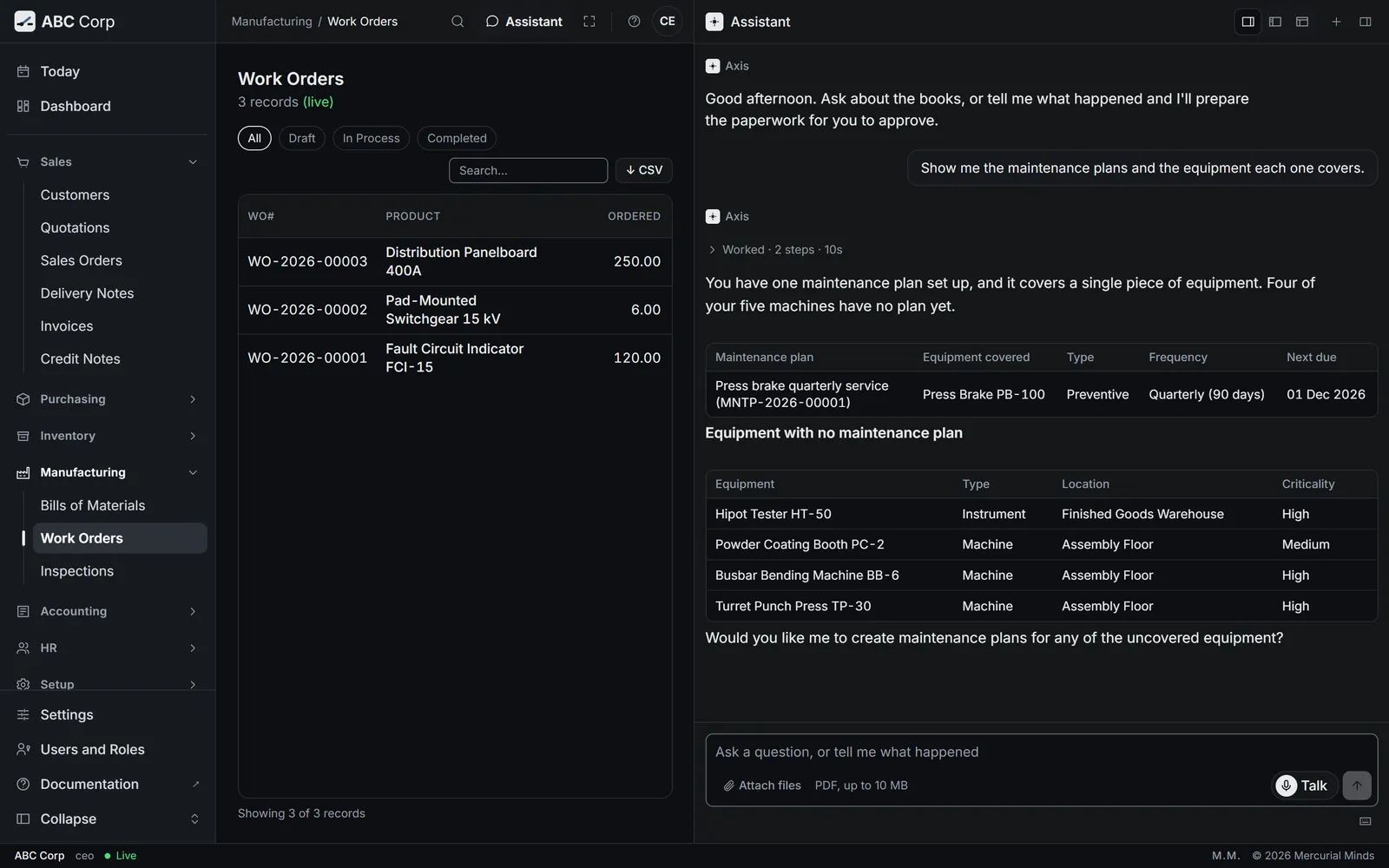
The assistant answers that it has nothing for maintenance
The Maintenance module is missing from this deployment. Ask the person who runs your server to install it. See Add a module.
Next
- Money and the books: pay for what you received and close the books.
- Buy from suppliers: book the supplier's invoice against the receipt.
- Your work, end to end: every task on one table.