GET STARTED
Your first day
From signing in to finding any record, in seven stages. Take them in order. Each stage ends with a check, so you know it worked before you move on.
Shown with ABC Corp, a demonstration company.
Progress
| Stage | Goal | Done when |
|---|---|---|
| 1. Sign in | You are signed in to your company's books. | Axis opens on Today or on the Dashboard. |
| 2. Read Today | You know what is waiting for you. | You can name each row under Ready for you. |
| 3. Get around the three panes | You can move between the menu, your work and the assistant. | A list is open with the assistant beside it. |
| 4. Ask the assistant | You have asked a question in your own words. | The answer is in the assistant panel. |
| 5. Attach a document | A PDF is read into a record that you checked. | The assistant says the document is recorded. |
| 6. Approve or decline a request | You have answered an approval card. | The card shows Approved or Declined. |
| 7. Find and open a record | You can find any record and open it. | The record panel shows the record. |
Stages 5, 6 and 7 are also the three everyday tasks. Other pages link to them, so you can come back to each one later.
The guided tour in the app
Axis has its own short tour of the screen. Press the Guided tour button in the top bar at any time. The tour shows only the parts your role uses.
Stage 1: Sign in
Goal: you are signed in, and Axis shows your company's books.
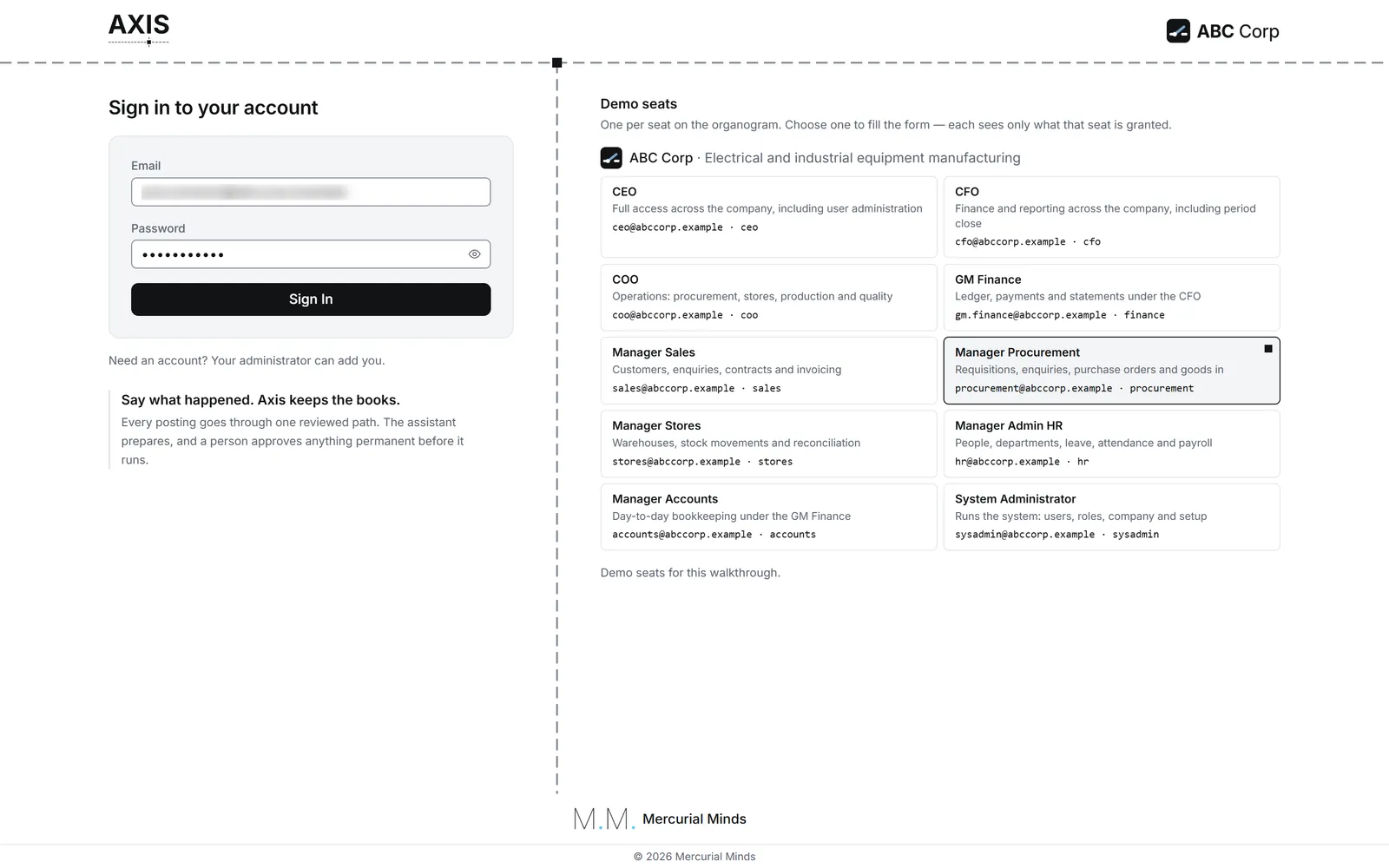
- Open your company's Axis address in a web browser. Your administrator gives it to you. The demonstration runs at axisapp.mercurialminds.com.pk.
- Enter your Email and Password.
- Press Sign In.
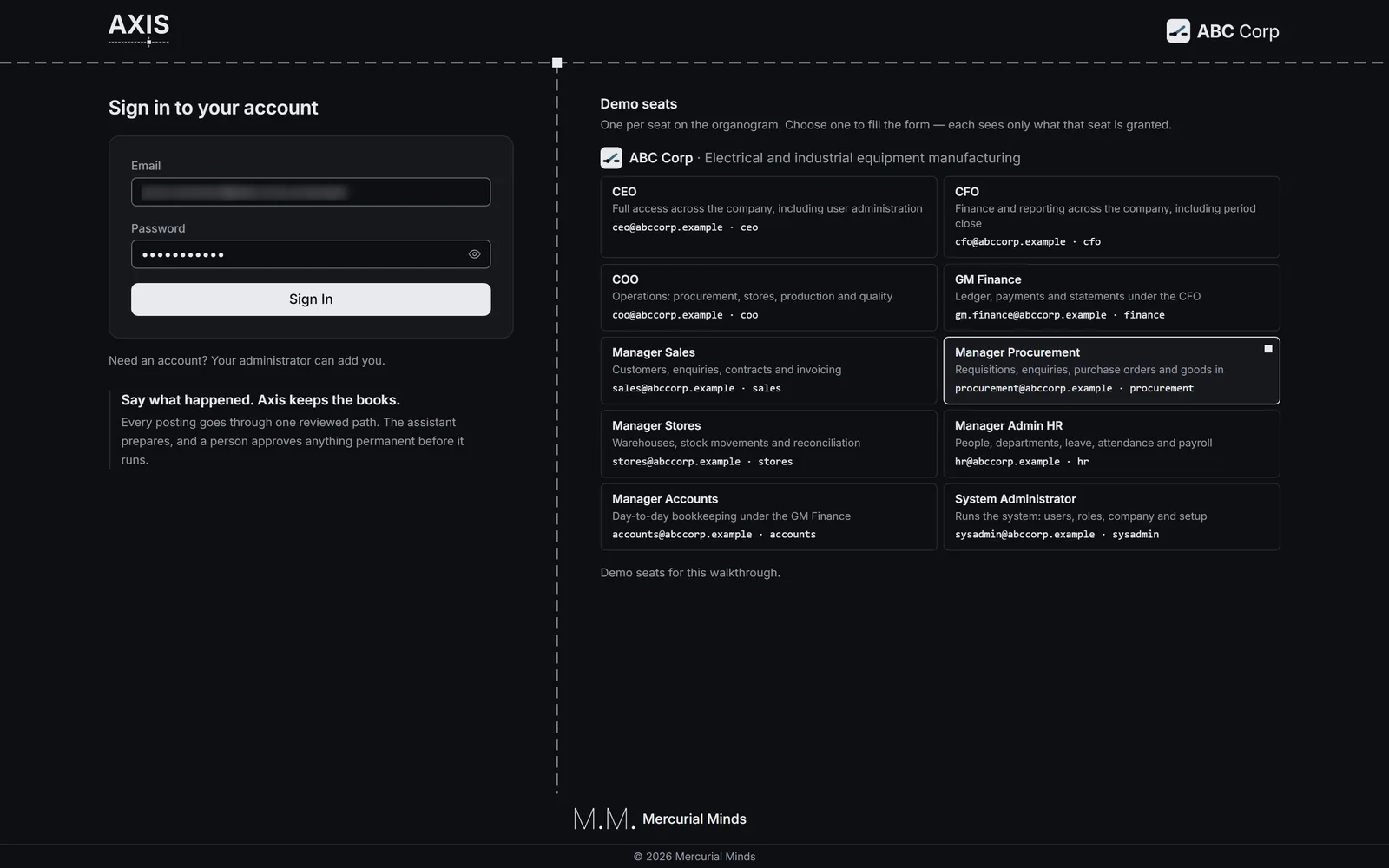
On a demonstration, a list called Demo seats sits beside the form, or under it on a narrow screen. Each entry is one role at ABC Corp. Choose one to fill in the form, then press Sign In.
Done when
Axis opens on Today when work is ready for your role. When everything is clear, it opens on the Dashboard.
The screen says “Invalid email or password”
Check the email address for a typing mistake first, then the password. Your administrator can set a new password for you in Users and Roles.
The screen says “Account locked. Try again later.”
Five wrong passwords in a row lock the account for 15 minutes. Wait, then sign in again with the correct password.
The screen says “Account is inactive”
Your administrator has switched your account off. Ask them to make it active again.
The screen says “Could not connect to server”
The browser reached the sign-in page, but the Axis server behind it is unavailable. Tell your IT team, and try again in a few minutes.
Stage 2: Read Today
Goal: you know what is waiting for your role today.
Today is the screen for your own work. The Dashboard shows how the business stands, in figures. Both sit at the top of the menu.
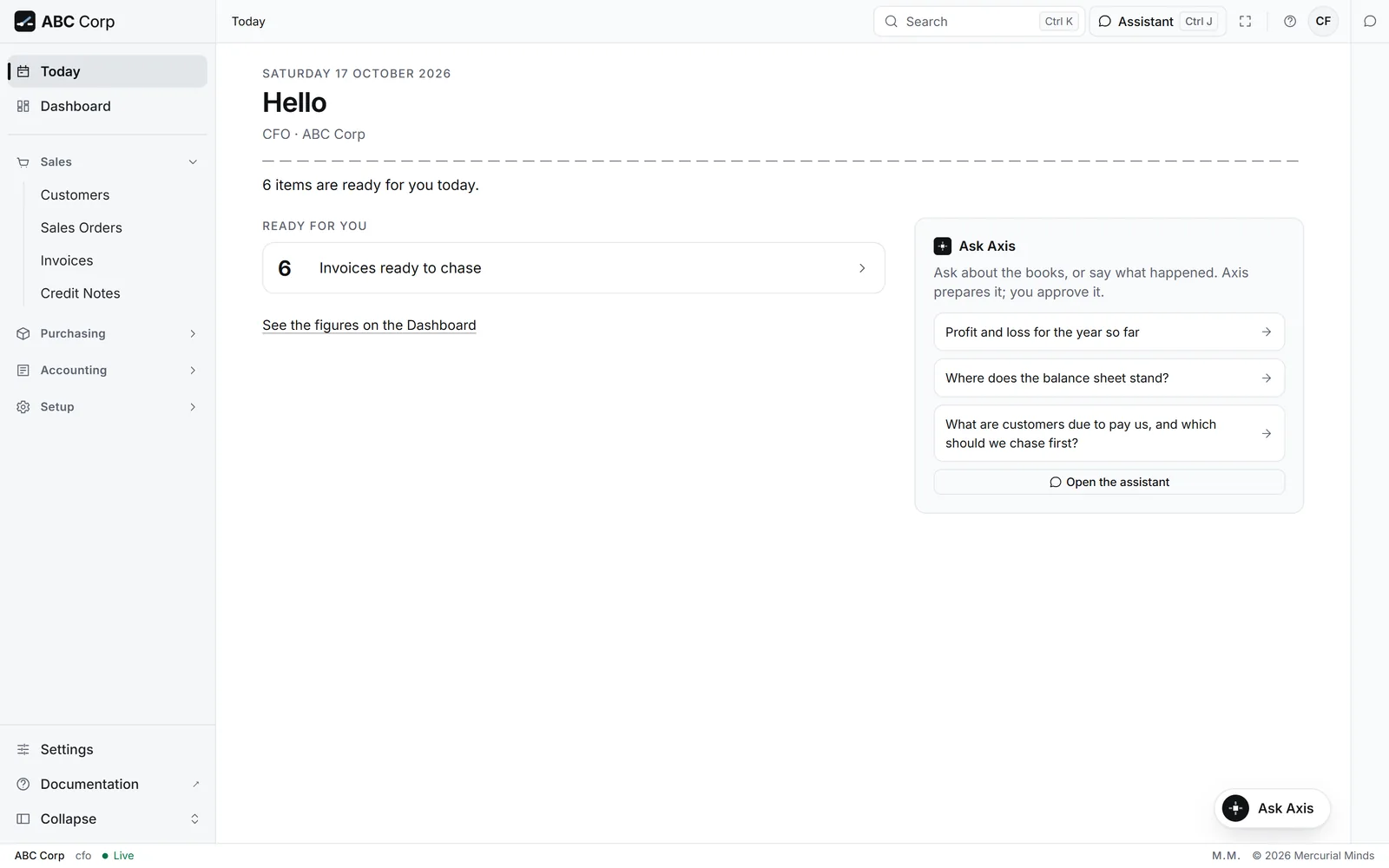
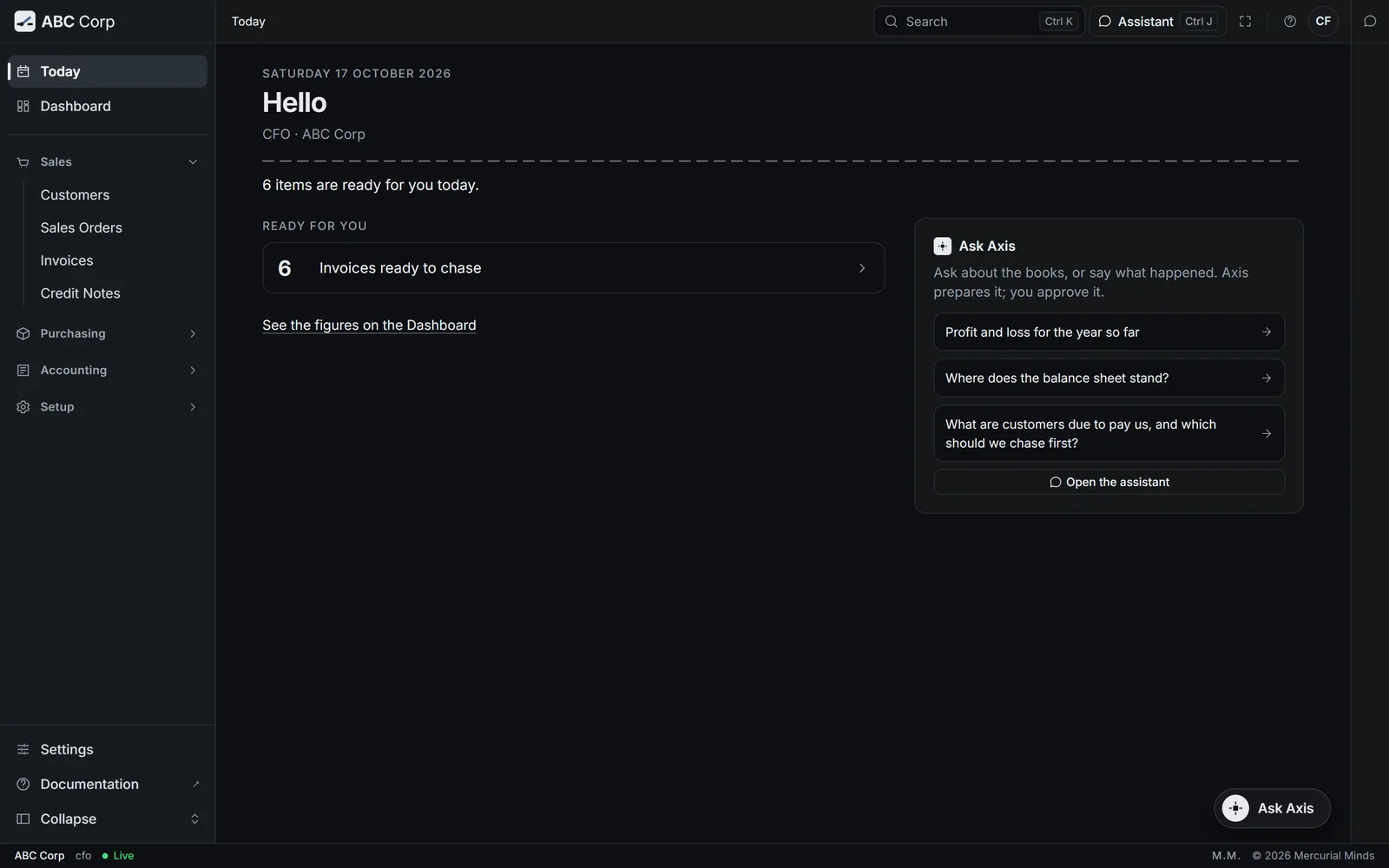
- Read the top of the screen. It shows the date, a greeting with your name, your role and your company.
- Read the sentence under them, for example 3 items are ready for you today.
- Look at Ready for you. Each row is one kind of work, with its count, such as 2 invoices ready to chase.
- Press a row to open exactly the records it counts.
- Some rows have Ask the assistant instead. Press it, and the question waits in the assistant's message box for you to send.
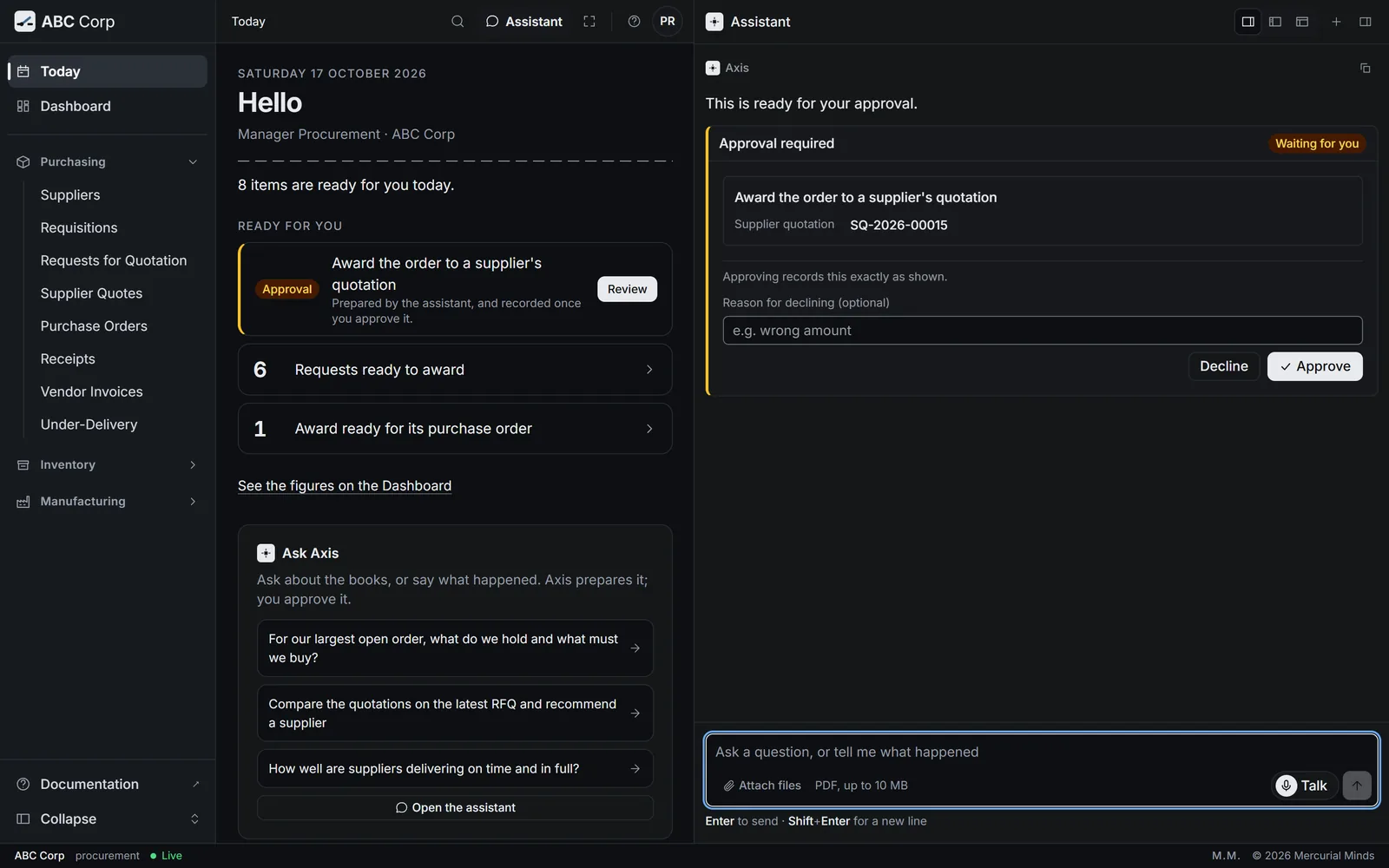
- A row marked Approval is work the assistant prepared for you. Press Review to open its card in the assistant. Stage 6 explains the card.
- All clear lists the kinds of work that are fully done for today.
Today
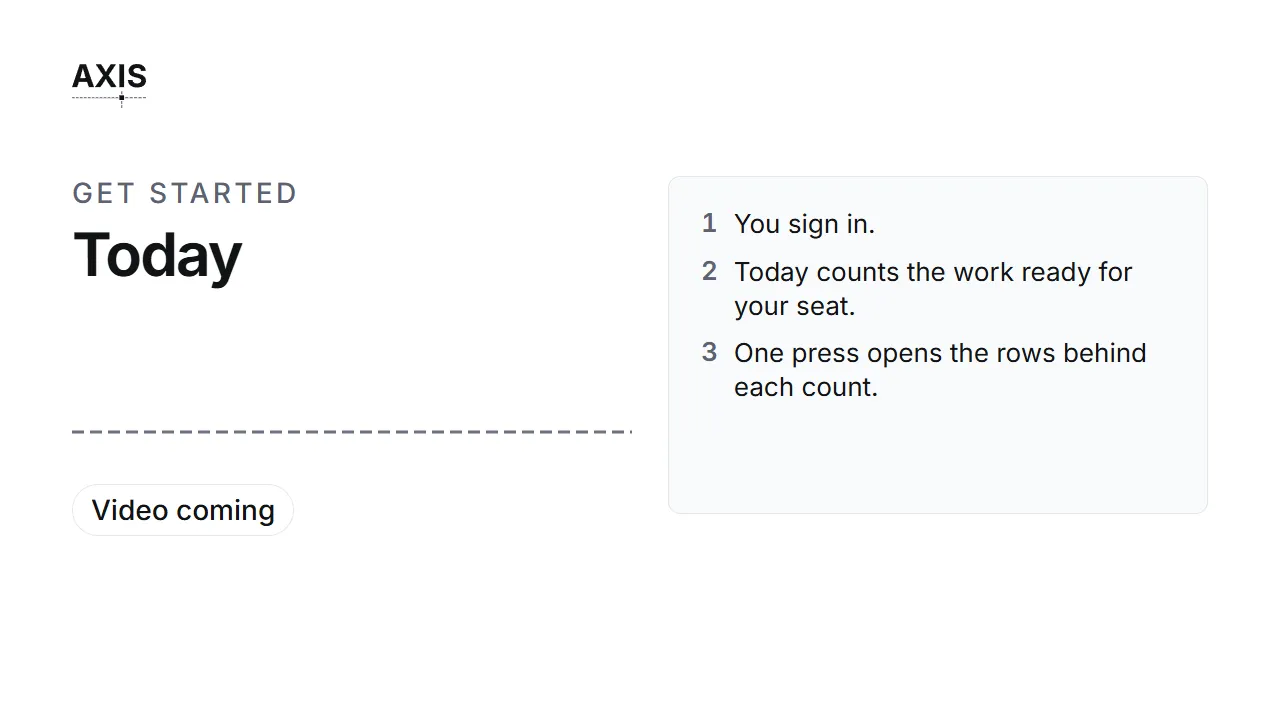
- You sign in.
- Today counts the work ready for your seat.
- One press opens the rows behind each count.
Done when
You can say what each row under Ready for you asks of you. When the screen says You are all caught up., everything for your role is clear.
The screen says “Today is unavailable just now.”
Axis was unable to read your work list at that moment. Press Try again. Your work is safe in the books while the list reloads.
Why does my colleague see different rows?
Today shows only the work your role can act on. A CFO sees invoices ready to chase. A Manager Stores sees receipts ready for inspection. See Roles and seats.
Stage 3: Get around the three panes
Goal: you can move between the menu, your work and the assistant.
Get around the three panes
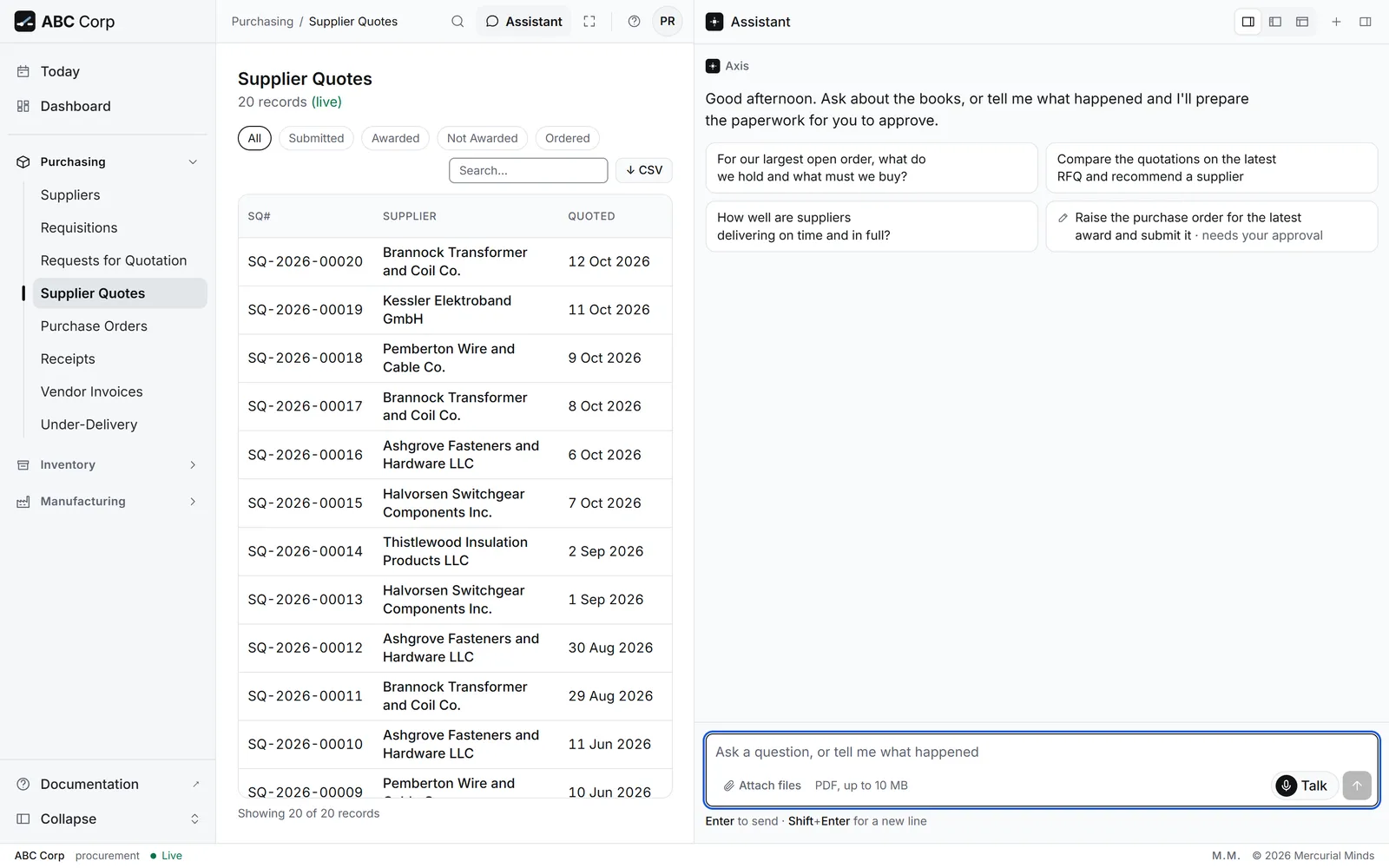
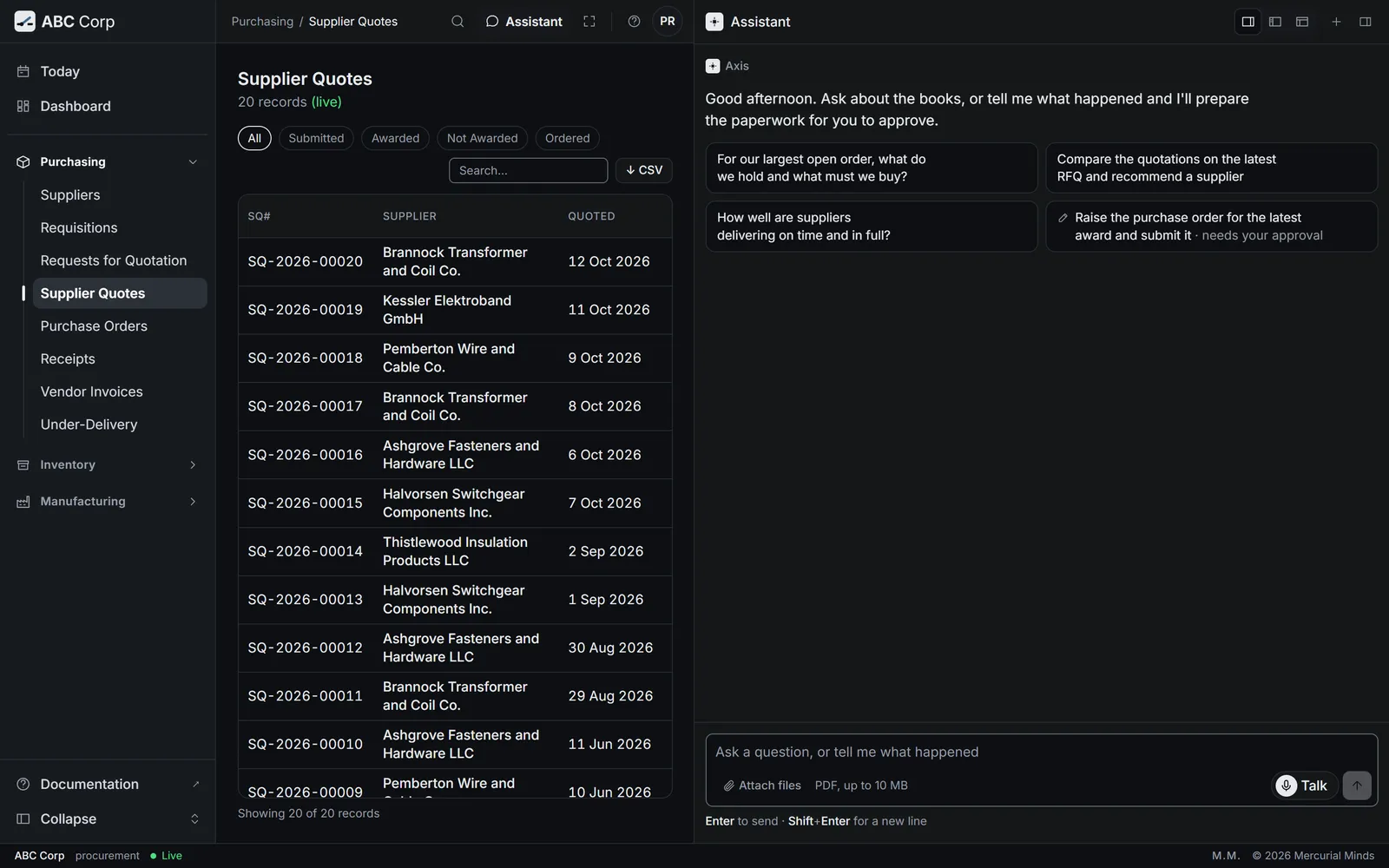
- Axis has three panes: your menu, your work, and the assistant.
- The menu follows your role.
- Open a record and it slides in beside the list.
- Pick a customer or an item by typing part of its name.
- The assistant stays docked, so you can ask while you look.
The screen has three panes, from left to right:
- The menu. Today and the Dashboard sit at the top. Under them are groups such as Sales, Purchasing and Inventory. Your role decides which groups you see.
- Your work. The list, record or figures you opened from the menu.
-
The assistant. It docks on the right, beside your work.
-
Open a group in the menu, then a list in it, for example Sales, then Customers.
- Press Assistant in the top bar. The assistant opens beside the list.
- Drag the edge between two panes to make one wider.
- Use the buttons at the top of the assistant to dock it, widen it over most of the screen, or open it as a page of its own. Your conversation stays the same in all three.
Keyboard shortcuts:
| Keys | What they do |
|---|---|
| Ctrl+B | Fold the menu to a row of icons, or open it again |
| Ctrl+J | Open or close the assistant |
| Ctrl+Shift+A | Open the assistant as a page |
| Ctrl+K | Search for a screen or a form |
On a Mac, use Cmd in place of Ctrl. On a narrow screen, such as a phone, the menu and the assistant slide over your work, one at a time.
Done when
A list is open in the centre, and the assistant is open beside it.
Where is the light or dark theme?
Press the theme button in the top bar. It moves between light, dark and your computer's own setting, and Axis remembers your choice.
Stage 4: Ask the assistant
Goal: you have asked the assistant a question in your own words, and read its answer.
Ask the assistant
- You sign in and Axis opens on Today.
- Today lists the work ready for your seat.
- Open the assistant and say what happened, in your own words.
- The assistant prepares it and shows each step.
- A posting waits on a card. Read it, then approve.
- The record is on the books, linked from Today.
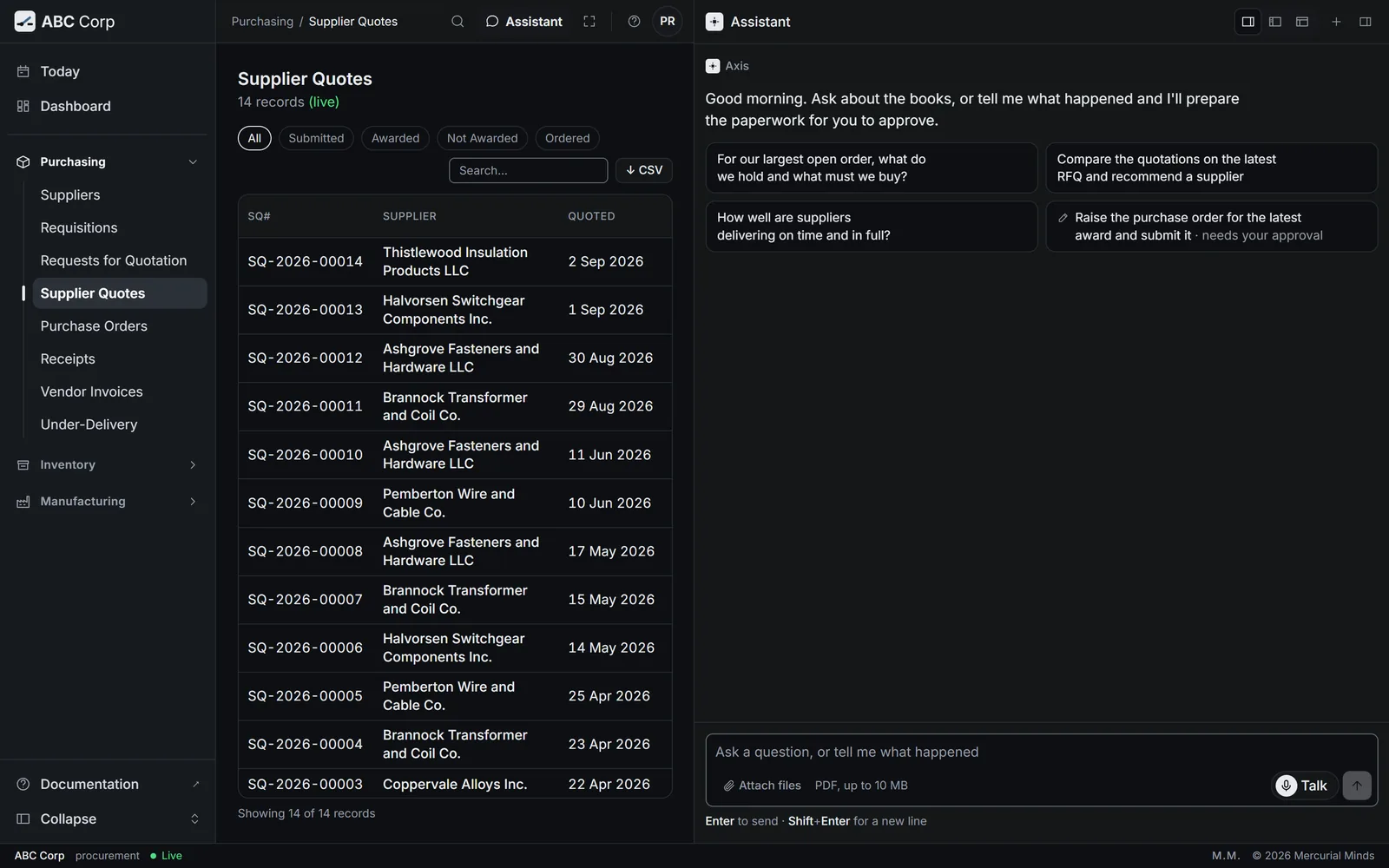
- Press Assistant in the top bar, or press Ctrl+J.
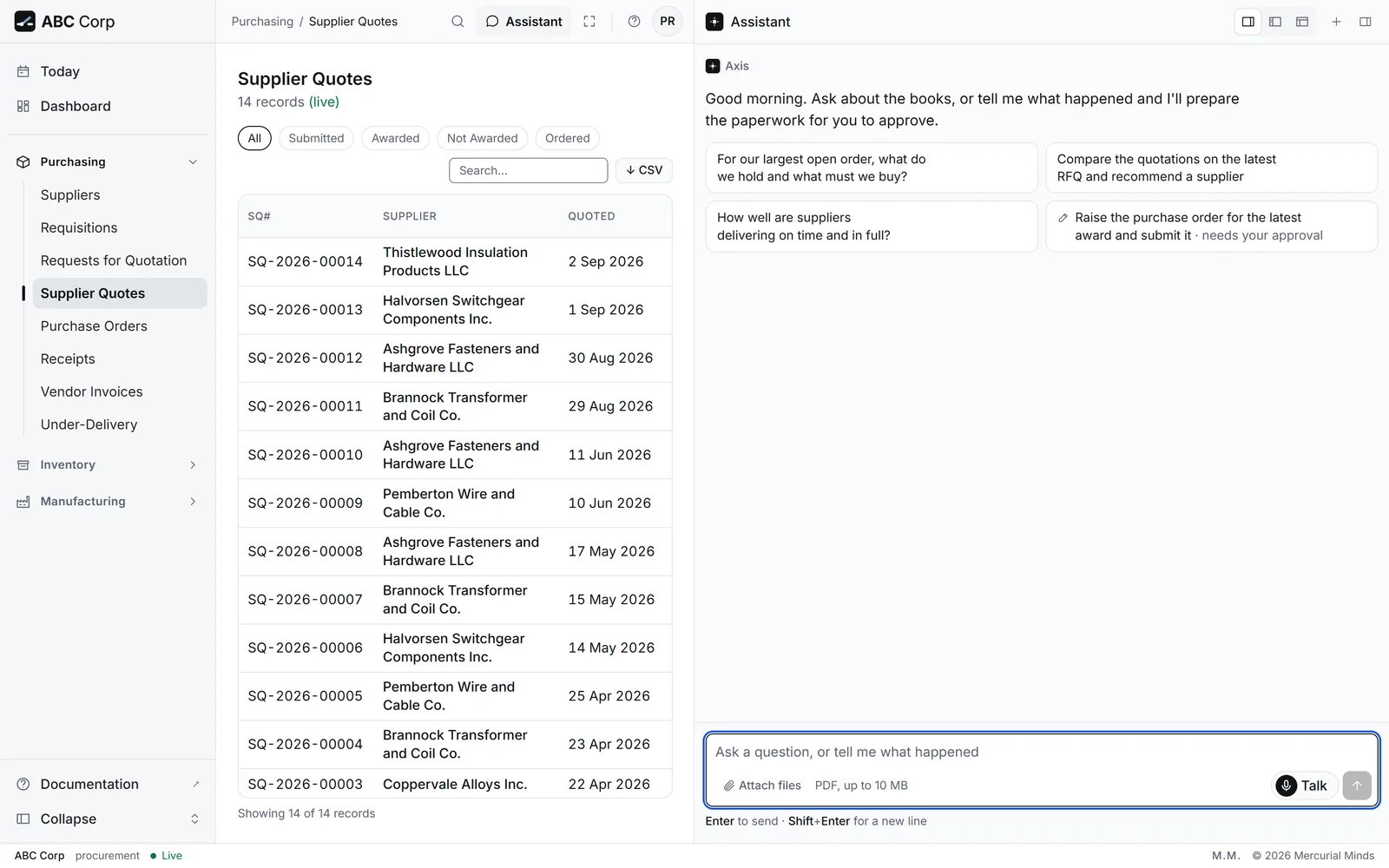
- Read the suggestions. They are questions your role can ask, such as Which supplier bills are due for payment, and when? Press one to send it.
- Or type your own question in the box marked Ask anything..., then press Enter.
- Watch the assistant work. It lists each step it takes, then gives its answer.
- To stop an answer part way, press Esc.
- To start a new conversation, press + (New chat) at the top of the panel.
Which raw materials should we restock first, and where are they?
Done when
The answer is in the panel, and the steps the assistant took sit above it.
The assistant asks you a question back
It needs one more detail, such as which of two suppliers with similar names you mean. Answer in a few words, and it carries on. See When the assistant asks a question back.
Does the assistant remember what I said yesterday?
The assistant looks up the books each time you ask. What it tells you comes from the records as they are now.
Can I speak instead of typing?
Yes. Press Talk and ask out loud. See Talk to the assistant by voice.
Stage 5: Attach a document
Goal: a PDF is read into a record, and you checked every value before it was saved.
Attach a document
- Drop a PDF onto the assistant's message box.
- Choose how to read it: a supplier quotation or a customer order.
- Send your message. The review opens beside the page.
- Check each value and match each line, then Confirm as extracted.
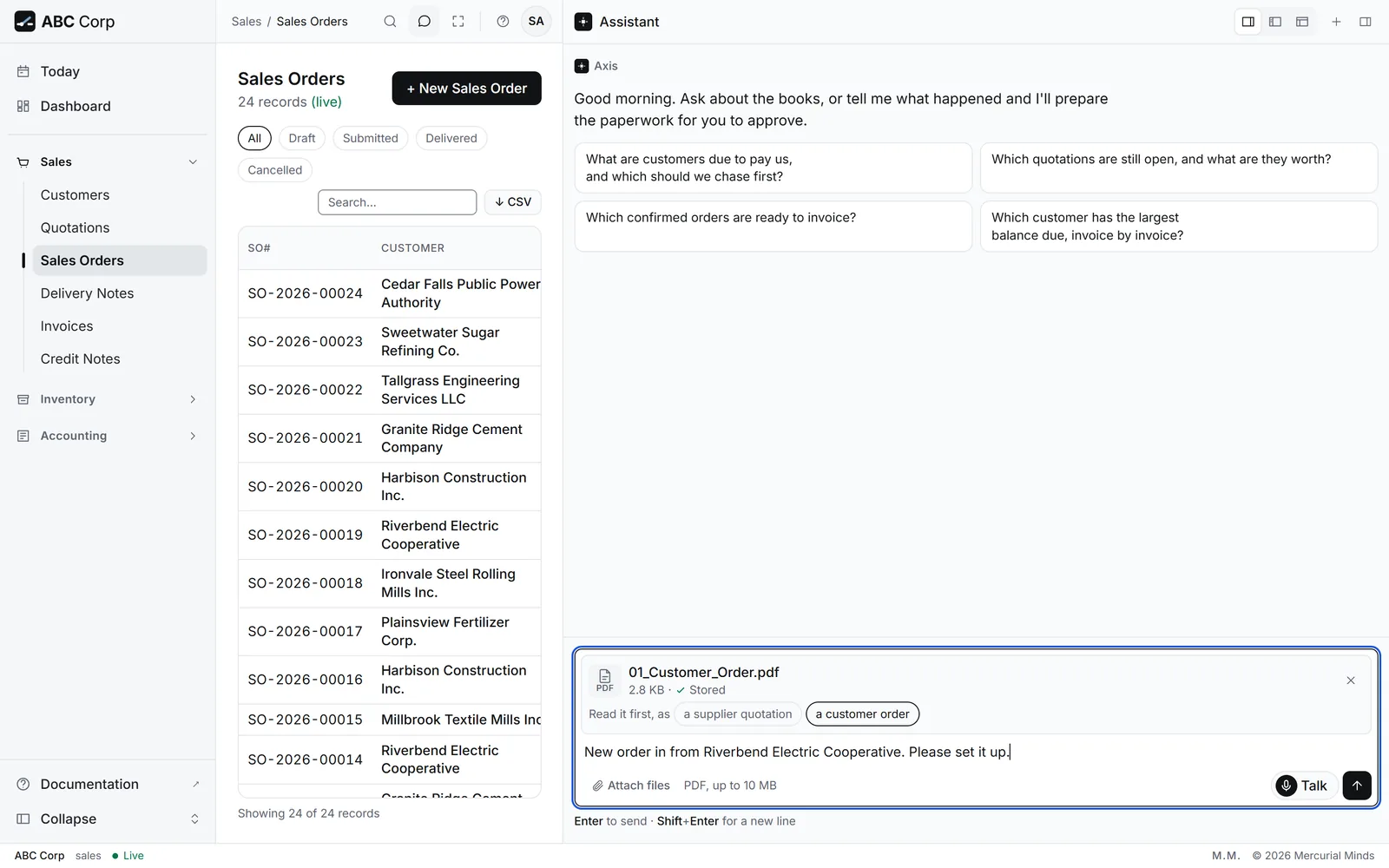
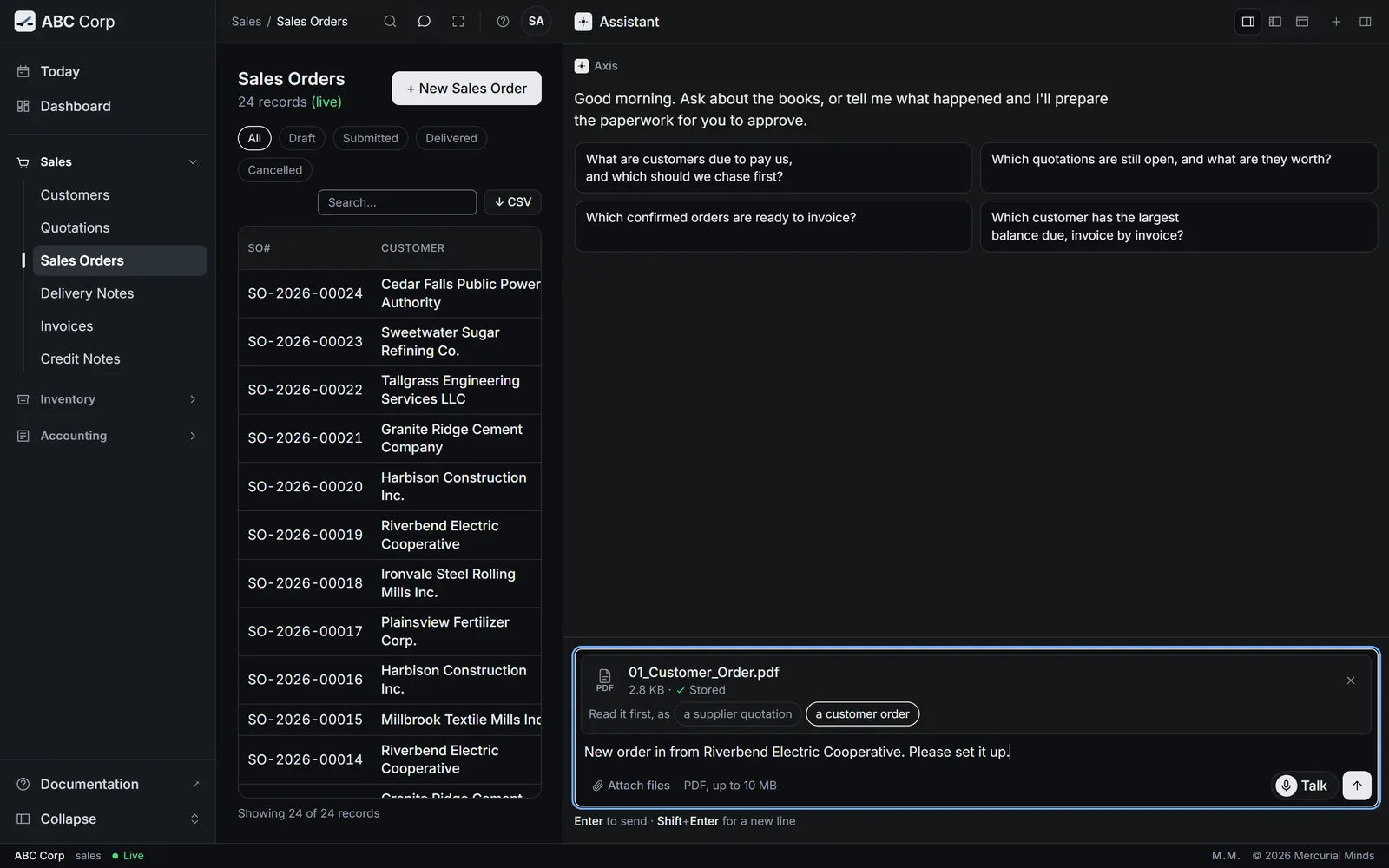
- Drag a PDF onto the assistant's message box, or press Attach files under it. Axis takes PDF files up to 10 MB.
- Wait for the file to be stored. You can attach several files at once.
- Choose how Axis should read it. Under the file, press a supplier quotation or a customer order.
- Type a short message, such as Read this order from Riverbend Electric Cooperative., then send it.
- A review panel opens. The stored page sits beside the values read from it.
- Check each value against the page. A field marked “Not found” needs you to fill it in. A field you fill in is then marked “Added by you”.
- Match the document to your records:
- for a supplier quotation, choose the request it answers and match each line to a line of the request;
- for a customer order, name the customer and choose the stock item for each line.
- Press Confirm as extracted. If you changed a value, the button says Save corrections.
Done when
The assistant shows Recorded as a sales order from or Recorded as a supplier quotation from, with the file's name. The original PDF stays on file beside the new record.
The review panel has a value that differs from the page
Correct the value in its box. The page is the source, and your correction is what Axis records.
You attached the PDF and sent it before choosing how to read it
Under your sent message, press Read as a supplier quotation or Read as a customer order. The review opens in the same way.
How do I drop a reading I no longer want?
Press Discard at the top of the review, then Yes, discard. The assistant confirms that the extraction was discarded, and your books stay as they were.
The full story of how Axis reads a document is in The assistant and documents.
Stage 6: Approve or decline a request
Goal: you have read an approval card in full, and answered it.
Approve or decline a request
- A request waits on a card.
- Read the action and every detail.
- Approve, and it runs exactly as shown.
- Or decline with a reason. The assistant reads it and carries on.
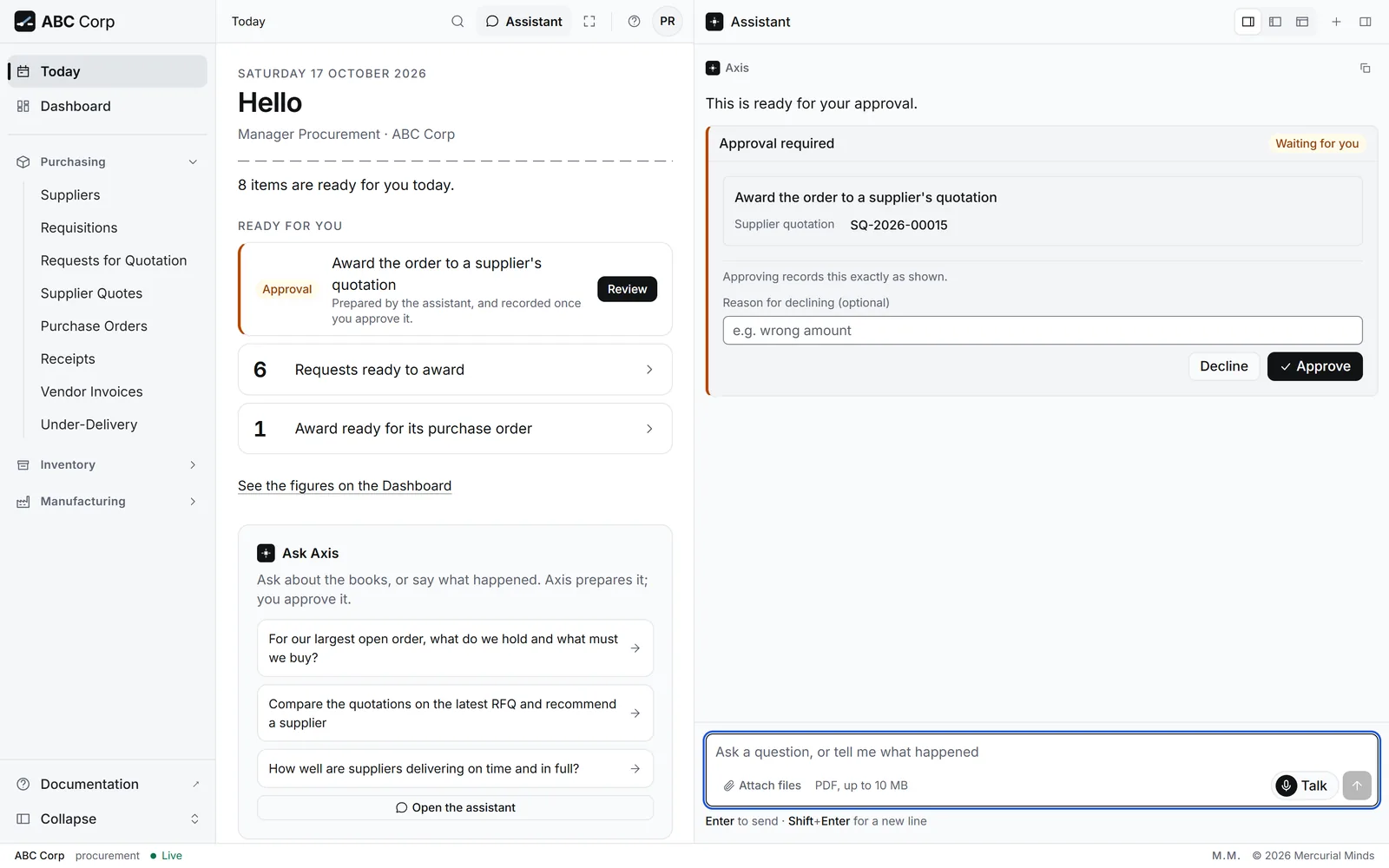
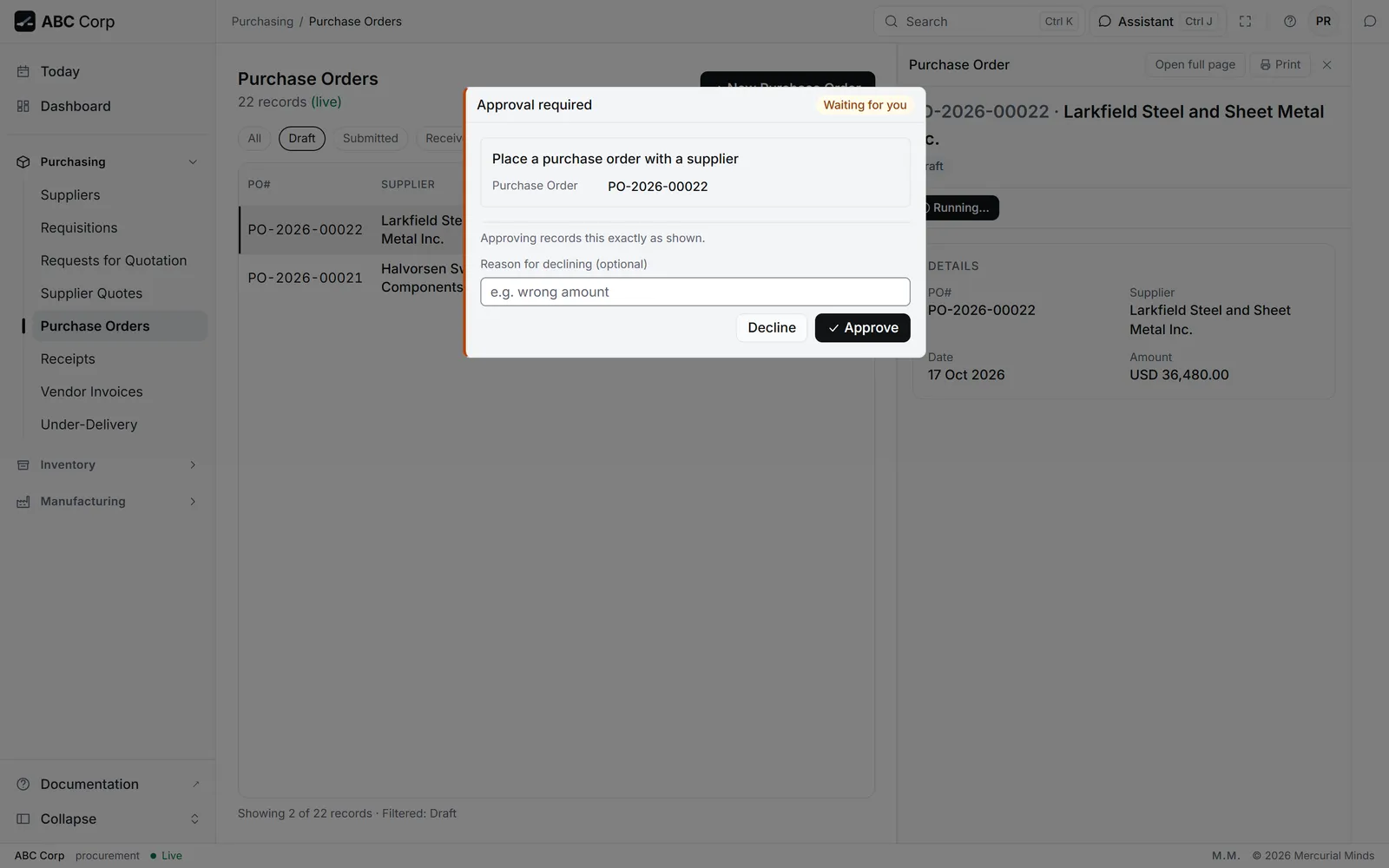
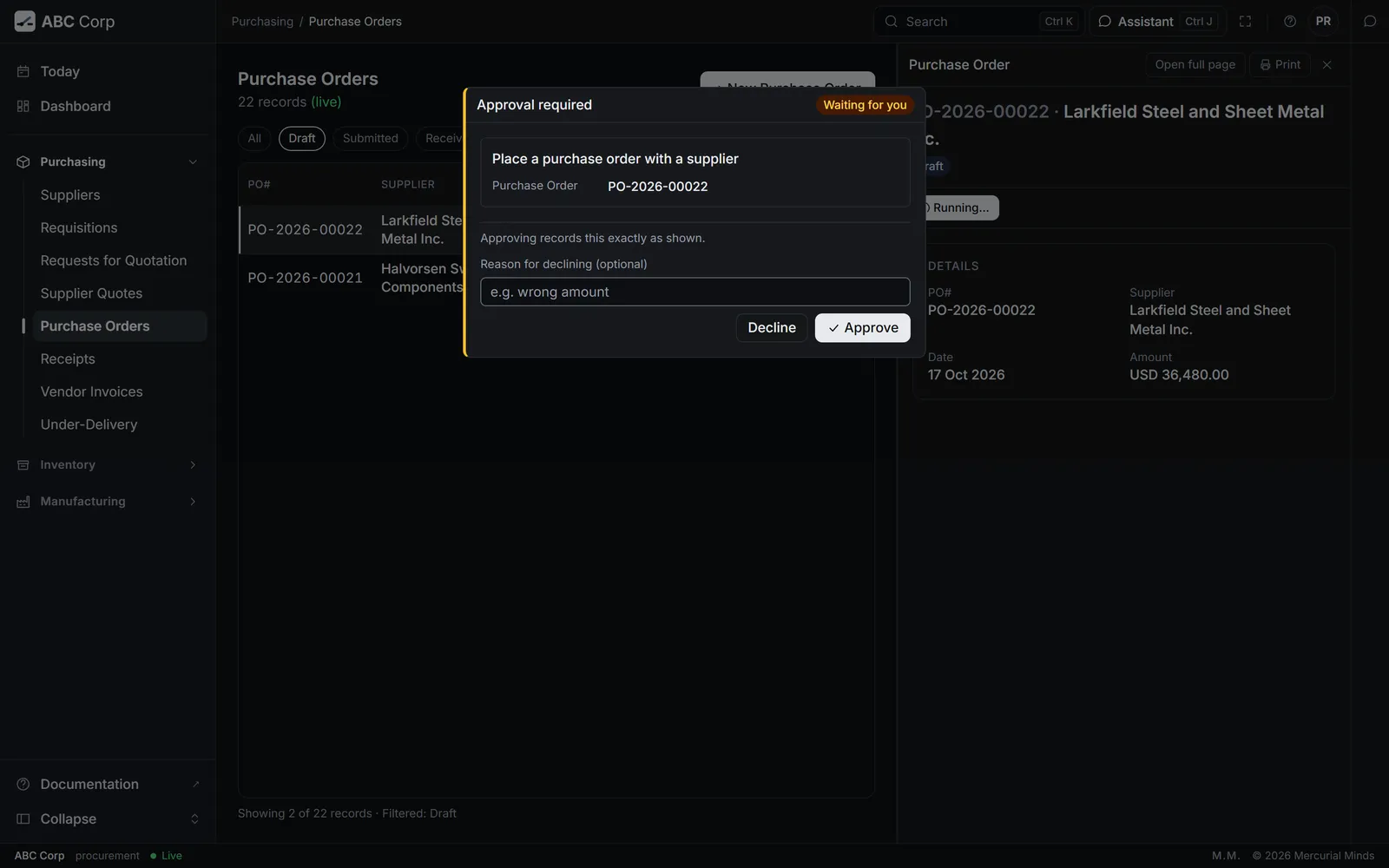
Work that changes the books waits for a person. Examples are posting an entry, confirming an order and awarding a quotation. The assistant prepares the work, then shows it on a card marked Waiting for you.
- Read the heading. It says what the work is, in plain words, for example Award the order to a supplier's quotation.
- Read every detail under it. A linked record shows its name first, then its reference.
- To go ahead, press Approve. The card shows Approved and the words Approved. Recorded exactly as shown.
- To stop it, type your reason in Reason for declining (optional), then press Decline. The card shows Declined with your reason. The assistant reads the reason and carries on from there.
The same card appears in two more places:
- On a screen. A button that changes the books, such as one on a record, opens the card over the screen. Press Esc or click outside the card to decline it.
- On Today. A card you have left waiting shows as an Approval row. Press Review to answer it.
Done when
The card shows Approved or Declined. An approved card shows exactly what ran.
The card says “Submitting your approval -- please wait, and do not refresh.”
Your answer is on its way to the server, so both buttons wait. Keep the page open until the card shows Approved or Declined.
Who answers the card?
The person who asked the assistant answers their own card. Your role decides which work you may ask for. See Approvals and Who can do what.
Stage 7: Find and open a record
Goal: you can find any record and open its details.
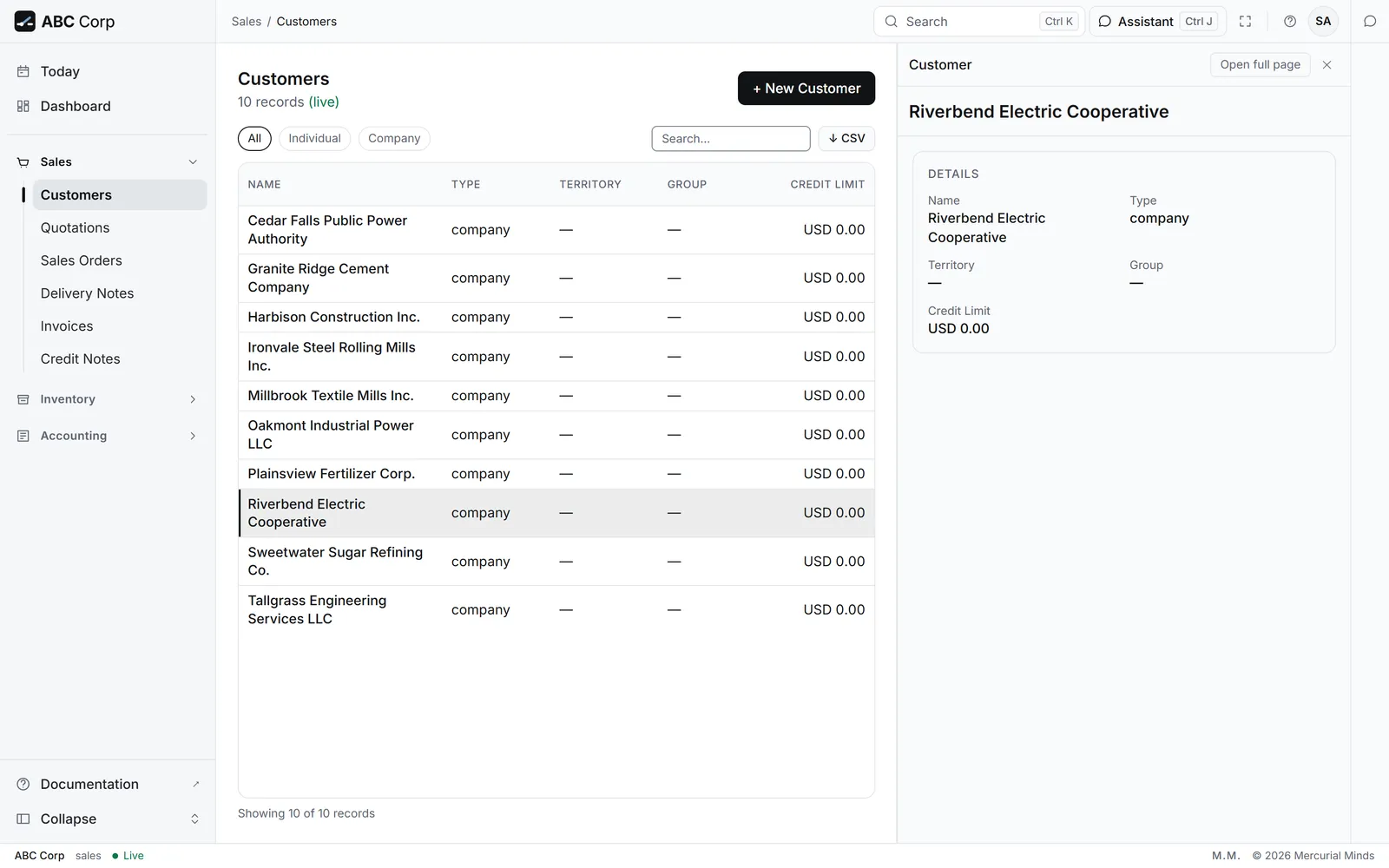
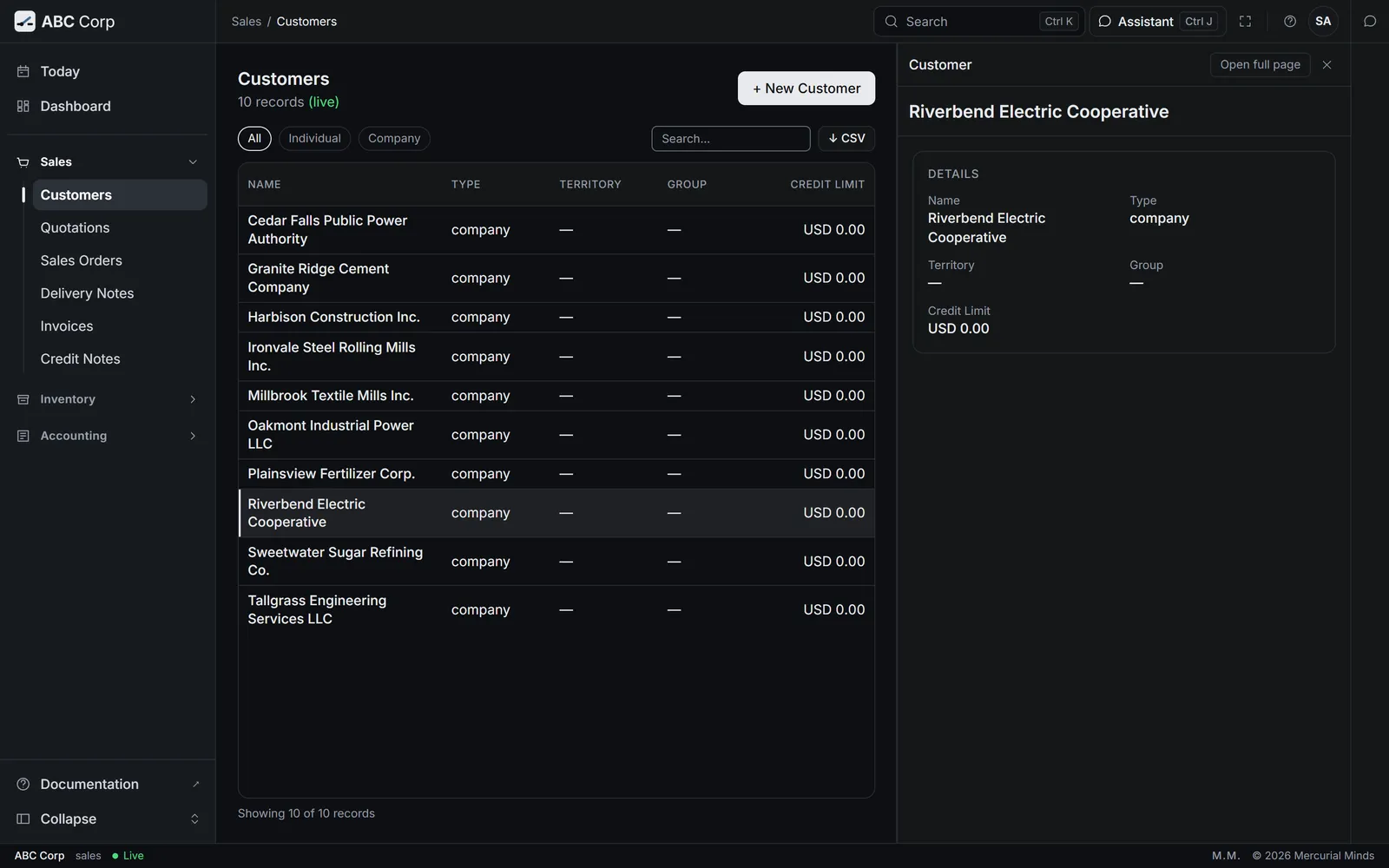
- Open the list from the menu, for example Sales, then Customers.
- Narrow the list. Press a status above the table, or type part of a name in Search….
- Press a row. The record panel slides in beside the list.
- Read the panel. The heading shows the record's reference and name, with its status under it. The next step for the record sits on a button, and further steps sit under More.
- Press Open full page to give the record a page of its own, with an address you can save or send.
- Press ✕ to close the panel.
To find a screen by name, press Ctrl+K and type part of it, for example quotes.
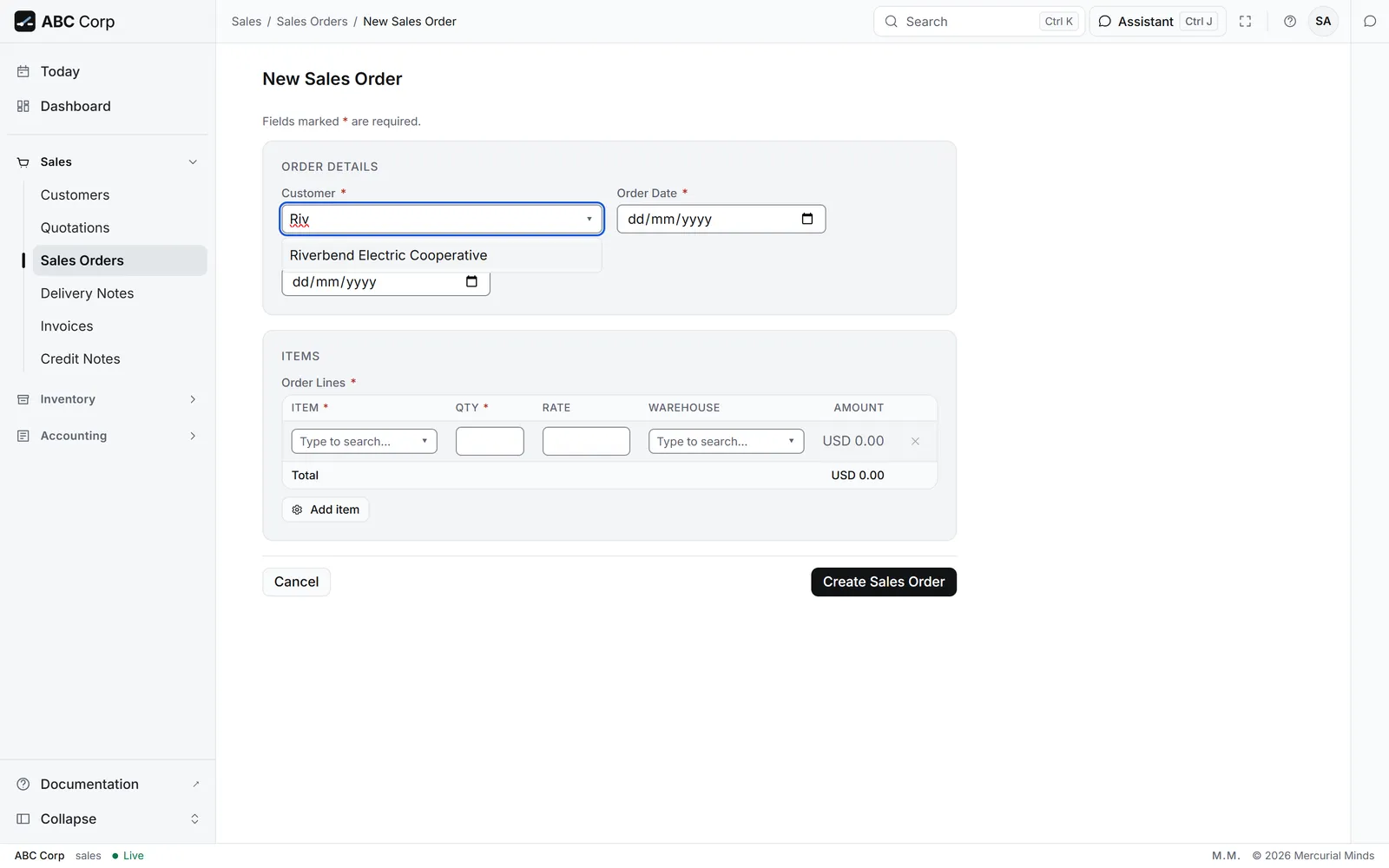
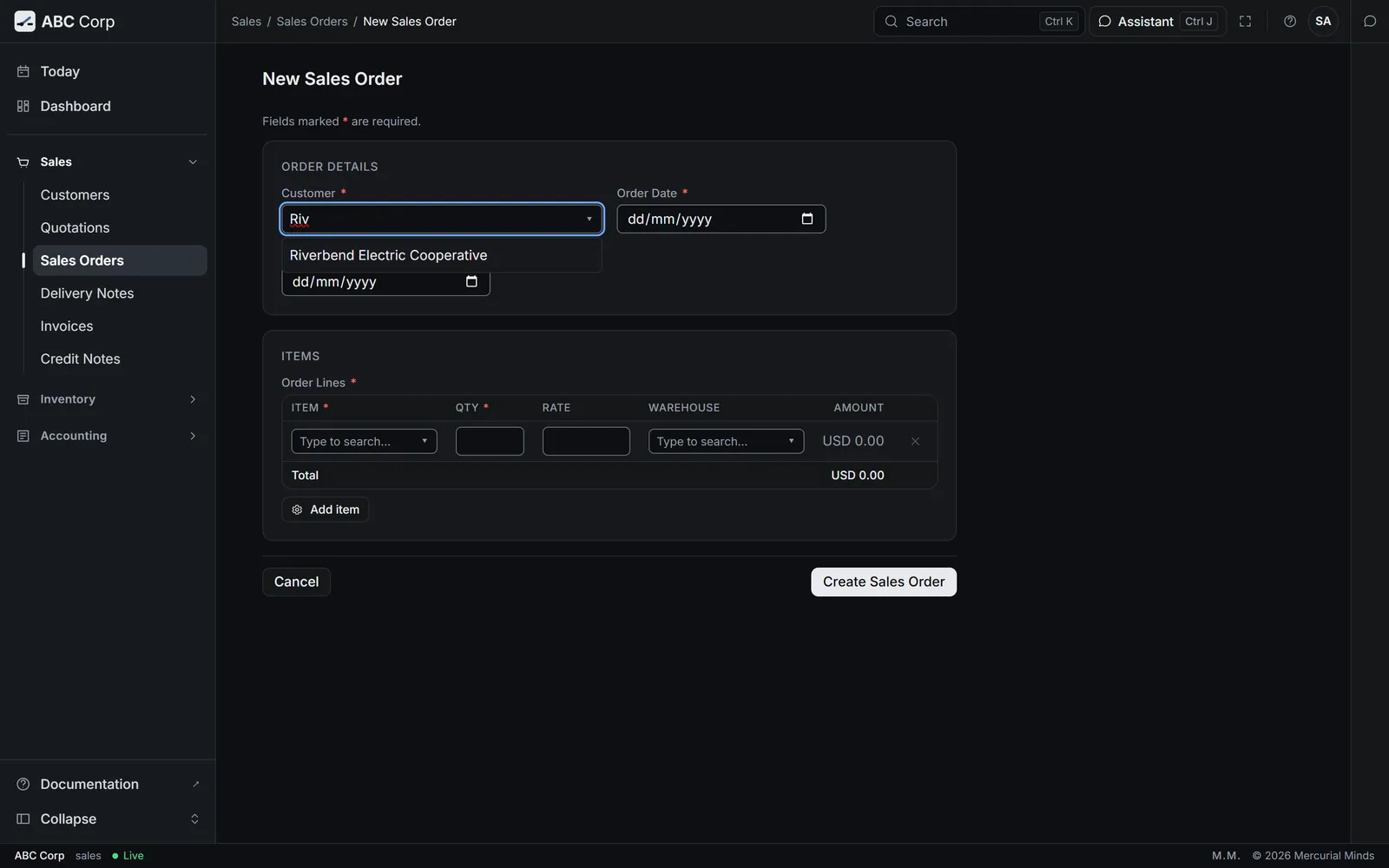
In a form, a field that links to another record, such as Customer, is a picker. Type part of the name, such as Riv, then choose Riverbend Electric Cooperative from the list.
You can also ask the assistant:
Show me Riverbend Electric Cooperative's open sales orders.
Done when
The record panel shows the record, with its reference, its status and its details.
The list says “Nothing matches”
The search or the status filter is narrower than you meant. Clear the search box, or press a different status above the table.
Can I take a list away to a spreadsheet?
Yes. Press Export as CSV above the table. The file holds the rows the list shows.
Next
- The ABC Corp tour: the same steps with real documents.
- Your work, end to end: find your task.
- Approvals: why some work waits for you.