HOW AXIS WORKS
Approvals
The assistant prepares the work. You decide what reaches the books. Every posting, cancellation and closing waits on a card until you press Approve.
Shown with ABC Corp, a demonstration company.
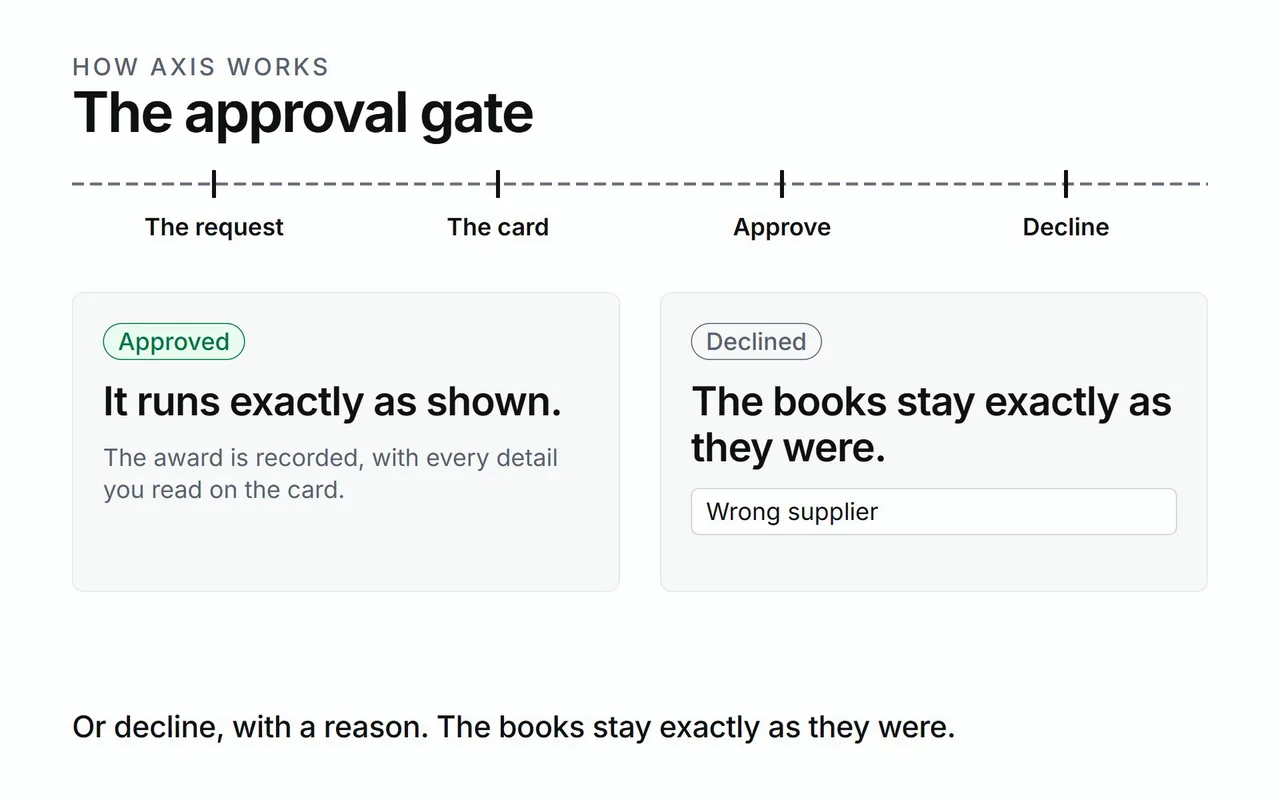
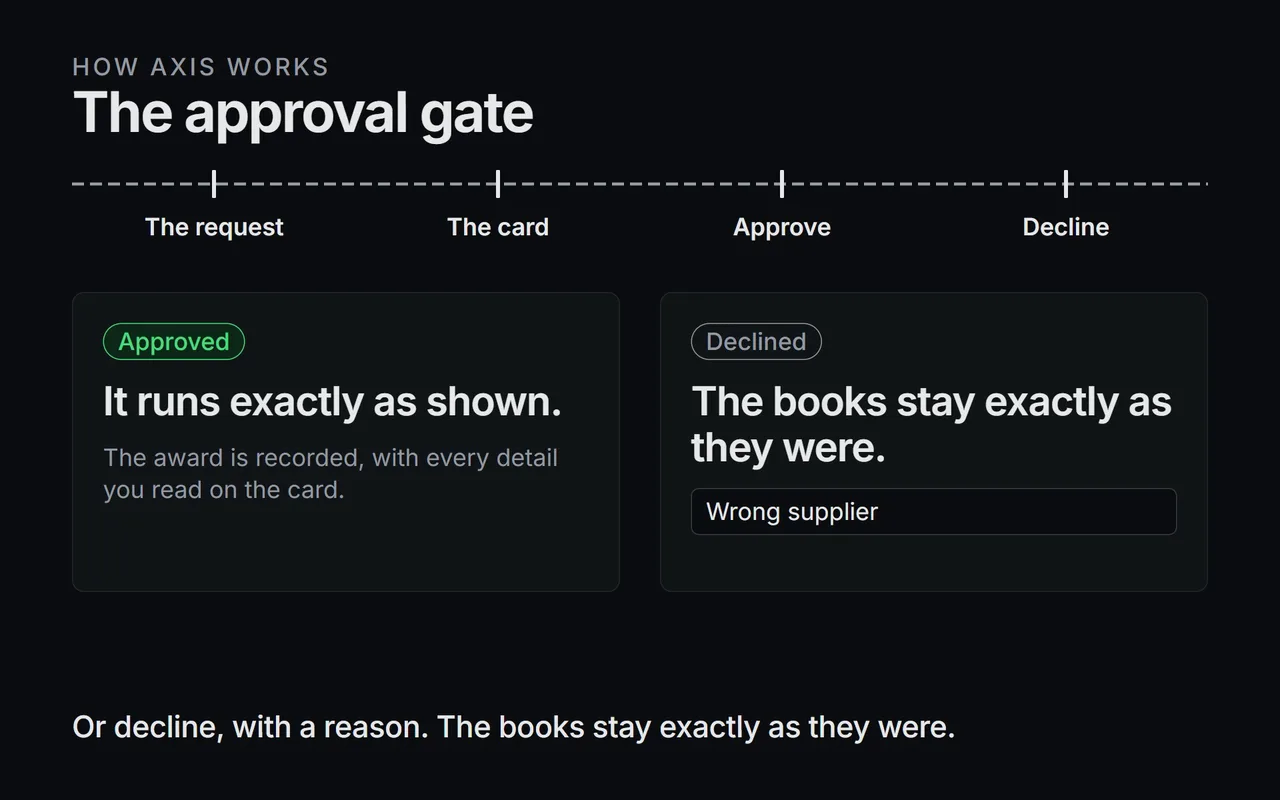
The approval gate
- A request arrives at the gate.
- The card shows the action and every detail.
- Approve runs it exactly as shown.
- Decline leaves the books exactly as they were.
The approval gate
Axis checks each request before it runs. When the request changes the books, the work stops at the gate and waits for you.
The check happens first, before any step of the work. So a declined request leaves the books exactly as they were.
The gate asks you, the person. The assistant has its own instructions, and the gate stands in front of them. Your press on Approve is the only thing that opens it.
Every way into Axis meets the same list of decisions: the assistant, the screens, a connected tool and a scheduled job. In the assistant and on the screens, the decision comes to you on a card.
Routine work and decisions
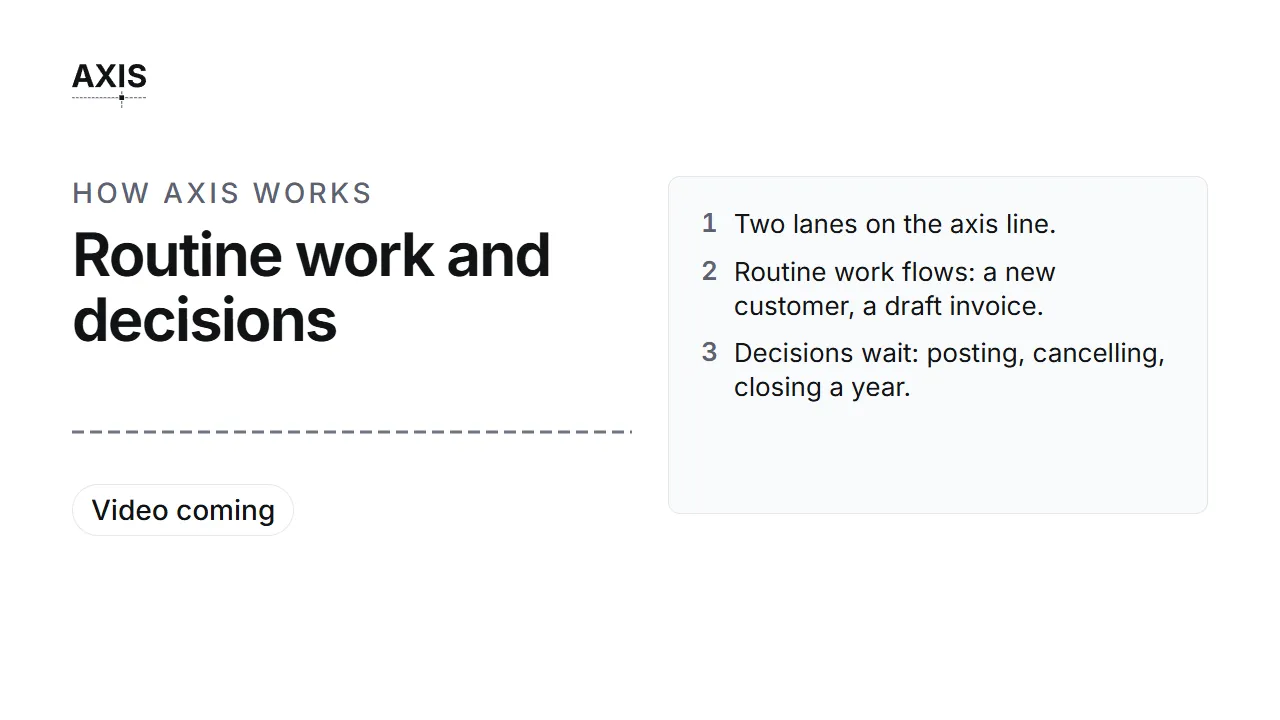
Routine work and decisions
- Two lanes on the axis line.
- Routine work flows: a new customer, a draft invoice.
- Decisions wait: posting, cancelling, closing a year.
Axis sorts work into two kinds.
Routine work runs when you ask clearly. Adding a customer, drafting an invoice and drafting a payment are routine. A draft stays a draft until someone posts it.
Decisions wait for your approval. These are the steps that post to the ledger, undo a posting, or change the system itself.
Keeping routine work quick keeps each card worth reading. When a card appears, it is a real decision.
On a screen, a routine button asks you to confirm in plain words first. A decision button opens the approval dialog instead.
What waits for approval
This list comes from the one list the gate reads. In plain words, these wait for you:
Posting to the ledger
- Post a journal entry, or post entries straight to the general ledger.
- Record a payment and post it.
- Issue a quotation, confirm a sales order, deliver goods and issue a sales invoice.
- Raise a material request, send a Request for Quotation and award a supplier's quotation.
- Place a purchase order, receive goods into stock and record a supplier invoice.
- Confirm a blanket sales agreement or a blanket purchase agreement.
- Move stock, correct stock after a count, and send materials to a subcontractor.
- Confirm a pick list, or close it as picked.
- Finish a work order, which takes its materials out of work in progress and receives the finished goods.
Undoing something already posted
- Cancel a posted document: a payment, a journal entry, an invoice, an order, a delivery or a goods receipt.
- Cancel a stock movement, a transfer to a subcontractor, a stock revaluation or a pick list.
- Cancel a payroll run or an intercompany invoice.
- Reverse a posting with an opposite entry.
- Amend a posted journal entry. Axis reverses the entry and opens a corrected copy as a draft.
- Write off what a customer still owes, as a bad debt.
- Delete an unposted journal entry or payment, a recurring invoice template or a tax template.
Answering someone else's request
- Approve or reject a leave application.
- Approve or reject an expense claim.
- Approve a transaction between group companies.
Paying people and moving money
- Start a payroll run, and approve it so it posts.
- Generate a bank payment file.
- Generate year-end tax data for employees.
The books and the period
- Close a financial year, or reopen a closed one.
- Freeze an account, or allow postings to it again.
- Revalue foreign-currency balances at the month-end rate, which posts the gain or loss.
- Consolidate the group companies, and eliminate transactions between them.
- Mark a month's sales tax return as filed. This comes with the Pakistan region module.
The installation itself
- Install, remove or update an add-on module.
- Update the core accounting engine, or roll it back.
- Apply or roll back a change to the database structure.
- Rebuild the database from scratch, restore it from a backup, or delete old backups.
- Store or delete a credential for an outside service, or replace the key that protects credentials.
Who can do what shows which roles make each decision.
What the card shows
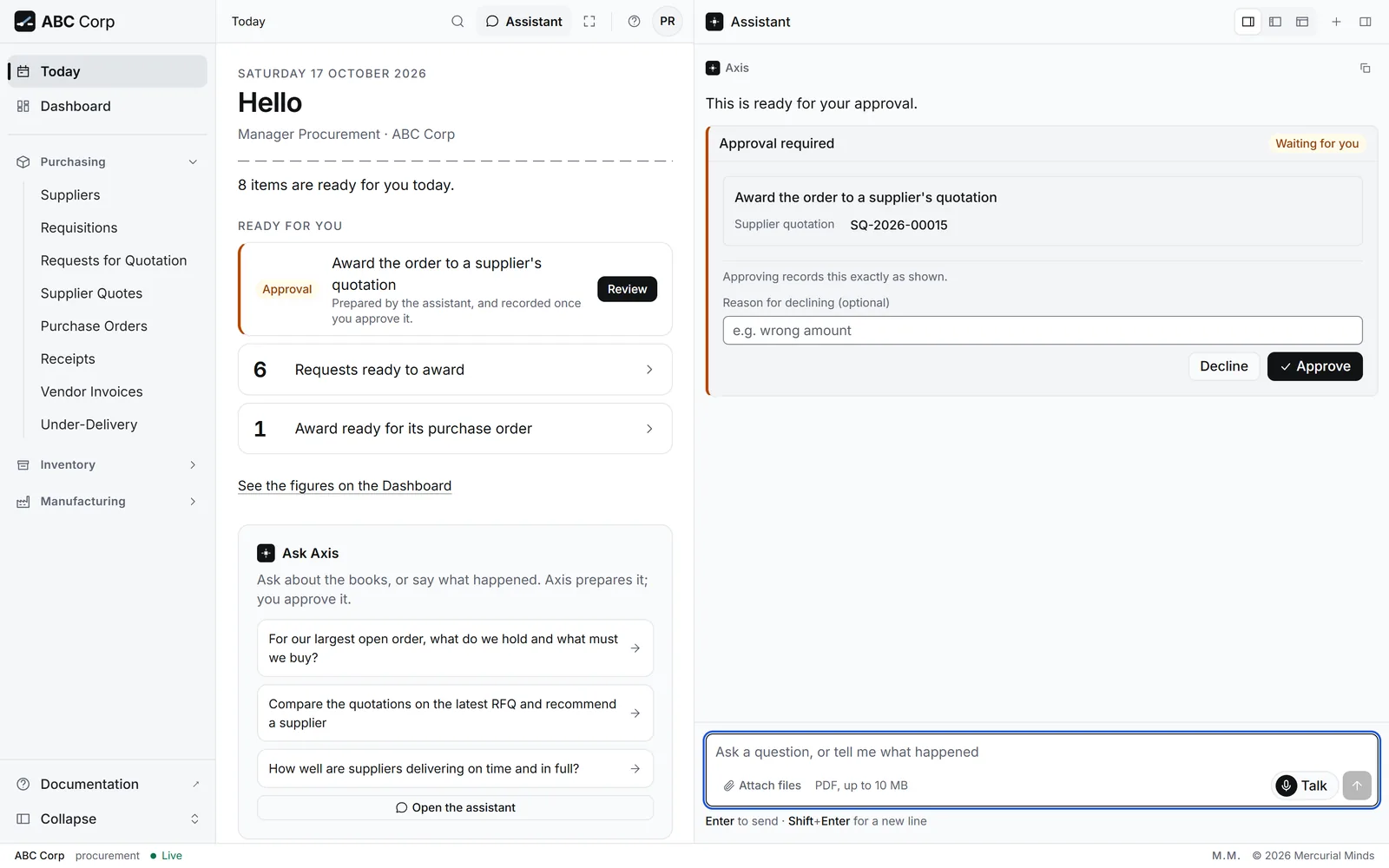
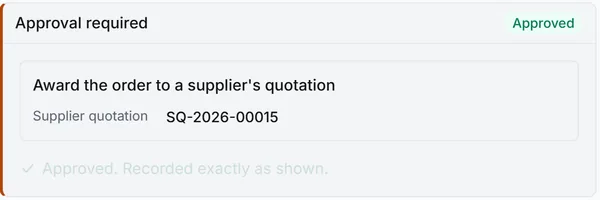
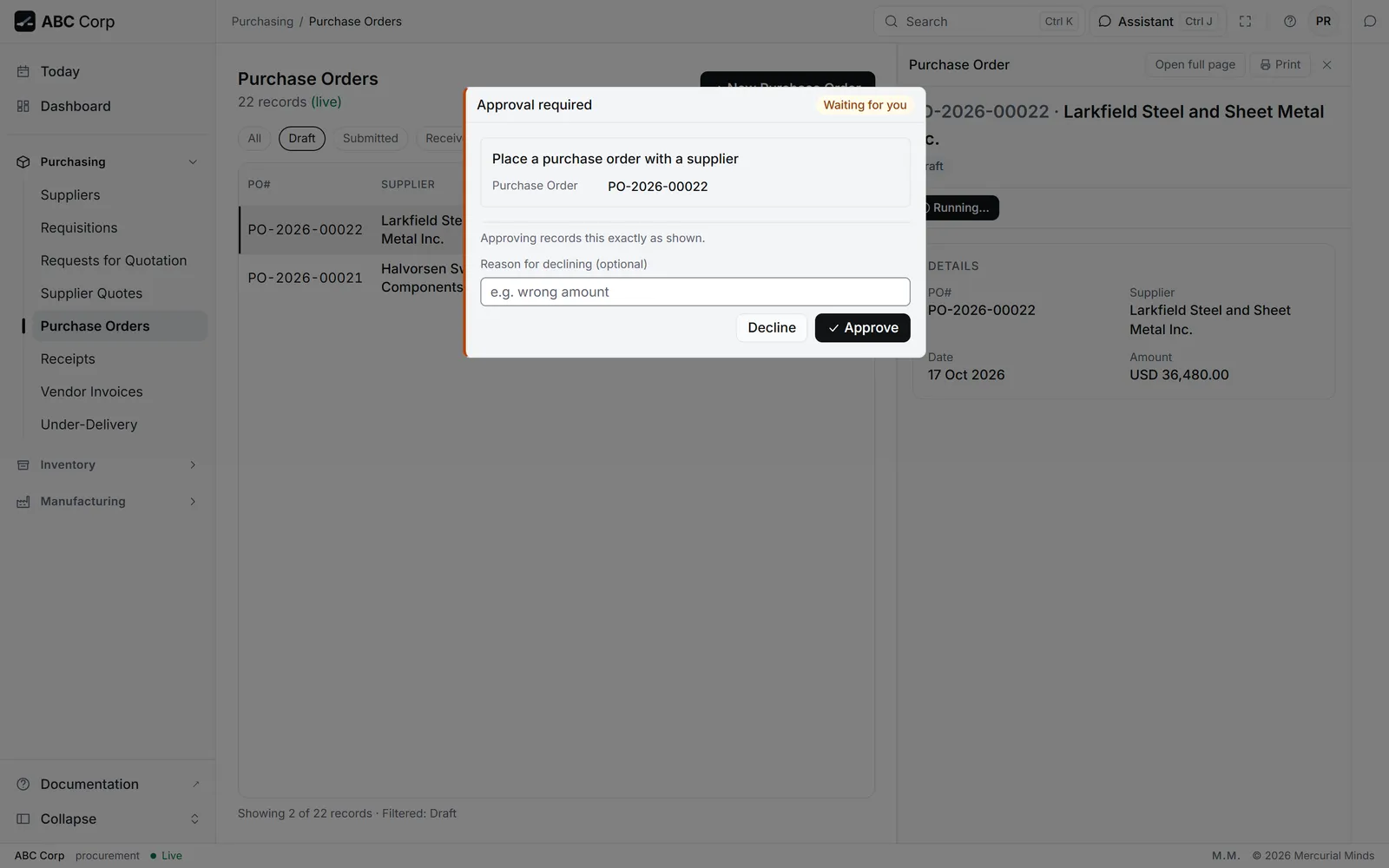
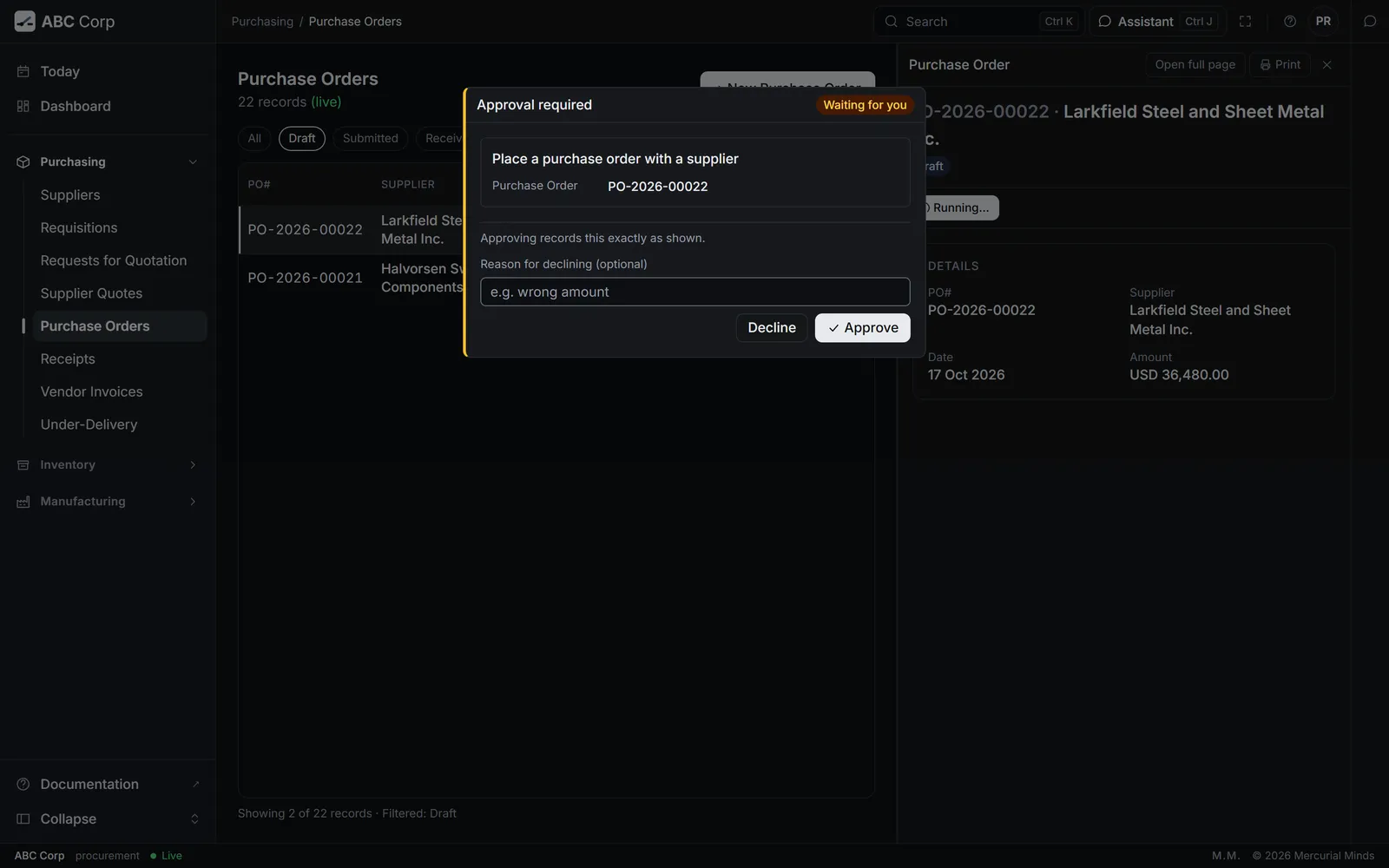
The card shows the request exactly as it will run.
- The action, in plain words. For example, Award the order to a supplier's quotation.
- Every detail the action uses. Each one is listed, with its label and its value.
- Names beside identifiers. A supplier or a customer shows its name, with its ID beside it.
- Money with its currency. An amount reads as the screen writes it: USD 264,254.50.
- The state of the decision. The badge reads Waiting for you, then Approved or Declined.
Every detail stays in full, because you approve what you can read. When a request arrives in an unexpected shape, the card shows the raw request in full.
The card says what approval does: "Approving records this exactly as shown."
Where cards appear
- In the assistant panel. The conversation pauses on the card.
- On a screen. A decision button, such as submitting a sales invoice, opens the same card as a dialog.
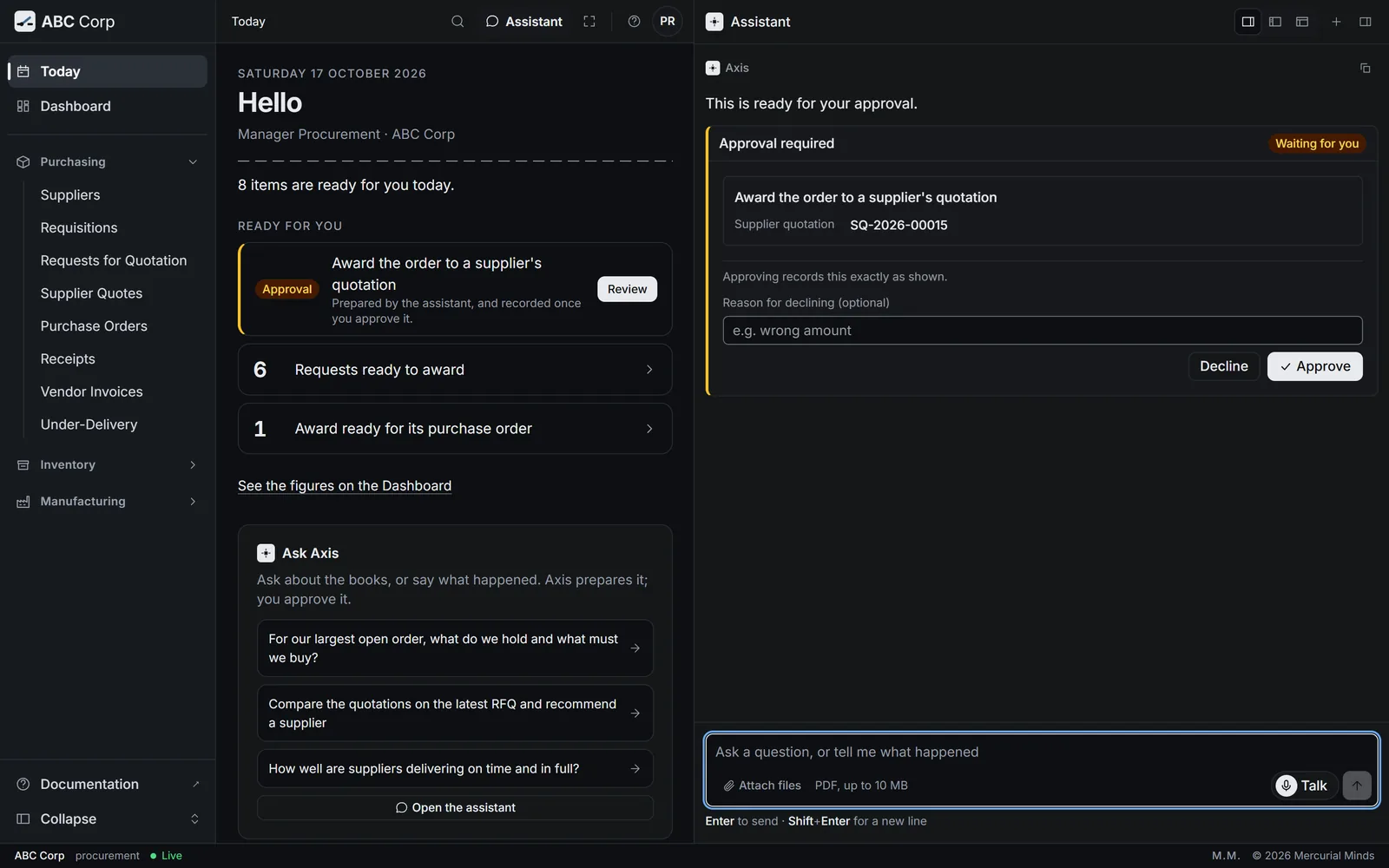
- On Today. A card that waits for you shows under Ready for you, with an Approval badge and a Review button. Review puts the card back in front of you.
- During a Talk call. The voice says "That's ready for your approval on screen." The card waits in the assistant panel for your press.
- Through your own AI tool. A standard key sends a posting, an award or a cancellation back to Axis. Do it in Axis, and the card appears there for you.
Your approvals are yours
A card belongs to the person who asked. It is held for that sign-in, in that company and in that conversation.
- Only you answer your own cards. Another person's press leaves your card waiting for you.
- Today lists your own waiting cards, and only yours.
- You approve only what your role allows. Axis refuses a request outside your role before any card appears.
The card is your own confirmation of your own request. For a second person's sign-off on a document, such as a large purchase order, use the Approval rules module.
One decision at a time
Axis takes decisions one at a time.
- Your approval covers that action alone. After it runs, the assistant is told exactly that. It reports what was done and offers any next step in words. The next posting brings a card of its own.
- One conversation runs one turn at a time. Each turn starts from the one before it.
- The dialog on a screen holds one request. You answer it, then the screen carries on.
- A card can list more than one step. Each step is numbered, with all its details. Press Approve this or Decline this on each step, then Send my decisions. Or answer them together with Approve all or Decline all. When the answers differ, the card reads Partly approved.
Decline with a reason
Press Decline to stop the request. The books stay exactly as they were.
You can type a reason first, in Reason for declining (optional). For example, "wrong amount". The assistant reads your reason and carries on from there.
The card then reads "Declined. Nothing was run." with your reason beside it. A decided card offers its buttons once, so each decision has one answer.
On a screen, pressing Escape or clicking outside the dialog counts as Decline.
Questions
Can a model approve its own request?
The gate asks you, the person, and reads your press on Approve. It asks you directly, every time. A request reaches the books only after your press.
Can I approve by voice?
Approval is a press on the card, on screen, every time. The voice tells you when a card is ready, and the decision stays with you. See Talk to the assistant by voice.
What happens when my AI tool asks for a posting?
With a standard key, Axis sends it back with a message: do it in Axis, where a person approves it. Open the assistant or the screen, and approve the card there.
What does Allow destructive actions do?
It lets that one key confirm postings, awards, purchase orders, cancellations, reversals and write-offs by itself, and the card step is skipped. Your AI tool's own checks are then the last step before the books. Keep it clear for everyday use. For a program that truly needs it, give that key a short expiry.
What happens if I decline?
The request stops and the books stay as they were. The assistant hears your answer, and your reason when you give one. When it tries again, a fresh card appears.
Can someone else approve a card for me?
A card belongs to the person who asked. Another person sees their own cards, on their own Today.
What happens to a waiting card if Axis restarts?
The running server holds each waiting card. After a restart, ask the assistant again, and a fresh card appears.
Why did my request stop with a message about my role?
Your role decides what you may request at all. Ask your administrator for the role that covers the work. See Roles and seats.
Next
- Approve or decline a request: answer your first card.
- Roles and seats: what each role may request and approve.
- Who can do what: every decision and the roles that make it.