DO THE WORK
Set up your team
Your company, your people, their roles, your modules and your backups.
Shown with ABC Corp, a demonstration company.
The System Administrator sets up the company and the people who sign in. Each person's roles decide their menu, their Today and what the assistant does for them. Modules and backups sit with the people who run your server.
Progress
| Task | Seat | Waits for approval | Done when |
|---|---|---|---|
| Set up your company | Administrators | Routine | The company, its years and its tax templates are in place. |
| Add a user and give them a role | Administrators | Routine | The person signs in to their own seat. |
| Shape a role to your team | Administrators | Routine | Each person holds the roles their work needs. |
| Connect your own AI tool | Every seat | Routine | Your AI tool answers from Axis, as you. |
| See and revoke a person's keys | Administrators | Routine | The key reads Revoked, and the tool stops reaching Axis. |
| Add a module | CEO | Yes | The module's screens and actions are ready. |
| Back up and restore | CEO | On the server | A recent backup is stored safely, and checked. |
Set up your company
You end with the company's details, its financial years and its tax templates in place, ready for the first posting.
Set up your company
- Open Settings and check the company's details.
- Edit the name, the country or the tax registration.
- Add the financial years your postings fall in.
- Set up the tax templates your documents charge.
Before you start: the System Administrator role. The CEO's seat holds this too.
Show me the company setup and the fiscal years against it.
- The assistant shows the company's details and each financial year with its dates.
- Ask for what is missing: "Open the books for the next financial year."
- For tax, ask: "Set up an 8.25% sales tax template."
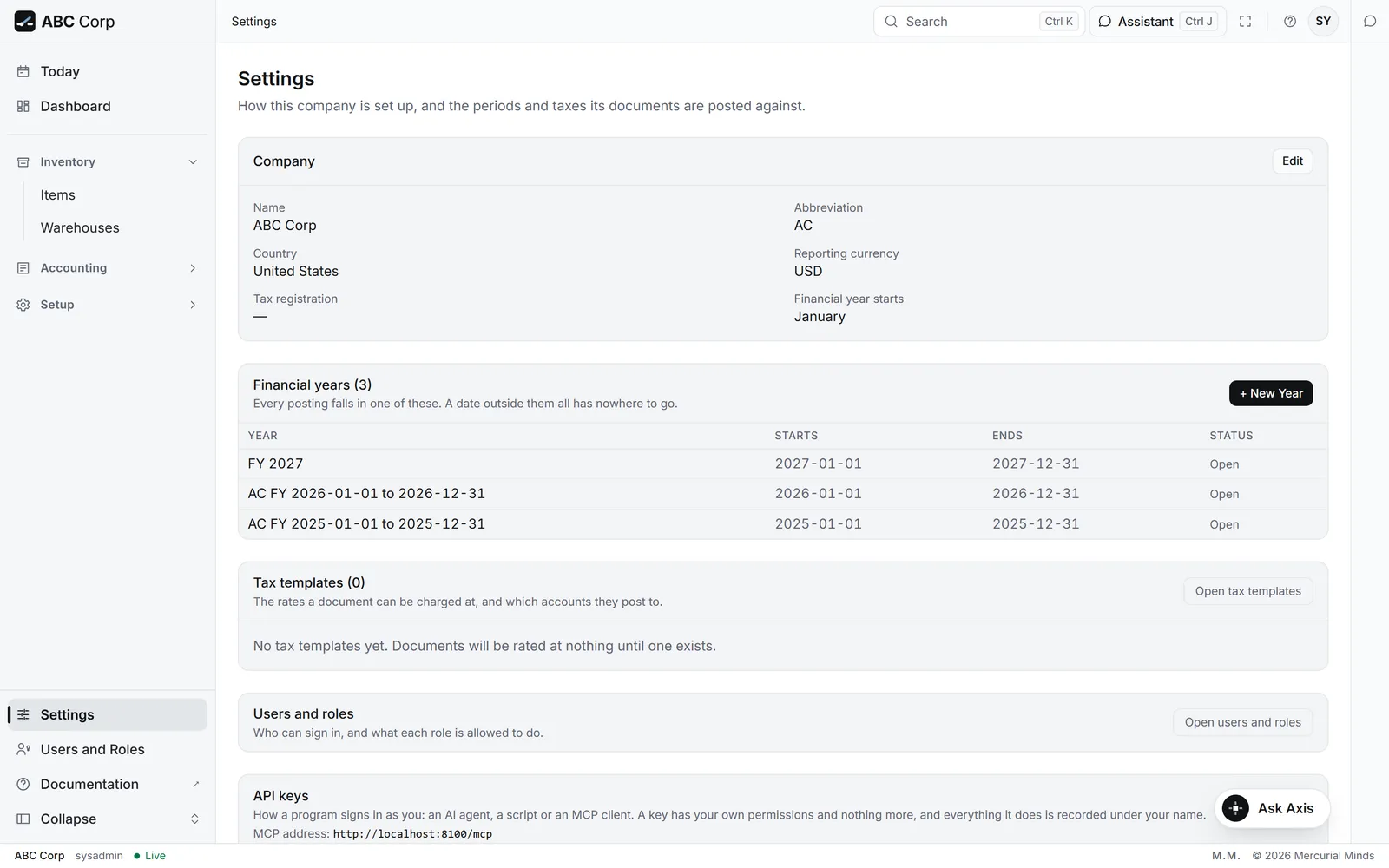
- Open Settings.
- Under Company, press Edit. Change the Name, Abbreviation, Country, Tax registration or Financial year starts, then save.
- Under Financial years, press + New Year. Give the Name, Starts and Ends, then save.
- Under Tax templates, press Open tax templates to add or change one.
What you see
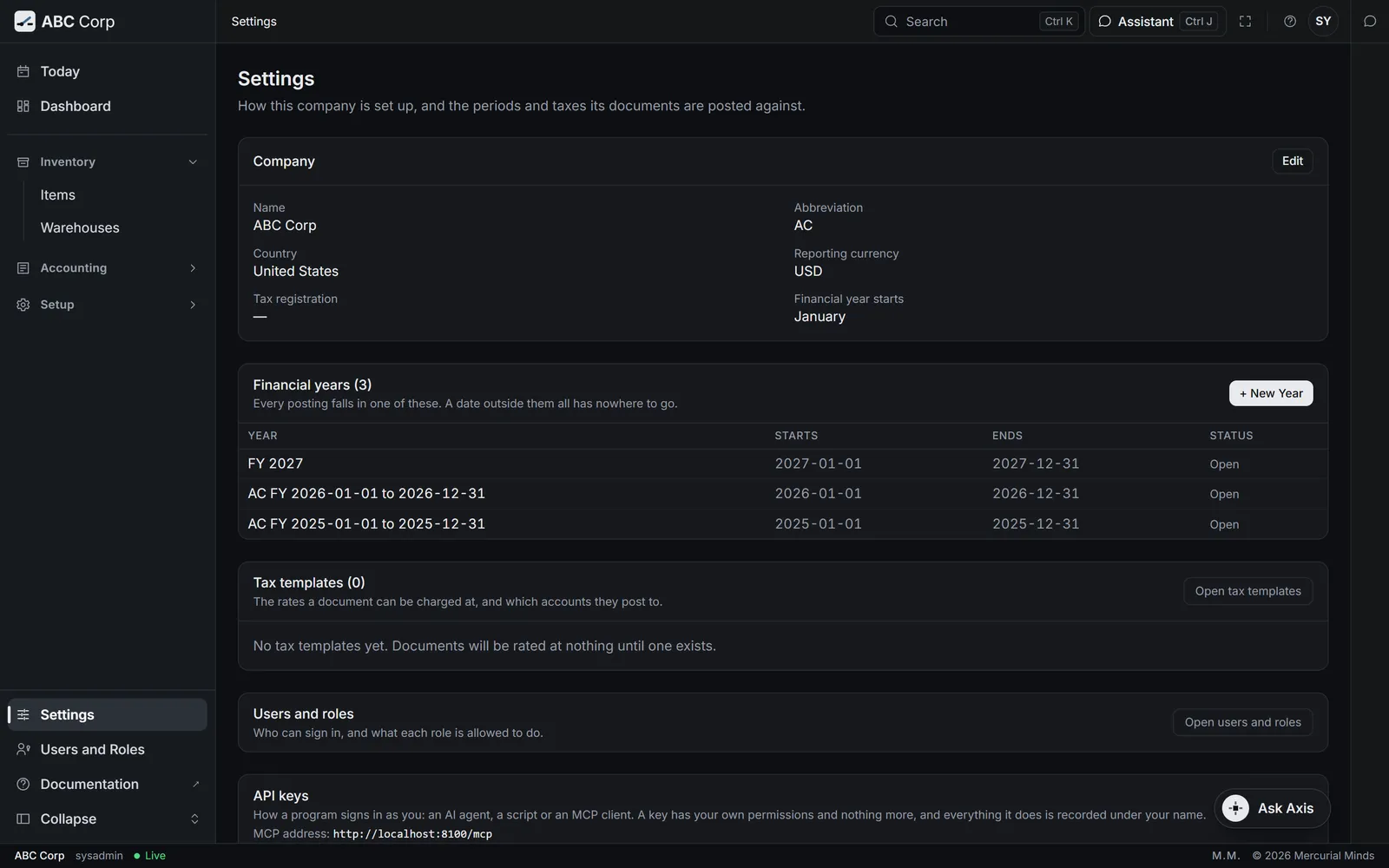
ABC Corp, reporting in USD, in the United States, with a calendar year. Three financial years run from 2025 to 2027.
Every posting needs a year
Each posting falls in one financial year. Add the next year before its first day, so postings dated in it have a home.
A posting is refused for its date
The date falls outside every financial year. Add the year under Financial years, then post again.
Add a user and give them a role
You end with a person who signs in to their own seat: their menu, their Today and their assistant.
Add a user and give them a role
- Open Users and Roles.
- Add the person and choose their role.
- Their menu, their Today and the assistant all follow that role.
Before you start: the System Administrator role. The person's email address, and the work they do.
What can I see with my role?
- The assistant answers for the person asking, from their own roles.
- Use it after you add someone: they sign in and ask, and the answer lists their areas.
- Adding people and giving roles happens on the screen, as the other tab shows.
- Open Settings, then press Open users and roles.
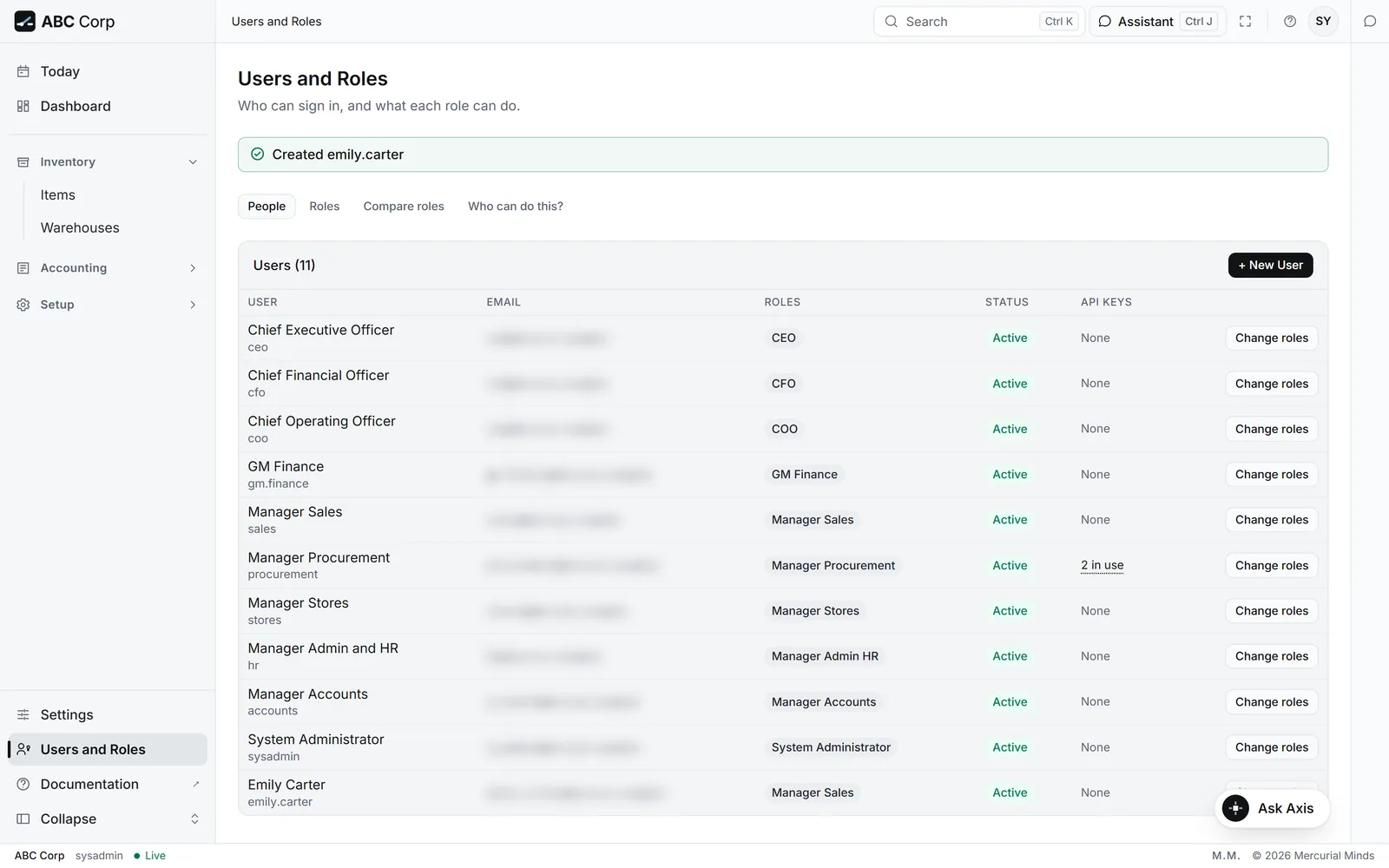
- On the People tab, press + New User.
- Fill in the Username, Email, Full name and Password.
- Under Roles, tick each role the person holds.
- Press Create user.
What you see
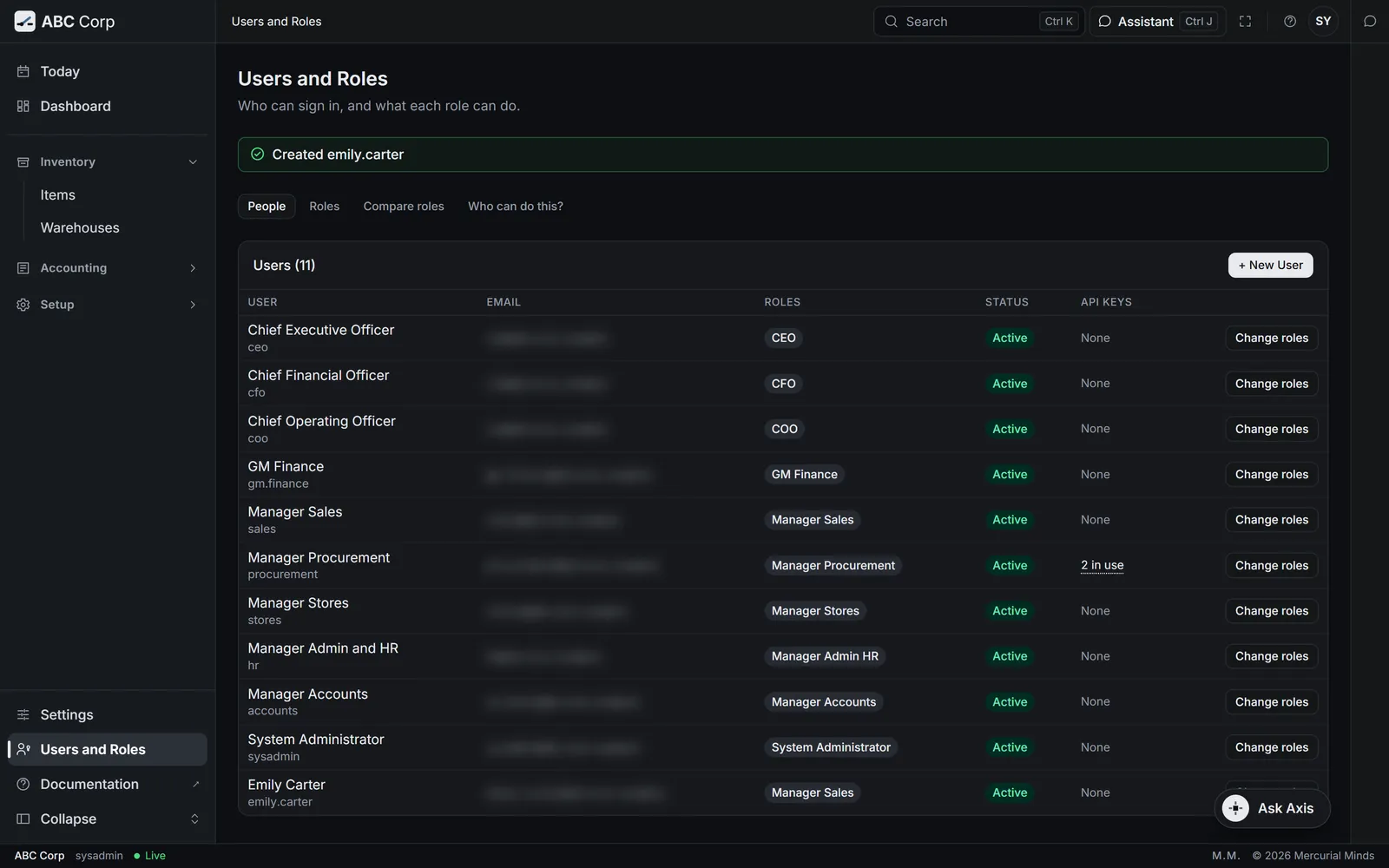
The person is in the Users list with their roles highlighted. When they sign in, their menu holds only their areas.
Changing a role later
Press a role on the person's row. A preview lists what they gain and what they would stop holding. Press Apply change to make it, or Keep as is.
Minimum 8 characters, with an uppercase letter and a digit.
The password needs at least 8 characters, one of them an uppercase letter and one a digit.
This widens your own access, so another administrator makes this change for you.
You are changing your own roles to hold more. Ask a second administrator to make the change.
Shape a role to your team
You end with each person holding the roles their work needs, checked against what each role can do.
Shape a role to your team
- Open the Roles tab and read what each role can do.
- Compare two roles side by side.
- Ask who can do a piece of work.
- Give a person the roles that fit, and read the preview first.
Before you start: the System Administrator role. Axis ships ten roles, from CEO to Manager Accounts. A person can hold more than one.
What can I see with my role?
- Each person asks this for their own seat. The answer lists the areas their roles open.
- Shape the seats themselves on the screen, as the other tab shows.
- Open Settings, then press Open users and roles.
- On Roles, press a role to see its capabilities by area. A capability the role holds only in part reads part of it.
- On Compare roles, choose two to four roles to see them side by side.
- On Who can do this?, choose a capability to see the roles and the people who hold it.
- On People, press a role on a person's row, read the preview, then press Apply change.
What you see
The preview names what the person gains and what they stop holding. Where two duties meet in one person, it says so, for example: "The person who raises a purchase order is not the one who posts its payment".
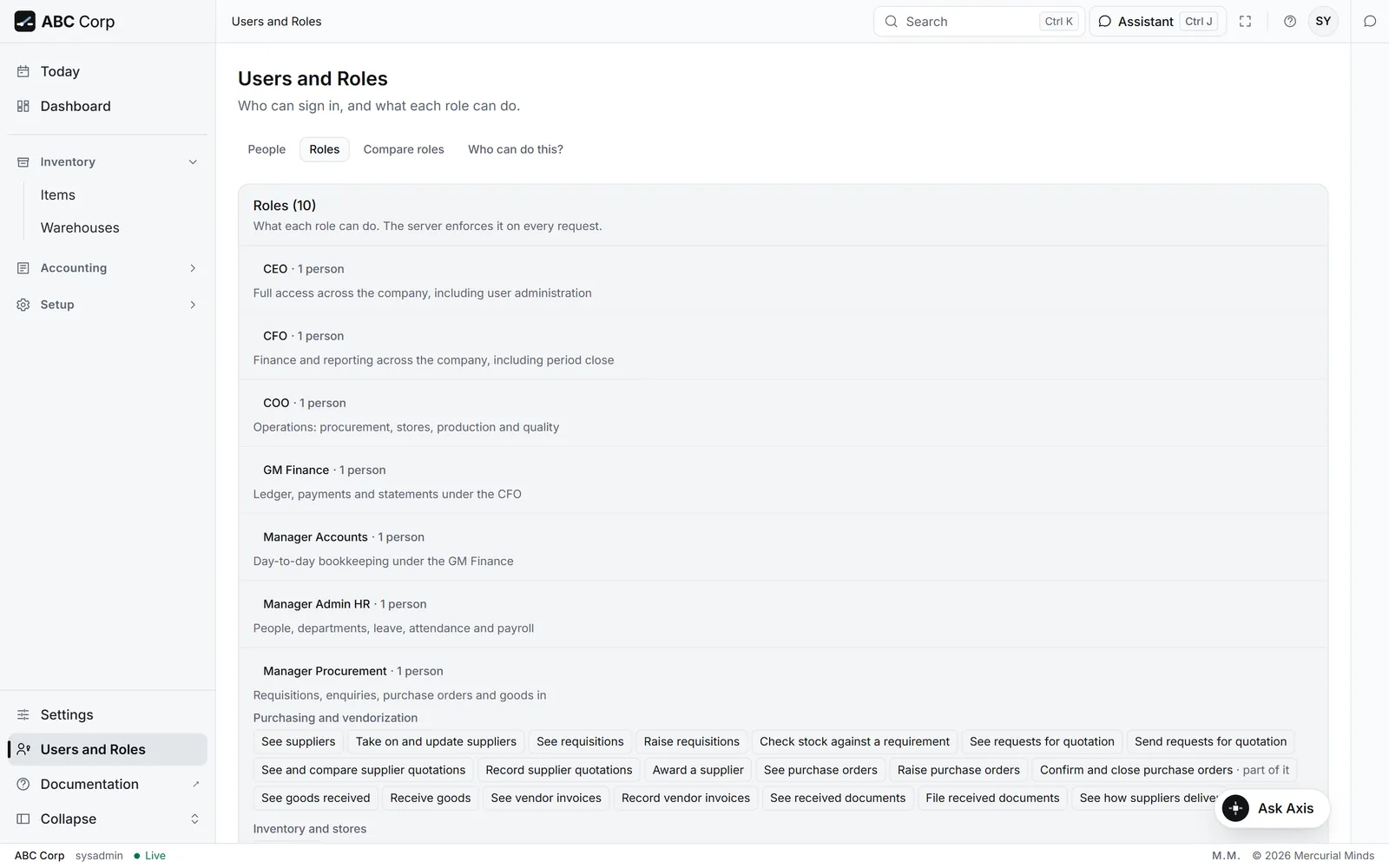
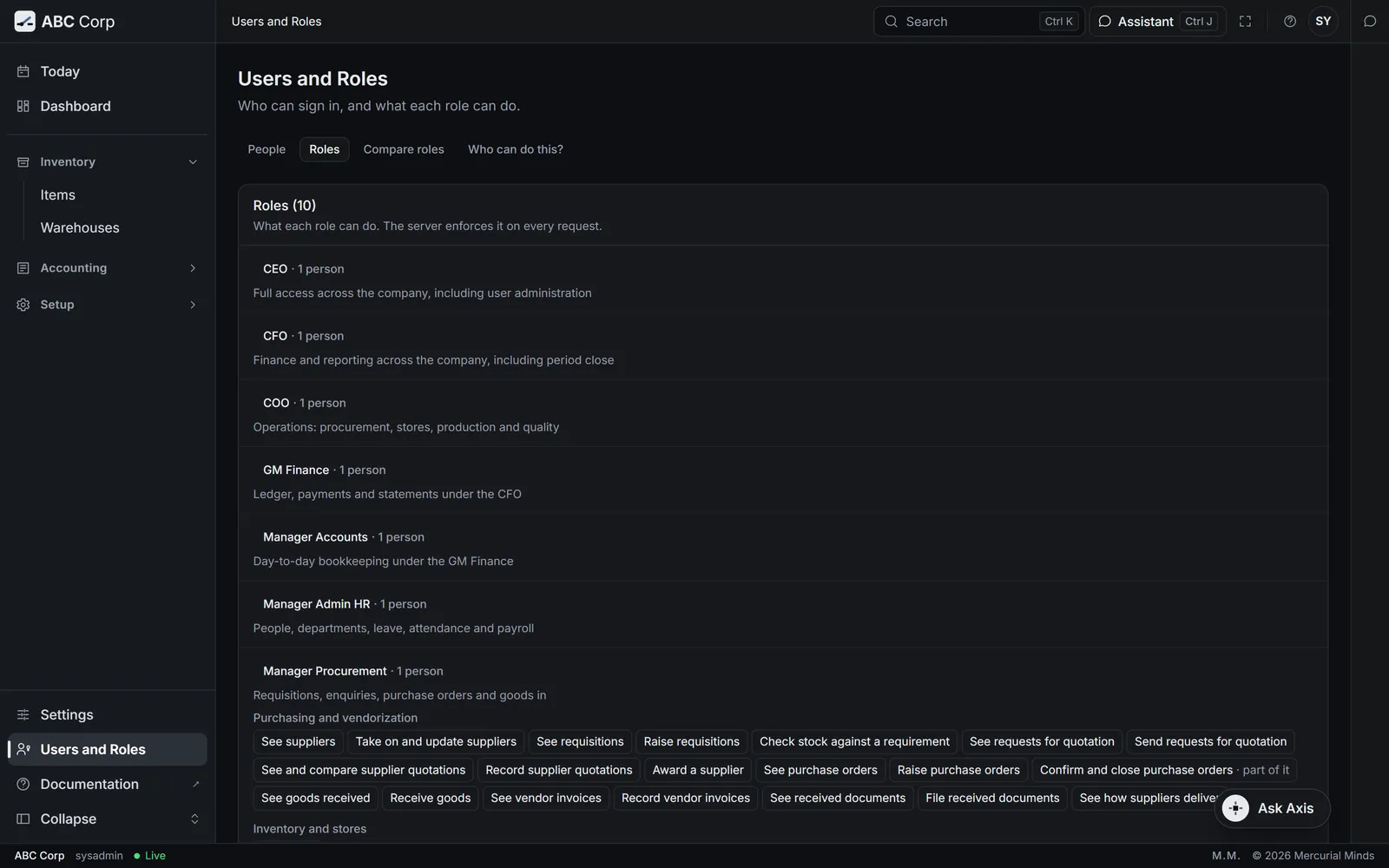
What a role holds
Each role's capabilities come with Axis, and the server checks them on every request. You shape a seat by the roles you give a person. Who can do what lists every role's capabilities.
Can one person hold two roles?
Yes. They see the areas of both. The preview warns where the two roles bring together duties a business keeps apart.
Connect your own AI tool
You end with an AI tool on your computer that works in Axis as you, with your role.
Connect your own AI tool
- Create a key in Settings, and copy it.
- Give the key and the address to your AI tool.
- Ask a question, and the answer comes from Axis.
- A posting comes back to Axis, to approve on a card.
Before you start: an AI tool that connects to MCP servers with a key, such as Claude Code.
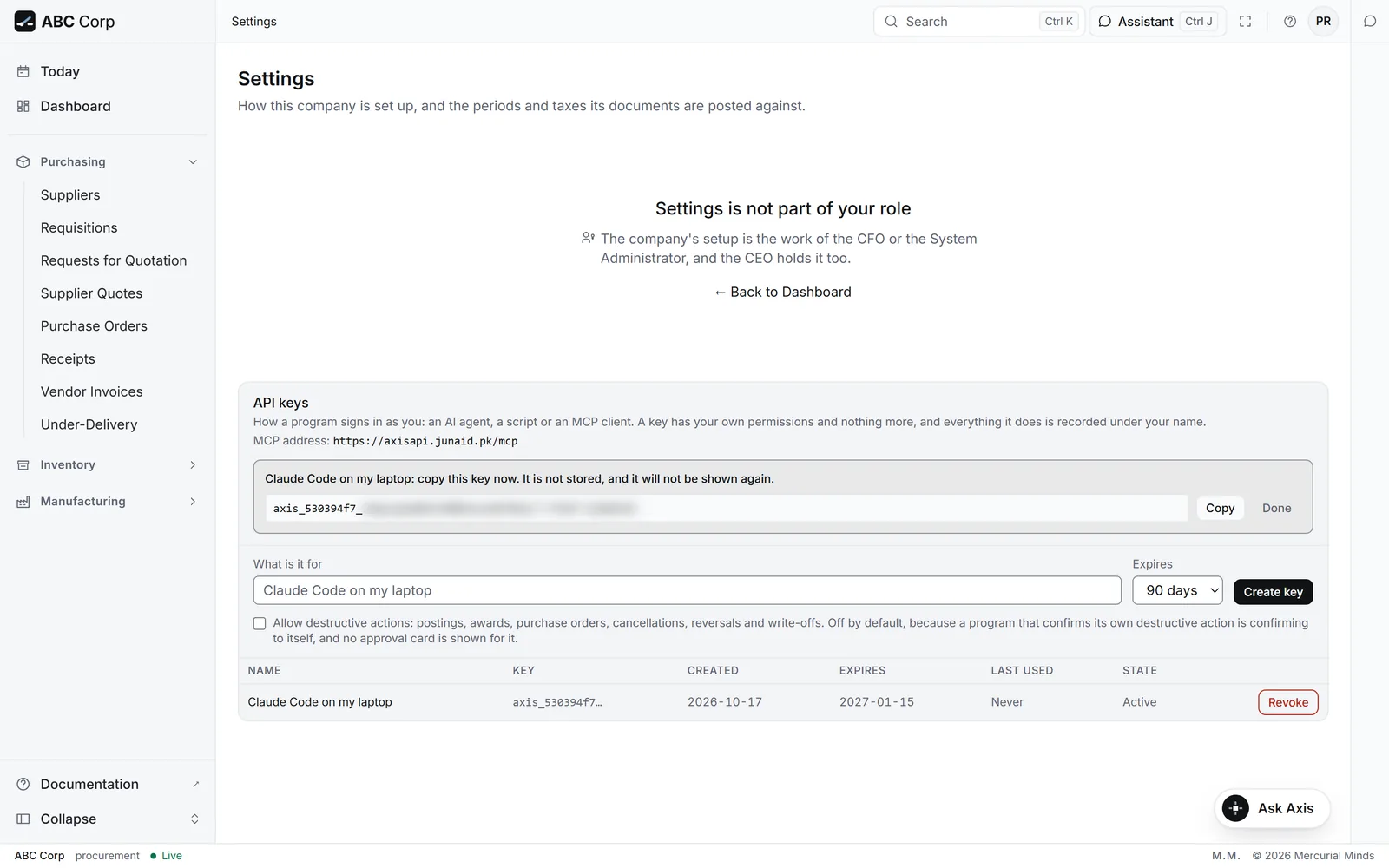
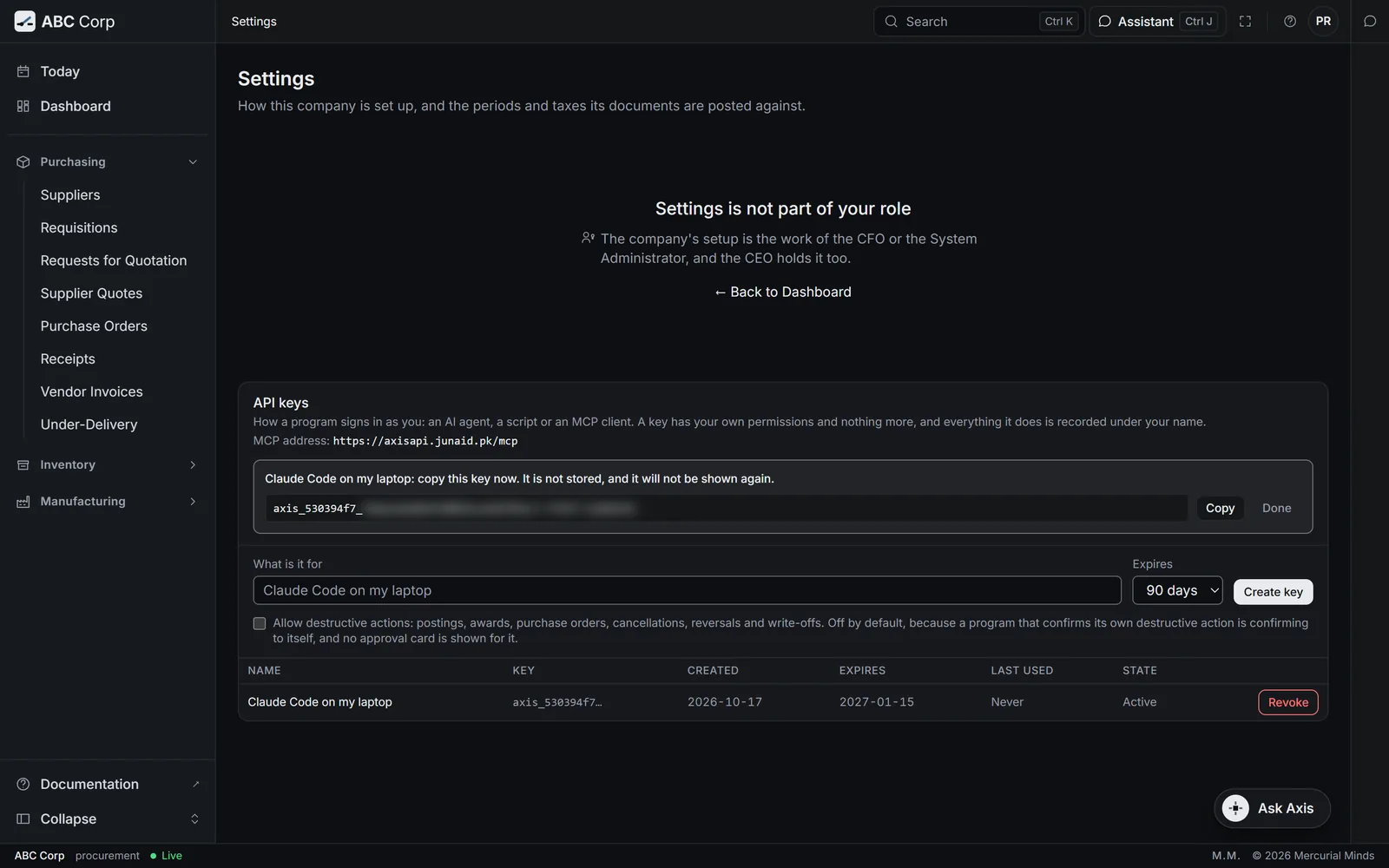
- Open Settings, then find API keys. Under its heading, MCP address shows the address your tool connects to.
- In What is it for, name the tool, such as Claude Code on my laptop.
- Choose when it Expires: 30 days, 90 days, A year, or "Never" for a key that lasts until you revoke it. 90 days suits most people.
- Leave Allow destructive actions clear. A standard key sends each decision back to Axis.
- Press Create key, then press Copy. Keep the key somewhere safe: Axis shows it this once. Press Done when it is stored.
-
Give your AI tool the address and the key. For Claude Code, run this on your computer, with your key in place of YOUR-KEY:
claude mcp add --transport http axis https://axisapi.mercurialminds.com.pk/mcp --header "Authorization: Bearer YOUR-KEY"On your own deployment, use the MCP address from step 1 in place of the address shown here.
-
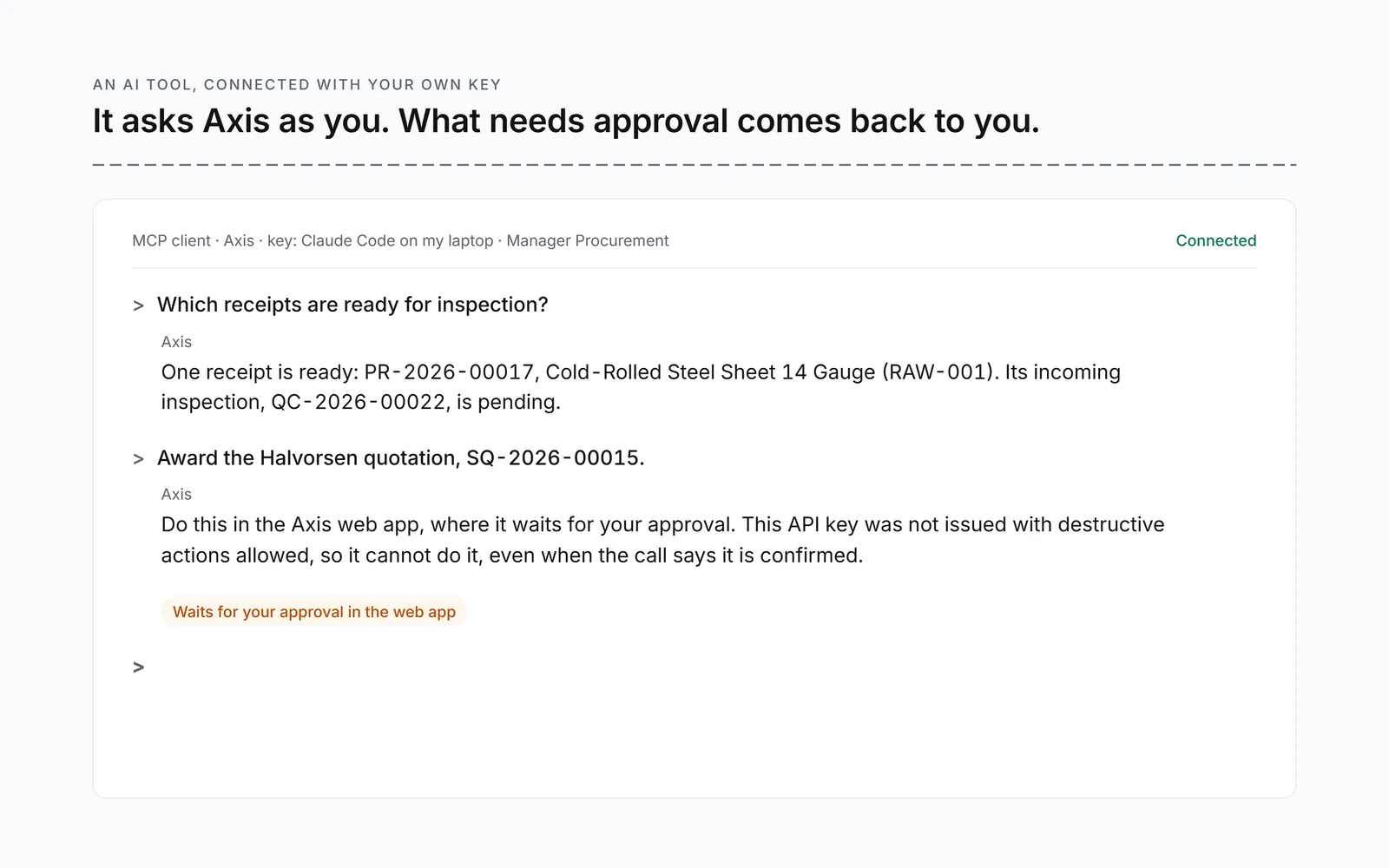
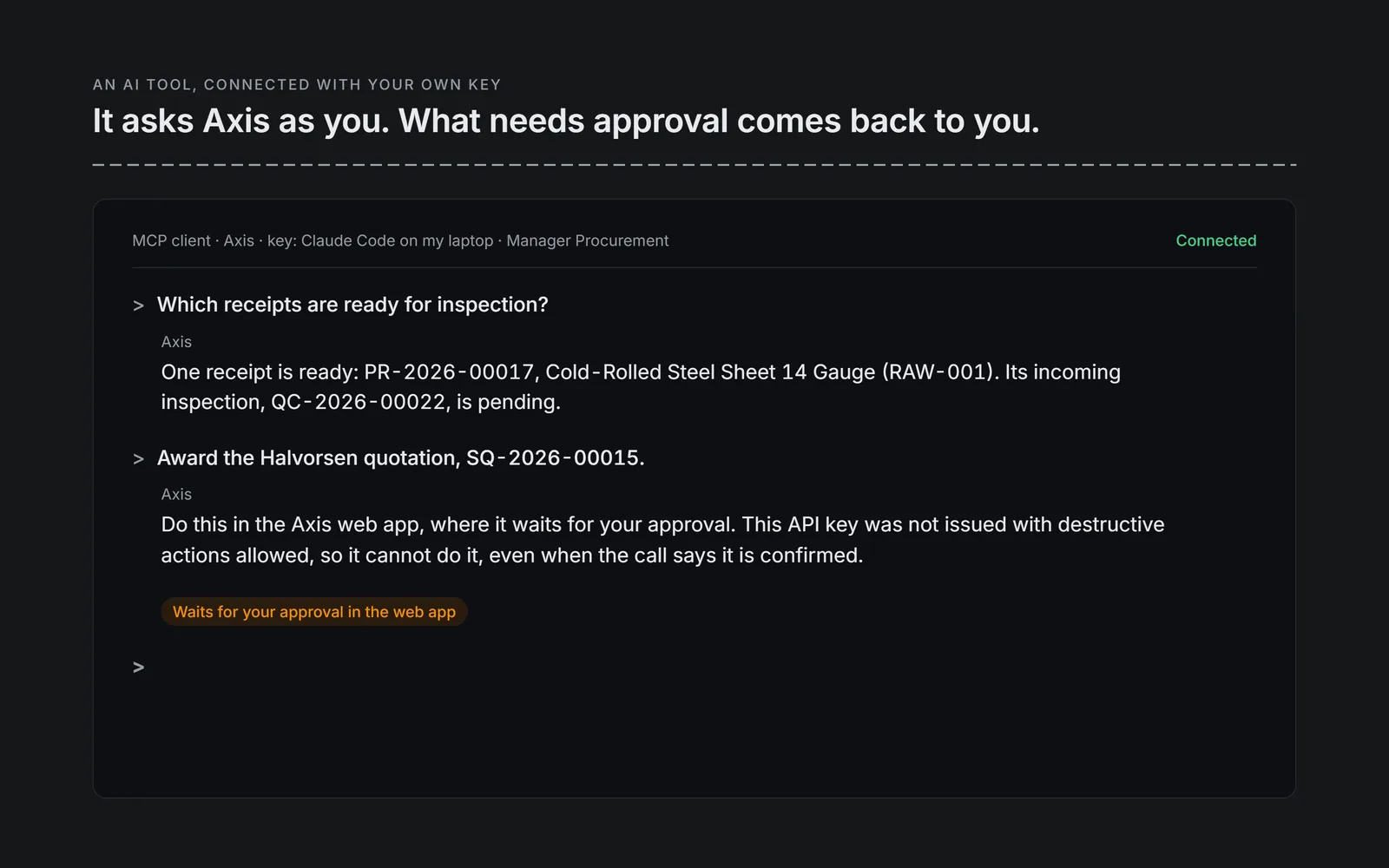
Ask the tool a question, such as Which receipts are ready for inspection?
What you see
The tool answers from Axis. In Settings, the key shows today's date under Last used.
This waits for approval
A posting, an award or a cancellation asked for through a standard key comes back to Axis. Do it in Axis, where you approve it on a card.
Missing or invalid authorization header
The tool reached Axis with the key missing. Check that the key is in the tool's settings, after the word Bearer and a space.
Unknown API key.
The key in the tool differs from the one Axis made. Copy it again in full, or create a new key in Settings.
Not an Axis API key.
The tool sent only part of the key, or something else in its place. Copy the whole key again, starting with axis_.
This MCP endpoint requires an Axis API key.
The tool sent a sign-in from the web app in place of a key. Create a key in Settings, and give the tool that.
This API key has expired.
Create a new key in Settings, and give it to the tool in place of the old one.
This API key has been revoked.
You or your administrator revoked this key. Create a new one in Settings.
API keys are turned off for this deployment.
Your administrator has switched keys off for the whole deployment, so every key stops. Ask them.
Axis could not read its approval list, so API keys are paused. Use the web app.
Axis lost its list of the work that waits for approval, so it pauses every key to keep the books safe. Do the work in the web app for now, and tell your administrator.
I lost my key
Axis keeps only a fingerprint of each key, so the key itself is gone for good. Revoke the old key in Settings, then create a new one.
What may the tool do?
Exactly what your role allows: the same work you do on the screens. When your role changes, every key you hold follows at once.
See and revoke a person's keys
You end with a person's key revoked, so their tool stops reaching Axis.
Before you start: the person's account in Users and Roles.
- Open Settings, then press Open users and roles, and choose People.
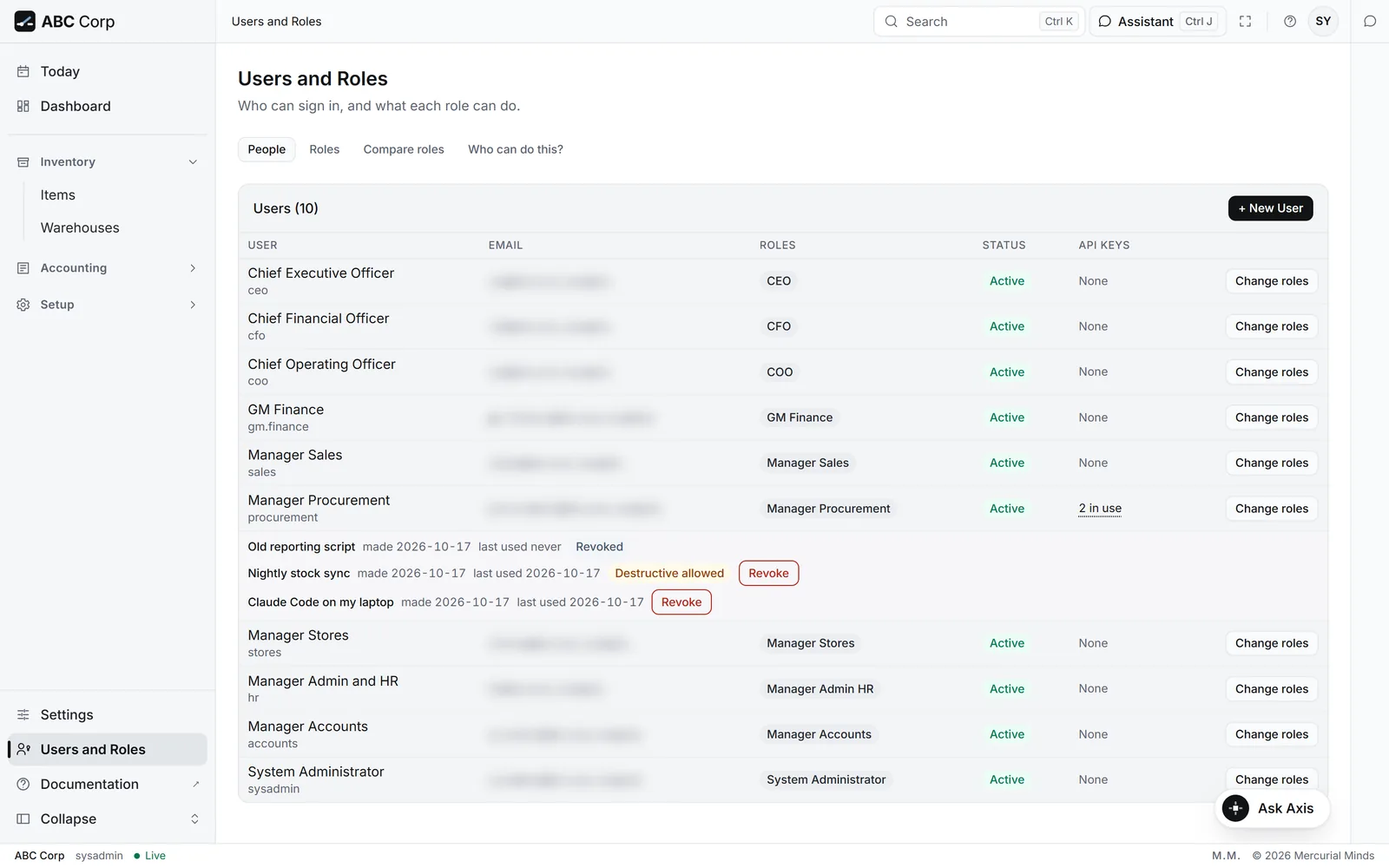
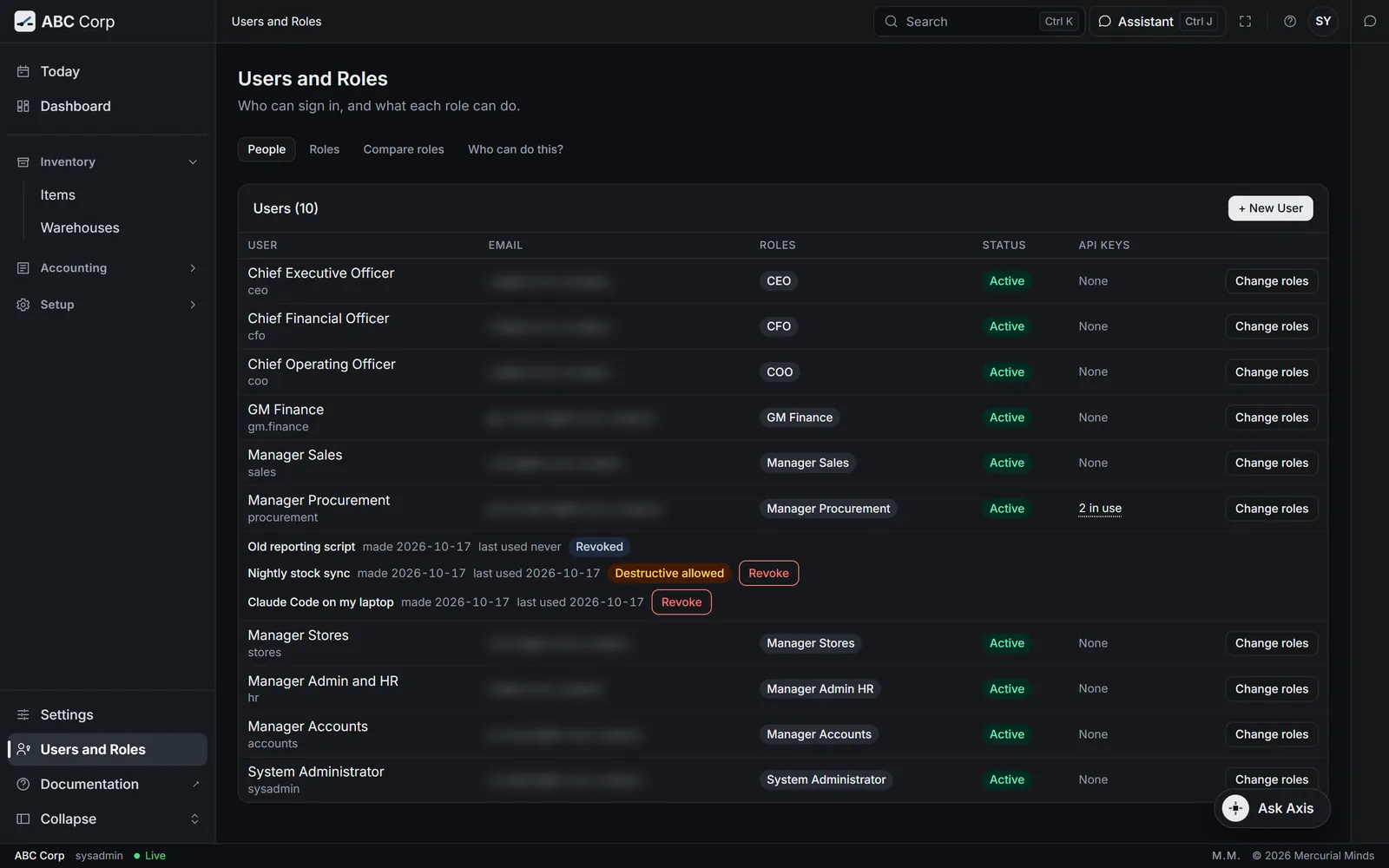
- On the person's row, the API keys column says how many keys are in use. Press it to open their keys beneath the row.
- Read their keys. Each shows its name, when it was made, its last use and its state.
- Press Revoke on the key to stop. Axis asks first; press Revoke again to confirm.
What you see
The key reads Revoked. It stays listed, so the record shows it existed.
When someone leaves
Disable their account. Every key they hold stops at once.
Add a module
You end with a module's screens and actions ready for the seats that use them.
Add a module
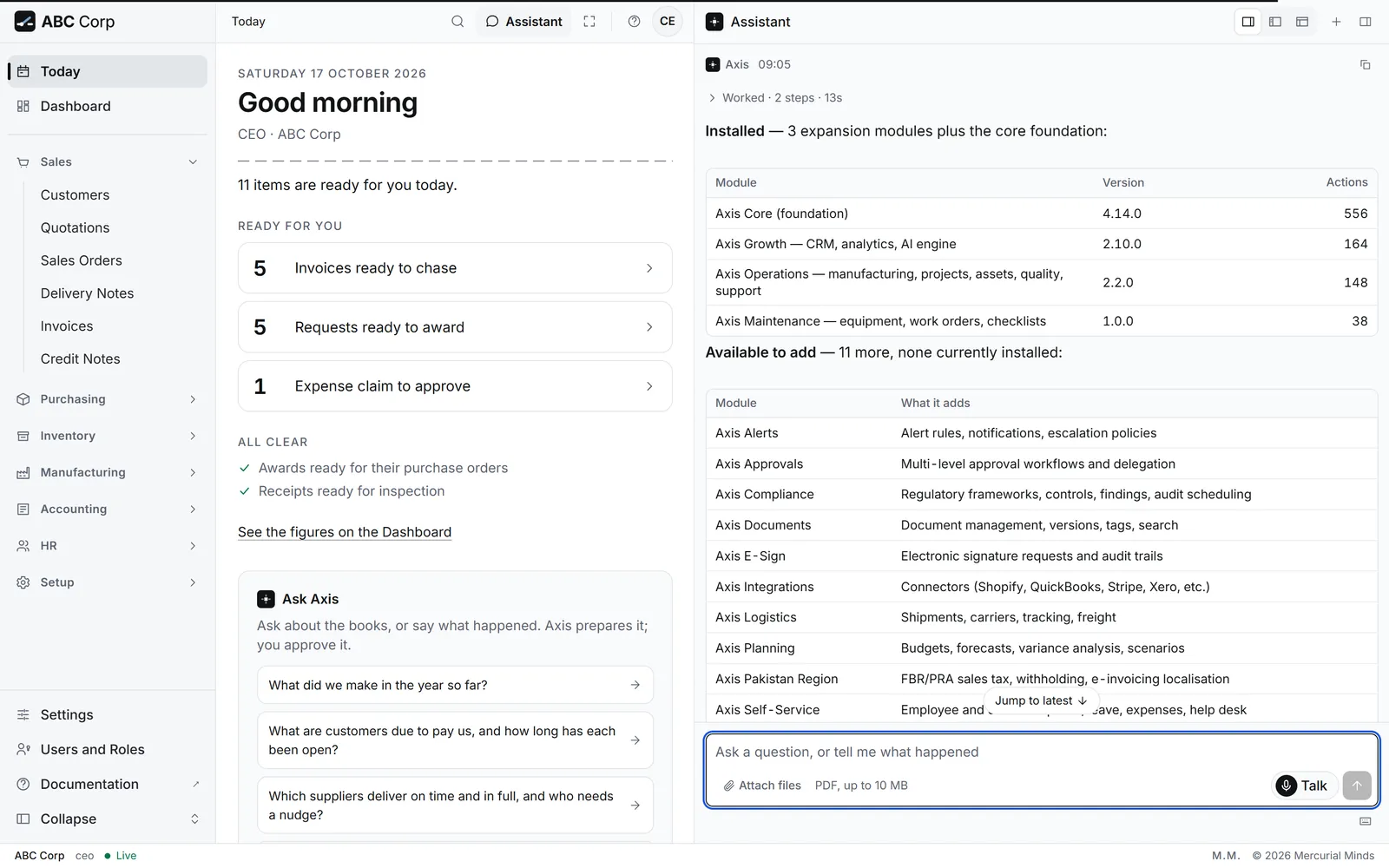
- Ask which modules are installed, and which are available.
- Ask to install the one you need.
- Installing waits on a card. Approve it.
- The module's work is ready to use.
Before you start: the CEO's seat, which holds modules in the shipped roles. See Add-on modules for what each one adds.
Which modules are installed, and which others can we add?
- The assistant lists the installed modules and the ones available.
- Ask for the one you want: "Install the Maintenance module."
- A card waits for your decision. Check the module's name, then press Approve.
- Modules are added through the assistant, or by the person who runs your server.
- On the server, they add the module to the list the deployment installs at start-up. Each restart then brings it in line with the shipped version.
What you see
The module is installed. ABC Corp's demonstration runs with the Operations and Growth modules.
This waits for approval
The card reads Install an expansion module. The CEO's seat answers it. See Approve or decline a request.
The module's screens appear, but a seat sees nothing new
A module's work follows the seat's roles. Check Who can do what for the roles that hold it.
Back up and restore
You end with a recent backup of your books and your sign-ins, stored safely and checked.
Back up and restore
- Back up the ledger database.
- Back up the Axis home volume: sign-ins, documents and modules.
- Check the backup.
- Restore only from a checked backup.
Before you start: the person who runs your server. Backups and restores run on the server itself, apart from the assistant and the dashboard.
Check the ledger integrity.
- Run the integrity check before a backup, so you know the copy is sound.
- Run it again after a restore, to confirm the books balance and the chain holds.
- The backup itself runs on the server, as the other tab shows.
- Ask the person who runs your server to back up two things on a schedule.
- The first is the ledger database. On a standard deployment, that is the PostgreSQL database.
- The second is the Axis home volume. It holds the sign-ins, the stored documents and the installed modules.
- Keep the copies away from the server, and test a restore.
What you see
A dated copy of the ledger and of the Axis home volume, stored away from the server.
On a single-machine install
Axis's own backup copies the database file, with a passphrase if you choose to encrypt it. A restore checks the file, and takes a safety copy of the current books before it replaces them.
Why is this outside the assistant?
A backup holds every record, and an encrypted one can carry the key that protects stored credentials. So it stays with the people who hold the server.
Next
- Roles and seats: what each seat is for.
- Who can do what: every role's capabilities.
- Your work, end to end: every task on one table.