HOW AXIS WORKS
Roles and seats
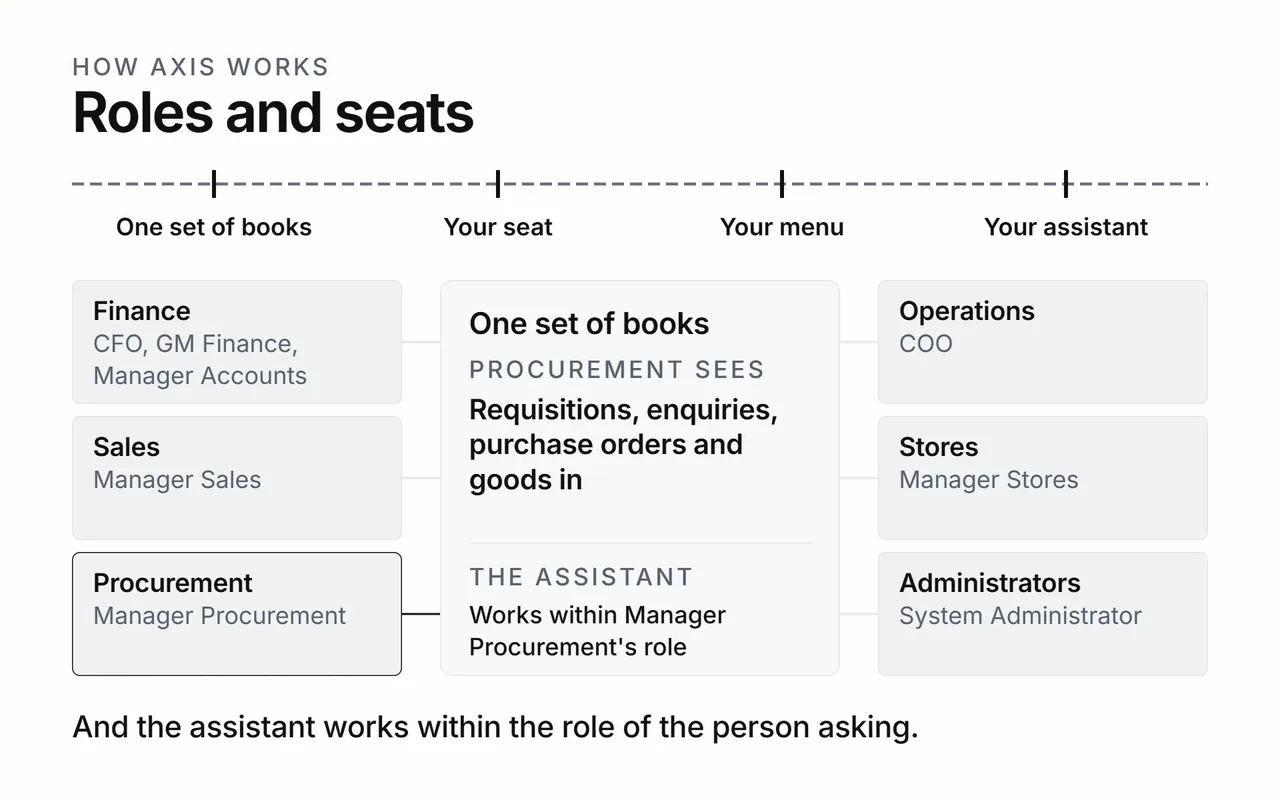
Everyone works in one set of books. Your role decides which part of it you see and what you may change. The menu, Today, the dashboard and the assistant all follow your role.
Shown with ABC Corp, a demonstration company.
Roles and seats
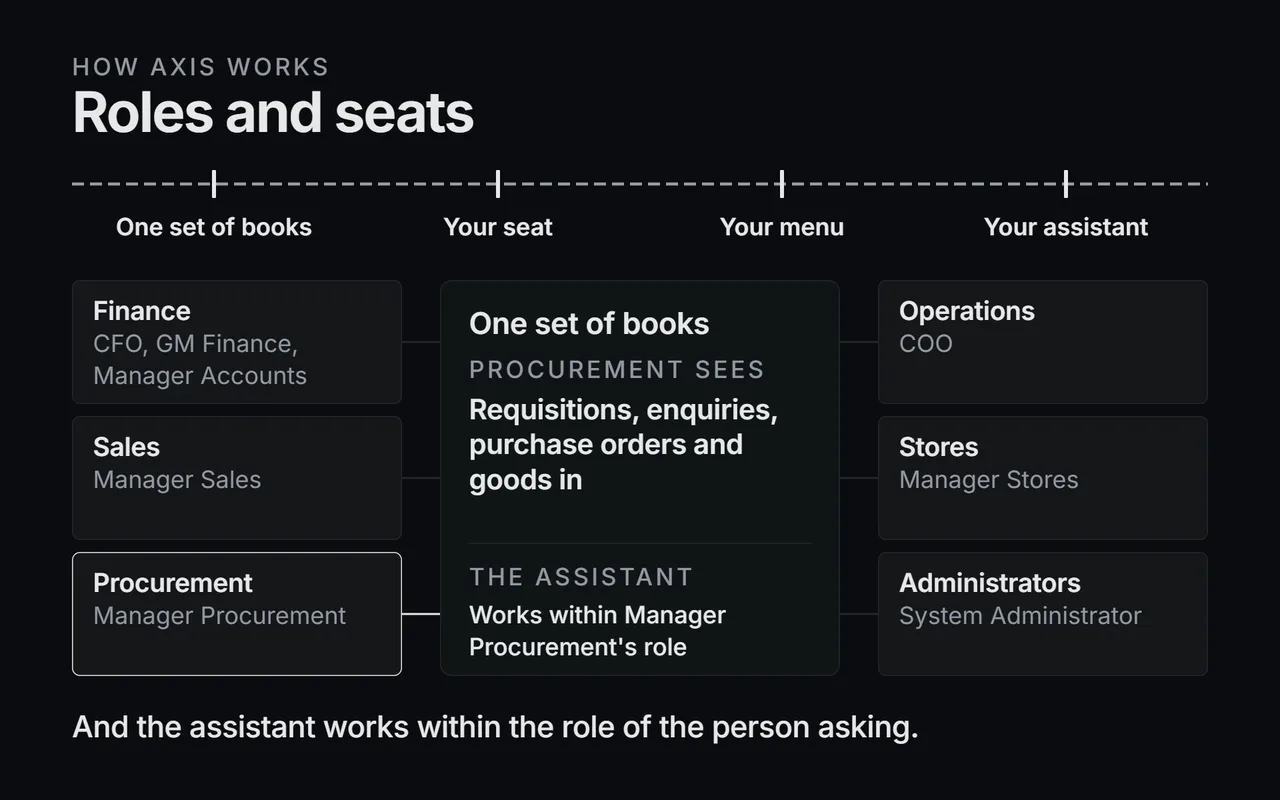
- One set of books in the centre.
- Each seat sees its own slice: money for Finance, counts for Stores.
- The assistant works within the role of the person asking.
Roles
A role is a set of capabilities, such as Raise purchase orders or Post payments. Each capability is either View or Do.
Axis checks your role at the moment you act. The same check holds everywhere:
- The menu shows the screens your role can open.
- The dashboard sends your browser only the figures your role may read.
- Today counts only the work your role can clear.
- The assistant offers only the work your role covers, and refuses the rest before it runs.
Reading and changing are separate capabilities. See invoices lets you open invoices. Raise and issue invoices lets you create and post them. Money totals need their own capability, such as Read what customers owe.
A change of role applies on your next request. Axis reads your role fresh each time.
Axis ships with ten roles. A seat on this page groups the roles that share a kind of work:
| Seat | Roles |
|---|---|
| Finance | CFO, GM Finance, Manager Accounts |
| Operations | COO |
| Procurement | Manager Procurement |
| Stores | Manager Stores |
| Sales | Manager Sales |
| Administrators | Manager Admin HR, System Administrator |
The CEO role holds every capability, across every area. A CEO reads whichever seat's work they want to see.
Add-on modules. In the roles that come with Axis, the work in an add-on module belongs to the CEO, with two exceptions:
- Operations: its production and quality work is shared with the COO, the Manager Procurement and the Manager Stores. The rest of the module stays with the CEO.
- Pakistan region: its sales tax, withholding tax and payroll work is shared with the CFO, the GM Finance and the Manager Admin HR.
Every other module, such as Maintenance, Treasury or Documents, is the CEO's alone. To give another role work in one of these modules, the roles themselves must change. See Users and Roles.
Two roles show how Axis keeps duties apart. The System Administrator sets up users, the company and its years. The financial totals stay with Finance. The CFO reads every financial figure, and leaves user administration to the administrator.
Seats
Pick your seat. Each tab says what you open on, the screens in your menu, the work you do, and what waits for you.
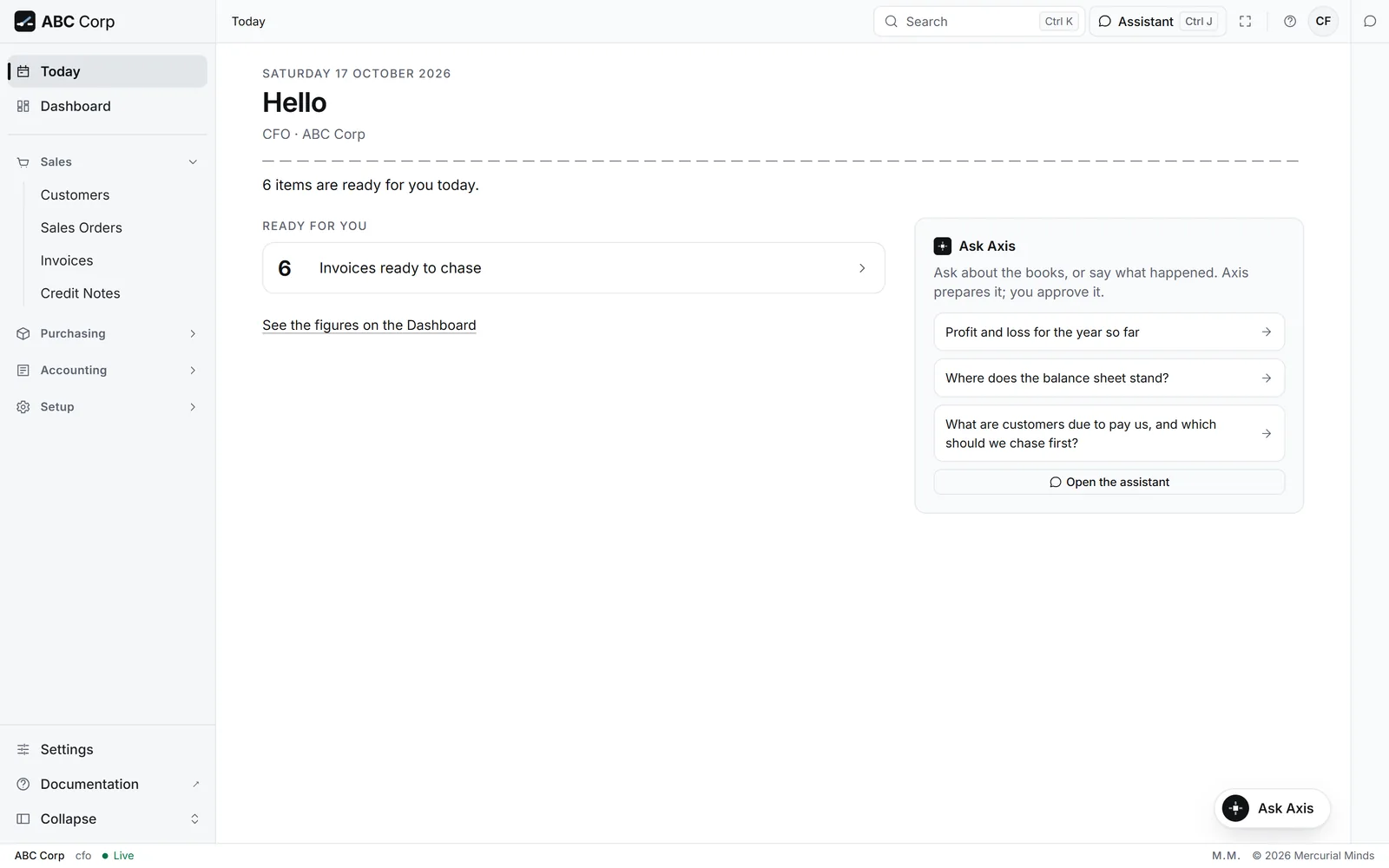
Who this is: CFO, GM Finance, Manager Accounts.
What you open on: Today shows your own approval cards first. Then:
- CFO: invoices ready to chase, and sales tax returns ready to file.
- GM Finance and Manager Accounts: invoices ready to chase.
Your screens: Customers and Invoices under Sales; Suppliers and Vendor Invoices under Purchasing; Chart of Accounts, Journal Entries and Payments under Accounting. The CFO also sees Sales Orders and Purchase Orders. The CFO and GM Finance also open Settings.
What you can do:
- CFO: draft, post and reverse journal entries; record, post and reverse payments; set budgets; open and close the year; register for tax, prepare sales tax returns and file them. The CFO reads every statement and both ageing reports, and runs the integrity check.
- GM Finance: draft and post journal entries; record and post payments; prepare sales tax returns; read the statements and both ageing reports.
- Manager Accounts: draft journal entries; record payments; apply payments to invoices and reconcile them; read the statements and both ageing reports.
Your week:
- Approve a posting
- Correct a posted entry
- Run the integrity check
- Record a customer payment
- Chase overdue invoices
- Read the financial statements
- Close a period
What waits for you:
- CFO: posting and reversing journal entries and payments, writing off a customer's debt, closing the year, and filing a sales tax return.
- GM Finance: posting journal entries and payments.
- Manager Accounts: your work is drafts. Each draft waits for the GM Finance or the CFO to post it.
What you hand on: Manager Accounts drafts, and the GM Finance posts. The GM Finance prepares the sales tax return, and the CFO files it.
Prompts to try:
Profit and loss for the year so far
What are customers due to pay us, and which should we chase first?
Show me the trial balance
Confirm the ledger balances and the audit chain is complete
Draft a journal entry for the month-end depreciation charge
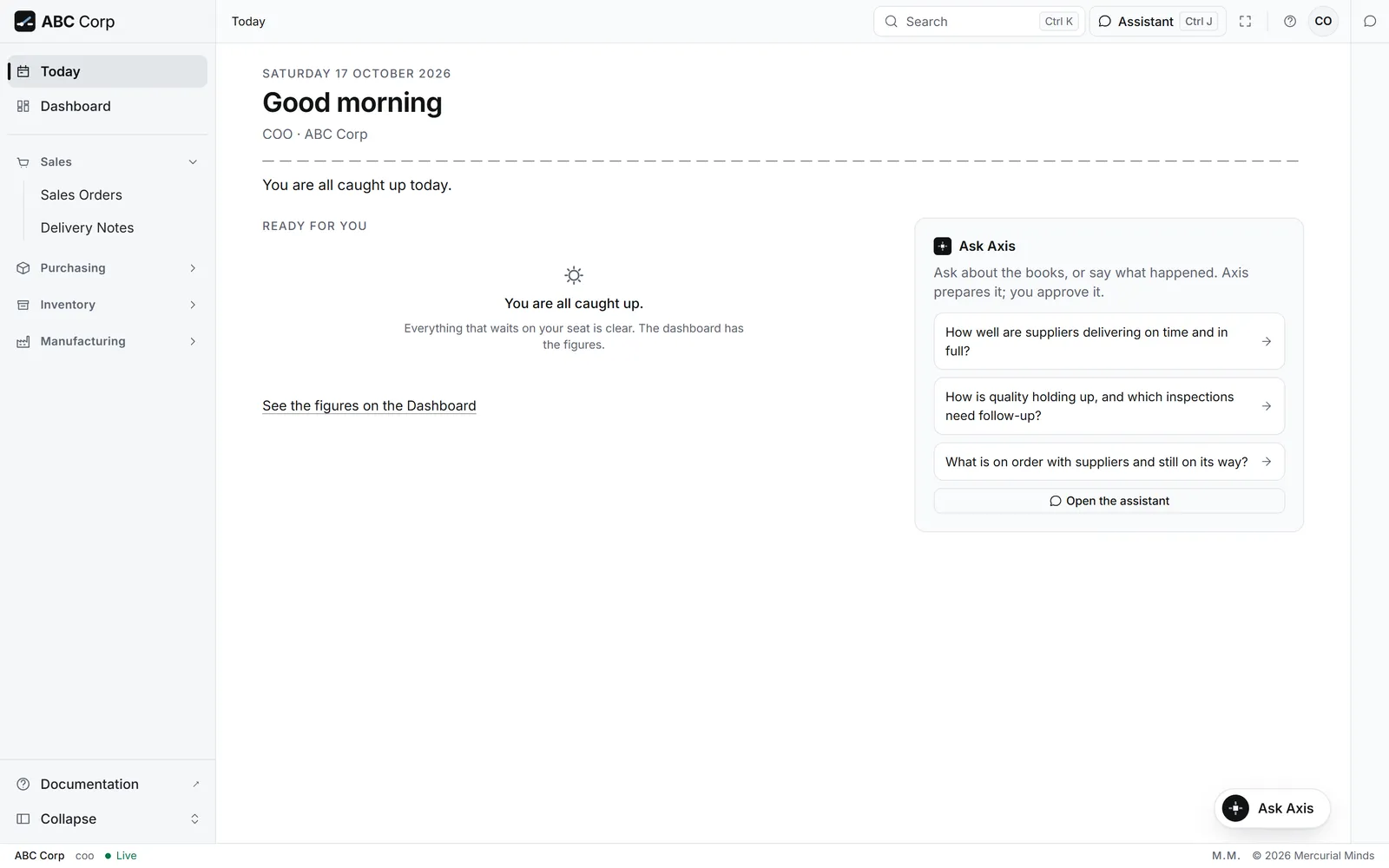
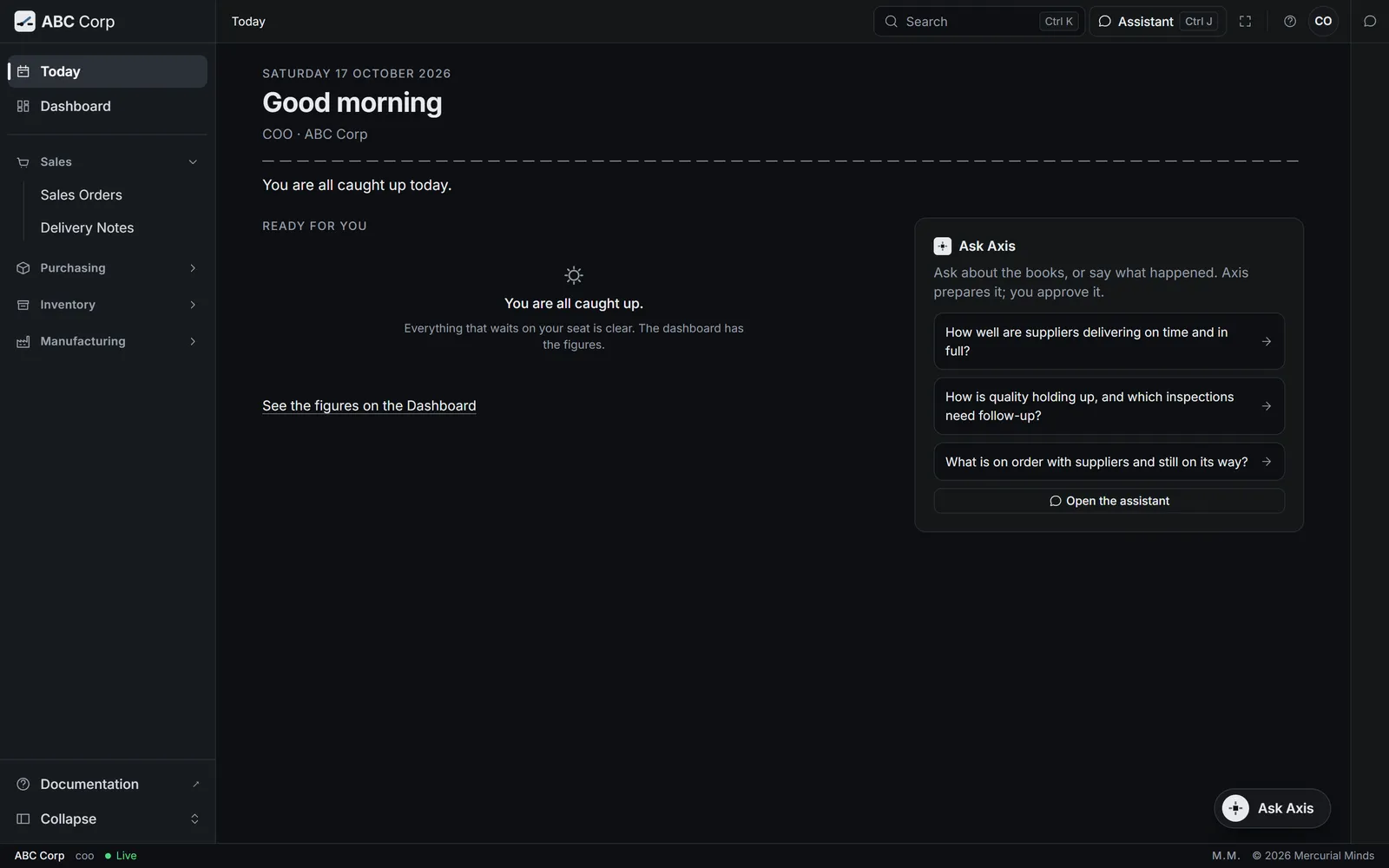
Who this is: COO.
What you open on: Today shows your own approval cards. The operations figures are on the dashboard, with the payables you owe suppliers.
Your screens: Sales Orders and Delivery Notes under Sales; Suppliers, Requisitions, Purchase Orders, Receipts and Under-Delivery under Purchasing; Items, Warehouses and Stock Entries under Inventory; Bills of Materials, Work Orders and Inspections under Manufacturing.
What you can do: raise requisitions; check stock against a requirement; confirm and close purchase orders; set up bills of materials and inspection templates; run work orders; judge inspections; record and follow up non-conformances. You read stock levels, stock movements and how suppliers deliver.
Your week:
- Evaluate an inspection
- Follow up a non-conformance
- Run a work order
- Check a supplier's delivery record
What waits for you: raising a requisition, and confirming a purchase order.
What you hand on: Stores records an inspection's readings, and you judge them. Procurement buys what your requisitions ask for.
Prompts to try:
How well are suppliers delivering on time and in full?
How is quality holding up, and which inspections need follow-up?
What is on order with suppliers and still on its way?
Which sales orders are lined up for delivery?
Start the next work order waiting on the shop floor
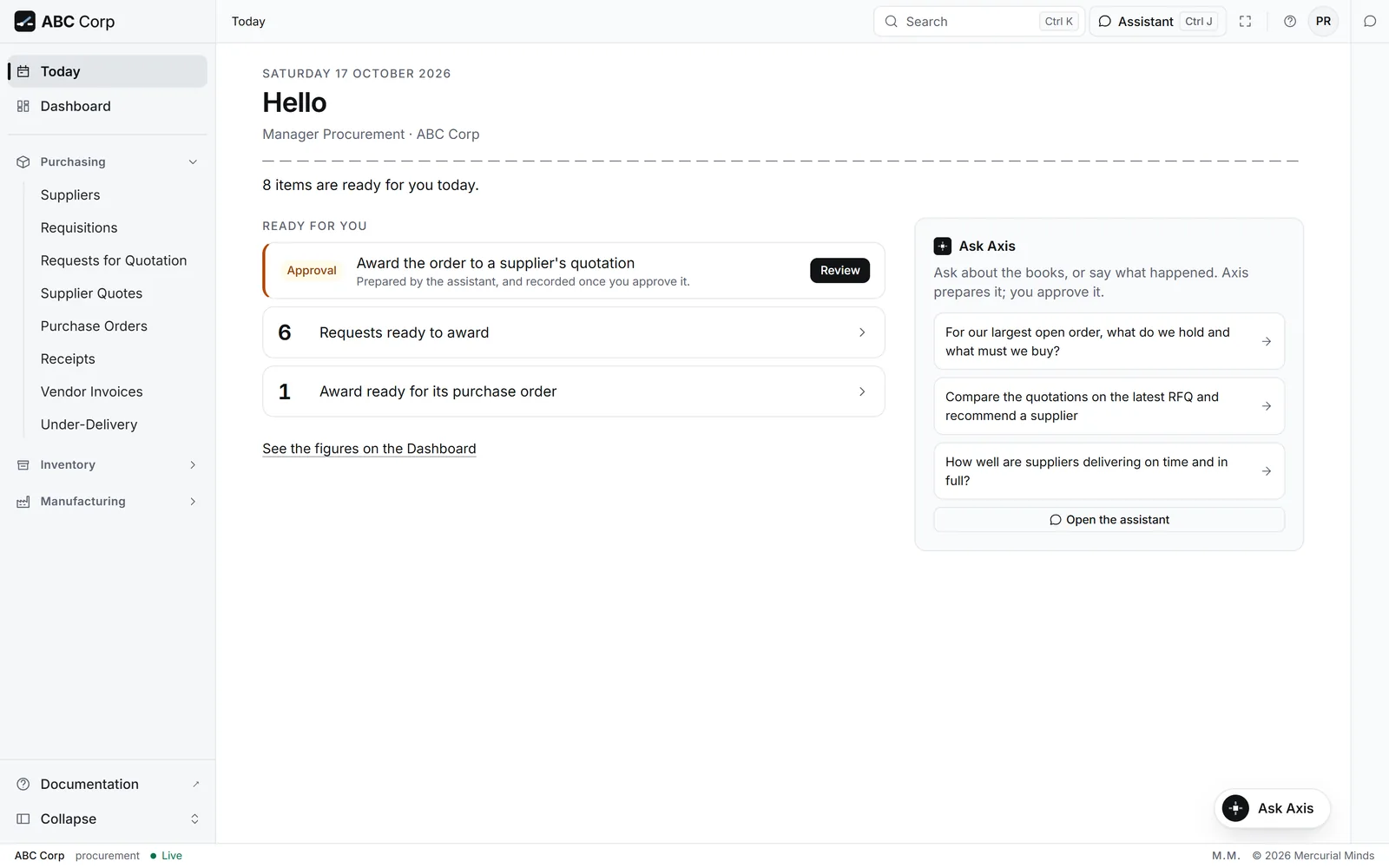
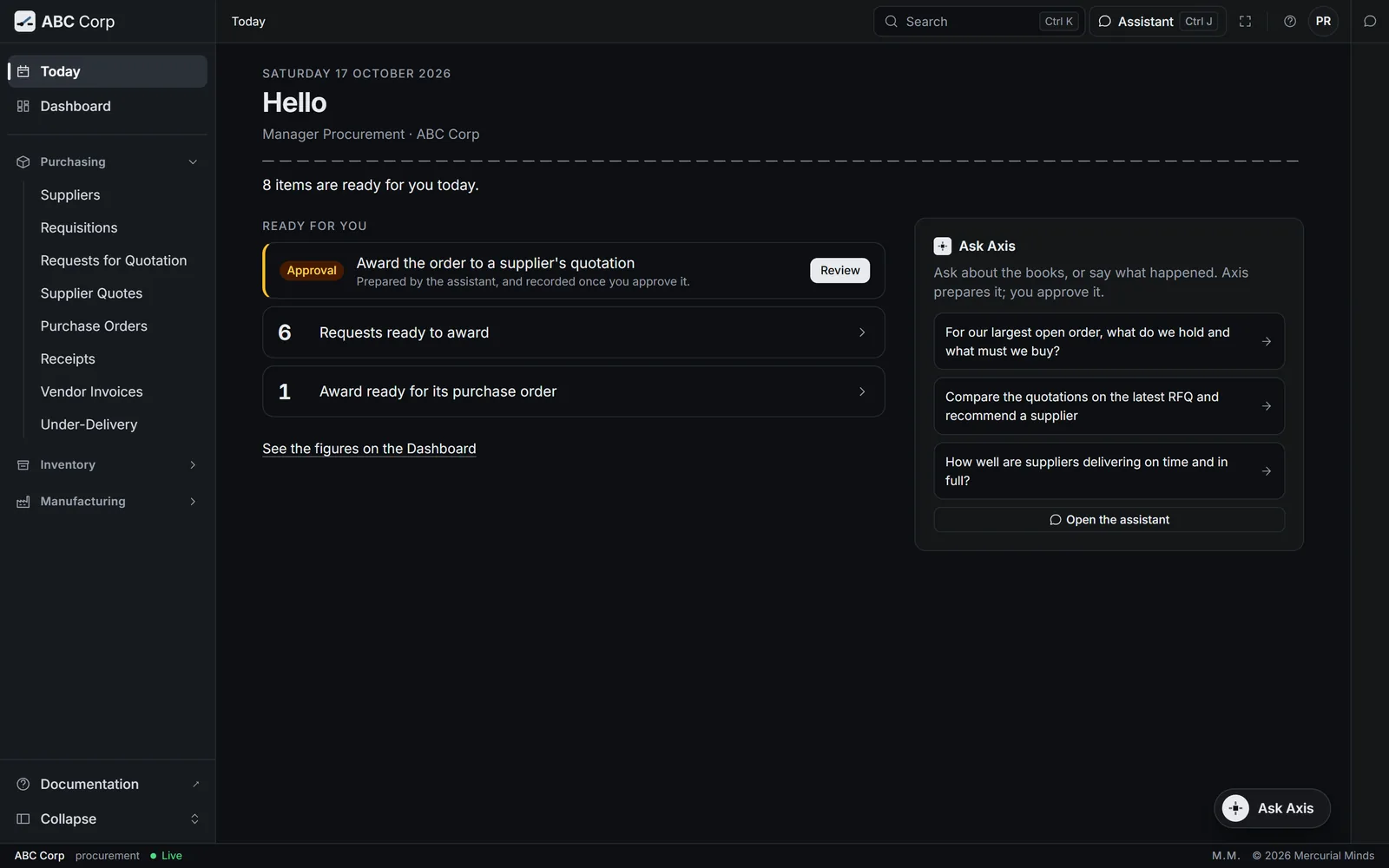
Who this is: Manager Procurement.
What you open on: Today shows your own approval cards, then requests ready to award.
Your screens: Suppliers, Requisitions, Supplier Quotes, Purchase Orders, Receipts, Vendor Invoices and Under-Delivery under Purchasing; Items under Inventory; Bills of Materials and Inspections under Manufacturing.
What you can do: take on suppliers; raise requisitions; check stock against a requirement; send Requests for Quotation; record and compare supplier quotations; award a supplier; raise and confirm purchase orders; receive goods; record vendor invoices; file received documents. You read what is owed to suppliers.
Your week:
- Find what an order needs to buy
- Send a Request for Quotation
- Read a supplier quotation from a PDF
- Compare quotations
- Award a quotation
- Raise the Purchase Order
- Match a supplier invoice
- Check a supplier's delivery record
What waits for you: raising a requisition, sending a Request for Quotation, awarding a supplier, placing a purchase order, receiving goods, and recording a supplier invoice.
What you hand on: Stores receives and inspects the goods. Finance posts the payment for the order.
Prompts to try:
For our largest open order, what do we hold and what must we buy?
Compare the quotations on the latest RFQ and recommend a supplier
Raise the purchase order for the latest award and submit it
What is on order and still on its way?
Which incoming inspections need follow-up, and why?
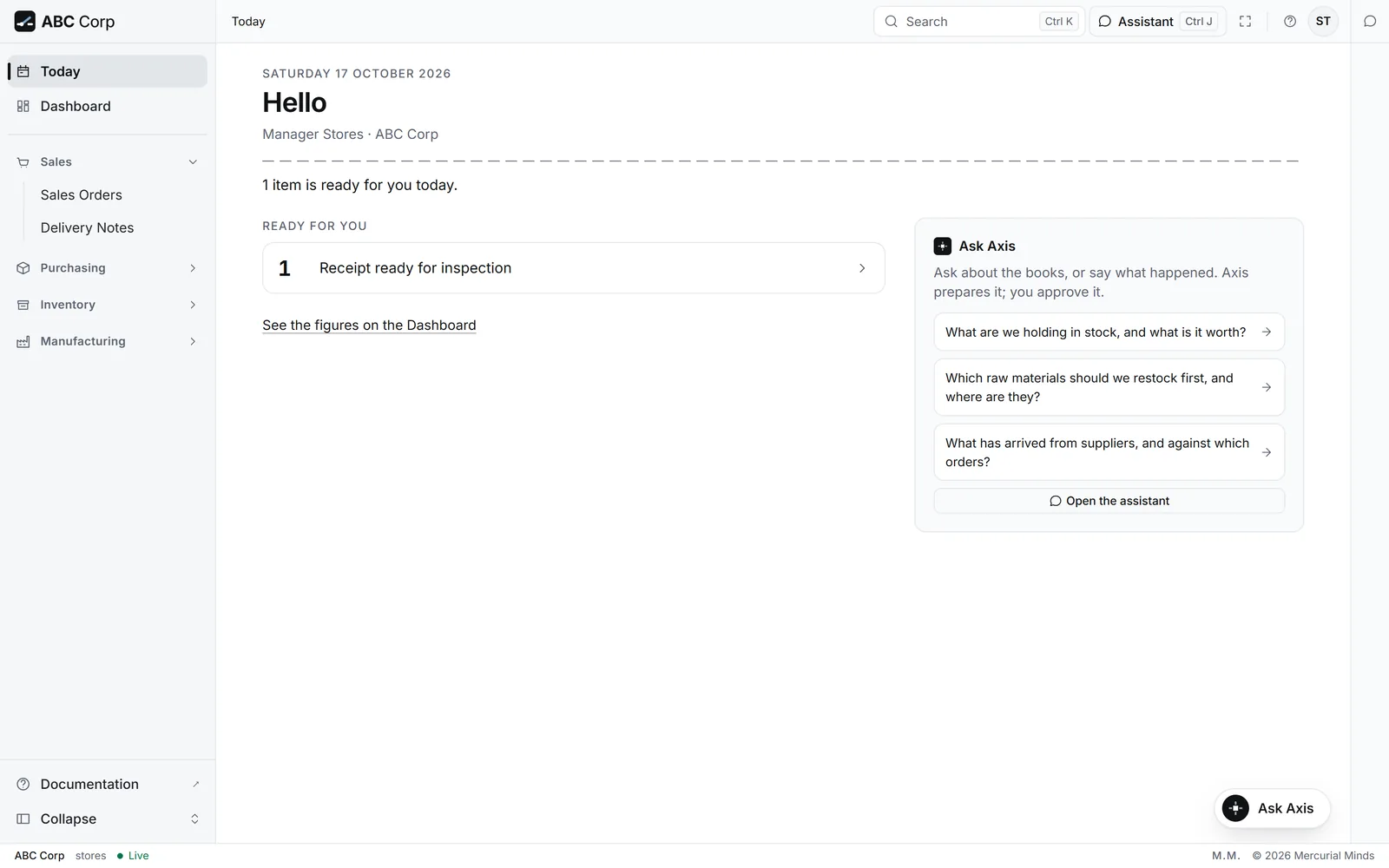
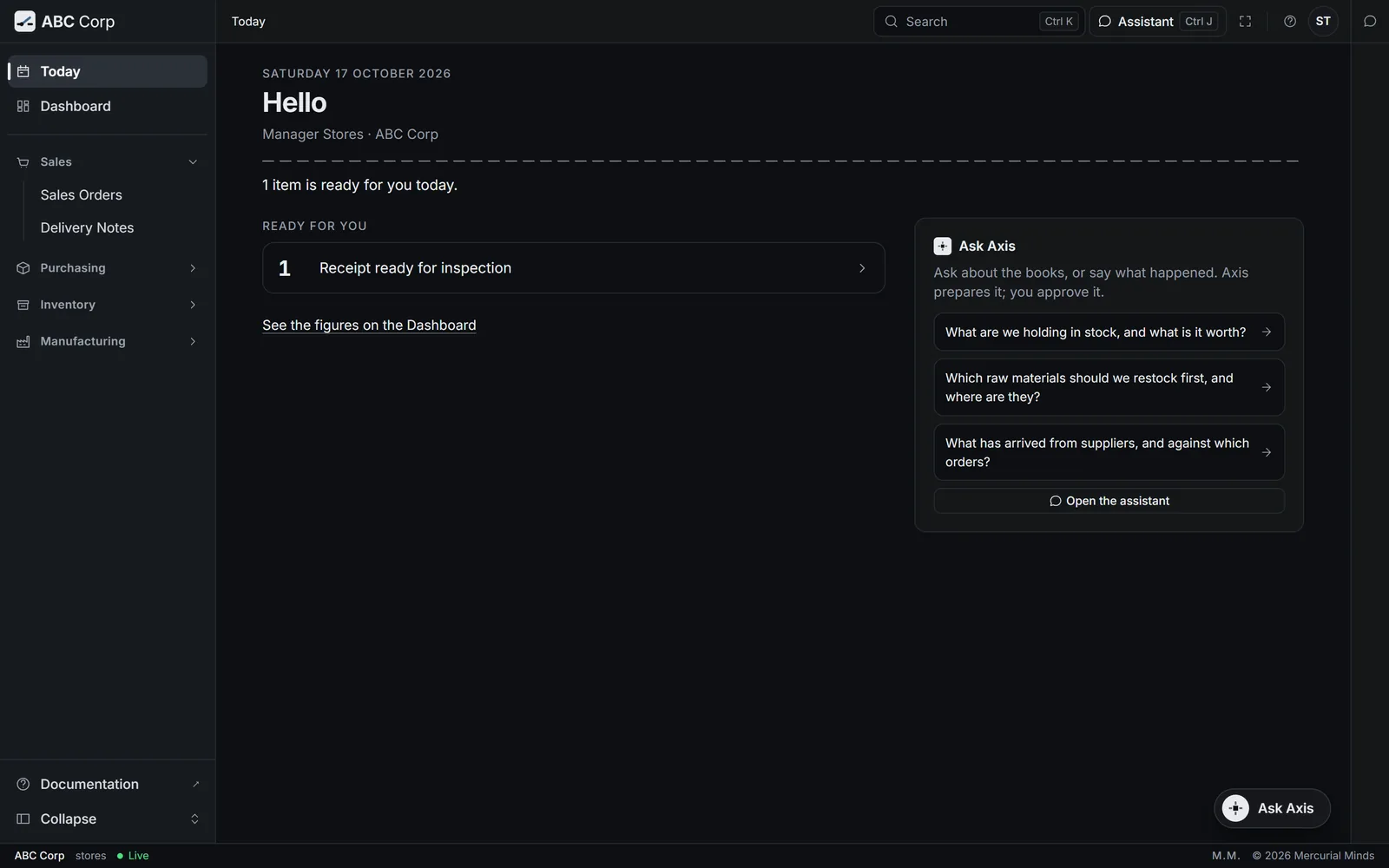
Who this is: Manager Stores.
What you open on: Today shows your own approval cards, then receipts ready for inspection.
Your screens: Sales Orders and Delivery Notes under Sales; Purchase Orders and Receipts under Purchasing; Items, Warehouses and Stock Entries under Inventory; Inspections under Manufacturing.
What you can do: add items and warehouses; receive goods; ship goods to customers; move stock; count stock and post the count; raise inspections and record their readings. You read stock levels and stock movements. Money totals stay with Finance.
Your week:
What waits for you: receiving goods, delivering goods, moving stock, and posting a stock count.
What you hand on: the COO judges the inspections you record. A stock count you post corrects the stock value that Finance reads.
Prompts to try:
What are we holding in stock, and what is it worth?
Which raw materials should we restock first, and where are they?
What has arrived from suppliers, and against which orders?
What has moved in and out of the stores?
Move the last goods received into the main warehouse and submit it
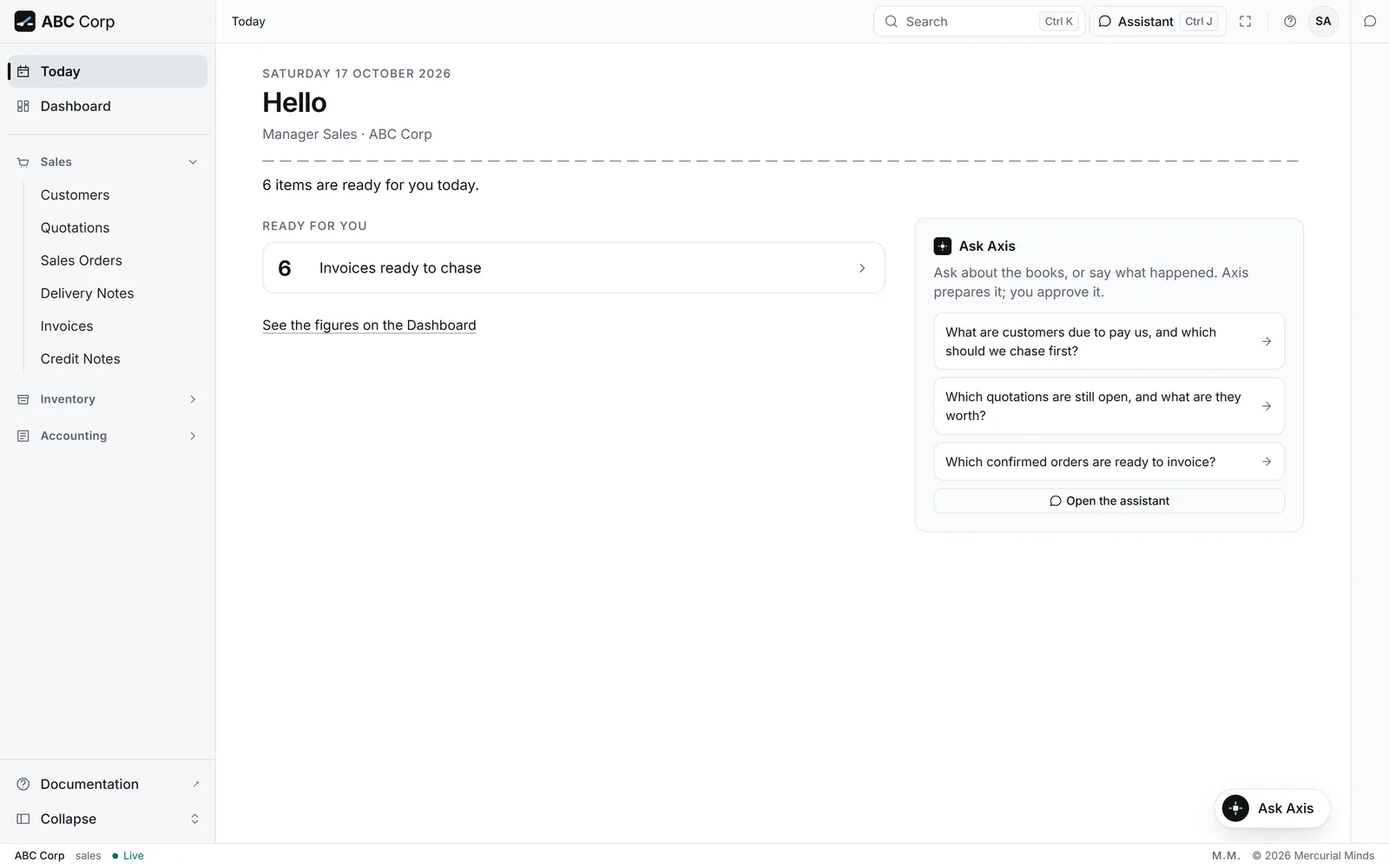
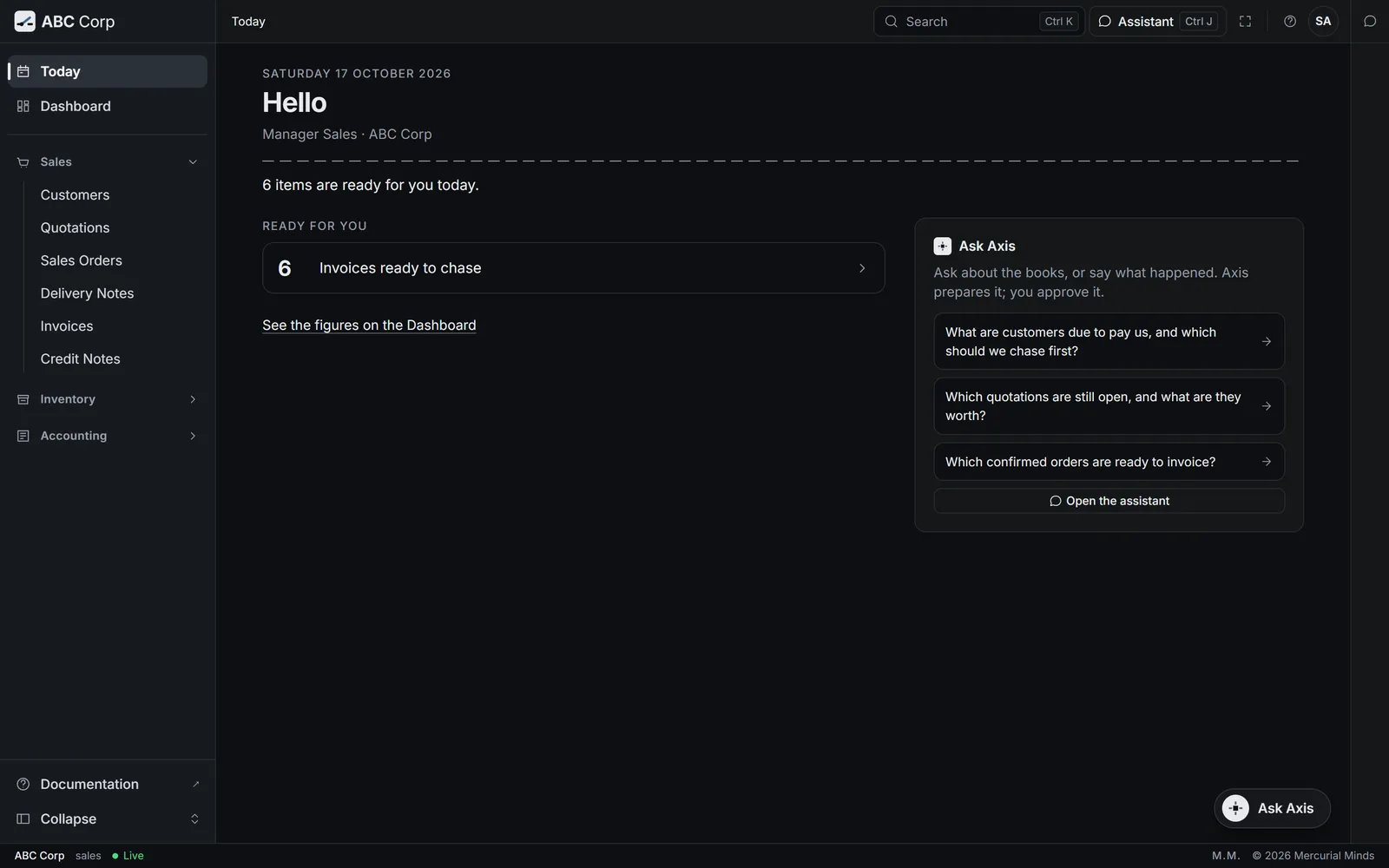
Who this is: Manager Sales.
What you open on: Today shows your own approval cards, then invoices ready to chase.
Your screens: Customers, Quotations, Sales Orders, Delivery Notes, Invoices and Credit Notes under Sales; Items under Inventory; Payments under Accounting.
What you can do: take on customers; check a customer's credit and balance; prepare and send quotations; take and confirm sales orders; ship goods; raise and issue invoices; raise credit notes; record and post payments; file received documents. You read what customers owe.
Your week:
- Read a customer's order from a PDF
- Send a quotation
- Confirm a sales order
- Deliver an order
- Raise a sales invoice
- Record a customer payment
- Chase overdue invoices
- Issue a credit note
What waits for you: issuing a quotation, confirming a sales order, delivering goods, issuing a sales invoice, and posting a payment.
What you hand on: Stores delivers the order. Finance reads the payments you post, on the books.
Prompts to try:
Which quotations are still open, and what are they worth?
Which confirmed orders are ready to invoice?
Which customer has the largest balance due, invoice by invoice?
Take our largest customer — what have they ordered and paid?
Order 2 panelboards for our largest customer and submit it
Who this is: Manager Admin HR, System Administrator.
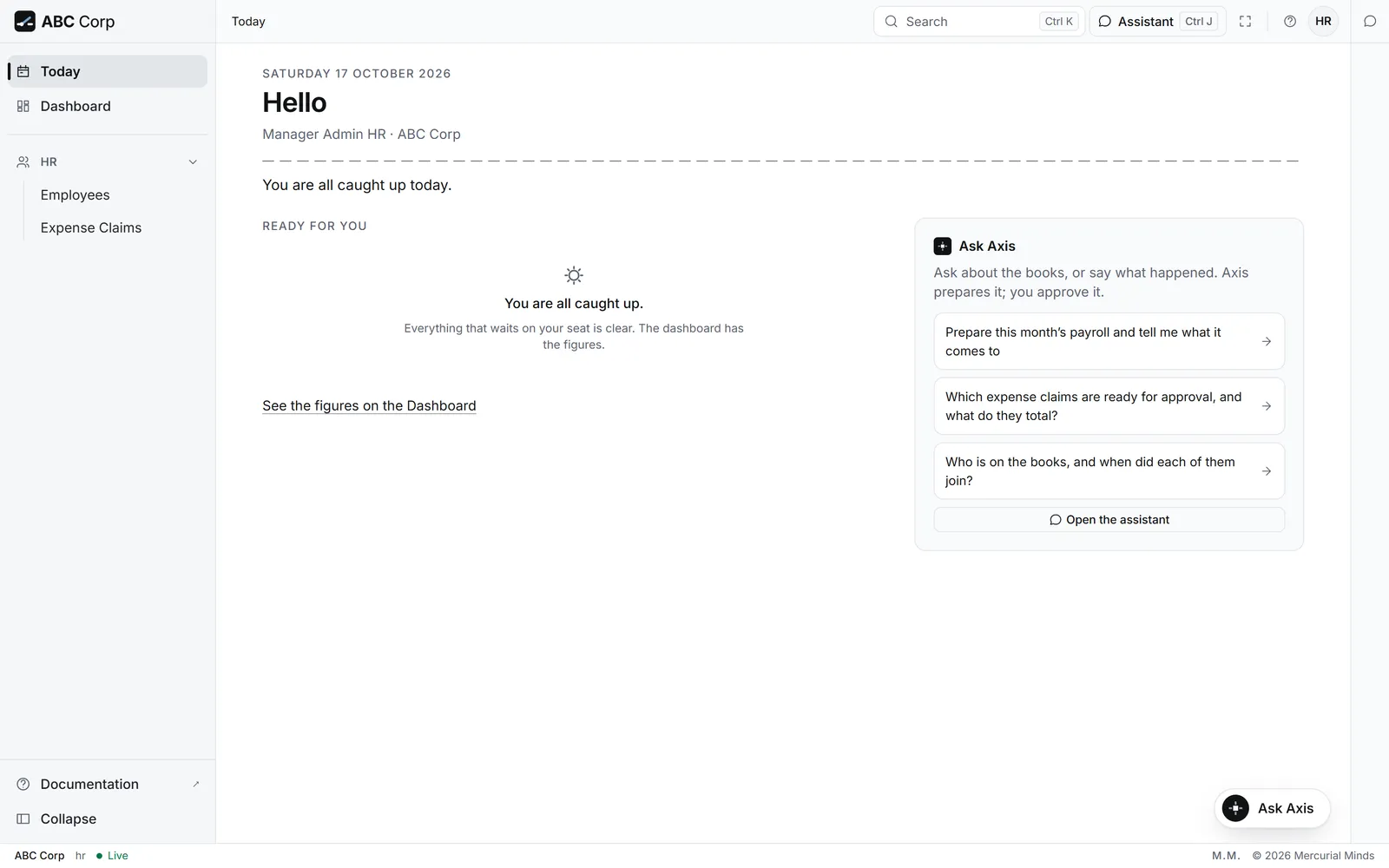
What you open on: Today shows your own approval cards. The Manager Admin HR then sees expense claims to approve.
Your screens:
- Manager Admin HR: Employees and Expense Claims under HR.
- System Administrator: Items and Warehouses under Inventory; Chart of Accounts under Accounting; Companies, Fiscal Years and Tax Templates under Setup; Settings; and Users and Roles.
What you can do:
- Manager Admin HR: take on employees; set up departments and designations; record and approve leave; mark attendance; record expense claims, submit them for approval, and approve them; run payroll.
- System Administrator: set up the company; open a fiscal year; set up tax templates; add warehouses; manage users and roles.
Your week:
What waits for you:
- Manager Admin HR: approving or rejecting leave and expense claims, and starting and approving a payroll run.
- System Administrator: your setup work runs on a clear request.
What you hand on: an approved expense claim and a submitted payroll run post to the books, for Finance to read. Each new user starts work in the role you give them.
Prompts to try:
Which expense claims are ready for approval, and what do they total?
Prepare this month’s payroll and tell me what it comes to
Show me the company setup and the fiscal years against it
Show me the chart of accounts
Set up an 8.25% sales tax template
Users and Roles
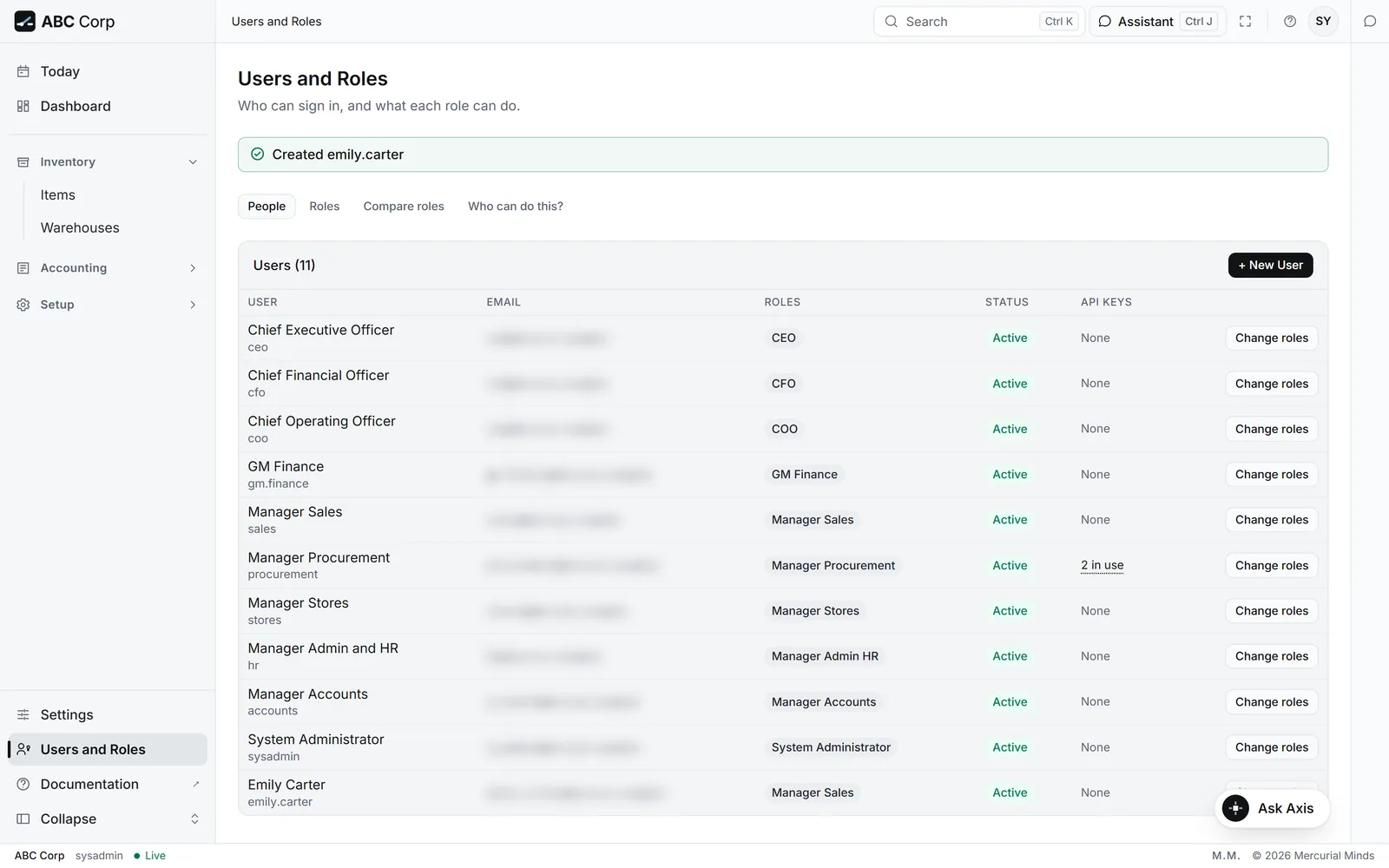
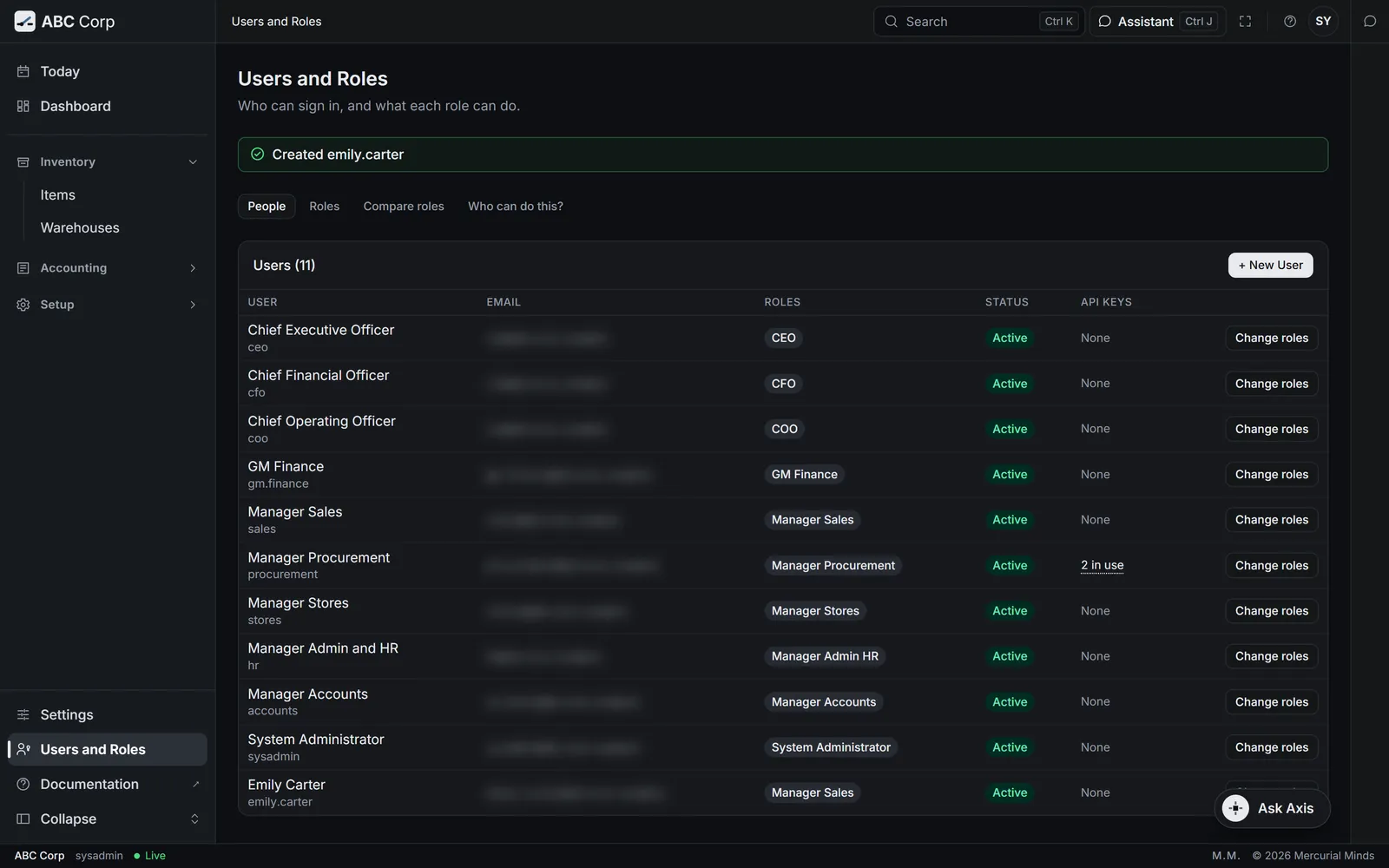
An administrator opens Users and Roles at the foot of the menu. The screen speaks in capabilities, in the words used on this page. It has four tabs:
- People. Every user, their email, their roles and their status. Press + New User, fill in the name, email, password and roles, then press Create user.
- Roles. Each role, opened to show every capability it holds. A capability the role holds in part is marked part of it.
- Compare roles. Two to four roles side by side, capability by capability.
- Who can do this? Choose a capability. Axis lists the roles that carry it and the people who hold it.
To change someone's roles, press a role beside their name. Axis shows the change before it is made:
- Gains lists the capabilities the person would gain.
- "No longer" lists the capabilities they would lose.
- Any duties the change would put together on one person.
Press Apply change to make it, or Keep as is to leave it. Each change is written to the audit log, with who made it.
Axis also keeps the administrators in check:
- An administrator widens other people's access. A wider role for your own account comes from another administrator.
- Each administrator keeps their own access to Users and Roles.
- Axis keeps at least one active account that can administer users.
The ten roles and their capabilities come with Axis. Your administrator chooses which roles each person holds.
Keys carry your role
A key you create in Settings works as you. It carries your role, exactly.
- Your role, on every call. Axis checks the key against your role each time it is used. A change to your role reaches every key at once.
- Only your work is offered. The AI tool sees the work your role covers.
- Your name on the record. Each action is in the audit trail under your name.
Separation of duties
Some duties belong to different people. Axis checks four pairs, and names each one on screen in these words:
| Rule | Kind |
|---|---|
| "The person who raises a purchase order is not the one who posts its payment" | Kept apart |
| "The person who manages users is not the one who moves the money" | Kept apart |
| "The person who manages users does not usually read the books" | Usually kept apart |
| "The person who records an inspection's readings is not usually the one who judges them" | Usually kept apart |
Each of the shipped roles keeps all four. The CEO role holds both sides of every pair, by design.
The check runs when you change a person's roles. A pair the change would join shows in the preview with its badge, Kept apart or Usually kept apart, and a sentence naming the two duties. A small business sometimes asks one person to wear two hats, so Apply change stays available. The decision rests with the administrator, and the audit log records it.
Next
- Who can do what: every role against every capability.
- Add a user and give them a role: the task, step by step.
- Trust in the books: what keeps the ledger exact.