HOW AXIS WORKS
The assistant and your documents
You say what happened in your own words. The assistant prepares the work and shows you each step. It reads a PDF into a draft, and you check the draft against the page before anything is recorded.
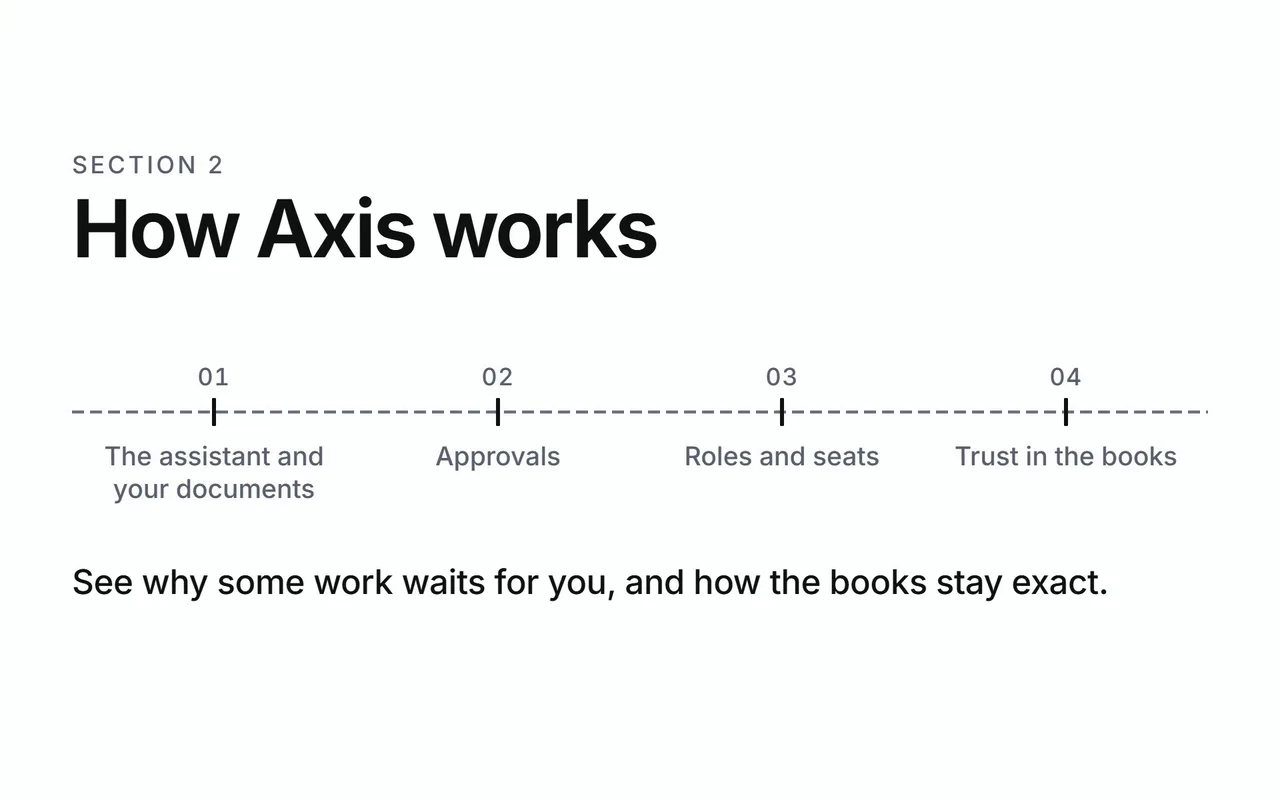
How Axis works
See why some work waits for you, and how the books stay exact.
- The assistant and your documents
- Approvals
- Roles and seats
- Trust in the books
Shown with ABC Corp, a demonstration company.
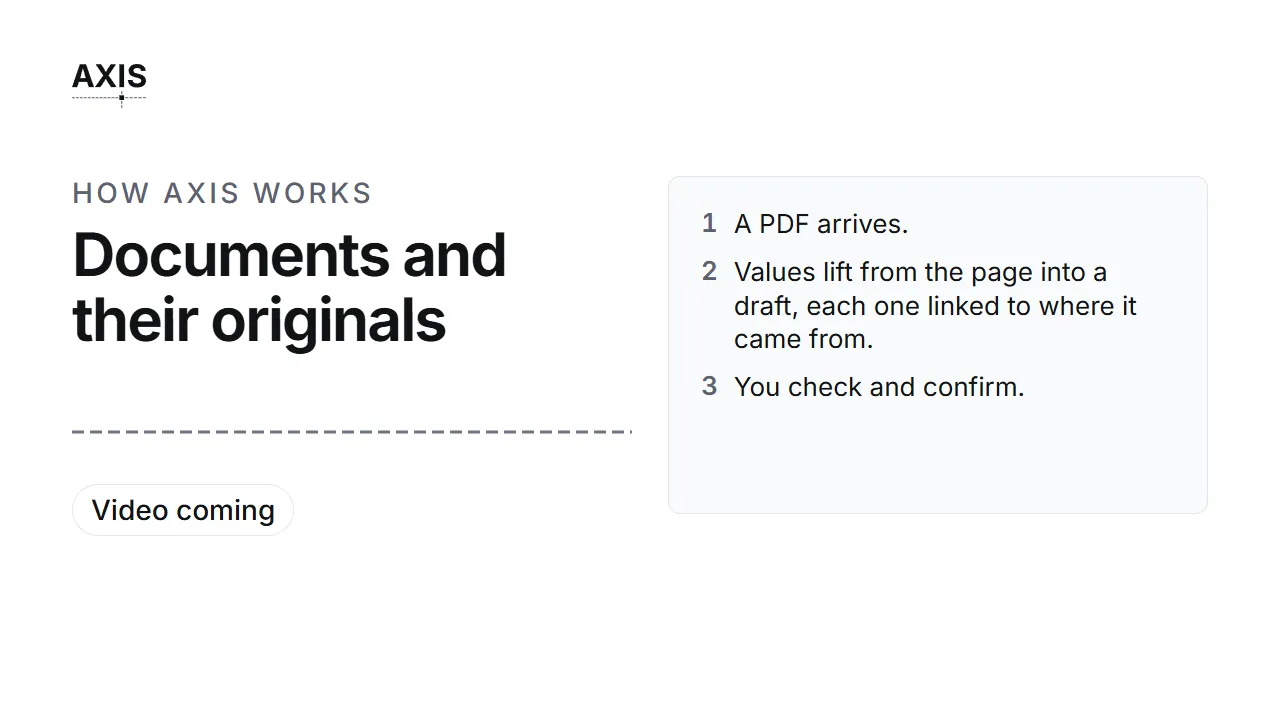
Documents and their originals
- A PDF arrives.
- Values lift from the page into a draft, each one linked to where it came from.
- You check and confirm.
- The original stays on file beside the record.
The assistant
The assistant is one more way to do your work in Axis. It uses the same actions as the screens, so its work follows the same rules.
- It works within your role. Each request carries who you are. The assistant offers the work your role covers, and it reports on areas your role can only read.
- It reads the books fresh each time. Ask about a customer today and it looks the customer up today.
- It asks before it posts. Every posting waits on a card for you. See Approvals.
The assistant is driven by a language model that your administrator chooses. The same model reads your documents. See Your data and your model.
Talking to the assistant
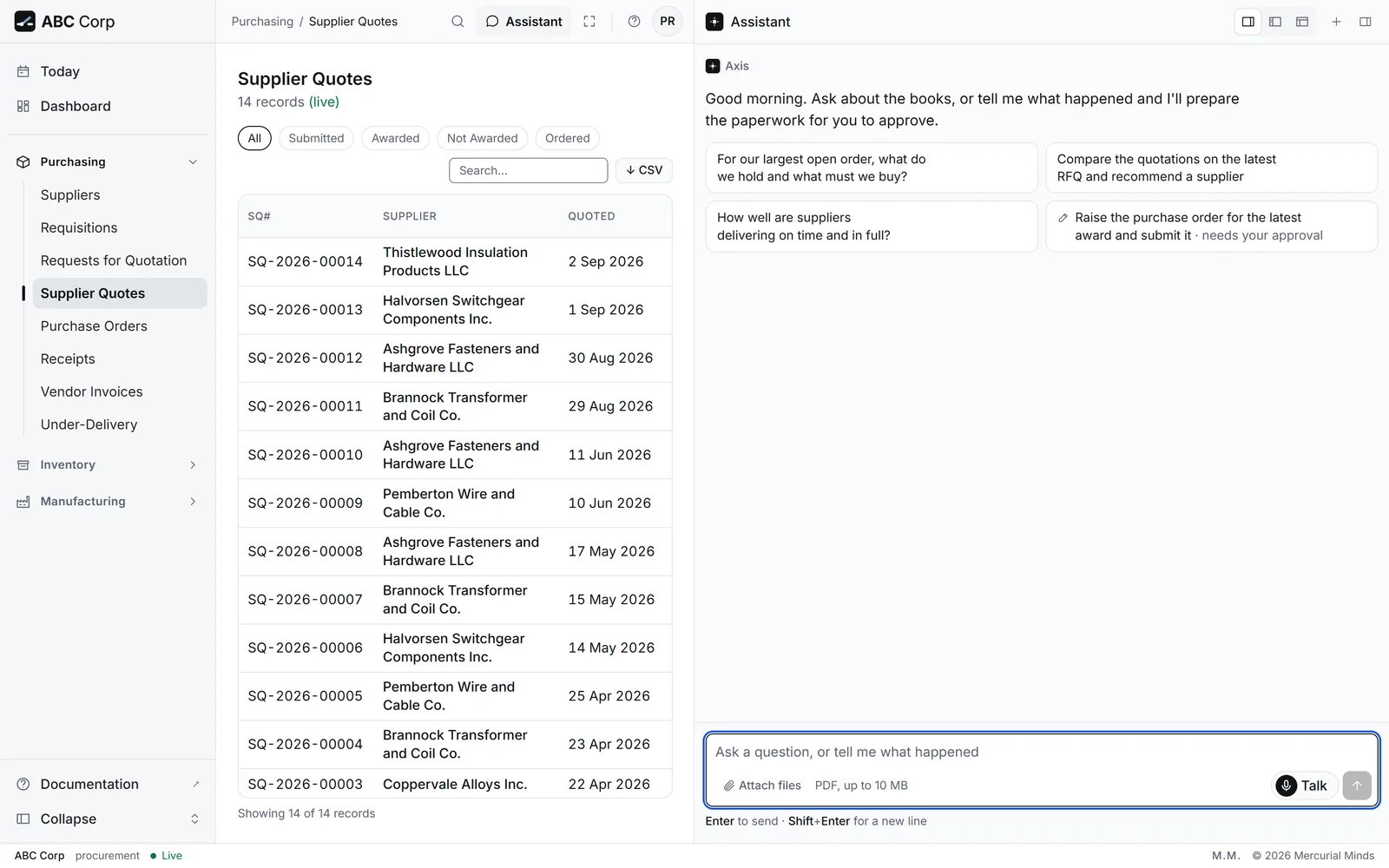
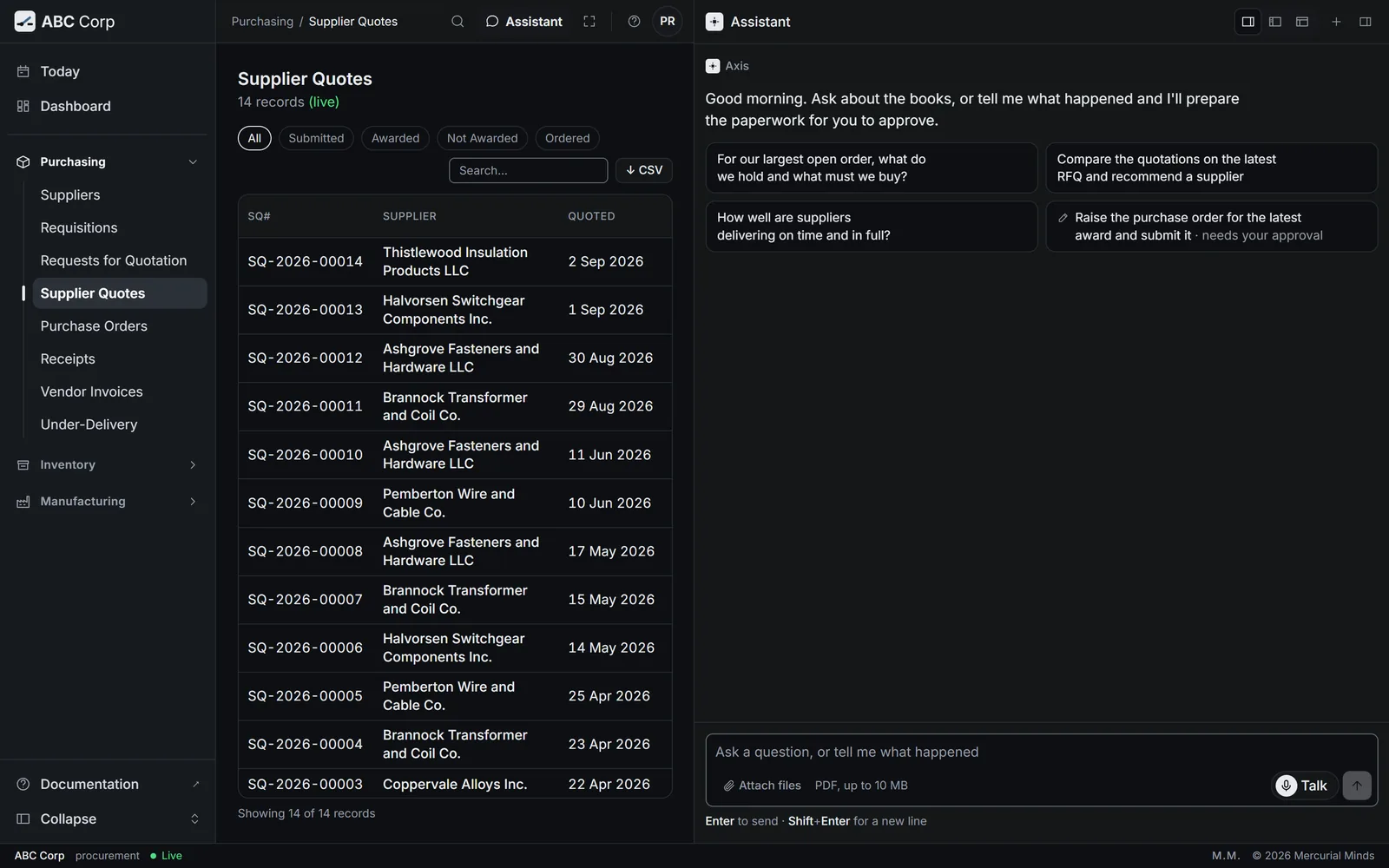
Open the assistant panel and type what happened.
Compare the quotations on the latest RFQ and recommend a supplier.
While it works, the panel shows each step in plain words. Each step is marked when it succeeds or fails, so you can follow the work as it happens.
The answer links to the records it mentions. A list comes back as a table, and each row opens its record.
When the panel opens, it suggests prompts for your seat. Each suggestion is one your role can run. The prompts for each seat are on Roles and seats.
Some habits give better answers:
- Describe the event. "Riverbend paid the invoice" works well. The assistant turns the event into the right entries.
- Use the exact name. Axis matches customer, supplier and company names exactly, so each record lands on the right party.
- Give the reference number when you have it. A number such as SO-2026-00025 points at one document.
- Say what a payment settles. Name the invoice, so the money is applied to it.
- Check afterwards. Ask for the trial balance after a posting, and read it.
Talk to the assistant by voice
You can speak to the assistant as well as type to it. Press Talk in the assistant panel, ask out loud, and hear a short answer.
Talk to the assistant
- Press Talk in the assistant panel.
- Allow the microphone, the first time.
- Ask your question out loud.
- Hear a short answer, with captions on screen.
- A request that needs approval waits on its card.
Before you start: a microphone, and a browser that may use it.
- Open the assistant panel.
- Press Talk, under the message box. The first time, your browser asks to use the microphone. Choose Allow.
- The call bar appears above the message box. While it shows, the microphone is live. It reads Listening, Thinking or Speaking.
- Ask your question in your own words, as you would ask a colleague.
- Listen to the answer. The captions on the call bar show your words and the answer as they are spoken.
- To finish, press End on the call bar, or press Esc.
What are customers due to pay us, and which should we chase first?
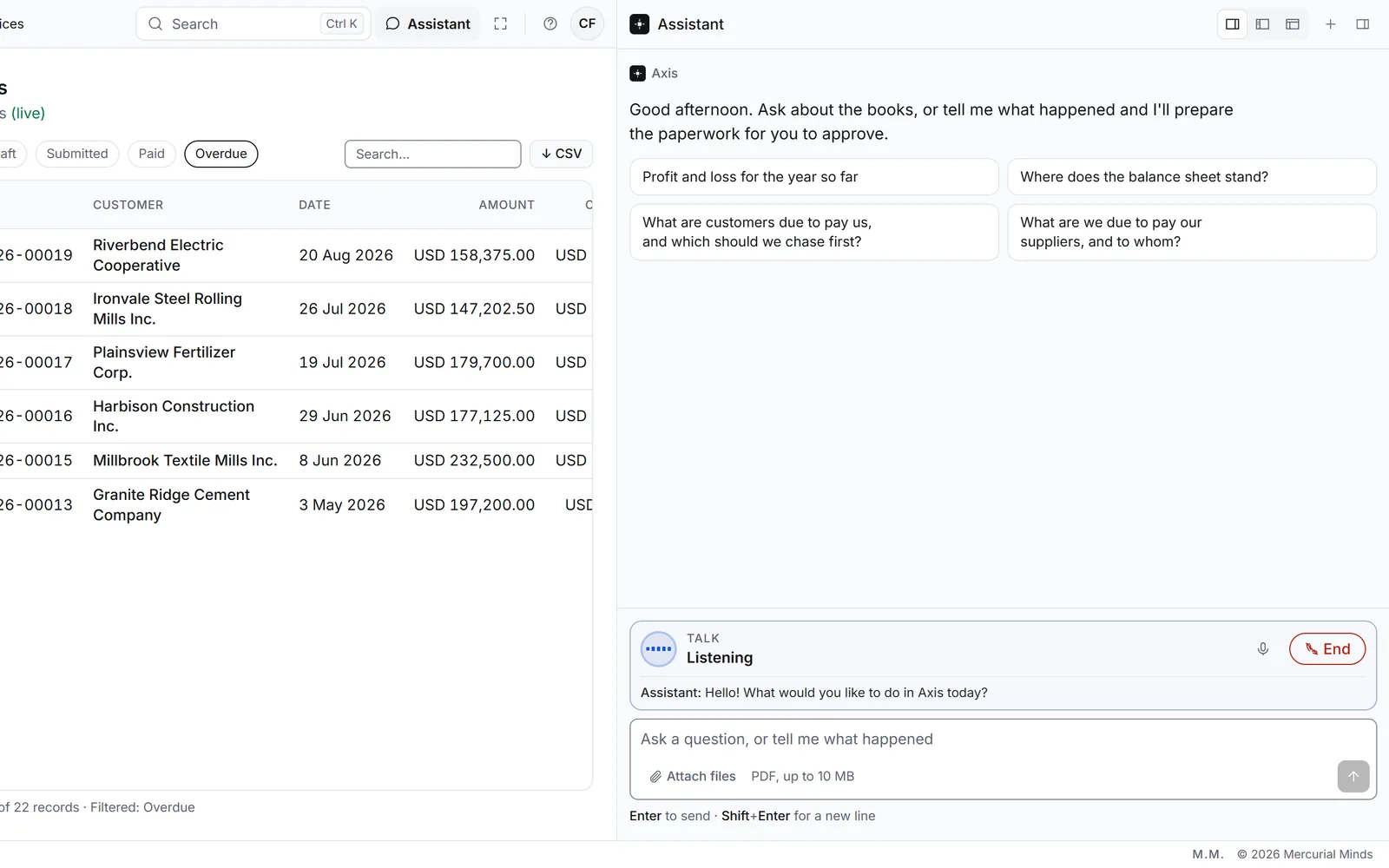
What the voice does:
- It asks the same assistant. Your words go into the conversation as your own message, as if you had typed them. The answer is the assistant's answer, as you, with your role.
- It keeps answers short. You hear a sentence or two. For a table, it says "The full list is on screen." and names the first few rows. The full table is in the panel.
- It leaves each decision to you. When a request needs your approval, the voice says "That's ready for your approval on screen." Read the card, then press Approve or Decline.
- It keeps the conversation as text. Your questions and the answers stay in the conversation, as typed ones do.
To pause the microphone during a call, press the microphone button on the call bar. Press it again to carry on.
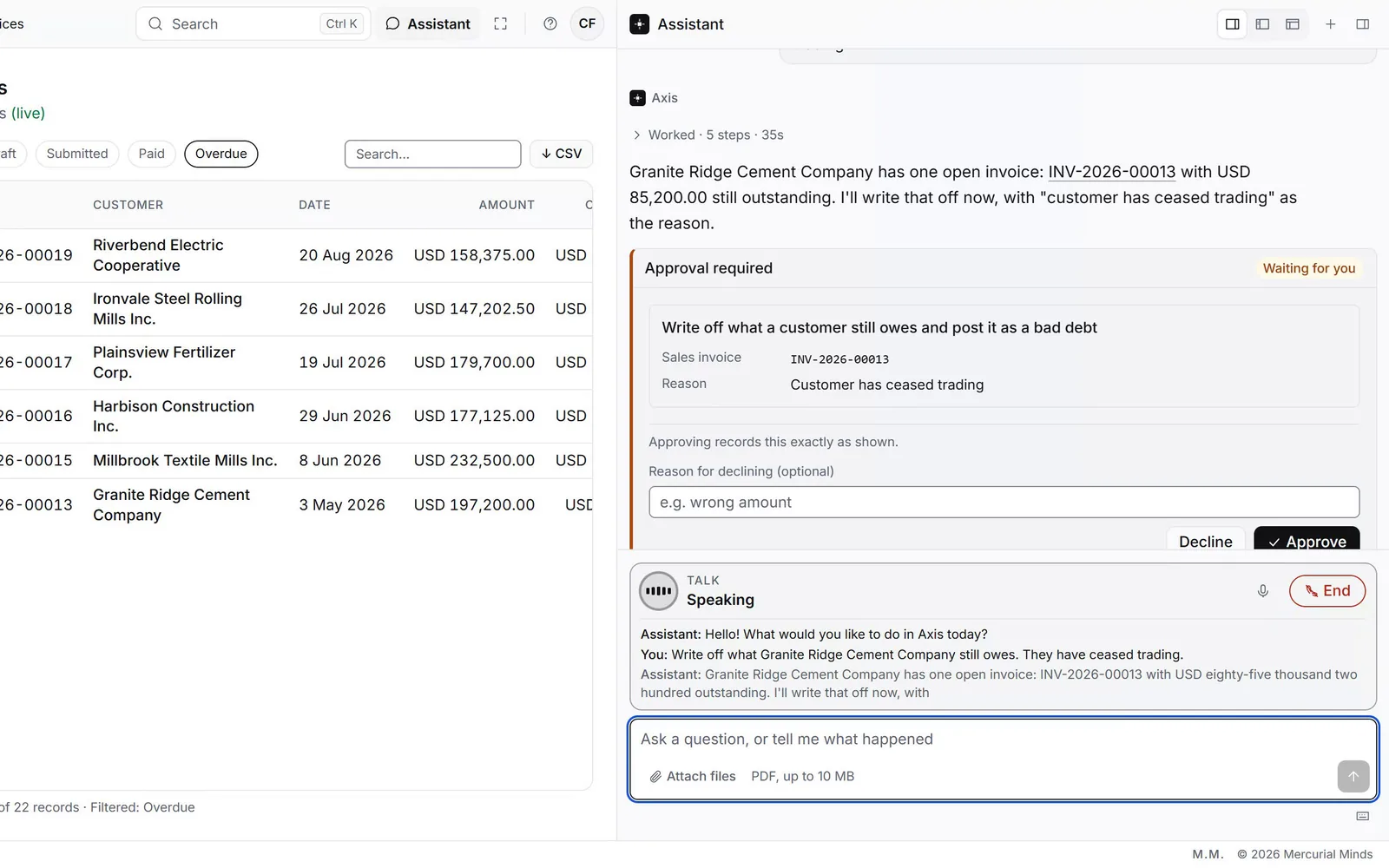
This waits for approval
A posting, an award or a cancellation asked for by voice waits on its card, as a typed one does. See Approvals.
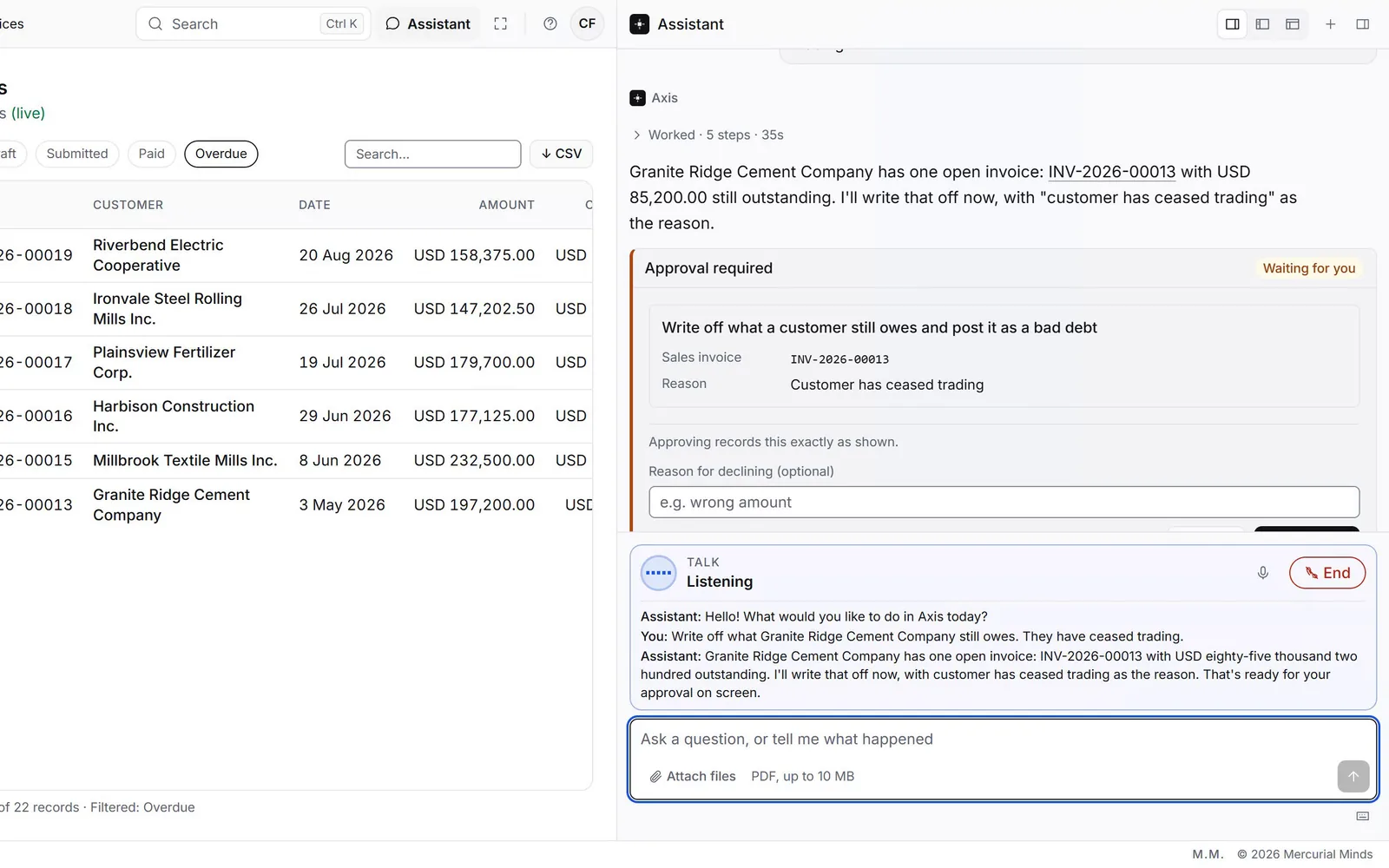
Some habits help:
- Name the record. "The Halvorsen award" is easier to hear than a long number. The assistant asks back when two records match.
- Check the caption for numbers. Speech can mishear a number such as SO-2026-00025. When it matters, type the number in the box instead.
- Use a quiet place. Other voices near you can reach the microphone.
- End the call when you finish. The call bar goes away, and the microphone closes.
What you see
The call bar while you talk, a caption for each thing said, and the full answer in the panel.
In the demonstration, the voice is called Sarah.
What it does with a PDF
Press Attach files under the message box, or drop a PDF anywhere on it. Each file uploads as you add it, and the panel shows its progress.
Axis reads two kinds of document:
- A supplier quotation, which answers a Request for Quotation you sent.
- A customer order, which becomes a draft sales order.
The same PDF could be either kind, so you choose. Axis reads a digital PDF: one with text you can select. A file can be up to 10 MB.
Read before you send, or after
You can ask for the reading at either moment.
Before you send. Under each attached file, the panel says Read the file first, as, with two buttons: a supplier quotation and a customer order. Choose one, then send your message. Axis reads the document first, so the assistant answers about what the document says.
After you send. Under your sent message, each file carries Read as a supplier quotation and Read as a customer order. Press one at any time. When the reading lands, the panel tells the assistant in a turn of its own, such as "Halvorsen-quotation.pdf was read as a supplier quotation."
Choosing neither is fine too. The assistant then knows the file by name, and the buttons stay under your message for later.
Recorded only when you confirm
The reading produces a draft. Attaching a file and reading it both leave the books exactly as they were.
The draft becomes a record at one moment only: when you press Confirm as extracted or Save corrections. Until then, Discard sets the draft aside. Axis asks "Discard everything typed here?" first. Press Yes, discard, and the books stay exactly as they were.
The extraction review
The review opens beside your message. The fields sit on one side and the document on the other, so you check each value against the page.
The original document shows the PDF itself, page by page. Source text below it shows the text Axis read from the page.
Each field carries a badge:
- From document: Axis found the value on the page.
- Added by you: you filled in a value Axis left empty.
- "Not found": Axis found this field empty on the page. Fill it in where you have the value.
Anything Axis wants you to check first appears at the top, under Before you confirm.
When you change a value, the button changes from Confirm as extracted to Save corrections. Axis records your corrected values.
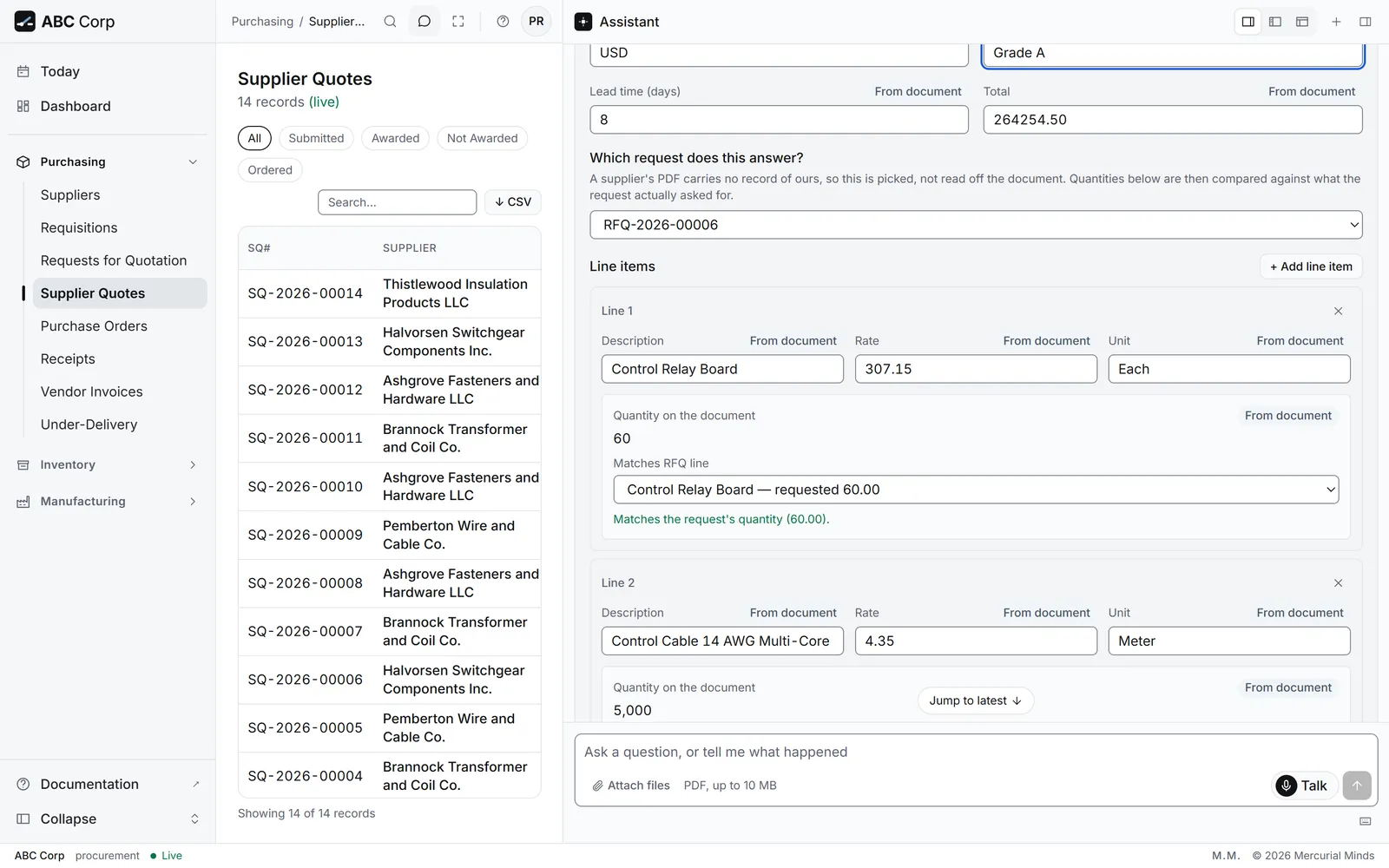
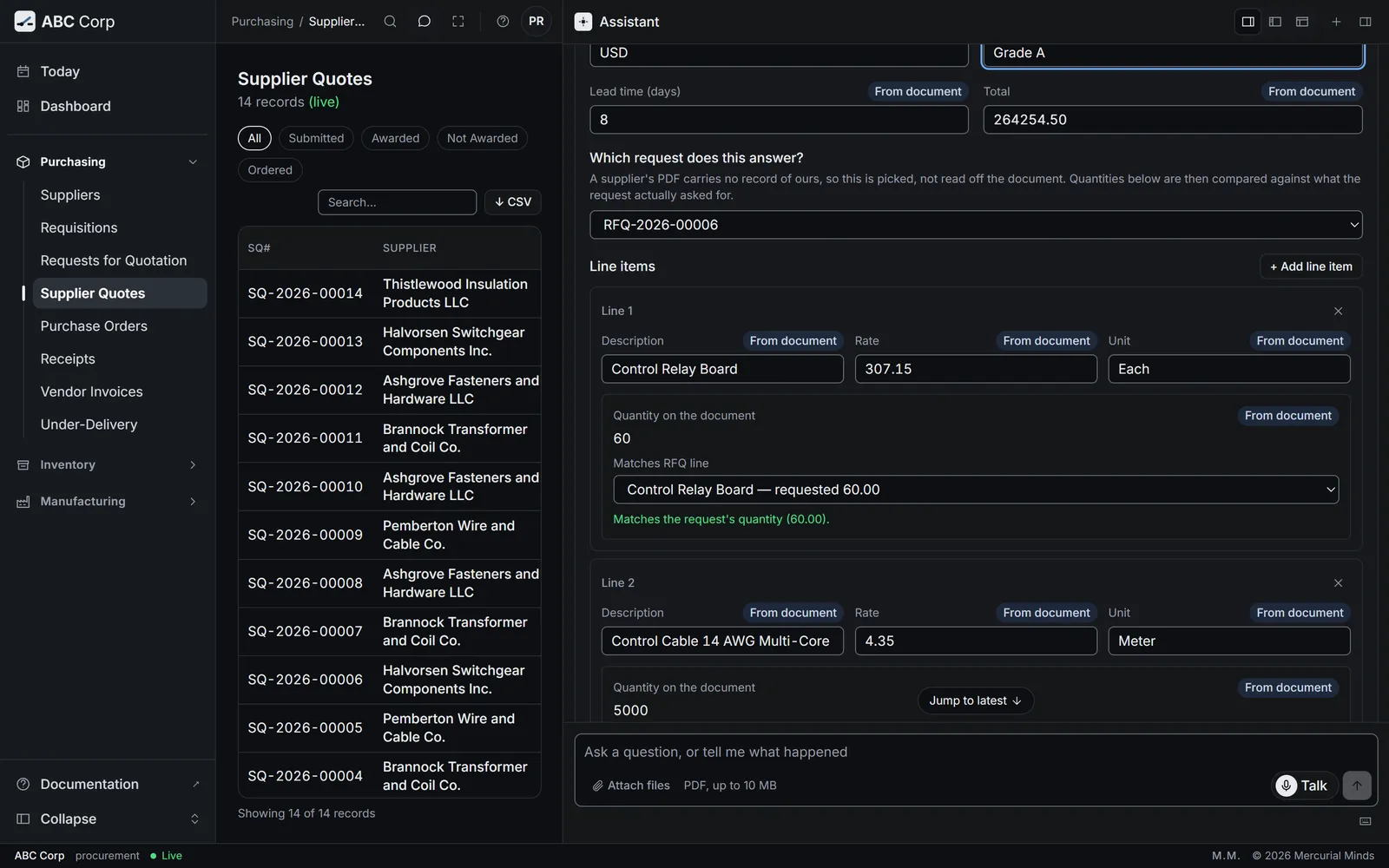
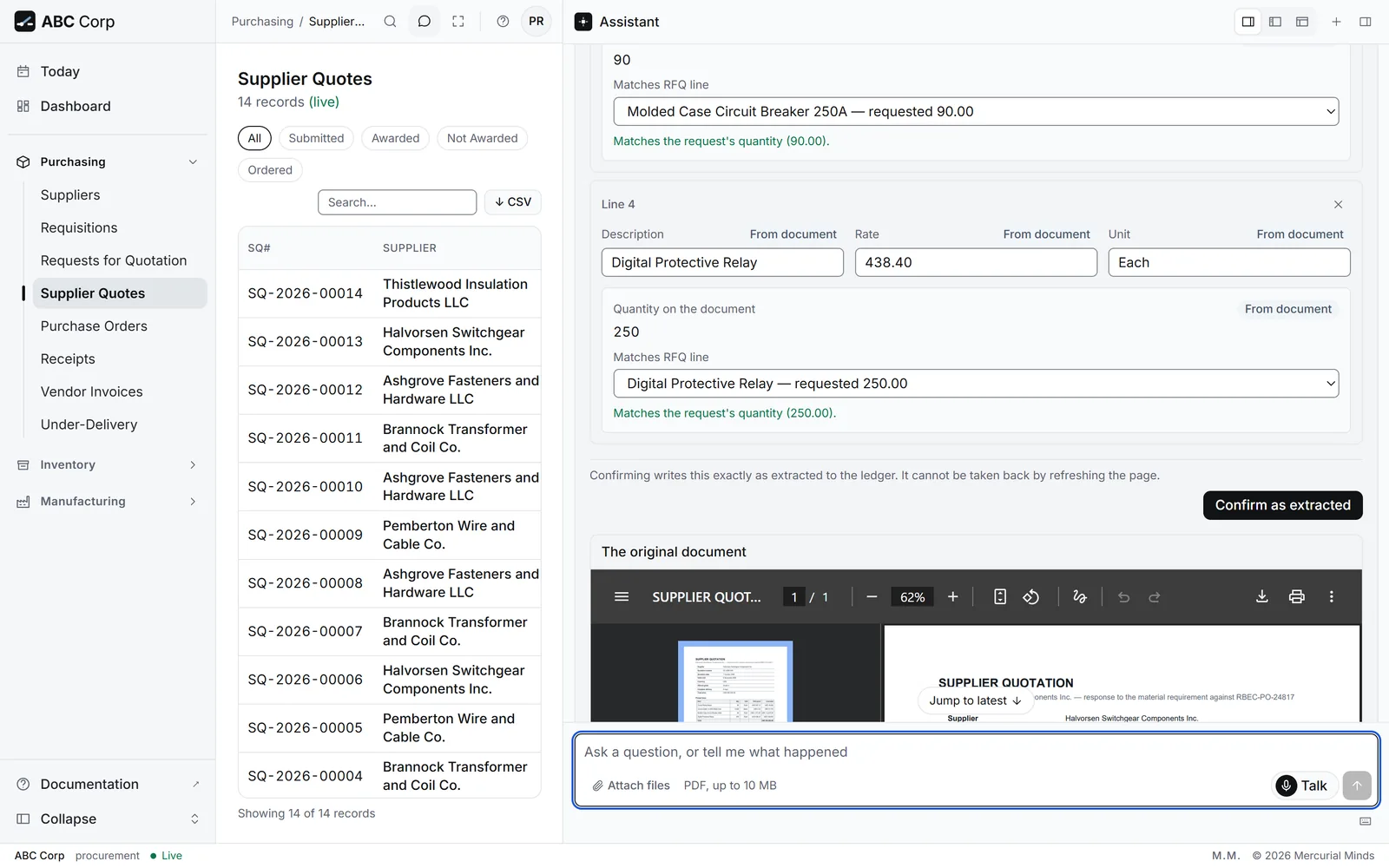
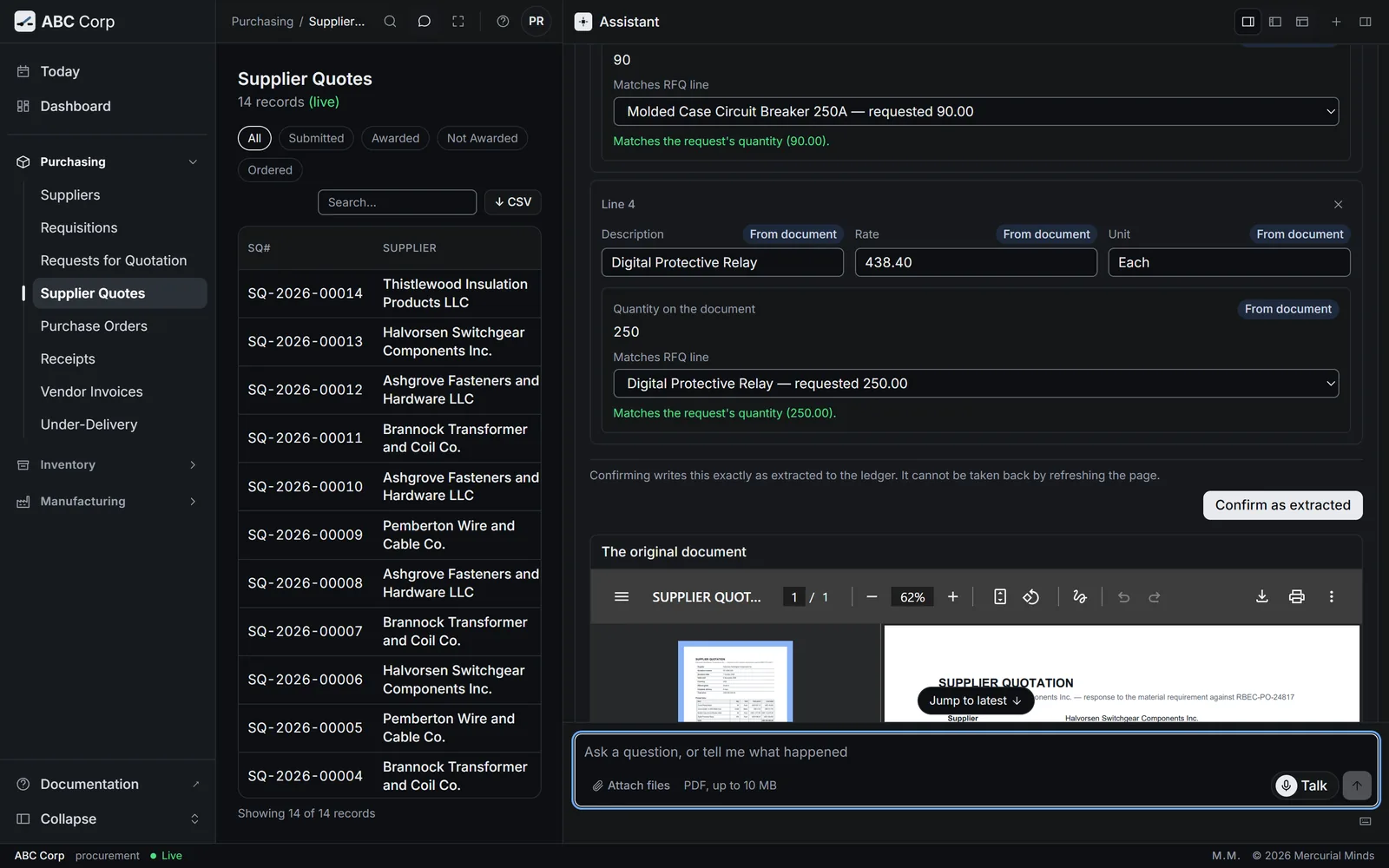
The quotation answers a request you already sent, so you link the two.
- Check Supplier, Quotation reference, Quotation date, Valid until, Currency, Grade, Lead time (days) and Total.
- Under Which request does this answer?, choose the Request for Quotation.
- For each line, choose its request line under Matches RFQ line.
- Check Rate on each line. Quantity on the document is shown as evidence. The quantity recorded is the one your request asked for.
- Press Confirm as extracted, or Save corrections after a change.
The supplier must already be on file. When the name matches nobody, the review offers a link to add them as a supplier first.
The order is the first record that the sale exists, so the document gives the quantity.
- Check Customer, Their order reference, Order date, Wanted by and Currency.
- For each line, choose its Stock item. Where the match is uncertain, you pick the item yourself.
- Check Quantity, Unit and Price each. You can edit the quantity.
- Leave Price each blank to price the line from your item list.
- Press Confirm as extracted, or Save corrections after a change.
The customer must already be on file. When the name matches nobody, the review offers a link to add them as a customer first.
When the record is saved, the panel reads, for example, "Recorded as a supplier quotation from Halvorsen-quotation.pdf."
The reading says no text layer was found
The PDF is a scanned image. Axis reads digital PDFs, with text you can select. Ask the sender for the digital file, or type the values in.
The original stays beside the record
Axis keeps every PDF you attach as the original. When you confirm a draft, Axis links the original to the record it produced.
- It is kept intact. Axis stores a fingerprint of the file's contents when it arrives.
- It is kept for at least a year. Your administrator can set a longer period.
- It stays linked. The record and the document it came from stay together for audit.
To list the documents received, ask the assistant. This needs the capability See received documents, which the Sales and Procurement roles hold. See Who can do what.
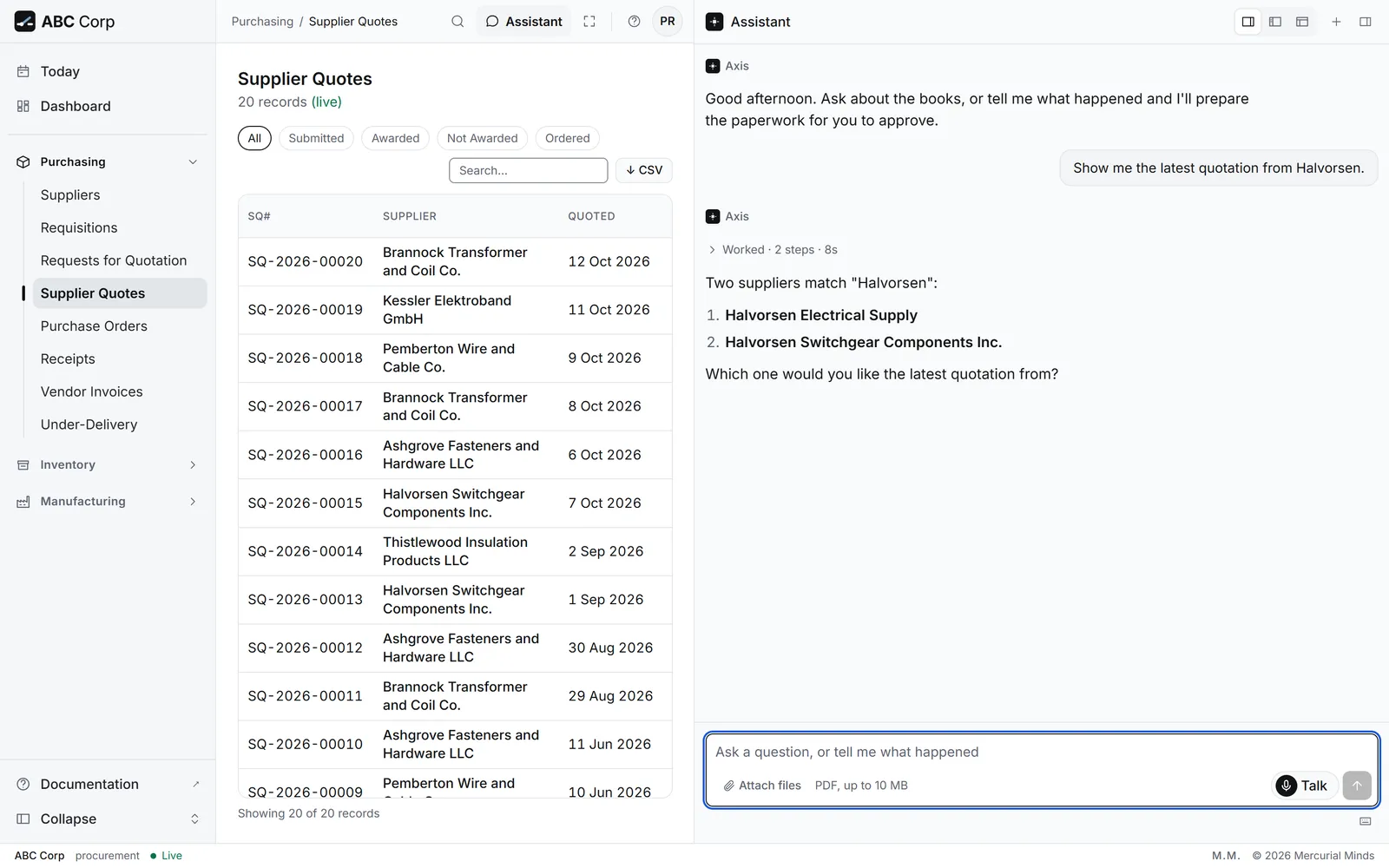
When the assistant asks a question back
Sometimes the assistant asks before it acts. It does this when a detail would decide the outcome.
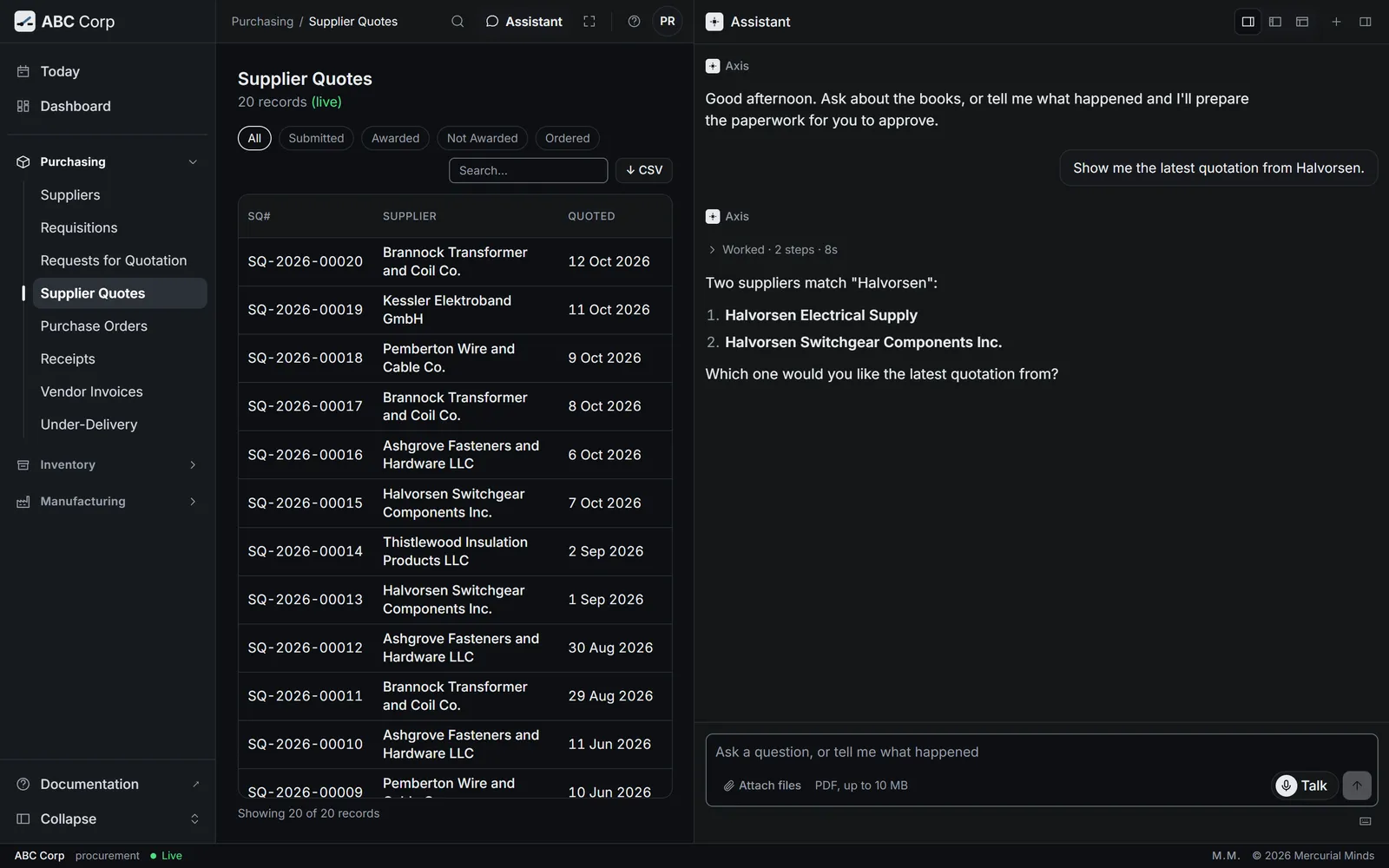
- A name matches more than one record. The assistant lists the matches and asks which one you mean.
- A name matches nobody. It shows the names on file and asks which one you mean.
- A detail is missing. It asks for the one detail it needs, such as a date or an amount.
Answer in your own words. The assistant carries on from your answer.
The assistant asks about a company name every time it is unclear, because the company decides whose books receive the posting.
Questions
Does attaching a file record anything?
Attaching stores the file and leaves the books as they were. A record appears only when you press Confirm as extracted or Save corrections in the review.
Can the assistant see the screen I have open?
The assistant reads the books through actions. Tell it which document you mean, by its number or its name.
Why did the assistant say a request is outside my role?
Your role decides what you may do, in the assistant and on the screens alike. Your administrator can give you the role that covers the work. See Roles and seats.
Which model does the assistant use?
The one your administrator configures. Axis works with any model behind an OpenAI-compatible endpoint, including one you host yourself.
Can I approve a card by voice?
Approval is a press on the card. During a call, the voice tells you a card is ready. Read it on screen, then press Approve or Decline.
Does Talk change what I may do?
Talk uses your sign-in and your role. You may do the same work by voice as by typing. Routine work, such as a draft, runs on your clear request, as it does when you type.
Where does my voice go?
Your speech goes to Fish Audio, the voice service your deployment uses, which turns it into text. Each answer goes back to Fish Audio to be spoken. See Your data and your model.
Next
- Approvals: why the assistant stops before it posts.
- Read a supplier quotation from a PDF: the whole task, step by step.
- Read a customer's order from a PDF: the same review, for a sale.