HELP
Screens and figures
What each figure on the Dashboard counts, what Today lists for your seat, how the workflows are graded, and the words and keys the screens use.
The Dashboard says where the business stands. Today says what is yours to do now. Both come from the same books, and the server cuts both to your seat before they reach your screen.
Shown with ABC Corp, a demonstration company.
Dashboard figures
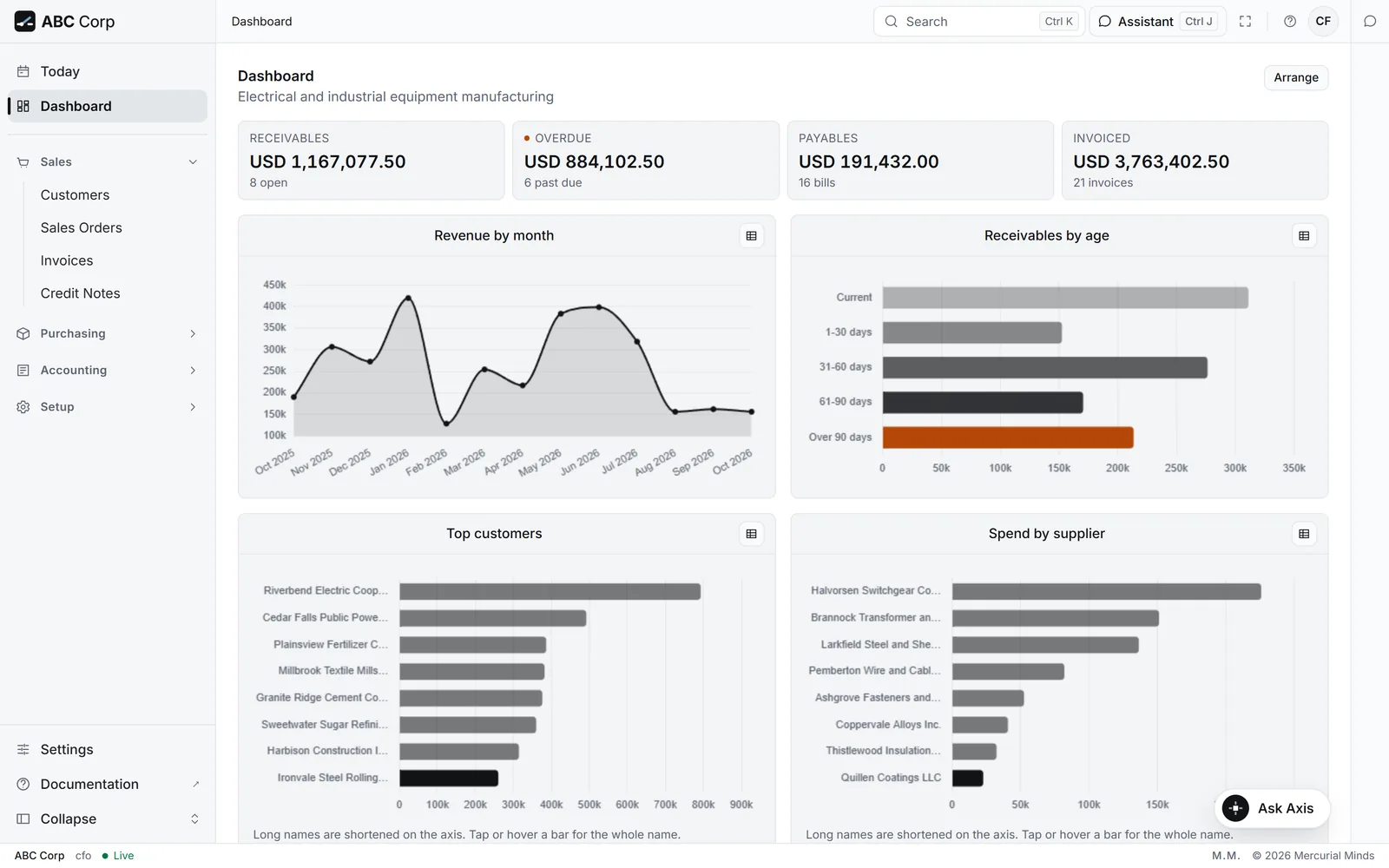
The figures across the top of the Dashboard come in two kinds. Money figures need a finance or reporting grant. Count figures follow the right to open a list, and they fill the row for seats that see fewer money figures.
Each figure appears for the seats in its row.
| Figure | Kind | Seats that see it |
|---|---|---|
| Invoiced | Money | CEO, CFO, GM Finance, Manager Sales, Manager Accounts |
| Receivables | Money | CEO, CFO, GM Finance, Manager Sales, Manager Accounts |
| Overdue | Money | CEO, CFO, GM Finance, Manager Sales, Manager Accounts |
| Payables | Money | CEO, CFO, COO, GM Finance, Manager Procurement, Manager Accounts |
| Customers | Count | CEO, CFO, GM Finance, Manager Sales, Manager Accounts |
| Open Orders | Count | CEO, CFO, COO, Manager Sales, Manager Stores |
| Stock Items | Count | CEO, COO, Manager Sales, Manager Procurement, Manager Stores, System Administrator |
| Awaiting Receipt | Count | CEO, CFO, COO, Manager Procurement, Manager Stores |
| Employees | Count | CEO, Manager Admin HR |
| Open Claims | Count | CEO, Manager Admin HR |
| Warehouses | Count | CEO, COO, Manager Stores, System Administrator |
| Accounts | Count | CEO, CFO, GM Finance, Manager Accounts, System Administrator |
What each figure counts:
| Figure | It counts | The line under it |
|---|---|---|
| Invoiced | Everything billed to customers since the company began trading. Drafts and cancelled invoices stay out. | How many invoices |
| Receivables | What customers owe after every payment, including money paid in advance. This is the figure that ties to the accounts. | How many invoices are open |
| Overdue | The unpaid part of invoices whose due date has passed. | How many invoices are past due |
| Payables | What the company owes its suppliers after every payment. | How many vendor invoices |
| Customers | Customers on file. | on file |
| Open Orders | Sales orders still in progress, before they are fully invoiced, closed or cancelled. | in progress |
| Stock Items | Items whose stock Axis tracks. | tracked |
| Awaiting Receipt | Purchase orders confirmed or partly received, with goods still to arrive. | purchase orders |
| Employees | Active employees. | active |
| Open Claims | Expense claims still open. | expense claims |
| Warehouses | Stores and other stock locations. | locations |
| Accounts | Accounts in the chart of accounts that take postings. | in the chart |
Money figures are rounded to whole units, so they read at a glance. The financial statements show every amount to the cent.
Receivables and Overdue answer two different questions: what customers owe in total, and which invoices to chase. A customer's advance lowers Receivables at once, and Overdue follows when the advance is set against an invoice.
The Dashboard puts first the figures and the workflow that match your job. A procurement or stores seat opens on purchasing, and a sales seat on its orders.
Charts
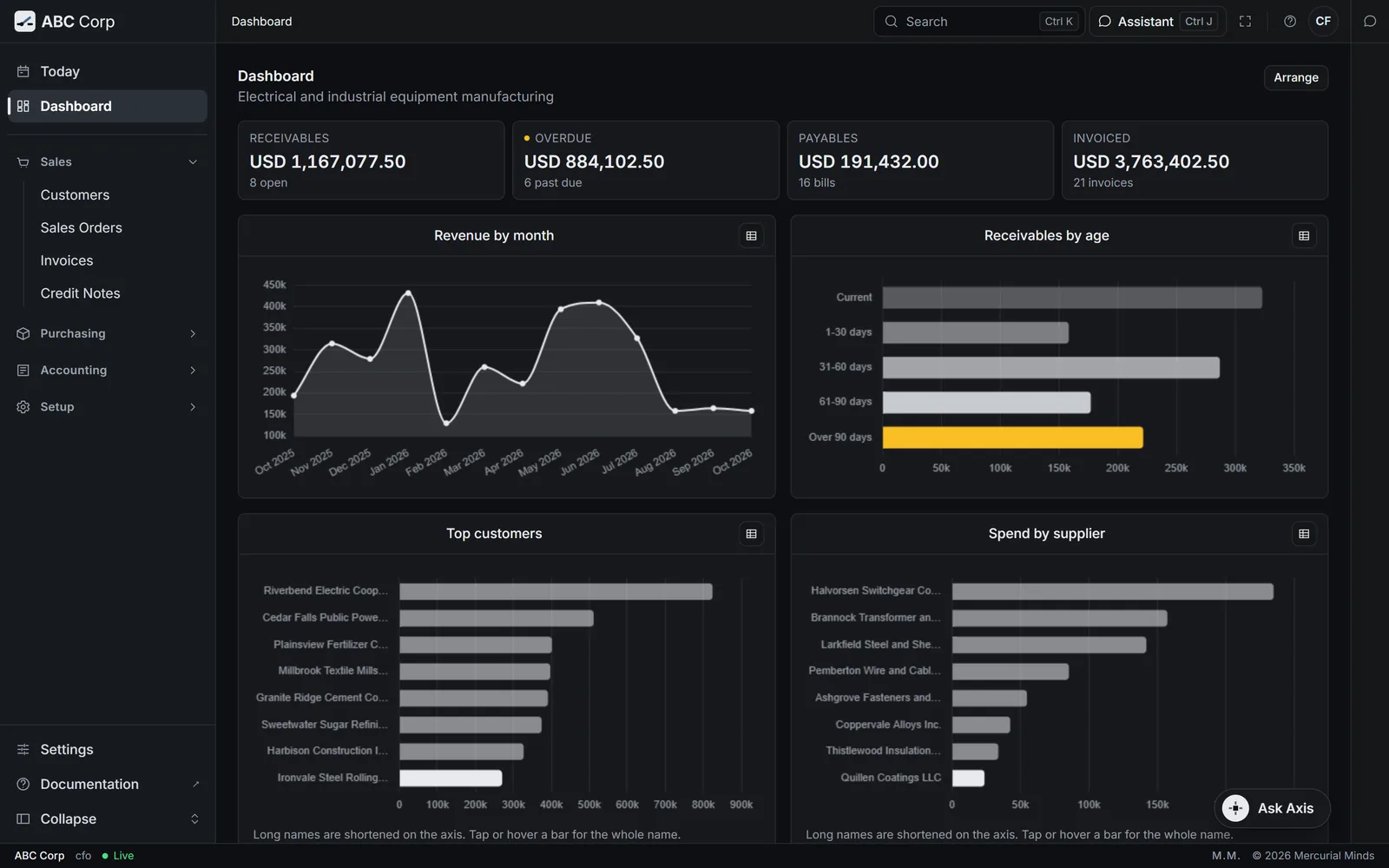
Four charts sit under the figures they break down, for seats that hold the matching reporting grant.
| Chart | It shows |
|---|---|
| Revenue by month | Invoiced revenue for the last 13 months, so this month reads against the same month last year. Quiet months show as zero. |
| Receivables by age | What customers owe, by how long it has been due: Current, 1-30 days, 31-60 days, 61-90 days, Over 90 days. The bars add up to Receivables. |
| Top customers | Up to 8 customers with the highest invoiced value. |
| Spend by supplier | Up to 8 suppliers with the highest billed value. |
A chart appears once it has at least five points that differ. Until then, the figure above it tells the whole story.
Needs Attention
Needs Attention lists conditions worth acting on. Each item appears while it is true, and each opens the list behind it.
| Item | What to do |
|---|---|
| Invoices overdue, with their total | Chase them. See Chase overdue invoices. |
| Contracts still in draft | Confirm the sales orders. See Confirm a sales order. |
| Purchase orders awaiting goods | Receive the goods when they arrive. See Receive goods. |
| Receipts awaiting inspection | Inspect the goods that arrived. See Record inspection readings. |
| Awarded quotations that still need a purchase order | Raise the order. An award is a decision, and the order is a separate step. See Raise the Purchase Order. |
| Receipts awaiting their bill | Record the supplier's invoice. See Match a supplier invoice. |
Recent Activity
Recent Activity shows the latest 8 changes to your company's records that your seat may see. Each line is a sentence, such as "Purchase order PO-2026-00017 submitted". Times read "Today 09:14" or "Yesterday 16:22", and older ones show their date. Hover over a time to see it in full.
Today
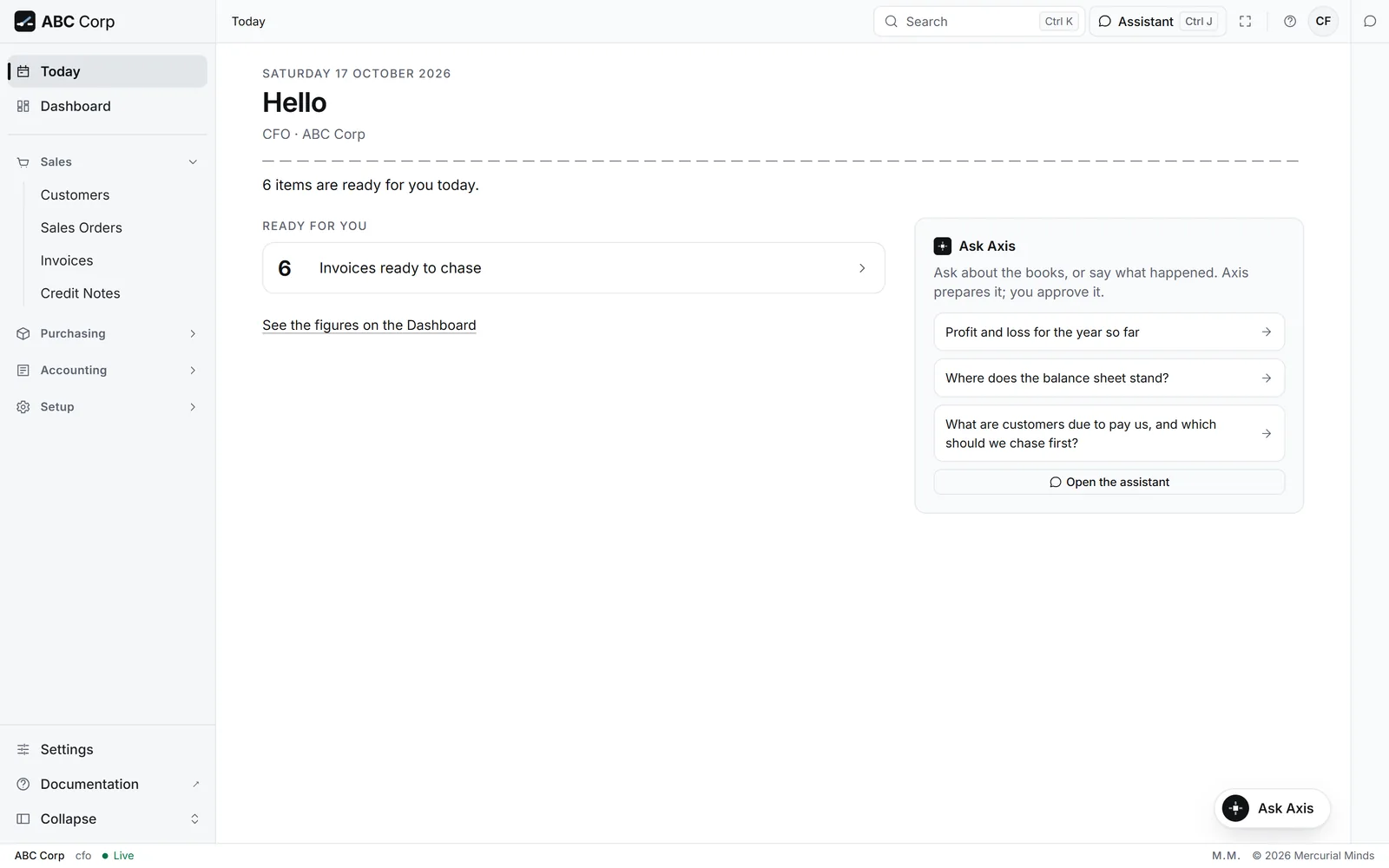
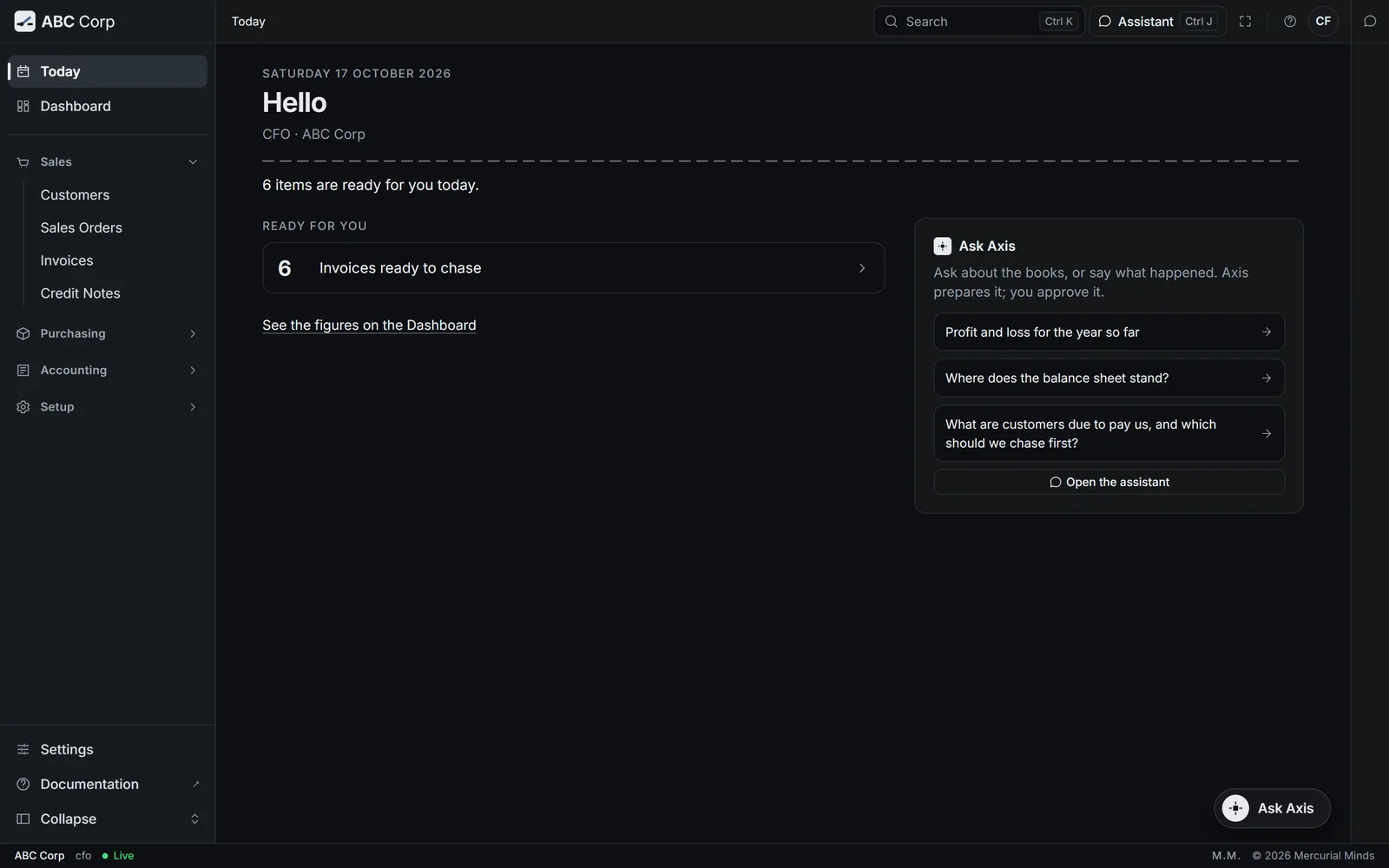
Today opens with a greeting, your seat and your company, and one line that counts what is ready for you. Under Ready for you it lists two kinds of item.
- Approvals. Each approval card that waits for you, marked Approval. Press Review to open it in the assistant.
- Cues. Each kind of work that waits on your seat, with its count. Press a cue to open exactly the rows it counts.
A seat sees a cue when it holds two things: the right to open the list, and the right to act on a row of it. The cues, in the order Today draws them:
| Cue | Seats that see it | Where it leads |
|---|---|---|
| Invoices ready to chase | CEO, CFO, GM Finance, Manager Sales, Manager Accounts | The overdue invoices |
| Sales tax returns ready to file | CEO, CFO | A question to the assistant. This cue appears where the Pakistan region module keeps your returns. |
| Requests ready to award | CEO, Manager Procurement | The submitted supplier quotations |
| Awards ready for their purchase orders | CEO, Manager Procurement | The supplier quotations. An award waits here until someone raises its purchase order. |
| Receipts ready for inspection | CEO, Manager Stores | The submitted goods receipts. A receipt counts until an inspection of its goods has a result. |
| Expense claims to approve | CEO, Manager Admin HR | The submitted expense claims |
Work that is clear moves to the All clear row, so you can see each check Today made. When everything is clear, Today says "You are all caught up." Signing in opens Today when something is ready for you, and the Dashboard at other times.
Workflow health
The Workflows section of the Dashboard follows each business cycle stage by stage. Each workflow appears for seats that can open its documents, with the stages that seat may see.
| Workflow | Its stages |
|---|---|
| Enquiry to Delivery | Enquiry, Contract, Advance, Manufacturing, Quality Check, Shipment, Settled |
| Vendorization | Requisition, Enquiry, Compare Quotes, Purchase Order, Goods Received, Inspection, Vendor Bill, Payment |
| Invoice to Cash | Raised, Outstanding, Received, Posted, Settled |
| Design to Stock | Bill of Materials, Work Order, Inspection, Into Stock |
| People | Employees, Expense Claims |
Each workflow card shows three figures:
- Open: the items waiting at its stages today.
- Oldest open: how long the oldest of them has waited.
- New in the period: how many items entered the first stage in the period you chose.
Choose the period at the top of the section: 30 days, 90 days, 12 months or All. Axis remembers your choice. Open work is always counted as of today, whatever the period.
Axis grades every stage by the age of its oldest open item. The key above the workflows shows the same bands.
| Grade | When | Colour |
|---|---|---|
| On track | The oldest open item has waited under 14 days. | Black, or white in the dark theme |
| Ageing | It has waited 14 to 29 days. | Amber |
| Stalled | It has waited 30 days or more. | Red |
| Clear | Every item at the stage has moved on. | Pale grey |
| On record | The stage is a record, such as Settled, Employees or Bill of Materials. Items stay there, so the stage shows how many it holds. | Grey |
Each stage also says its grade in words, such as "18d · ageing", so the grade reads the same in any colour scheme. A stalled stage adds a red line above the stages, such as "2 at Goods Received have waited 30 days or more", with Open to go straight to the items.
Screens
The menu as ABC Corp shows it. Your own menu shows the screens your seat opens.
| Menu | Screens |
|---|---|
| Sales | Customers, Quotations, Sales Orders, Delivery Notes, Invoices, Credit Notes |
| Purchasing | Suppliers, Requisitions, Requests for Quotation, Supplier Quotes, Purchase Orders, Receipts, Vendor Invoices |
| Inventory | Items, Warehouses, Stock Entries |
| Manufacturing | Bills of Materials, Work Orders, Inspections |
| Accounting | Chart of Accounts, Journal Entries, Payments |
| HR | Employees, Expense Claims |
| Setup | Companies, Fiscal Years, Tax Templates |
Today and Dashboard sit at the top of the menu for every seat. Under-Delivery sits under Purchasing, beside Suppliers, for seats that score suppliers. Settings sits at the foot of the menu, and administrators find Users and Roles there.
Status words
Every record shows its status as a word on a coloured pill. The colour groups the words by meaning, and the word carries the meaning in print too.
| Colour | Meaning | Examples |
|---|---|---|
| Green | Done, or in good standing | Paid, Accepted, Approved, Awarded, Completed, Delivered, Posted, Received, Reconciled, Active |
| Blue | Under way | Submitted, Confirmed, In process, Ordered, Sent, To deliver |
| Amber | Partly done, or waiting | Partially paid, Partially received, Partially invoiced, Pending, Outstanding, Unpaid, On hold |
| Red | Needs action | Overdue, Rejected, Failed |
| Grey | At rest | Draft, Cancelled, Closed, Expired, Stopped, Inactive |
Draft is a record still being prepared. It takes effect when it is submitted. Cancelled is a record withdrawn from use. For a posted record, a reversal undoes its effect and both stay on the books. See Corrections post as reversals.
Document numbers
Axis numbers each document with its kind, its year and a running number: SO-2026-00025 is the 25th sales order of 2026. The count starts again each year, on your company's own calendar. Numbers in the demonstration company may differ from the ones shown here.
| Starts with | Document |
|---|---|
| QTN | Quotation to a customer |
| SO | Sales order |
| DN | Delivery note |
| INV | Sales invoice |
| CN | Credit note |
| MR | Requisition |
| RFQ | Request for Quotation |
| SQ | Supplier quotation |
| PO | Purchase Order |
| PR | Goods receipt |
| PINV | Vendor invoice |
| PAY | Payment |
| JE | Journal entry |
| STE | Stock entry |
| WO | Work order |
| BOM | Bill of materials |
| QC | Quality inspection |
| NC | Non-conformance |
| EC | Expense claim |
The assistant finds a record by its number, so give the number when you have it.
Keyboard shortcuts
Use Cmd in place of Ctrl on a Mac.
| Keys | What they do |
|---|---|
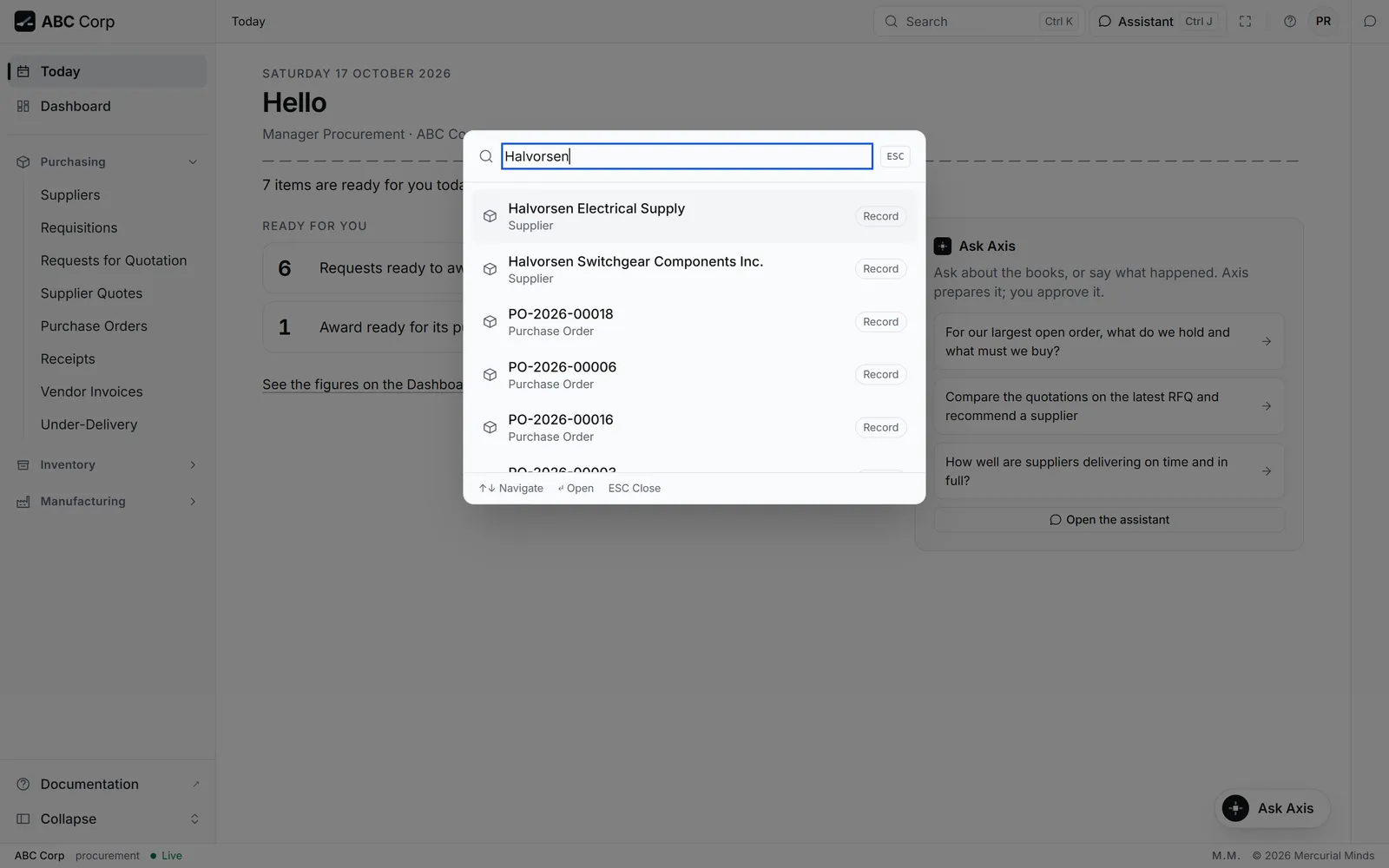
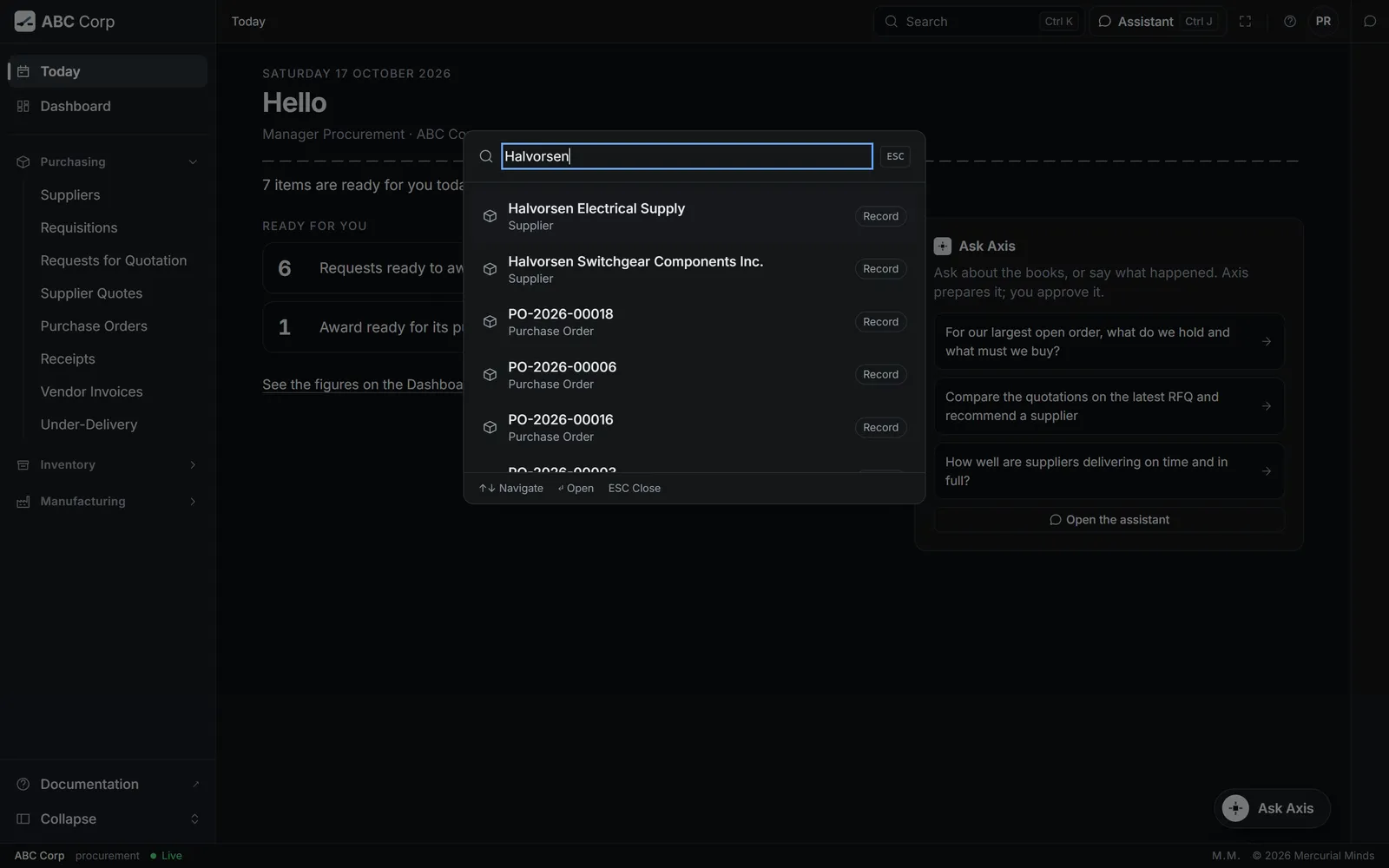
| Ctrl+K | Open the command palette to search screens and forms. |
| Ctrl+B | Fold or open the menu. |
| Ctrl+J | Open or close the assistant beside the page. |
| Ctrl+Shift+A | Open the assistant as a full page. |
| Enter | In the assistant, send your message. |
| Shift+Enter | In the assistant, start a new line. |
| Escape | Stop the assistant while it works, or close the panel or palette on top. |
| Up and Down | Move through a list or the command palette. |
| Enter on a row | Open the highlighted record or result. |
The command palette offers the screens your seat opens.
Next
- Questions and fixes: answers when a figure or a screen surprises you.
- Who can do what: which seat holds each piece of work.
- Glossary: the words Axis uses, one line each.